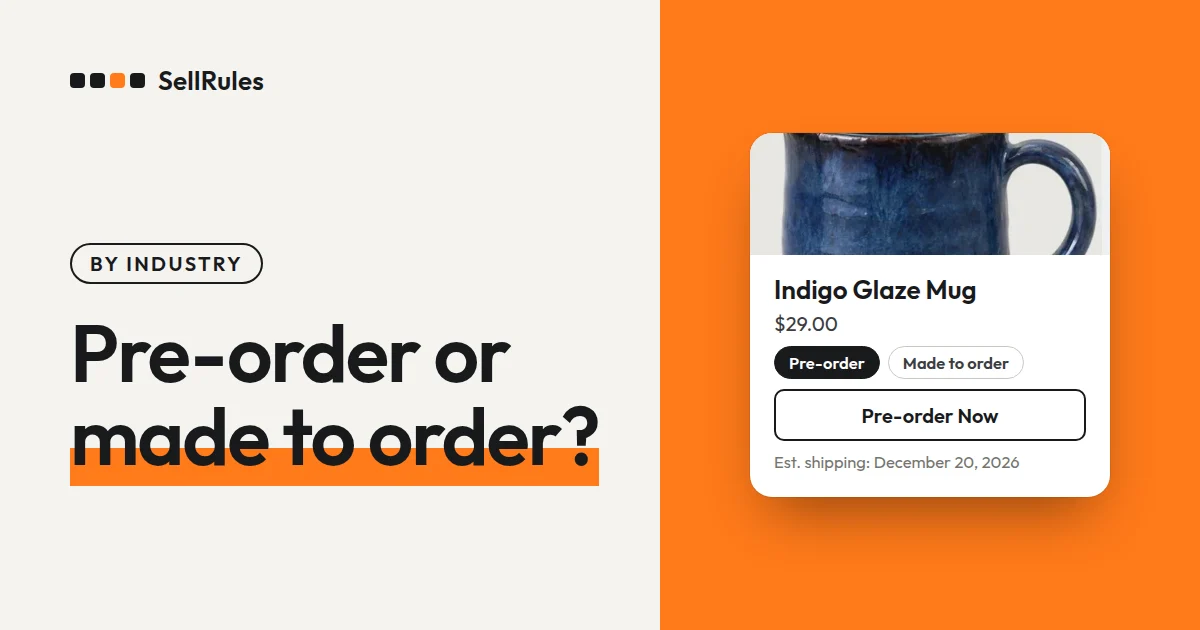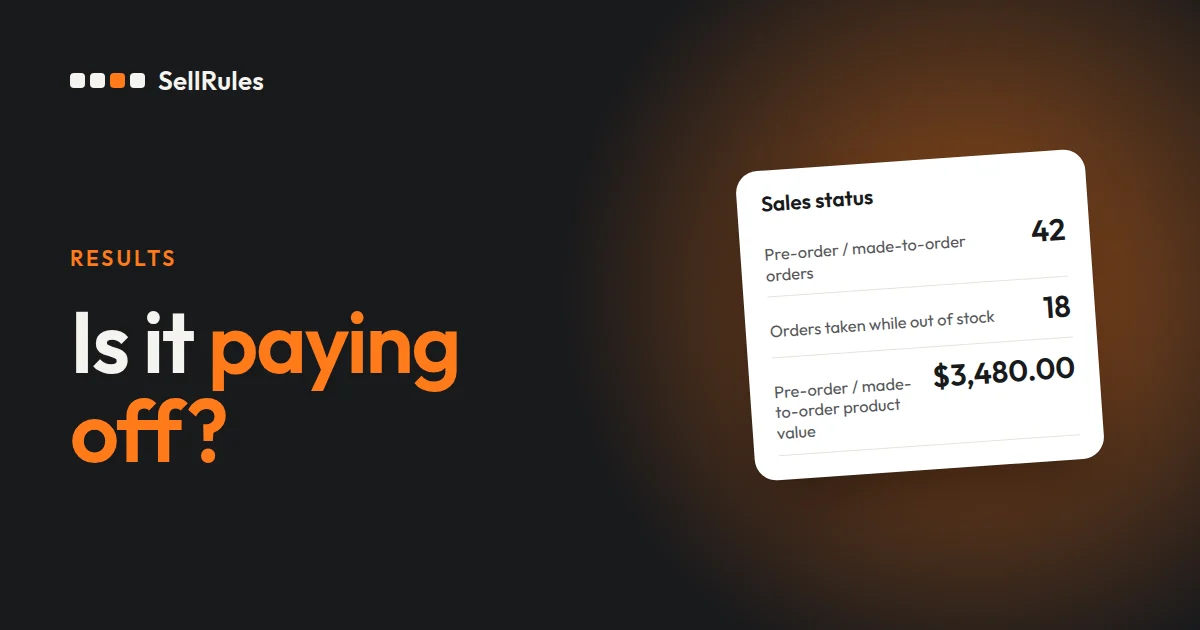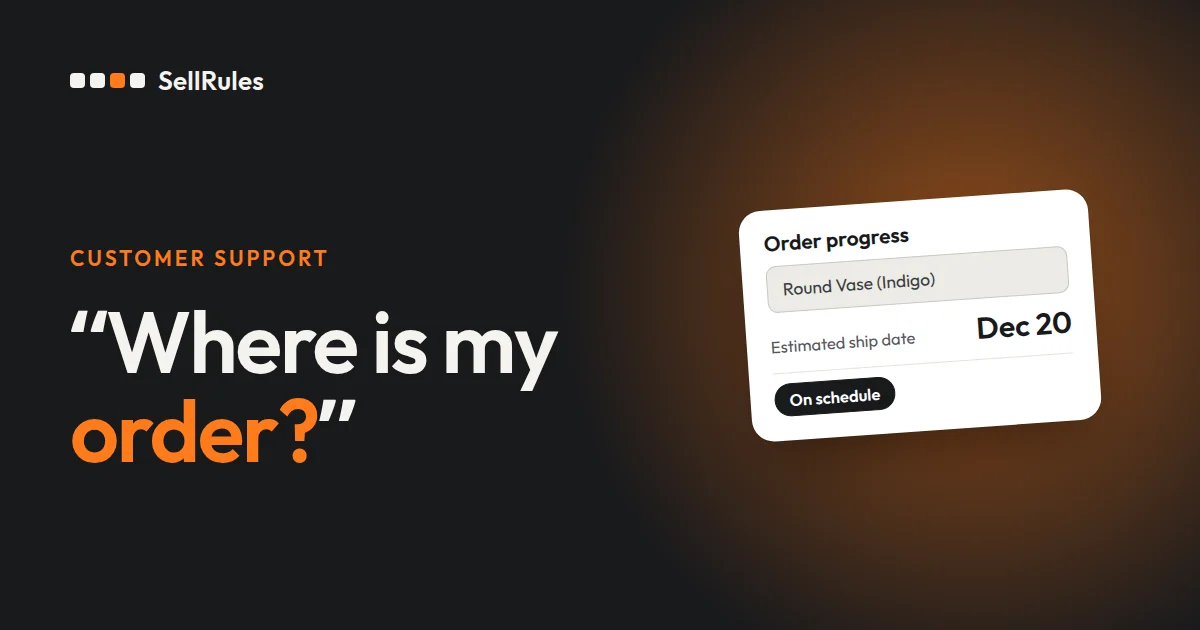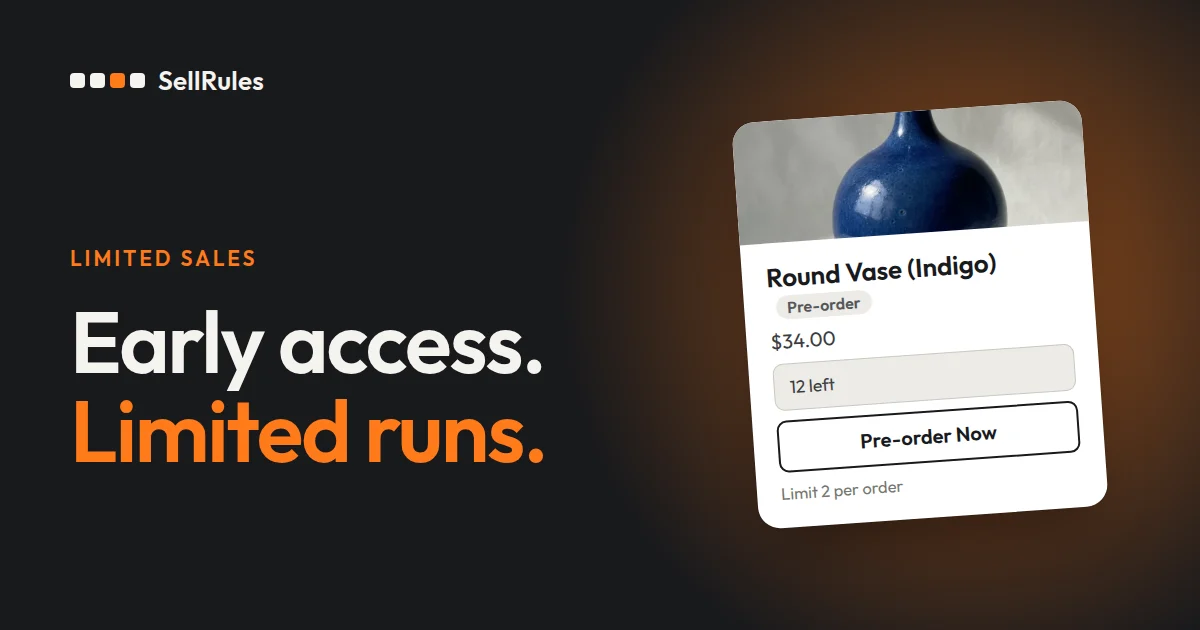
How you run an early-access or limited sale depends on the product's status and on what you want to limit. For a product that hasn't arrived yet, take pre-orders if you know the ship date and how many you can accept, or sell it made to order if you make it after the order comes in.
To start selling at a set time, use coming soon. To cap how many a customer can buy, use purchase limits. To sell only to members, use Tag required. To sell for a limited time, set a date for regular sales to end. In SellRules you can combine these on a single product.
This article is written by the developer of SellRules. The setup steps for each way of selling are covered in the articles listed later under “Setup guides for each way of selling”.
Choose how to sell based on what you want to do
Find what you want to limit in the table below. The right-hand column is the SellRules screen where you set it up.
| What you want to do | How to sell | SellRules screen |
|---|---|---|
| Take orders for a product that hasn't arrived yet, with an estimated ship date | Pre-order | “Sales schedules” |
| Sell a product you make after the order comes in | Made to order | “Sales schedules” |
| Show the product page until launch time, then start selling at that time | Coming soon | “Sales schedules” |
| Cap the quantity per order or per customer | Purchase limits | “Purchase limits & sold-out” |
| Sell only to members or other specific customers | “Tag required” purchase eligibility in purchase limits | “Purchase limits & sold-out” |
| Sell only until a set date | A date to end regular sales (limited-time sale) | “Sales schedules” |
| Keep taking pre-orders or back-in-stock signups after selling out | “Sold-out switch” | “Purchase limits & sold-out” |
The difference between pre-orders and coming soon is whether you take orders before launch. With pre-orders, customers can order before launch. With coming soon, the product page shows “Coming soon” and can't be purchased until launch time, then switches to regular sales right at that time.
Combine them on one product
Most limited products use two or more of the ways of selling in the table. For example, say you launch a new ceramic bowl like this (an example for illustration):
- Show the product page a week before launch and collect email signups
- Start selling at 8 p.m. on November 20
- Limit 1 per customer
- Sell until November 30
In SellRules, these four points come down to two settings.
- The first, second and fourth: in the “Coming soon” sales schedule, enter the “Coming soon start” and “Sale start” dates and times, turn on “Accept notification sign-ups during the announcement”, and set “Date sales end” to December 1 (sales end at midnight as that day begins).
- The third: in purchase limits, set “Max per customer (cumulative)” to 1.
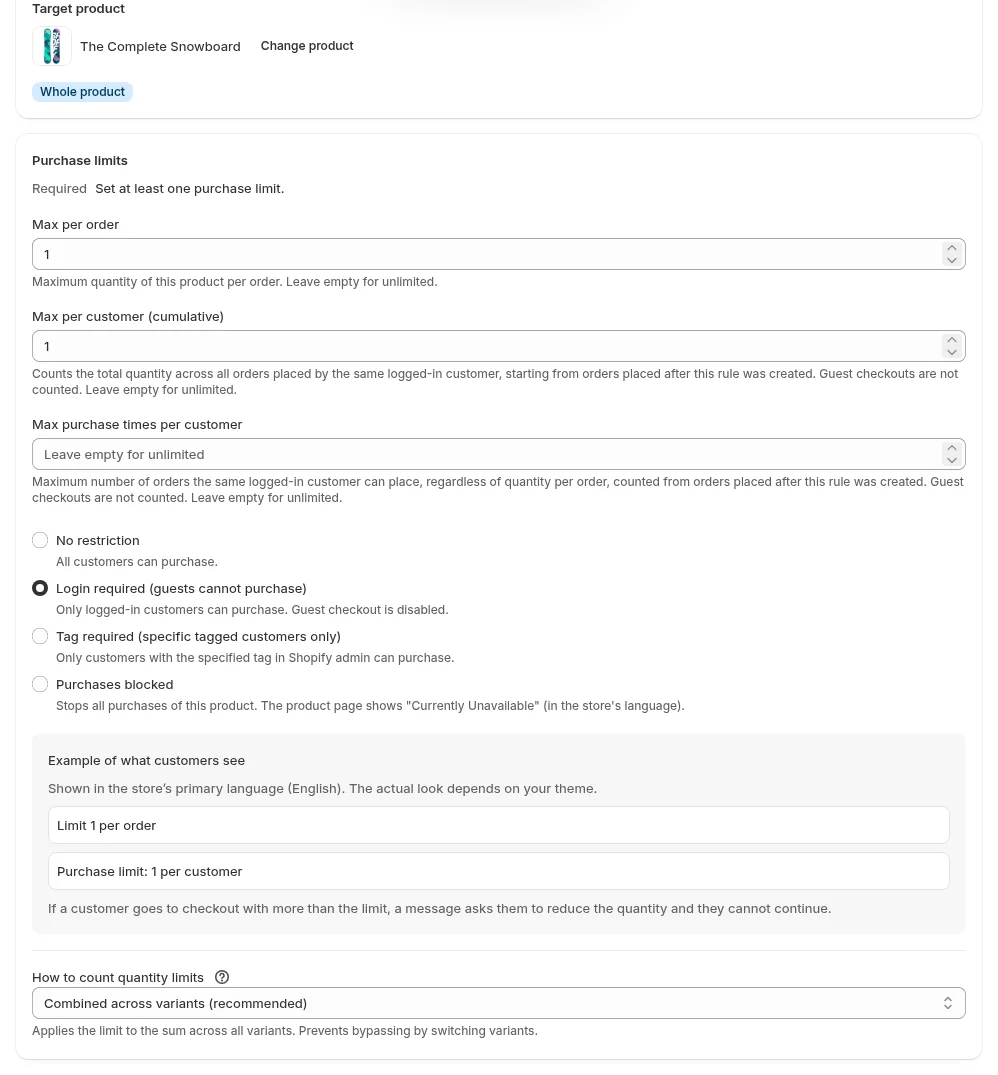
To give members early access, set the sale start to the time members can start buying, and set purchase eligibility in purchase limits to “Tag required”. When you open sales to everyone else, change purchase eligibility to “Login required” to keep the quantity cap, or “Disable” the rule to remove the cap as well.
What your customers see
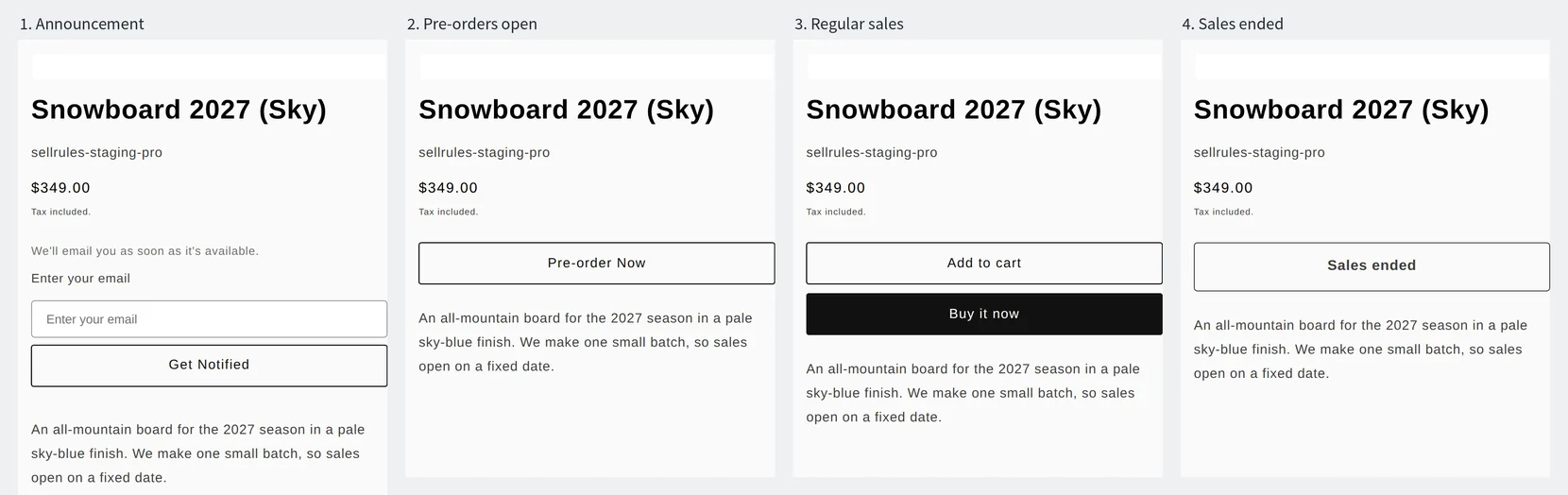
For a product with a sales schedule, the buy button on the product page changes each time a scheduled date and time arrives. The screens below show a product with a pre-order schedule at each stage. With coming soon there is no pre-order stage: the product goes straight from the announcement to regular sales.
What Shopify can do on its own
With Shopify's future publishing, the product stays off your online store until the date and time you choose, and is published at that time (Shopify Help, checked November 12, 2026). If you turn on the inventory setting “Sell when out of stock”, you can keep taking orders at 0 inventory with the regular buy button (Shopify Help, checked November 12, 2026).
| What you want to do | Shopify on its own | SellRules |
|---|---|---|
| Start selling at launch time | Future publishing makes the product live at that time | Keeps the product page visible and switches the buy button at that time |
| Take orders before stock arrives | “Sell when out of stock” takes them with the regular buy button | Takes them with a “Pre-order Now” button and an estimated ship date |
| Sell only to members, or cap quantities | Login required for the whole store, and the same cart limit for every product | Set who can buy and the quantity cap product by product |
If all you need is to hide the product and publish it at launch time, future publishing is enough. Use SellRules when you want to announce the product on its page before launch, sell only to members product by product, or cap how many each customer can buy.
Setup guides for each way of selling
The articles below walk through the setup for each way of selling.
- Pre-orders: How to start pre-orders on Shopify
- Made to order: How to sell made-to-order products on Shopify
- Starting a brand without inventory: choosing between made to order and pre-orders
- Made-to-order merch: setting the order window and per-customer limits
- Coming soon and limited-time sales: How to start sales automatically at launch time
- Ending a limited-time sale: How to end a limited-time sale automatically at the planned time
- Email signups before launch: How to collect notification signups before launch
- Purchase quantity limits: How to set a “limit 1 per customer” rule
- Members only: How to sell to members only
- Scalpers and bulk buying: Settings that reduce scalping and bulk buying of limited products
- After selling out: Pre-orders or back-in-stock alerts for sold-out products
Pricing
Every way of selling in the table is available from the SellRules Free plan. On the Free plan you can take up to 10 pre-order and made-to-order orders in total, and send up to 15 back-in-stock and sale-start emails in total. You can set purchase limits on up to 1 product, and coming soon on one product.
SellRules plans and pricing
| Monthly price | LaunchEvery feature included | FreeStart with one product |
|---|---|---|
| Monthly price | US$7.99 per month | Free |
| Free trial | 10 days | None |
| Pre-order and made-to-order orders | Unlimited | Up to 10 in total |
| Back-in-stock and sale-start emails (Notify Me) | Unlimited | Up to 15 in total (not refilled monthly) |
| Purchase limits | No limit on products | Up to 1 product |
| Customizable notification emails | Yes | No |
| Deposit payments | Yes | No |
Pre-orders, made-to-order, back-in-stock alerts, purchase limits, stockout switching, deposit payments and order processing are all included in the Launch plan.
The first 10 days of the Launch plan are free. If you remove the app during the trial, you are not charged.
On the Launch plan, back-in-stock and sale-start emails have no sending cap. Required messages such as order confirmations, shipping updates and balance reminders are sent on every plan regardless of the cap.
The Standard and Pro plans are closed to new sign-ups. Shops already on them keep their current terms.
Start by picking the next product you plan to launch, choose how to sell it from the table, and set it up. As your products and orders grow, switch to the Launch plan (US$7.99 per month), which has no limits. You can install SellRules from the Shopify App Store, where you can also check pricing and the free trial terms.
Frequently Asked Questions
Do purchase limits apply to guest checkouts?
“Max per order” applies to guest checkouts too. “Max per customer (cumulative)” only applies to customers who are logged in when they buy, so guest checkouts are not counted. To be sure each customer can only buy a set quantity, set purchase eligibility to “Login required”.
Can I take only part of the payment up front for a pre-order?
Yes. If you choose “Deposit now, balance later (partial payment)” in the pre-order schedule, the customer pays part of the price at checkout and the balance is charged on the due date you set. Partial payment is available on the Launch plan.
Related articles:
- Taking part of the payment up front: How to take a deposit on pre-orders
- When to collect payment for pre-orders: When to charge for pre-orders
- Reducing cancellations by customers: how to reduce pre-order cancellations
- Set a deadline and an order cap for holidays: Mother's Day, Valentine's Day and Christmas pre-orders
- When a pre-order and an in-stock item are bought together: Pre-orders and in-stock items in one order
- Taking pre-orders only for sold-out sizes and colors: Apparel pre-orders
- Not offering cash on delivery for pre-orders: How to hide cash on delivery for pre-orders
- Emailing customers when stock returns: How to set up back-in-stock emails
- Deciding how many to make from pre-order and sign-up counts: how many to make or restock from pre-orders
- Rewriting pre-order and restock emails in your store's voice: How to edit SellRules customer emails
- Changing the pre-order button and badge text and colors to match your store: How to change the pre-order button and badge
- What to tell pre-order customers from checkout to delivery: Pre-order customer communication
- Comparing apps: Shopify pre-order apps compared
- Compare SellRules with one other app: Downpay, STOQ, PreOrder Globo, RuffRuff Pre Order
- Switching from another app: Before you switch pre-order apps
- When the pre-order button doesn't show: Why the pre-order button isn't showing and how to fix it
- When a launch is delayed or stock is canceled: how to notify customers, cancel pre-orders and issue refunds
- Printing only the items you're shipping on the packing slip: How to print packing slips for pre-order items
- Replying to pre-order questions: Reply templates for pre-order questions
- Seeing pre-order counts and amounts in one place: See what your pre-order app brings in, in numbers
- Getting help with settings from ChatGPT or Claude: Approve the AI's proposal before it goes live
- Showing the estimated ship date on the product page, in the cart and at checkout: How to show the estimated ship date on pre-order products
- Planning dates and quantities for a launch or a holiday sale together: how to plan a product launch or holiday sale
- Choosing by industry: pre-orders vs. made to order by industry
- Seeing what else SellRules does: SellRules features
- See pre-orders, made-to-order and launches in one plan: How to run a Shopify store solo with a sales calendar
Products and dates are examples for illustration, not from a real store.