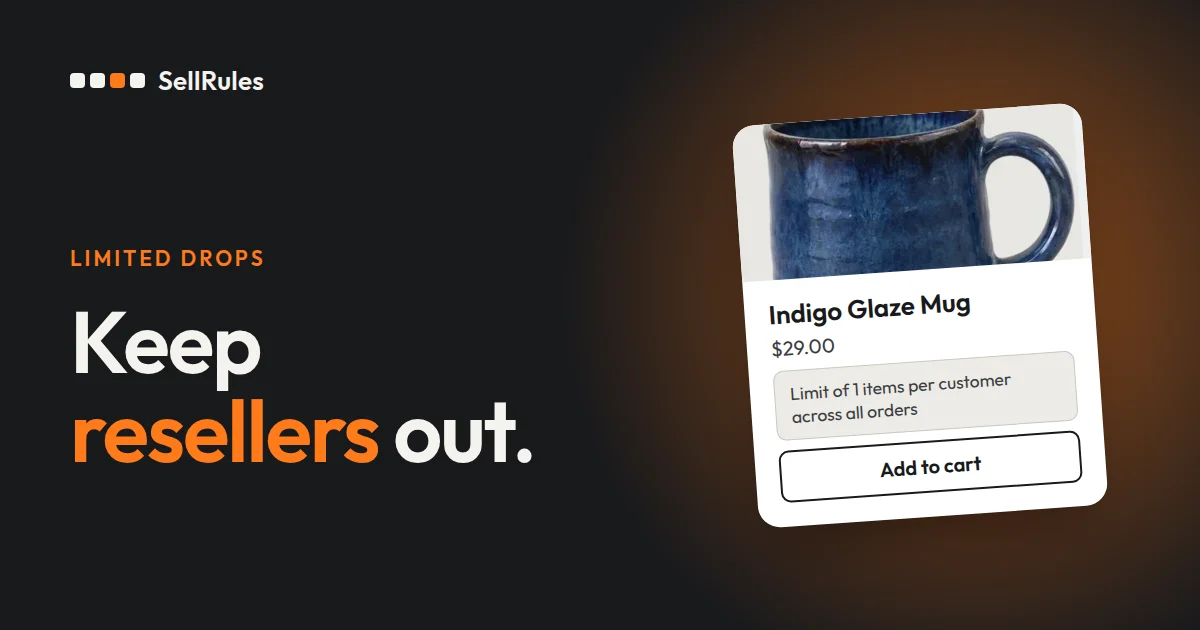
To cut down on bulk buying of a limited-edition product on Shopify, use a purchase limit app to set both the per-order limit and each customer’s total limit to 1, and only let logged-in customers buy. Orders that come in before launch are blocked with a setting that holds purchases until the sale start time. Purchase limits count orders from the same customer account, so compare orders from other accounts in your order list before you ship.
Take a limited run of 50 teapots. If each customer buys 3, the run sells out after 17 customers. At 1 per customer, it reaches 50 customers.
With the Shopify app SellRules, you combine settings for each product to match the kind of buying you want to stop.
Which setting stops which kind of bulk buying
No single setting covers every way customers buy up stock. Here is each buying pattern and the setting to use.
| Buying pattern | Setting to use |
|---|---|
| Buys several in one order | “Max per order” |
| Places separate orders to buy again | “Max per customer (cumulative)” and “Login required” |
| Buys with an account created just before launch | “Tag required”, limited to customers you have tagged |
| Goes to the cart or checkout and orders before launch | “Coming soon”, blocking orders until the sale start time |
| Reserves many units as a single customer in a pre-order | The pre-order “Total quantity limit” and “Purchase limits (optional)” |
| Orders from a different account | Compare in your order list before you ship |
SellRules settings can block every pattern except the last one. Orders in the last row are for you to spot in your order list and decide what to do with.
The more settings you stack, the fewer customers can buy. Decide how far to stack them based on how many units you have and whether you also want first-time customers to get one.
The basics: 1 per order, 1 per customer in total, login required
To also stop customers who come back with separate orders, set these three things in a purchase limit rule:
- 1 in “Max per order”
- 1 in “Max per customer (cumulative)”
- “Login required (guests cannot purchase)” for purchase eligibility
You require login because the cumulative limit adds up the orders of a logged-in customer. A guest order can’t be tied to a customer, so without a login requirement, anyone can order again and again as a guest.
With this combination, if a customer sets the quantity to 2 and clicks “Add to cart”, the product is not added to the cart. Instead, the product page shows the reason and how to fix it.
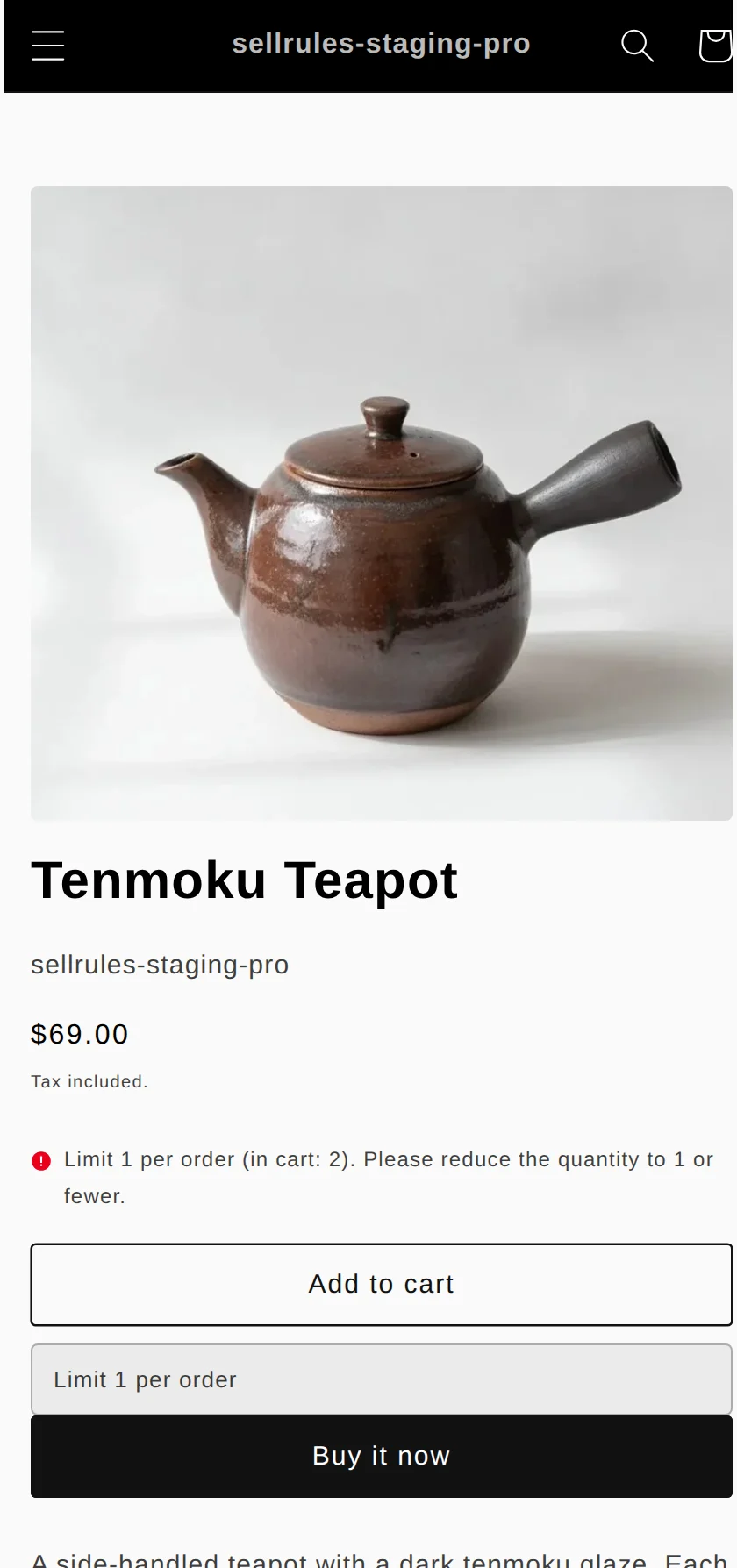
Here is the result for each customer and order.
| Customer | This order | Result |
|---|---|---|
| Not logged in | 1 | Blocked (“You must be logged in to purchase this product”) |
| Logged in, has not bought yet | 1 | Order goes through |
| Logged in, already bought 1 | 1 | Blocked (“Purchase limit: 1 per customer (purchased: 1, remaining: 0)”) |
| New account created with a different email address | 1 | Order goes through |
As the last row shows, the cumulative limit is counted per customer account. An account created with a different email address can buy 1 as a new customer. The steps to create the rule are in how to limit a product to 1 per customer.
Use “Tag required” to block accounts created just before launch
To also cut down on orders from newly created accounts, set purchase eligibility to “Tag required (specific tagged customers only)” so that only customers you have tagged can buy.
For example, add a “Repeat customer” tag to the accounts of customers who have ordered from you before. An account created just before launch has no tag, so it can’t buy. If you also set “Max per customer (cumulative)” to 1 in the same rule, tagged customers are limited to 1 per customer too.
When a customer without the tag clicks “Add to cart”, the product is not added to the cart and the reason appears below the quantity field. Customers never see the name of the required tag.
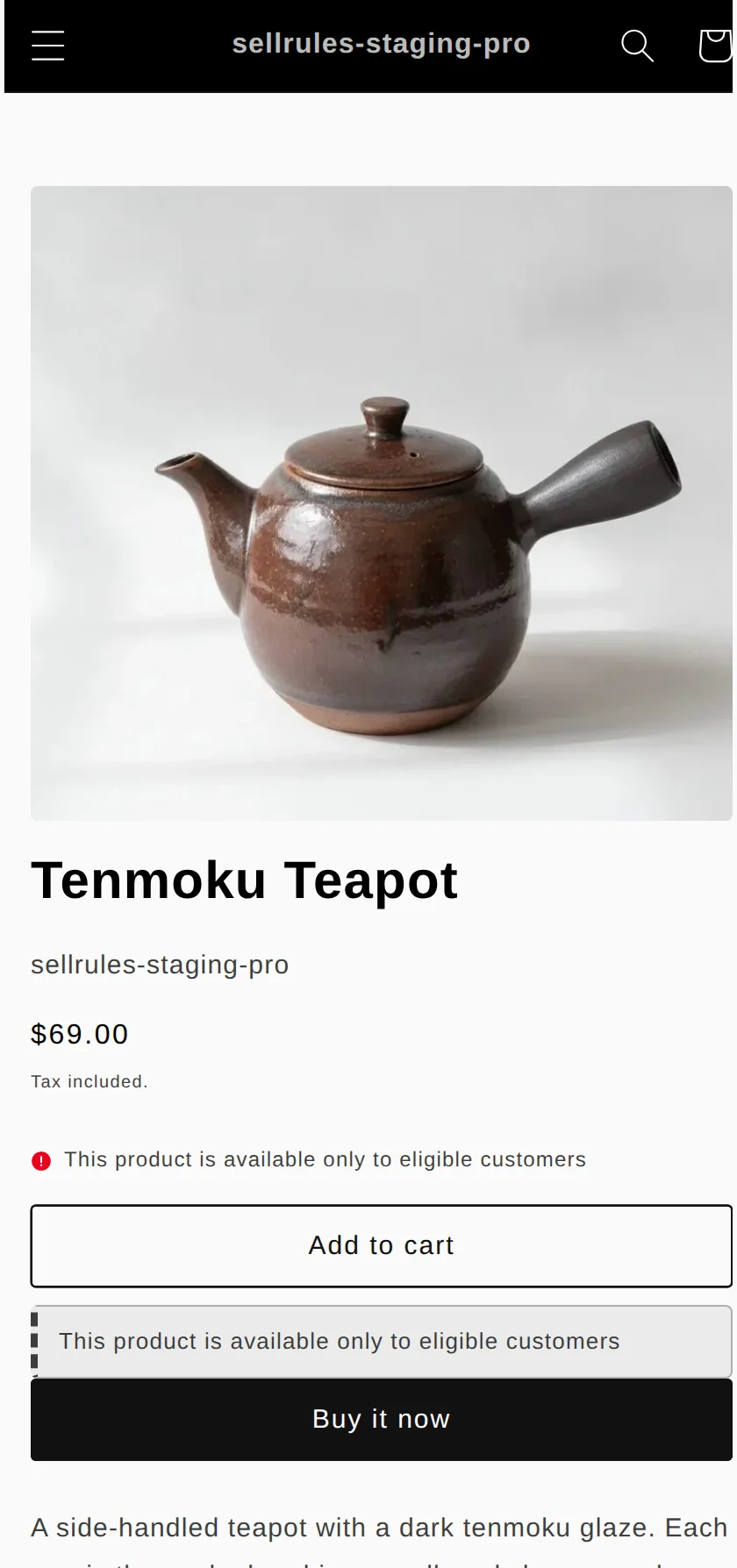
| Customer | This order | Result |
|---|---|---|
| Has the tag, has not bought yet | 1 | Order goes through |
| Has the tag, already bought 1 | 1 | Blocked (“Purchase limit: 1 per customer (purchased: 1, remaining: 0)”) |
| No tag, or not logged in | 1 | Blocked (“This product is available only to eligible customers”) |
A product set to “Tag required” is not sold to first-time customers you haven’t tagged. For a limited product that you also want first-time customers to get, use “Login required” and cap how many each customer can buy with the cumulative limit. How to add tags is covered in selling to members only.
Block orders before launch with “Coming soon”
If your product page is live before launch, people who know its URL can sometimes go to the cart or checkout and place an order, even when the buy button is hidden.
When you announce a product with SellRules “Coming soon”, orders through those routes are also blocked at checkout until the sale start time. Blocked customers see “This product isn't on sale yet.”, and when the sale start time arrives, the product switches to regular sales automatically.
If you set the cumulative limit to 1 in the Coming soon “Purchase limits (optional)” and choose “Login required”, nobody can buy before launch, and after launch it’s 1 per customer. For a limited product sold as a pre-order, turn on “Block purchases during the announcement period” in the pre-order “Coming-soon period”, and orders are blocked the same way until the pre-order start time. How to set up a pre-launch announcement is in collecting sign-ups before launch.
For pre-order limited products, set both the “Total quantity limit” and “Purchase limits (optional)”
For a limited product sold as a pre-order, the “Total quantity limit” sets how many you accept in total, and “Purchase limits (optional)” sets how many each customer can reserve.
Total quantity limit vs. Purchase limits (optional)
Total quantity limit
Purchase limits (optional)
For example, say you set the Total quantity limit to 50 and leave Purchase limits (optional) empty. If each customer reserves 10, 50 ÷ 10 = 5, so only 5 customers get to pre-order.
If you set “Max per customer (cumulative)” to 1 in Purchase limits (optional) and choose “Login required”, the 50 pre-orders go to 50 customers, one each. The limits and purchase eligibility you can choose in Purchase limits (optional) are the same as in a purchase limit rule. If you also set the Shopify inventory to 50, the product shows as sold out once pre-orders stop.
If you can make more of the product, you can also sell it made to order instead of capping the quantity.
How this differs from Shopify’s built-in limit
Shopify’s built-in limit vs. SellRules purchase limits
Shopify’s built-in limit
SellRules purchase limits
Shopify also has a built-in setting under “Settings” → “Checkout” in the admin that caps how many of an item can go in a single cart (Shopify Help, checked November 13, 2026). If capping every product at the same number is enough and you aren’t concerned about a second order, the built-in setting will do. The two are compared in more detail in how to limit a product to 1 per customer.
Compare orders from different accounts before you ship
Purchase limits decide how many the same customer account can buy and which customers can buy. The orders below count as orders from different customers, so compare them in your order list before you ship.
- Orders from a separate customer account created with a different email address
- Orders placed by family or friends on someone else’s behalf
When you see orders with the same address or name, whether to cancel them is your call. State your policy in the product description or a store notice before launch, for example: “If we receive multiple orders with the same name and shipping address, we may cancel the second and later orders.”
For a raffle, tag the winners
Taking entries and picking winners is done with a separate form or app that handles the drawing. Tag the winners’ customer accounts, set the product to “Tag required” and set the cumulative limit to 1, and only the winners can buy, 1 each.
For bot orders, use Shopify Plus bot protection
If you are worried about orders from automated purchasing programs (bots), Shopify Plus stores can use Shopify’s bot protection during the launch window (checked November 13, 2026). It adds a reCAPTCHA or hCaptcha check to checkout to make it harder for bots to get through.
- Ask Shopify Plus Support to turn it on
- Each window lasts up to 60 minutes, and you can schedule only one at a time
- It covers up to 500 products, or all products in your store
What to check by the day before launch
Saved rules can take about 1 minute to show up on the product page, in the cart and at checkout. Save your rules by the day before launch and check the following.
- In Shopify, under “Settings” → “Checkout”, “Purchase limits (SellRules)” is turned on under “Checkout rules”
- After a test customer account orders 1, a second order from the same account is blocked
- An order placed while logged out is blocked
- For a Coming soon product, an order before the sale start time is blocked (for a pre-order, before the pre-order start time)
The basic checks for when an order that should be blocked goes through are in how to limit a product to 1 per customer. For the settings in this article, also check these two.
| What happens | Cause | Fix |
|---|---|---|
| A tagged customer can’t buy | The required tag name and the customer’s tag are spelled differently | Make the spelling match (tags aren’t case-sensitive) |
| Orders came in before the pre-order start time | “Block purchases during the announcement period” is off for the pre-order | Turn it on in the pre-order Coming-soon period settings |
What to set in SellRules
The combination in this article maps to these SellRules settings.
| What you decide | SellRules setting |
|---|---|
| How many a single order can include | “Max per order” in purchase limits |
| How many each customer can buy in total | “Max per customer (cumulative)” in purchase limits |
| Which customers can buy | “Login required” or “Tag required” for purchase eligibility |
| Orders before launch | “Coming soon”, or “Block purchases during the announcement period” for a pre-order |
| Number of pre-orders | The pre-order “Total quantity limit” and “Purchase limits (optional)” |
Pricing
Purchase limits are available on the Free plan for up to 1 product. Pick one limited product you are releasing next, create a rule and check with a test account that a second order is blocked.
To add purchase limits to more products, switch to the Launch plan (US$7.99 per month), which has no limit on the number of products. You can install SellRules from the Shopify App Store, where you can also check pricing and trial terms.
Frequently asked questions
If I cancel an order I suspect is for resale, can that customer buy another one?
Yes. The quantity in a canceled order is taken back out of the purchased count, so if the cumulative limit is 1, the same account can order 1 more.
When I restock a limited product, do customers who bought last time count toward the limit?
Yes, if you keep the same rule, their earlier orders count toward the cumulative total. If you want customers who bought last time to be able to buy 1 again in the restock, delete the rule and create a new one. A new rule counts only orders placed after it was created.
How do you count customers who share one account with their family?
Purchase limits count per customer account, so orders placed by everyone in the family on that account are added together. If the cumulative limit is 1, that account can buy only 1.
Related articles:
- Planning dates and quantities for a launch or a holiday sale together: how to plan a product launch or holiday sale
- Creating a purchase limit rule: how to limit a product to 1 per customer
- Selling to members only: members-only sales and customer tags
- Choosing how to sell, such as early access or limited quantities: planning early-access and limited sales
The teapot and quantities are examples for illustration.