To limit a limited-edition Shopify product to one per customer, use a purchase limit app and set both the per-order limit and the total per customer to 1. Shopify’s built-in limit only counts what is in a single cart, so it does not stop a customer who comes back and buys one at a time in separate orders.
Take a limited run of 30 teapots. If each customer buys 3, the run sells out after 10 customers. At one each, it reaches 30 customers.
With the Shopify app SellRules, you set these three things for each product:
- 1 in “Max per order”
- 1 in “Max per customer (cumulative)”
- “Login required” for purchase eligibility
The cumulative limit adds up a logged-in customer’s orders so far. A guest order cannot be tied to a customer and so cannot be counted, which is why you require login.
What customers see
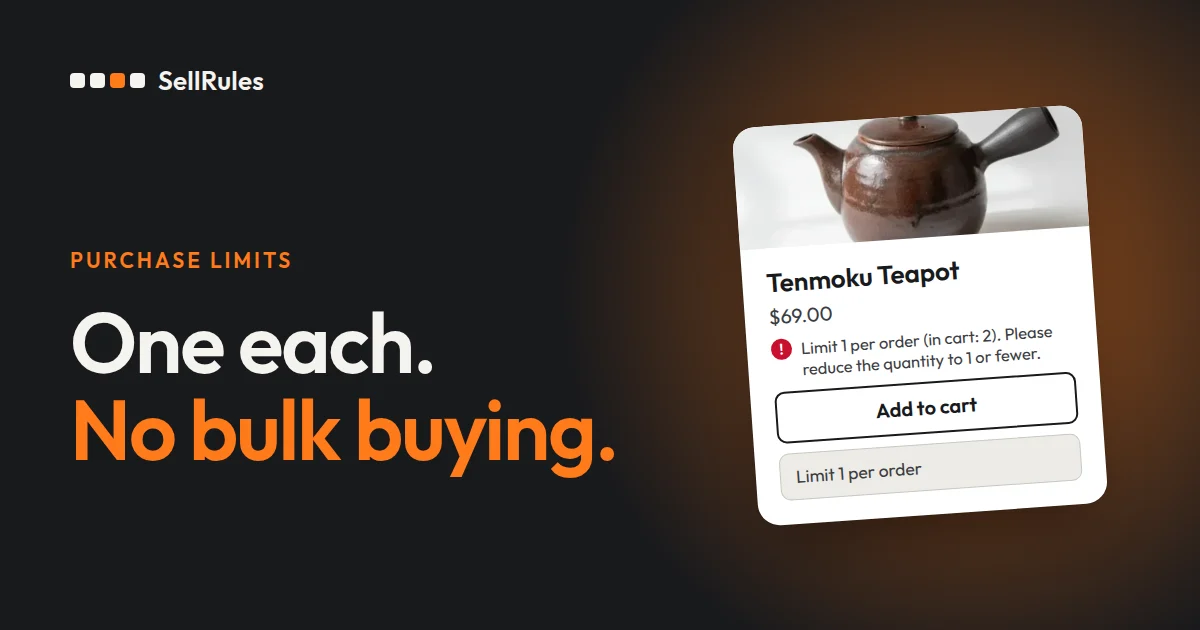
On the product page, the limit appears below the buy button. The screenshot below shows a product limited to one per order. If you also set a cumulative limit, the per-customer limit across all orders appears next to it.
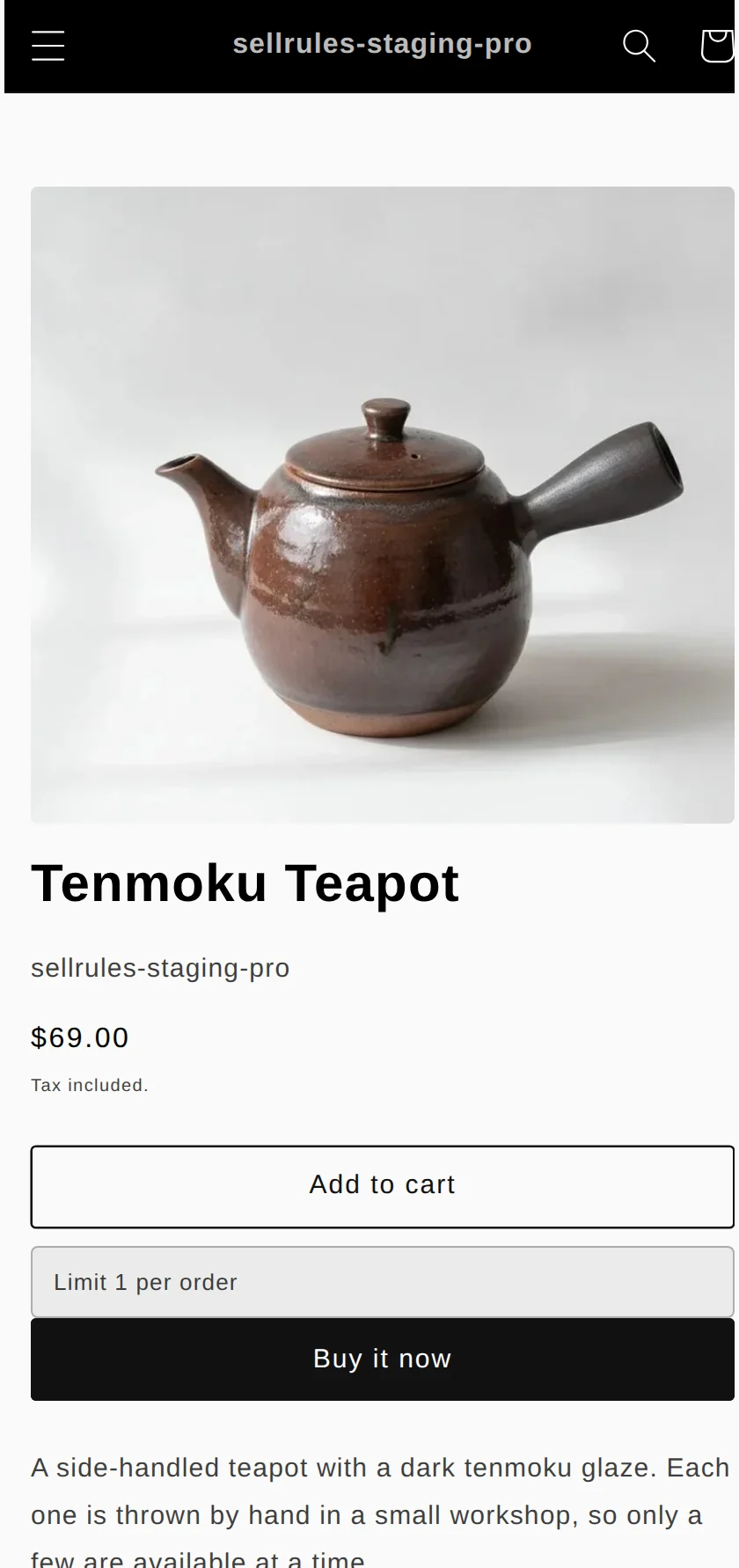
If a customer sets the quantity to 2 and clicks “Add to cart”, the product is not added to the cart. Instead, the product page shows the reason and how to fix it.
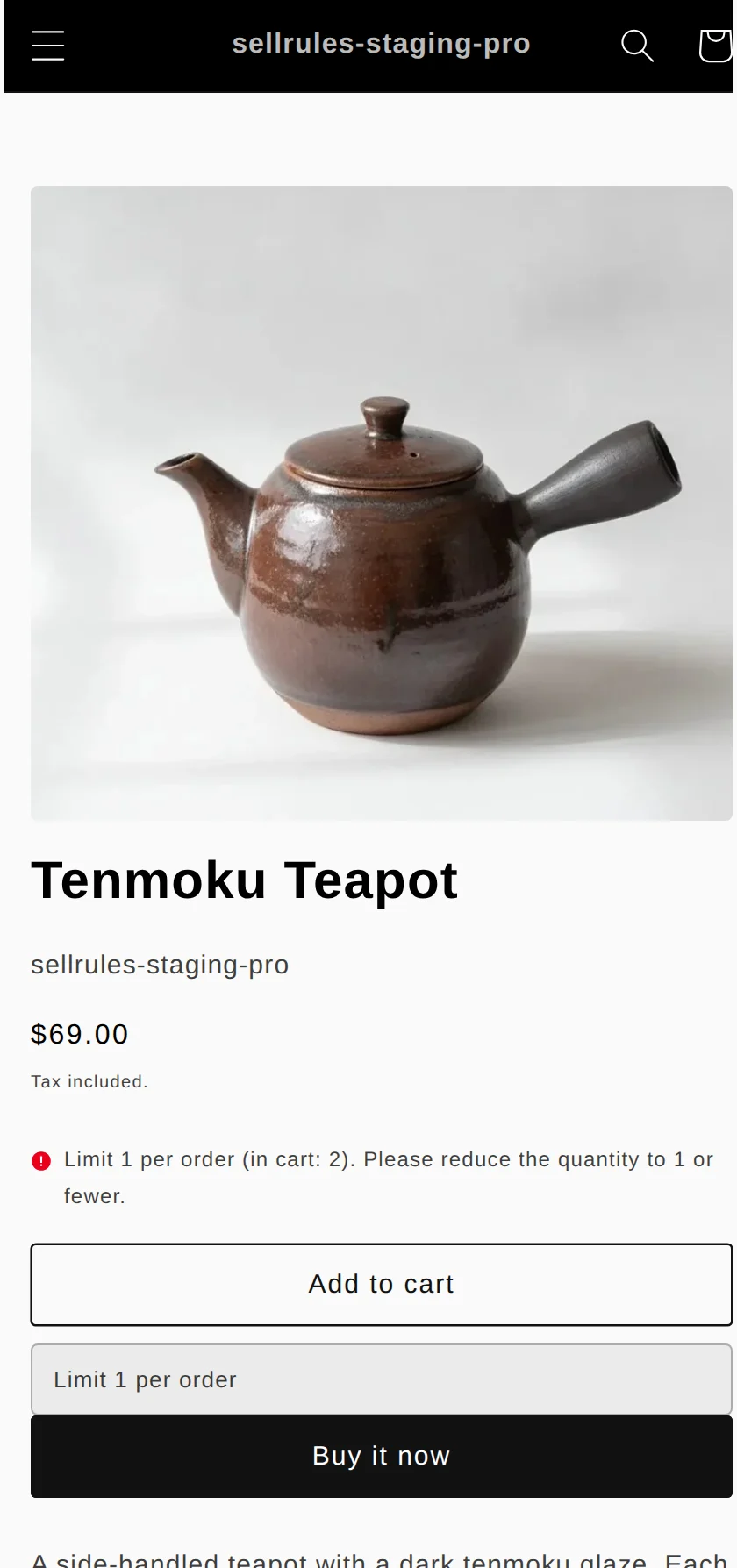
Here is what happens for each type of customer.
| Customer | This order | Result |
|---|---|---|
| Logged in, has not bought yet | 1 | Order goes through |
| Logged in, has not bought yet | 2 | Blocked (over the limit) |
| Logged in, already bought 1 | 1 | Blocked (purchased: 1, remaining: 0) |
| Not logged in | 1 | Blocked (login required) |
Customers who are not logged in see “You must be logged in to purchase this product.” and a login link.
By default, customers sign in to Shopify customer accounts with a 6-digit code sent by email, so they do not need a password (Shopify Help, checked November 9, 2026). It also helps to write “Limit 1 per customer (login required to purchase)” in the product description, so customers know before they buy.
How this differs from Shopify’s built-in limit
Shopify’s built-in limit vs. SellRules purchase limits
Shopify’s built-in limit
SellRules purchase limits
Shopify also has a built-in setting, under “Settings” → “Checkout” in the admin, that caps how many of a product a customer can put in a single cart. Shopify Help calls it the “Add-to-cart limit” (Shopify Help, checked November 9, 2026).
This limit applies the same number to every product. If all you need is to keep customers from putting an extreme quantity of any product in one cart, the built-in setting is enough. It does not apply to POS, draft orders or orders from B2B customers.
The built-in limit also has no effect on products without inventory tracking or products with “Sell when out of stock” turned on. To limit pre-order or made-to-order products, use SellRules purchase limits.
How to set it up in SellRules
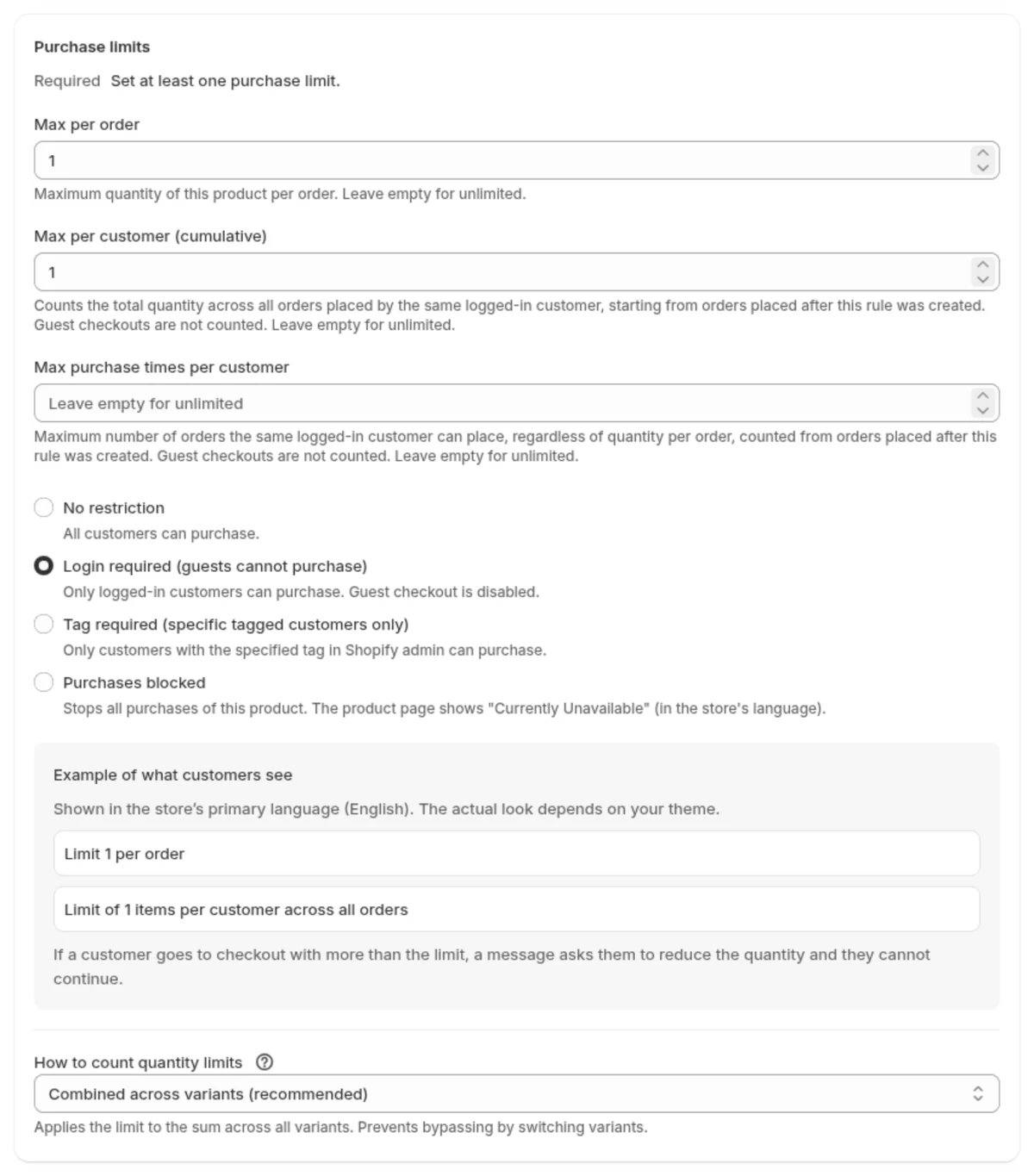
Create the rule before the limited product goes on sale. The cumulative limit only counts orders placed after the rule was created.
Before you start, go to “Settings” → “Checkout” in your Shopify admin and check that “Purchase limits (SellRules)” is turned on under “Checkout rules”. If “Purchase limits (SellRules)” is off, orders over the limit are not blocked.
- In SellRules, open “Purchase limits & sold-out” → the “Purchase limits” tab, click “Create rule”, choose one product and click “Next”.
- Enter 1 in both “Max per order” and “Max per customer (cumulative)”. You cannot save if the per-order limit is higher than the cumulative limit.
- For purchase eligibility, select “Login required (guests cannot purchase)”. Leave “How to count quantity limits” on “Combined across variants (recommended)”.
- Click “Save”. It can take about 1 minute for the setting to show up on the product page, in the cart and at checkout.
Test which orders are blocked and which go through
Because the cumulative limit counts earlier orders, you can only confirm it by trying a second purchase on the same account. Create one test customer account and work through the table from the top.
| Purchase to try | Expected result |
|---|---|
| Logged in, quantity of 2 | Blocked with a message that the order is over the limit |
| Logged out, quantity of 1 | Blocked with “You must be logged in to purchase this product” |
| Logged in, quantity of 1 | Order goes through |
| One more on the same account after the first order | Blocked with “Purchase limit: 1 per customer (purchased: 1, remaining: 0)” |
Try the last purchase only after the first order is complete. SellRules records the purchased quantity once the order has been created in Shopify.
If an order that should have been blocked goes through, check these in order.
| What happens | Cause | Fix |
|---|---|---|
| Orders over the limit are not blocked | “Purchase limits (SellRules)” or the rule is disabled | Enable both, wait about 1 minute and try again |
| A second order goes through | The order was placed as a guest | Set purchase eligibility to “Login required” |
| A second order goes through | The first order was placed before the rule was created | Create the rule before launch |
What these settings cannot prevent
Purchase limits count orders under the same Shopify customer account. An account created with a different email address counts as a different customer, so settings alone cannot stop it.
If you see repeated orders with the same shipping address or name, find them in your order list and cancel them at your discretion.
Pricing
Purchase limits are available on the Free plan for up to 1 product. Pick one product from your next limited release, create a rule and check that a second purchase is blocked.
To add purchase limits to more products, switch to the Launch plan (US$7.99 per month), which has no limit on the number of products. You can install SellRules from the Shopify App Store, where you can also check pricing and trial terms.
Frequently asked questions
Can I limit the number of purchases instead of the quantity?
Yes. Enter 1 in “Max purchase times per customer” to allow one purchase per customer, whatever the quantity. If a customer buys different colors or sizes in the same order, each line counts as a separate purchase, so for products with colors or sizes the cumulative limit is the more reliable choice.
If someone buys one each of different colors or sizes, are they counted separately?
Not by default. With “Combined across variants (recommended)”, colors and sizes are counted together, so an order with one S and one M counts as 2 and is blocked. If you want customers to be able to buy one of each color or size, choose “Per variant (independent)”.
Can I pause a purchase limit rule partway through a launch?
Yes, you can disable it with the “Status” switch in the rule list. However, orders placed while the rule is disabled are not added to the cumulative total, and a rule that you delete and recreate does not count earlier purchases either. Keeping the rule enabled while a limited product is on sale is the safer choice.
Do test orders stay in the purchased count?
Not if you cancel them. Canceling a test order from the order screen takes that quantity back out of the purchased count, so you can retest with the same test account as many times as you like.
Related articles:
- What to check while trying the app: Five-minute quick start (run a pre-order on a test product)
- Selling to members only: members-only sales and customer tags
- Choosing how to sell, such as early access or limited quantities: planning early-access and limited sales
The teapots and quantities are examples for illustration.