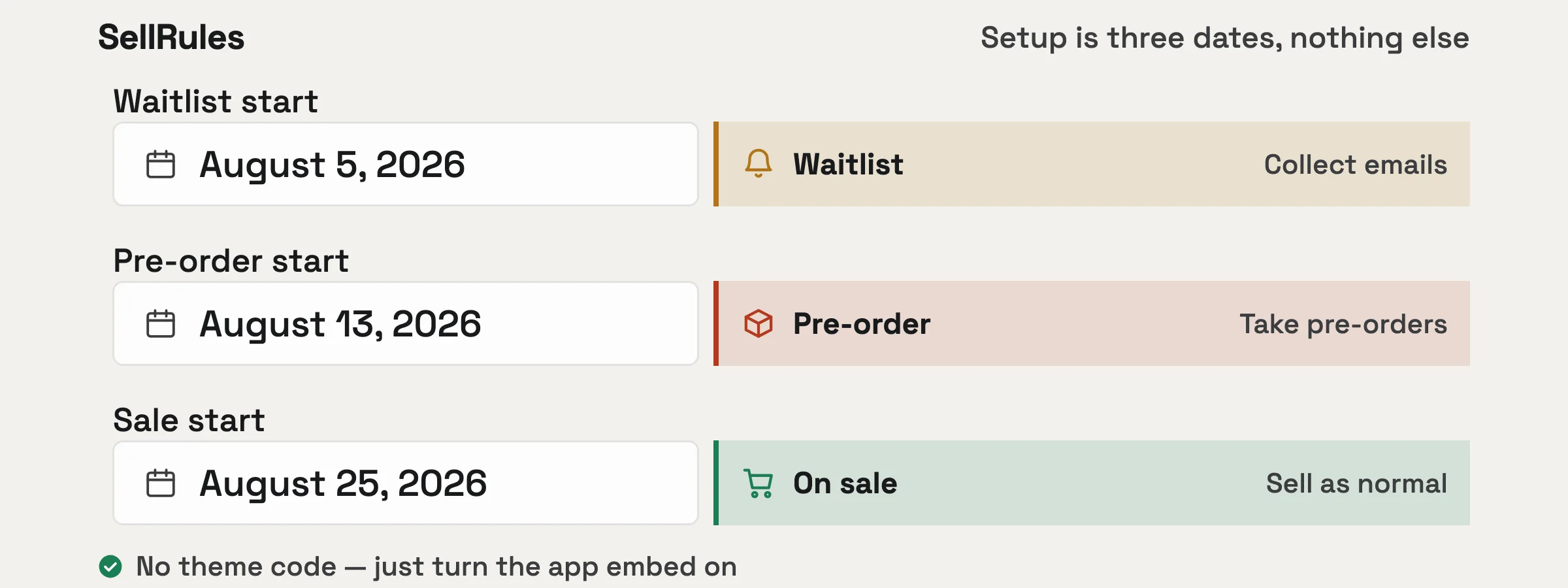
Schedule
Schedule Management
The buy button switches on the date and time you set, so a forgotten switch never costs you a sale.
- Set dates for coming-soon, pre-order and launch
- Automatic switching
Limited Sneaker Vol.3
$120
Sign-ups 298
Collecting notify sign-ups
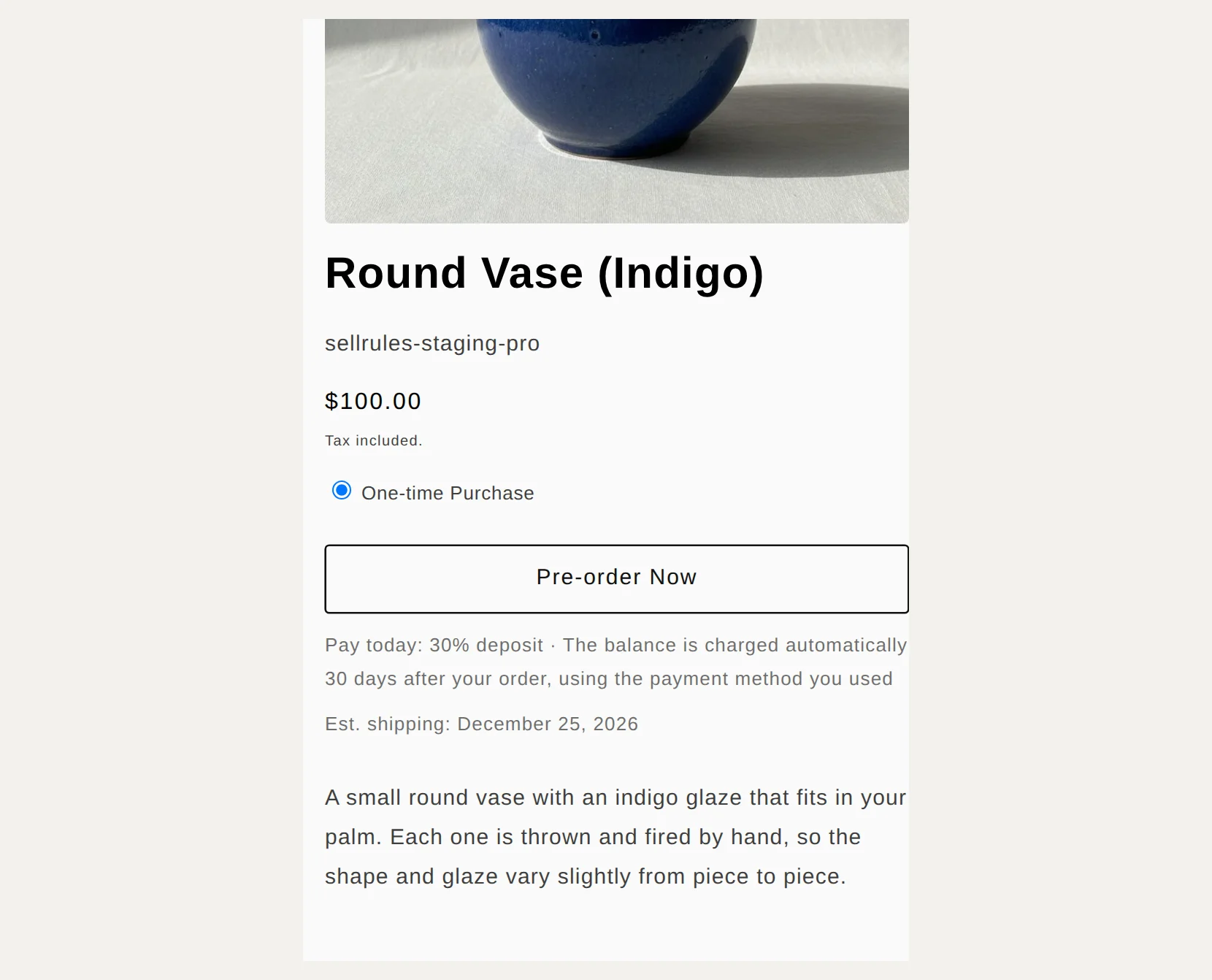
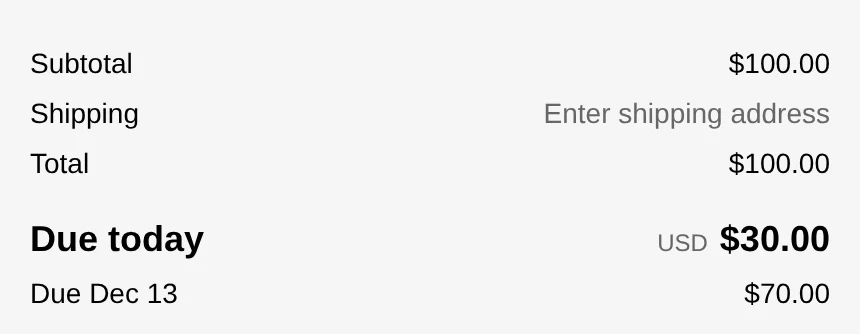
Set the deposit share and the balance due date, and customers pay only part of the price at checkout. The balance is charged on the due date to the payment method they used. The three screens below show a product set to a 30% deposit with the balance due 30 days later.
01
Below the buy button, customers see what they pay today and when the balance will be charged.
02
Under the total, the amount due today and the amount due later appear on separate lines.
03
In the schedule’s payment section, choose the deposit option, then enter the deposit percentage or amount and the number of days until the balance is due.
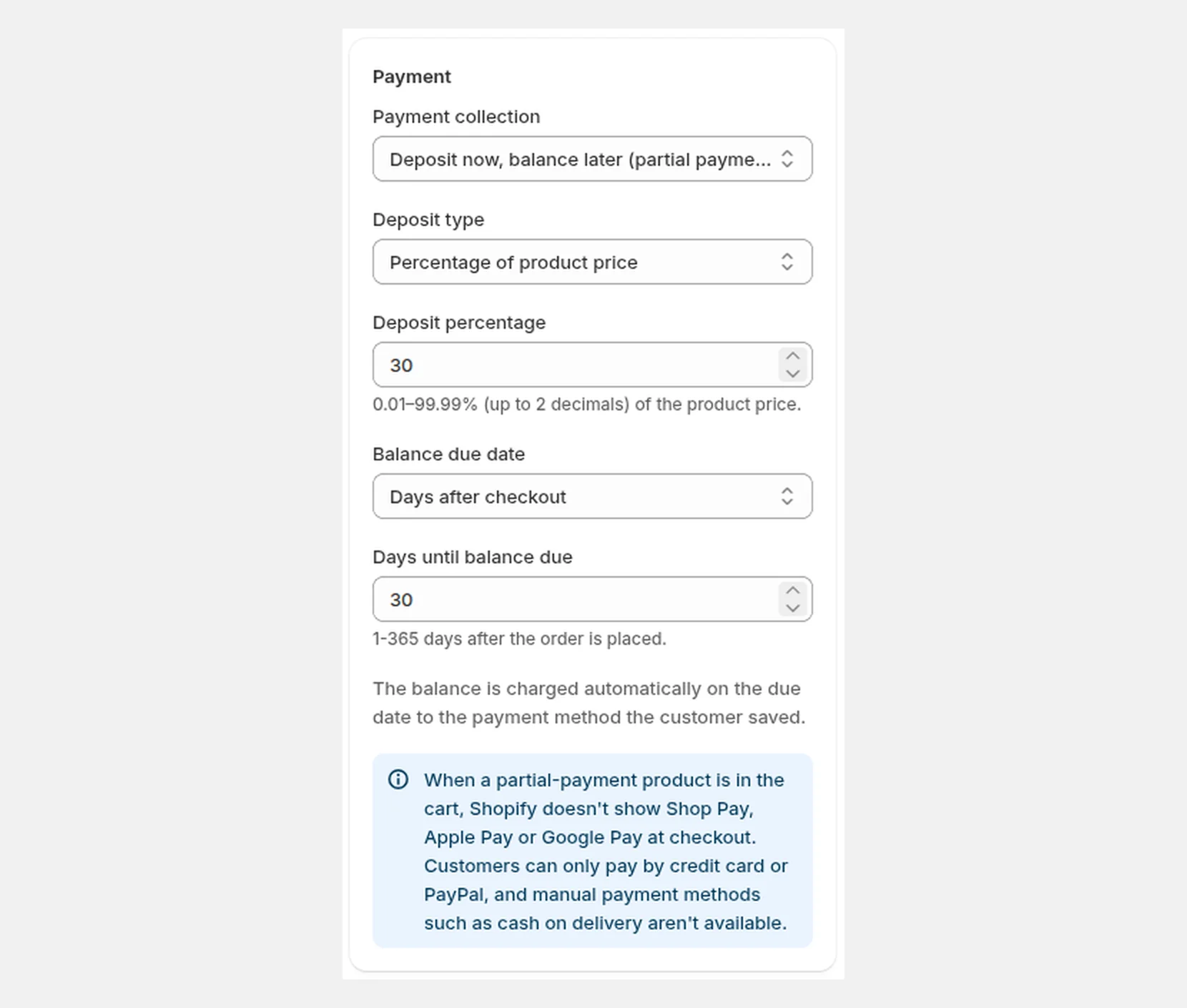
Customers can pay by credit card or PayPal. Shop Pay, Apple Pay, Google Pay and manual methods such as cash on delivery or bank transfer cannot be used. On the store side, Shopify Payments, PayPal Express, Adyen and similar gateways are supported.
Both the customer and the store receive an email. The order is not cancelled automatically, and the fulfillment hold stays in place. The balance is charged again only when the store requests it.
Deposit payments are available on the Launch plan.
The Free plan has no monthly fee. It includes up to 15 back-in-stock and sale-start emails in total, and deposit payments are not available.
The Launch plan costs US$7.99 per month, and the first 10 days are a free trial.
THREE SETUP QUESTIONS
Pick the guide that matches the product in front of you. It covers the decision, the SellRules settings and a test to run before going live.
PRE-ORDERS & DEPOSITS
Set a percentage or fixed deposit for a pre-order or made-to-order product. SellRules charges the saved payment method on the date you set and sends a payment link if collection fails; your store also gets an email. Check payment-method eligibility before you offer it.
Read the deposit and balance guidePURCHASE LIMITS
Set an order cap, a lifetime quantity cap or a cap on orders per customer. Add sign-in or customer-tag eligibility if needed. The guide helps choose settings; the planner maps the rule to SellRules fields.
AFTER A STOCKOUT
If you can give a restock estimate, take pre-orders. If the timing is uncertain, collect email sign-ups for a restock alert. The guide explains the stockout rule for each case.
Read the stockout decision guideSellRules replaces all three with rules based on date and stock.
Collect email addresses before launch, flip the button the moment pre-orders open, and move to regular sales on launch day — even at midnight.
What the customer sees
'Get Notified'
Show 'Get Notified' on the product page and collect the emails of customers who are waiting
'Pre-order now'
The button switches as pre-orders open and subscribers are emailed automatically. Cap the number of orders if you need to
'Add to cart'
Regular sales begin at the time you set. Nobody has to open the admin to make the switch
Products you don't stock can still be tracked from order to production to delivery in one flow, and orders move to the next stage in bulk.
What the customer sees
'Order made to order'
Accepted as 'Order made to order', with a confirmation email sent automatically
Move orders that entered production to the next stage in one action. Late shipping dates are detected and the customer is told
Batch print packing slips and send the shipping confirmation automatically
Decide per product how a sold-out item keeps taking interest: pre-order, made-to-order, or a restock waitlist. The listing never goes dead.
In the admin
From building a schedule to purchase limits, notification emails and the button your shoppers see.
Every screenshot is the real product (admin shown in English).
Grouped by the part of your day it takes off your hands, not by feature count.
Before launch and after a stockout, the product keeps selling.
The buy button switches on the date and time you set, so a forgotten switch never costs you a sale.
When stock hits zero, the buy button switches automatically. No extra work.
Switching and order tracking become settings instead of chores.
Track pre-order and made-to-order orders as Not started, In production or Preparing to ship. Once shipped, an order leaves the list. Selected orders can be moved on in bulk.
Set caps per order, per customer and on lifetime purchase count. Require a login or a customer tag, and the rules are enforced at checkout.
Charge only a deposit at checkout on pre-order and made-to-order products. The balance is collected automatically from the saved payment method on the due date. If it can't be collected, the customer gets a payment link and your store is notified.
From announcement to shipment, nobody misses a moment to tell them.
Collect email addresses before launch and while stock is out, then send automatically when pre-orders open or stock returns.
Customer emails go out with each switch, so nobody has to write and send them one at a time.
The first 10 days are free. If you keep the app, a monthly fee is added to your Shopify bill.
Launch
Monthly price
US$7.99
Every feature included
Free
Monthly price
Free
Start with one product
The first 10 days of the Launch plan are free. If you remove the app during the trial, you are not charged. On the Launch plan, back-in-stock and sale-start emails have no sending cap. Required messages such as order confirmations, shipping updates and balance reminders are sent on every plan regardless of the cap.
The Standard and Pro plans are closed to new sign-ups. Shops already on them keep their current terms.
Billing runs through the Shopify App Store billing system.
Included in the Launch plan
Orders stay normal Shopify orders
Pre-orders and made-to-order requests are recorded as ordinary orders, so your existing inventory, fulfilment and logistics flow keeps working.
No theme code editing
Turn the app embed on and it appears on your product pages. After a theme change, just turn it on again in the new theme. No reinstall.
Nine languages, admin and customer emails
Notification templates switch to match the language your customer is shopping in.
Uninstall removes your data
Schedules, notification settings and signup lists are deleted, and GDPR / CCPA deletion requests are supported.
The things people trip over before they install, answered up front.
No. Install it from the Shopify App Store, turn SellRules on under App embeds in the theme editor, and it appears on your product pages. You never touch theme code. If you switch themes, turn it on again in the new one. If SellRules hasn't been seen on a product page for 7 days, the app shows a warning with instructions for setting it up again.
No theme code editing. Orders are recorded as normal Shopify orders.