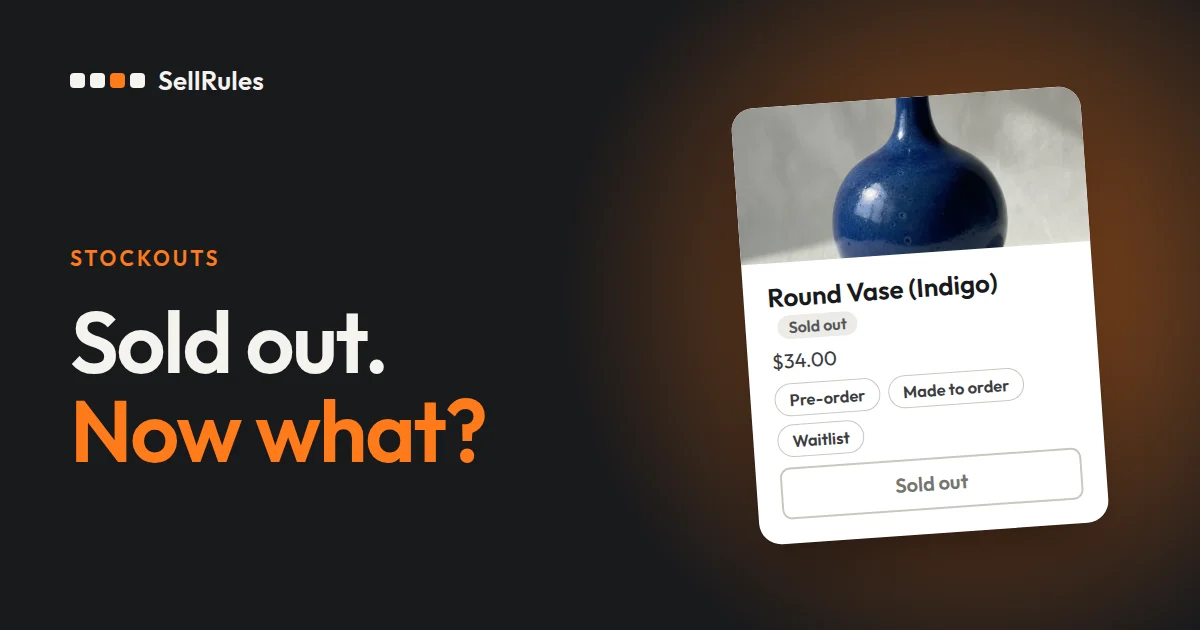
For a sold-out product, take pre-orders if you know the next ship date and how many you can fill. Use made to order if you make the item after it is ordered. Use back-in-stock alerts if you can't say when stock will return.
If you set a switch for each product in the SellRules “Sold-out switch”, the product page changes by itself when inventory reaches 0 and goes back to the normal buy button when stock returns. A product on back-in-stock alerts can move to pre-orders as soon as you have a restock date.
This article is written by the developer of SellRules. If you are also deciding how to sell products that have not launched yet, read how to plan early-access and limited sales.
How to choose: match the option to your restock outlook
The right option depends on when you can next ship the sold-out product and how many units you can deliver.
| Restock or production outlook | Switch to | What the customer can do |
|---|---|---|
| The next delivery date and quantity are known | Pre-order | See the estimated shipping and place a pre-order |
| You have materials and can make it after the order | Made to order | See the days until shipping and place an order |
| Neither the timing nor the quantity is known | Back-in-stock notification only | Enter an email address and get an email when stock returns |
Pre-orders and made to order take the order and payment right away. A back-in-stock alert is not an order. It is a signup to get an email when stock comes back.
For example, you might handle these three products like this (an illustration, not a real store):
- A vase the pottery studio says will arrive as “30 units in late December”: take pre-orders, set the estimated shipping to “Late December”, and cap the quantity at 30.
- A leather wallet that takes 2 weeks to make when you have the materials: use made to order and show “Ships within 15 days of order”.
- An imported item where the maker hasn't given a shipping date: collect back-in-stock signups, then move to pre-orders once a date is set.
Shopify's own inventory setting “Sell when out of stock” keeps the normal buy button working at 0 inventory, so customers can still order (Shopify Help Center, checked on November 12, 2026). With that setting, you describe the pre-order and the shipping estimate yourself, for example in the product description. If you want the button and the shipping estimate to change to match the option you chose, use the SellRules sold-out switch.
What customers see
Here is the same product at 0 inventory under each option. These screenshots are of an English product page on a test store with SellRules installed.
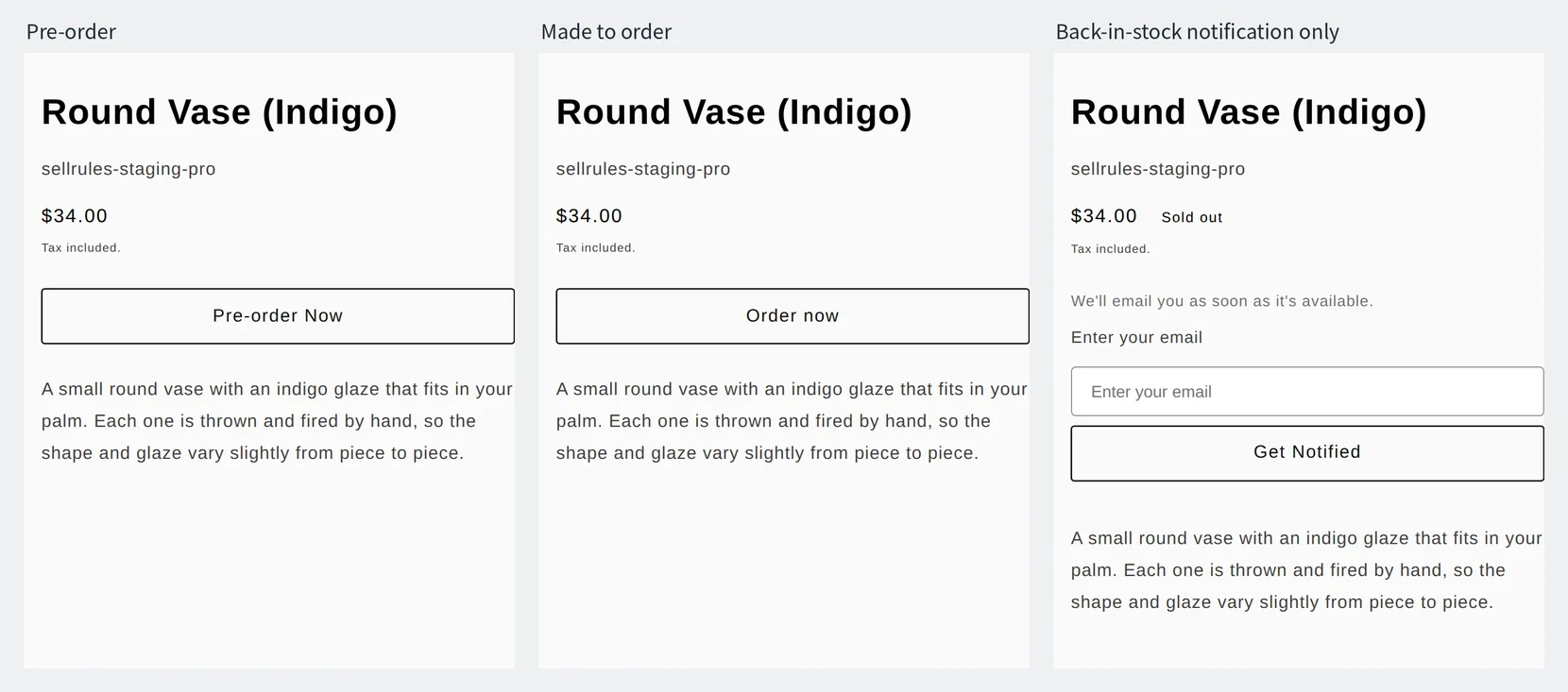
- Pre-order: the buy button changes to “Pre-order Now”, with the estimated shipping below it, such as “Est. shipping: Late December”.
- Made to order: the buy button changes to “Order now”, with the days to ship below it, such as “Ships within 15 days of order”.
- Back-in-stock notification only: an email field and a “Get Notified” button replace the buy button. After signing up, the customer sees “You're signed up! We'll notify you when available.”
With any of these options, the product page goes back to the normal buy button once inventory returns to 1 or more. Customers who signed up on a product that was on back-in-stock notification only get a back-in-stock email when stock returns.
Create a sold-out switch in SellRules
You create a sold-out switch once per product, and it applies every time that product reaches 0 inventory. Here are the steps.
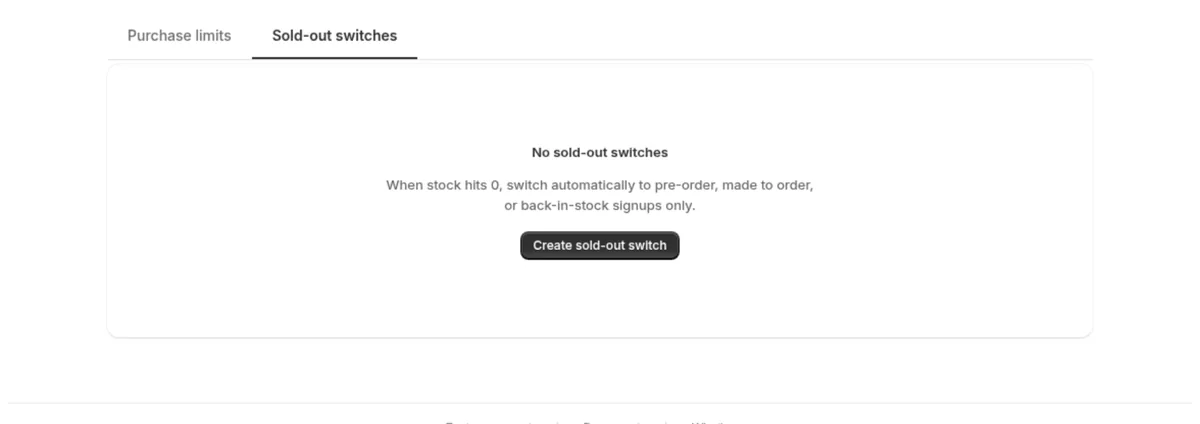
- In SellRules, open “Purchase limits & sold-out” in the left menu, then select “Create sold-out switch” on the “Sold-out switches” tab.
- Choose the product. You can set it for the “Whole product” or for “Specific variants”. If both exist, the variant's switch is used.
- Under “Switch mode”, choose “Pre-order”, “Made to order” or “Back-in-stock notification only”.
- For Pre-order, enter the text to show under the buy button (for example, Late December) in “Estimated shipping (text)”. If you track by date, also enter “Estimated ship date”. For Made to order, choose “Ship on fixed date” or “Ship within X days of order” under “How to set the shipping date”. With “Ship within X days of order”, enter the number in “Days to ship” (for example, 15).
- To limit how many you accept, set “Limit type” to “Limited quantity” under “Total quantity limit”, then enter a “Limit count” per variant (for example, the next delivery quantity).
- Select “Create”.
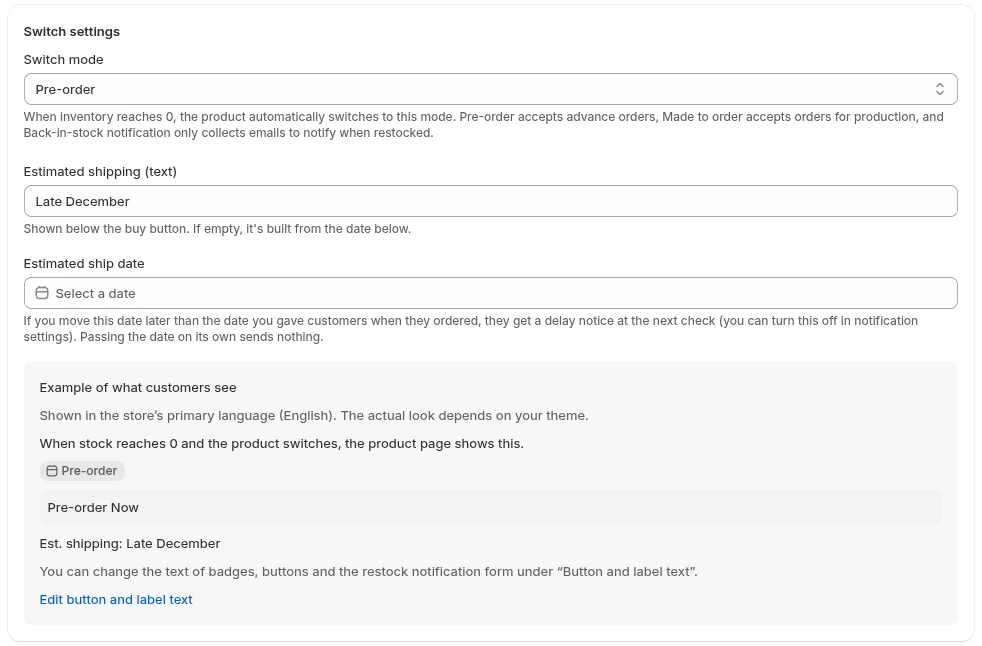
“Example of what customers see” is shown in your store's primary language (this screen is from a store whose primary language is English).
When you reach the total quantity limit, pre-order and made-to-order sales stop, and while inventory is 0 the product shows as sold out. If a bigger delivery arrives, raise the limit to start taking orders again.
After you create the switch, set a test product's inventory to 0 and check that the button on the product page changes. Then set inventory back to 1 or more and check that the normal buy button returns. When you are done, unpublish or delete the test product. The SellRules user guide walks through each screen.
Move from back-in-stock alerts to pre-orders once the date is set
A product on back-in-stock notification only can move to pre-orders as soon as you have a restock date. Change the switch mode and save while inventory is still 0, and the product page changes from the “Get Notified” signup to a “Pre-order Now” button.
- In “Sold-out switches” under “Purchase limits & sold-out”, open the switch for the product.
- Change “Switch mode” to “Pre-order”, enter the estimated shipping and the “Total quantity limit” (the next delivery quantity), and save.
- In “Back-in-stock subscribers”, select “Export CSV” to download the list of customers who signed up.
- Leave out the rows with the status “Excluded”, and email the rest from your own store email to let them know pre-orders are open.
Pricing
The sold-out switch is available on the Free plan for all three options: pre-order, made to order and back-in-stock notification only. On the Free plan you can take up to 10 pre-order and made-to-order orders in total, and send up to 15 back-in-stock and sale-start emails in total.
SellRules plans and pricing
| Monthly price | LaunchEvery feature included | FreeStart with one product |
|---|---|---|
| Monthly price | US$7.99 per month | Free |
| Free trial | 10 days | None |
| Pre-order and made-to-order orders | Unlimited | Up to 10 in total |
| Back-in-stock and sale-start emails (Notify Me) | Unlimited | Up to 15 in total (not refilled monthly) |
| Purchase limits | No limit on products | Up to 1 product |
| Customizable notification emails | Yes | No |
| Deposit payments | Yes | No |
Pre-orders, made-to-order, back-in-stock alerts, purchase limits, stockout switching, deposit payments and order processing are all included in the Launch plan.
The first 10 days of the Launch plan are free. If you remove the app during the trial, you are not charged.
On the Launch plan, back-in-stock and sale-start emails have no sending cap. Required messages such as order confirmations, shipping updates and balance reminders are sent on every plan regardless of the cap.
The Standard and Pro plans are closed to new sign-ups. Shops already on them keep their current terms.
To start, pick one product that is sold out now, choose the option that fits its restock outlook, and create one sold-out switch. When your orders or emails grow, move to the Launch plan (US$7.99 per month), which has no limits. You can install SellRules from the Shopify App Store, where the pricing and free trial terms are also listed.
Frequently Asked Questions
What happens to pre-orders when the product is back in stock?
The orders you took stay as they are. You fulfill them from the Shopify Orders page like any other order, in line with the estimated shipping date you gave customers.
Can I tell customers if a restock is delayed after they pre-ordered?
Yes. If you change “Estimated ship date” to a date later than the one you gave customers, SellRules sends a delay notice to the customers who pre-ordered. Only orders that had an “Estimated ship date” when they were placed get the notice.
Related articles:
- How to write the back-in-stock email and check that it arrives: how to set up back-in-stock alerts
- Manage made-to-order orders through to shipping: managing made-to-order orders
- Starting a brand without holding stock: made to order or pre-orders
- Collect part of the pre-order payment up front: how to take pre-orders with a deposit
- Deciding how many to make from pre-order and sign-up counts: how many to make or restock from pre-orders
- When back-in-stock emails don't arrive: the “What to check when the email doesn't arrive” section of how to set up back-in-stock alerts
- When to collect payment for pre-orders: When to charge for pre-orders
The products and quantities are examples for illustration, not from a real store.