If a Shopify pre-order ships within 7 days, you can authorize the card at checkout and capture when you ship, and you still get paid. For pre-orders that ship a month or more out, that doesn't work. A Shopify Payments authorization expires after 7 days, and after that it can't be captured.
For pre-orders that arrive a month or more later, you choose one of these three ways to get paid:
- Take the full amount at checkout
- Take part of the price at checkout and charge the rest automatically on a due date (a deposit)
- Take nothing at checkout and charge the full amount automatically on a due date (no deposit)
The last two charge the payment method the customer saved at checkout on the due date you set. This charge is separate from the authorization, so the 7-day limit doesn't apply. With SellRules, a Shopify app, you can pick one of the three for each pre-order schedule.
For example, if you take a pre-order on November 12 and ship it on January 15, that's 64 days. If you set the full payment due date to 50 days after the order, the customer pays nothing at checkout and the full amount is charged on January 1.
Choose how to get paid based on days until shipping
The number of days between the order and shipping decides which ways of getting paid you can use.
| From order to shipping | Ways to get paid |
|---|---|
| 7 days or less | Full payment at checkout / deposit / no deposit / authorize at checkout and capture when you ship |
| 8 days or more | Full payment at checkout / deposit / no deposit |
For pre-orders that ship 8 or more days out, pick one of the three based on how much money you need before you start making the product, and on what amount makes it easy for customers to order.
- If you already have the stock and are only waiting to ship, take the full amount at checkout.
- For made-to-order products where you need to buy materials before you start, take a deposit that covers the materials. How to set the percentage and the balance due date is covered in setting up deposits.
- If you don't have to spend anything up front and want to make ordering easier on the customer, choose no deposit.
Products set to a deposit or no deposit accept orders paid by credit card or PayPal.
What customers see
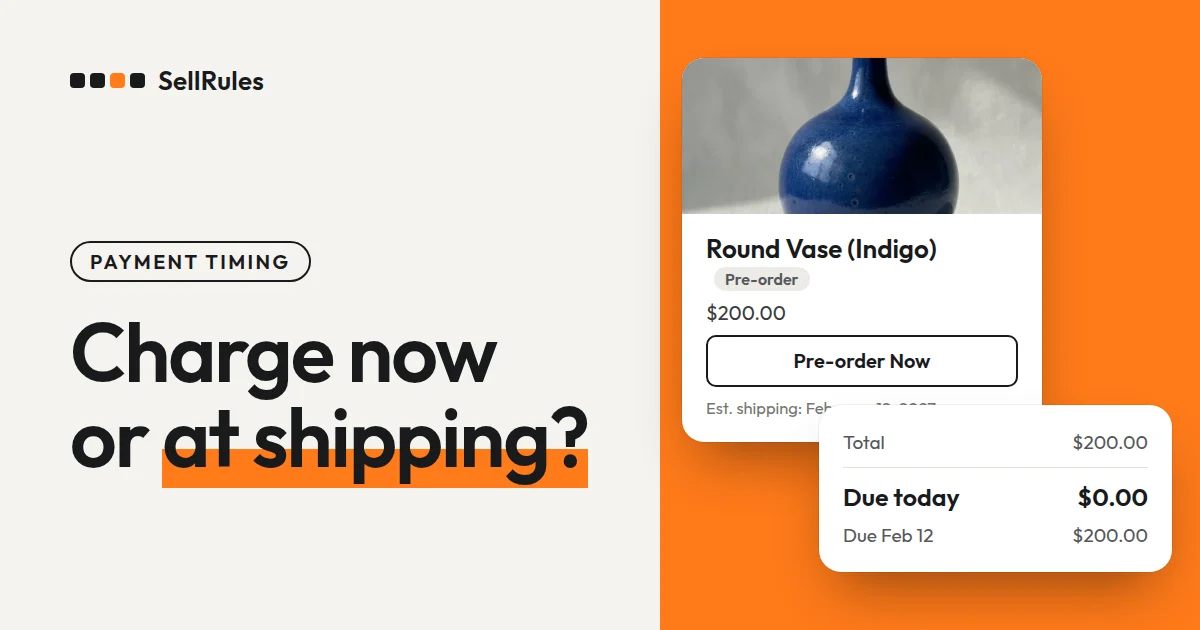
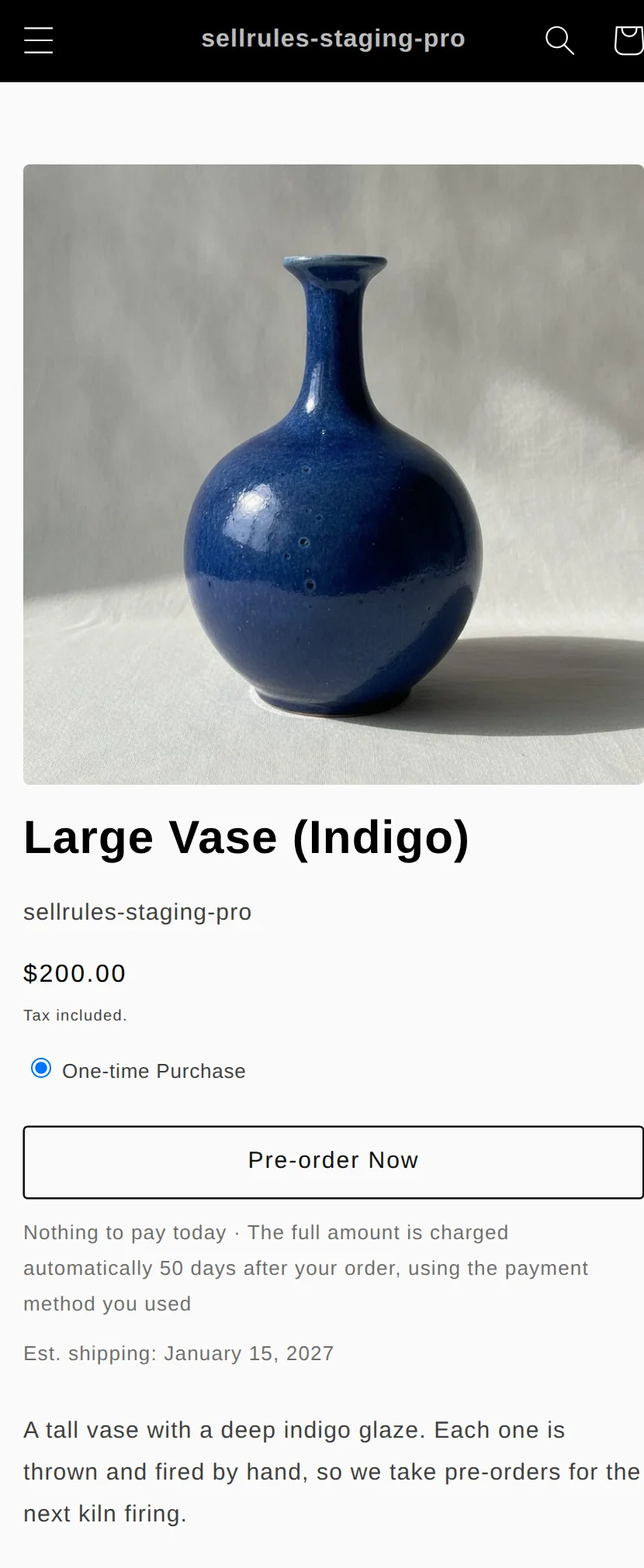
On a product set to no deposit, the buy button on the product page changes to “Pre-order Now”. Below it, the page says there is nothing to pay today and when the full amount will be charged.
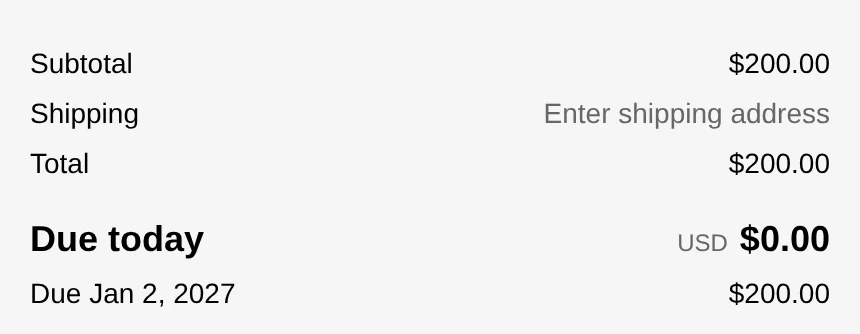
The screenshots below are from a demo store that sells in US dollars: a $200 vase set to no deposit, with the full amount charged 50 days after the order.
At checkout, the amount due today and the amount due on the due date show up as separate lines under the total.
The payment section reads “Your card will be charged on January 1, 2027.”
Before the customer clicks “Pay now”, they agree to be charged automatically on the due date. Shopify’s checkout shows that agreement text.
After the order is placed, it follows the same flow as a deposit. The customer gets a payment reminder email 3 days before the due date, and on the due date the full amount is charged to the saved payment method. Until the payment goes through, the order carries a fulfillment hold, so you can't ship it before you've been paid.
How this differs from Shopify’s “Payment capture method”
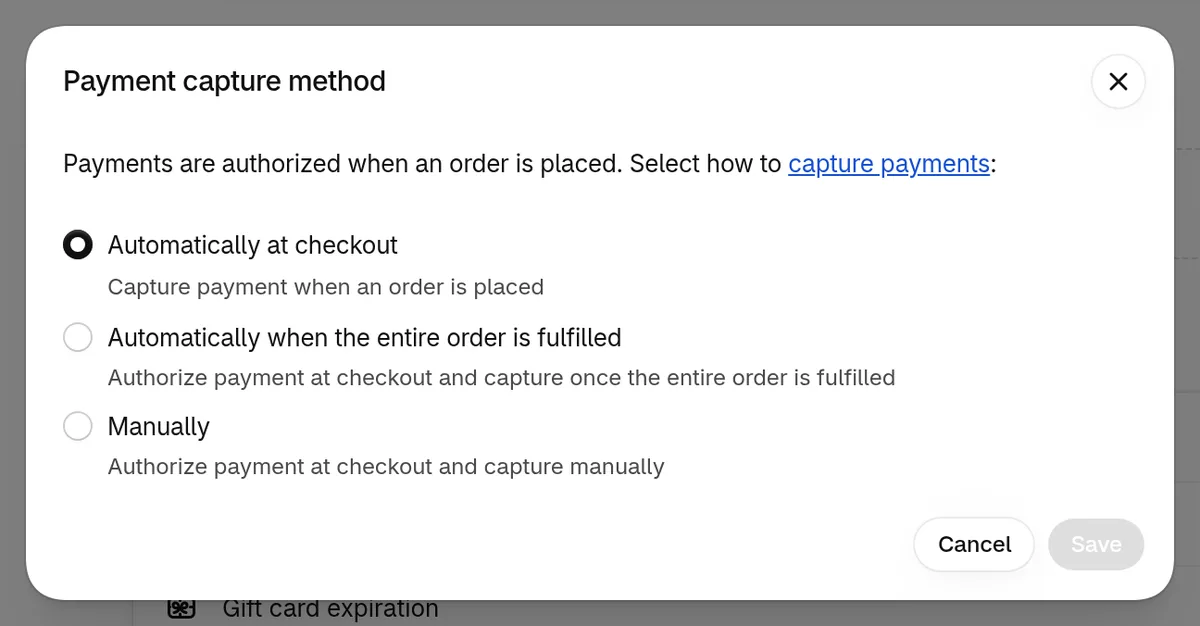
Shopify on its own can also split authorization and capture so you get paid when you ship. The setting is “Payment capture method” under “Settings” → “Payments” in the Shopify admin.
A card payment happens in two steps: authorization and capture. Authorization checks that the card can be used and holds the amount. Capture actually charges the held amount, and that's the step that puts the money in your store's account.
New stores start with “Automatically at checkout”, which captures the full amount at checkout. “Automatically when the entire order is fulfilled” and “Manually” only authorize at checkout, then capture when you ship or when you capture it yourself. If you switch to capturing at fulfillment, it applies only to orders placed after the switch (Shopify Help: Payment authorization and capture, checked November 12, 2026).
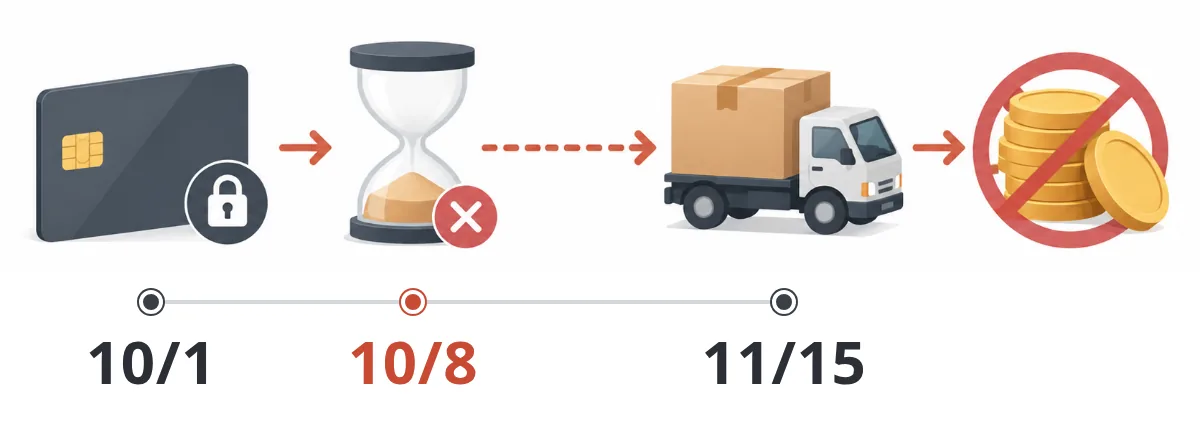
Authorizations expire. On Shopify Payments the period is 7 days, and if you don't capture within it, you can't get paid with that authorization.
On stores that use Shopify Payments and Shopify Plus, the authorization period is longer for some cards.
| Card type | Authorization period (Shopify Plus) |
|---|---|
| Visa, Mastercard, American Express | Up to 30 days |
| Discover, JCB | Up to 10 days |
| Diners Club, China UnionPay | 7 days |
The extended period also depends on the card issuer. If you capture an extended authorization after 7 days, 1.75% is added on top of the standard fee.
Here is how Shopify’s capture method compares with charging through SellRules.
| What to compare | Authorize and capture when you ship (Shopify) | Charge on a due date (SellRules) |
|---|---|---|
| At checkout | Holds the amount only | Full amount, part of it, or nothing |
| Deadline for getting paid later | 7 days from authorization (up to 30 days on Plus) | 1–365 days after the order, or a specific date |
| When you get paid | When you ship | On the due date you set |
| Applies to | The whole store | Each schedule |
The capture method is a store-wide setting, so you can't use one method for regular products and another for pre-orders. SellRules charges are set per schedule, so you can set only your pre-order products to no deposit and keep selling regular products with your current capture method.
How to set it up in SellRules
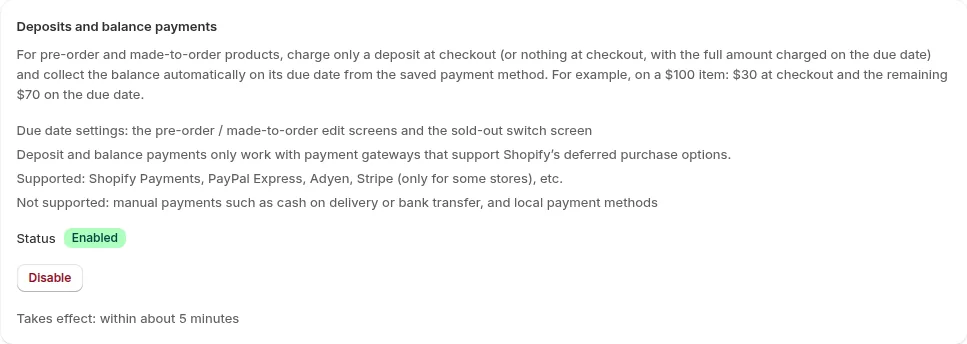
- In SellRules, go to “Settings” → “Deposits and balance payments” and click “Enable”.
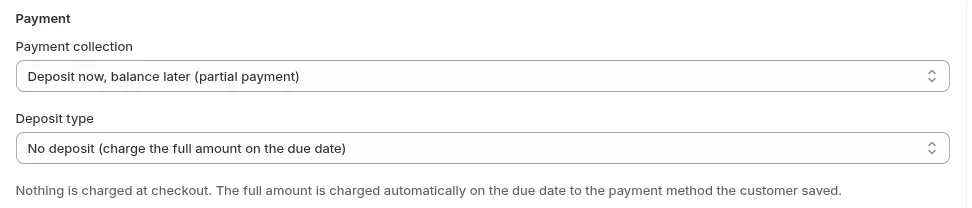
- Under “Sales schedules”, click “Create pre-order” (or edit an existing schedule), click “Show extra settings”, and under “Payment” choose “Deposit now, balance later (partial payment)”.
- Under “Deposit type”, choose “No deposit (charge the full amount on the due date)”.
- Set the “Full payment due date”. With “Days after checkout”, enter 1–365 days in “Days until the full amount is charged”. With “Specific date”, enter the date to charge.
- Save, open the product page, and place a test order to check that the note under the button, and the “Due today” and due-date amounts at checkout, match your settings.
Set the full payment due date before the estimated shipping date. That leaves you time to contact the customer and have them pay again if the charge fails on the due date. In the example above, the due date is January 1 for a January 15 shipment.
To take the full amount at checkout, choose “Full payment at checkout” under “Payment”.
Pricing
Deposits and the no-deposit option are available on the Launch plan (US$7.99 per month). The emails an order needs, such as payment reminders, are sent at no extra charge.
The Launch plan has a free trial. Pick one product that ships a month or more out, set it to no deposit, and check the product page and checkout with a test order. You can install SellRules from the Shopify App Store, where you can also check pricing and trial terms.
Frequently Asked Questions
Can I push back the full payment due date if shipping is delayed?
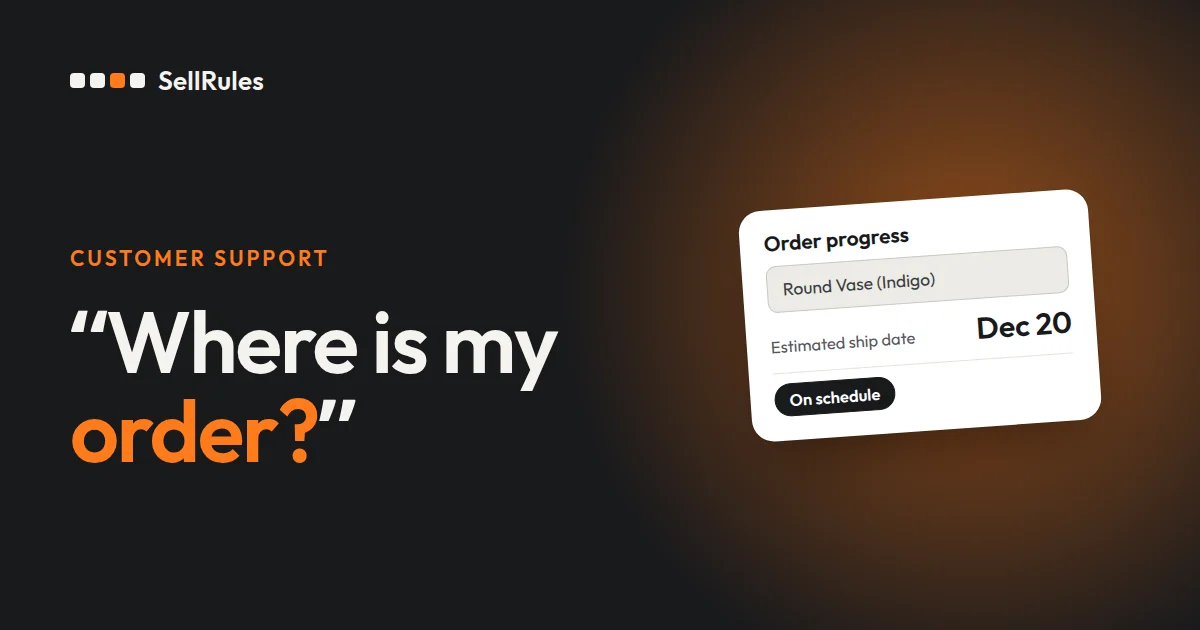
Yes, one order at a time. In SellRules, open “Order progress”, click “Change due date” on that order and pick a date later than the current one. The customer gets an email saying the due date has changed.
If Shopify Plus extends authorizations to 30 days, do I still need the no-deposit option?
For orders that ship within 30 days and are paid with Visa, Mastercard or American Express, the authorization lasts up to 30 days. How long it lasts depends on the card issuer, and capturing after 7 days adds 1.75% on top of the standard fee. JCB lasts up to 10 days, and Diners Club 7 days. For pre-orders that ship more than 30 days out, or when you want to get paid on a set date whatever card the customer uses, choose no deposit and set a full payment due date.
Related articles:
- Pre-orders or back-in-stock alerts: pre-orders or back-in-stock alerts for sold-out products
- Getting started with pre-orders: how to start selling pre-orders
- Setting the deposit percentage and balance due date: setting up deposits
- Choosing how to sell, such as early access or limited quantities: planning early-access and limited sales
The vase and amounts are examples.