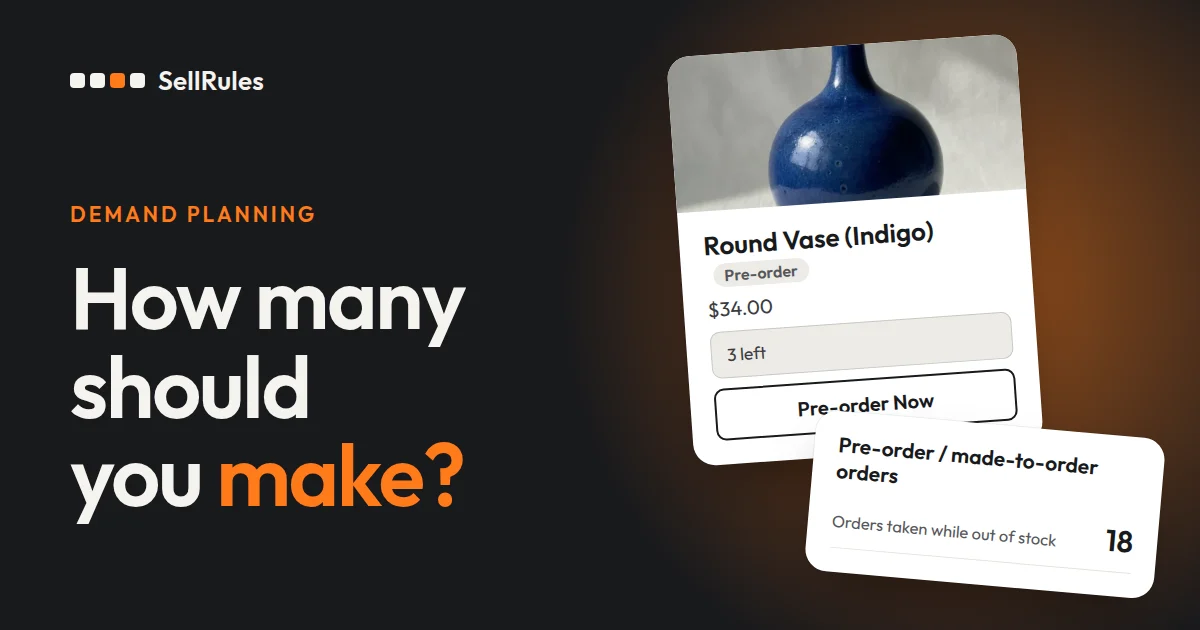
Decide how many to make from the pre-order count at the moment you close pre-orders, rounded up to your batch size. In SellRules, “Sales schedules” shows pre-orders for each product and color as, for example, “58 / 100”.
For products you restock without taking pre-orders, multiply the number of back-in-stock sign-ups by the sign-up-to-purchase rate on the SellRules Home screen. That gives you an estimate of how many to reorder.
This article is written by the developer of SellRules. If you haven't set up pre-orders or back-in-stock emails yet, read How to start taking pre-orders and How to set up back-in-stock emails first.
Make ahead, or take orders first?
Whether you use pre-orders or sign-ups depends on whether the product can be made after the orders come in. If customers will wait for a promised ship date, collect orders first with pre-orders. If they expect it right away, estimate from sign-ups and buy the stock in advance.
| Product situation | How you take orders | How to decide the quantity |
|---|---|---|
| The production schedule or arrival date is set | Pre-order or made to order | Use the pre-order count when pre-orders close |
| You can't tell when stock will arrive | Back-in-stock emails | Estimate from sign-ups and the purchase rate |
| A new product before launch | Pre-orders after a coming-soon period | Get a rough idea from sign-ups, then decide from pre-orders |
In an online store, a product you make in a new batch each time it sells out is a good fit for pre-orders, while a staple that sells a few units every day is better kept in stock. To choose between pre-orders and back-in-stock emails for a sold-out product, use the table in Pre-order or waitlist for sold-out products.
What your customers see
Your pre-order count and sign-ups go up when customers do the following on the product page.
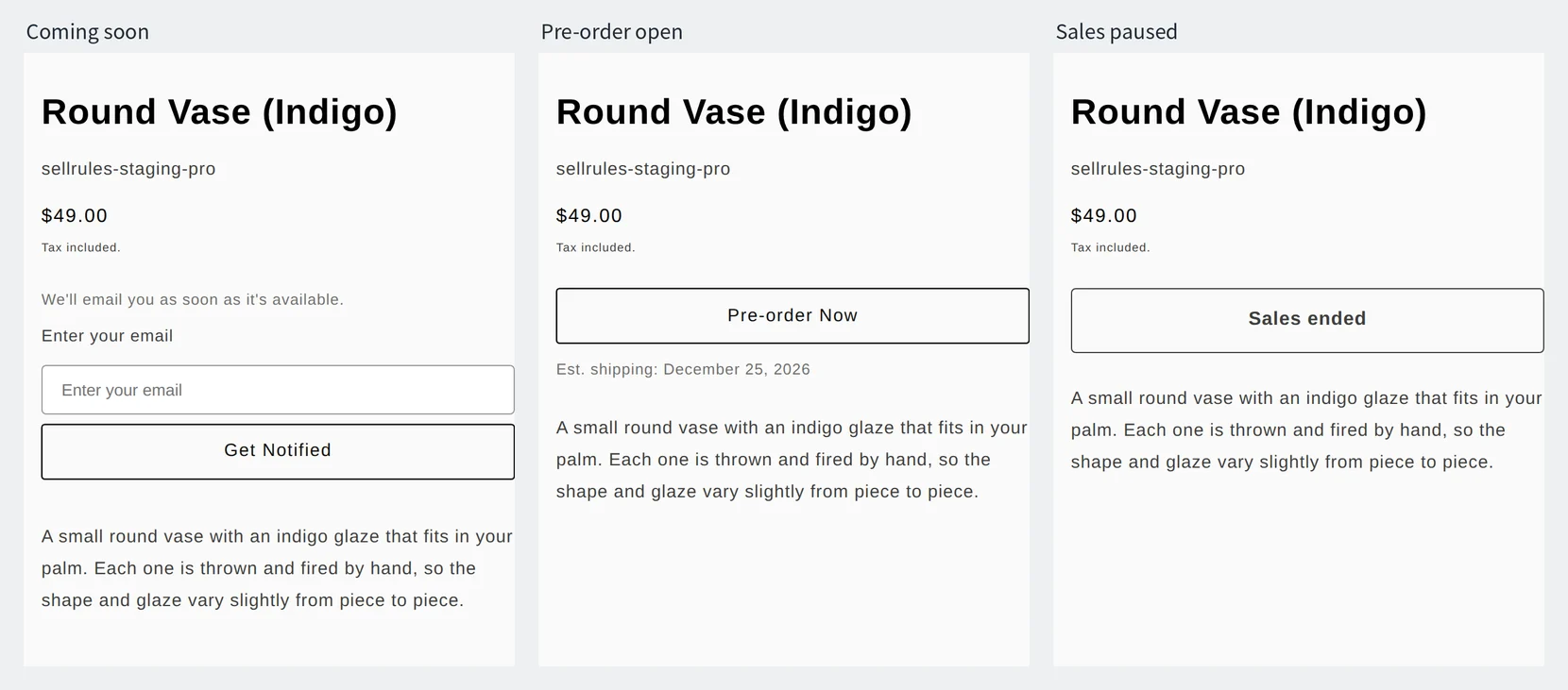
- Coming soon: when a customer enters an email address and clicks “Get Notified”, you get one more sign-up.
- Pre-order open: when a customer orders with “Pre-order Now”, the pre-order count goes up by the number of units in the order.
- Orders stopped: after the “Date sales end”, the button changes to a “Sales ended” button that can't be clicked, and customers can no longer order. When the total quantity limit is reached, pre-orders stop and the regular buy button comes back. If inventory is 0, the product shows as sold out.
How this differs from Shopify on its own
The numbers you need to decide how many to make or restock
Shopify on its own
SellRules
Shopify on its own can take orders for a product with 0 inventory. What it doesn't show is how many units were taken as pre-orders, or how many people are waiting but haven't ordered, as numbers you can plan production on.
Shopify's “Sell when out of stock” is a setting you can choose for products whose inventory is tracked (Shopify Help Center, checked November 13, 2026). You have to tell customers yourself, in the product description or elsewhere, that the item is a pre-order and when it will ship.
How to decide the quantity to make from pre-orders in SellRules
From here on, the example is a canvas tote bag (an illustration, not numbers from a real store).
- It comes in two colors, Natural and Black. Sewing is done by an outside workshop that takes orders in batches of 30
- The fabric on hand is enough for up to 60 Natural and 40 Black
- Pre-orders run for two weeks, and the order goes to the workshop the day after they close
1. Enter what you can make as the total quantity limit
Create a pre-order under “Sales schedules”, click “Show extra settings”, and enter the number you can make in “Total quantity limit”. The limit counts units, not orders, and an order for 2 counts as 2, so enter the full number you can make. In this example, enter 100, the total for both colors.
If the number you can make differs by color or size, open the schedule you created, go to “Variant-specific settings”, and choose “Limit for this variant only” under “Limit”. In “Limit for this variant”, enter 60 for Natural and 40 for Black.
If you leave it on the default, “Share the whole-product limit (default)”, pre-orders are counted for the whole product only and don't show per color.
2. Close pre-orders before production starts
Under “When the pre-order ends”, choose what happens after pre-orders close, and enter a date and time before the day production starts.
- Switch to regular sales: from the date and time you entered, the regular buy button comes back. Choose this when you plan to sell the extra units from rounding up as regular stock.
- End sales and show "Sales ended": from the “Date sales end”, the button changes to a “Sales ended” button that can't be clicked. Choose this when you make only what was pre-ordered and stop selling after that.
3. Read the pre-order count when pre-orders close
On the closing day, open “Sales schedules”. On the product's row, open “by variant”, and the pre-orders for each color appear as “units ordered / limit”.
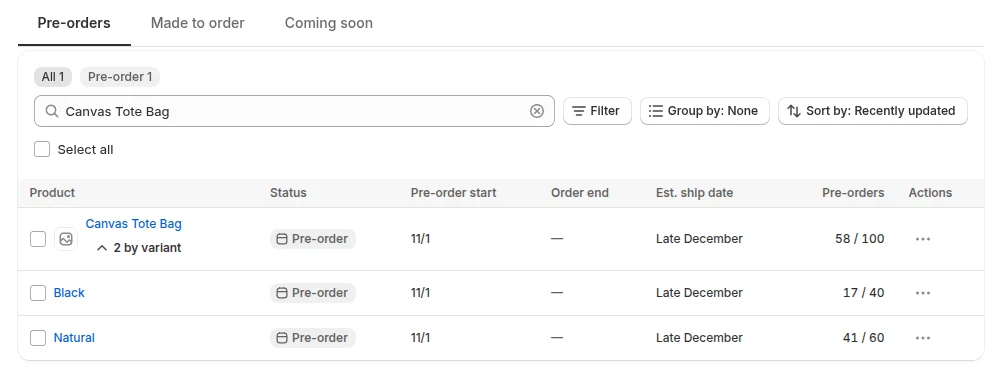
In this example, Natural has 41 and Black has 17, for a total of 58 pre-orders. If you have a lot of products, set the sort order to “Pre-orders: most first” and use “Group by” to group them by product type or vendor. Click “Export CSV” to open the filtered list in a spreadsheet.
4. Round up to your batch size
Round the 58 pre-orders up to the workshop's batch size of 30, so you make 60. If “When the pre-order ends” is set to “Switch to regular sales”, you can sell the 2 units beyond the pre-orders as regular stock.
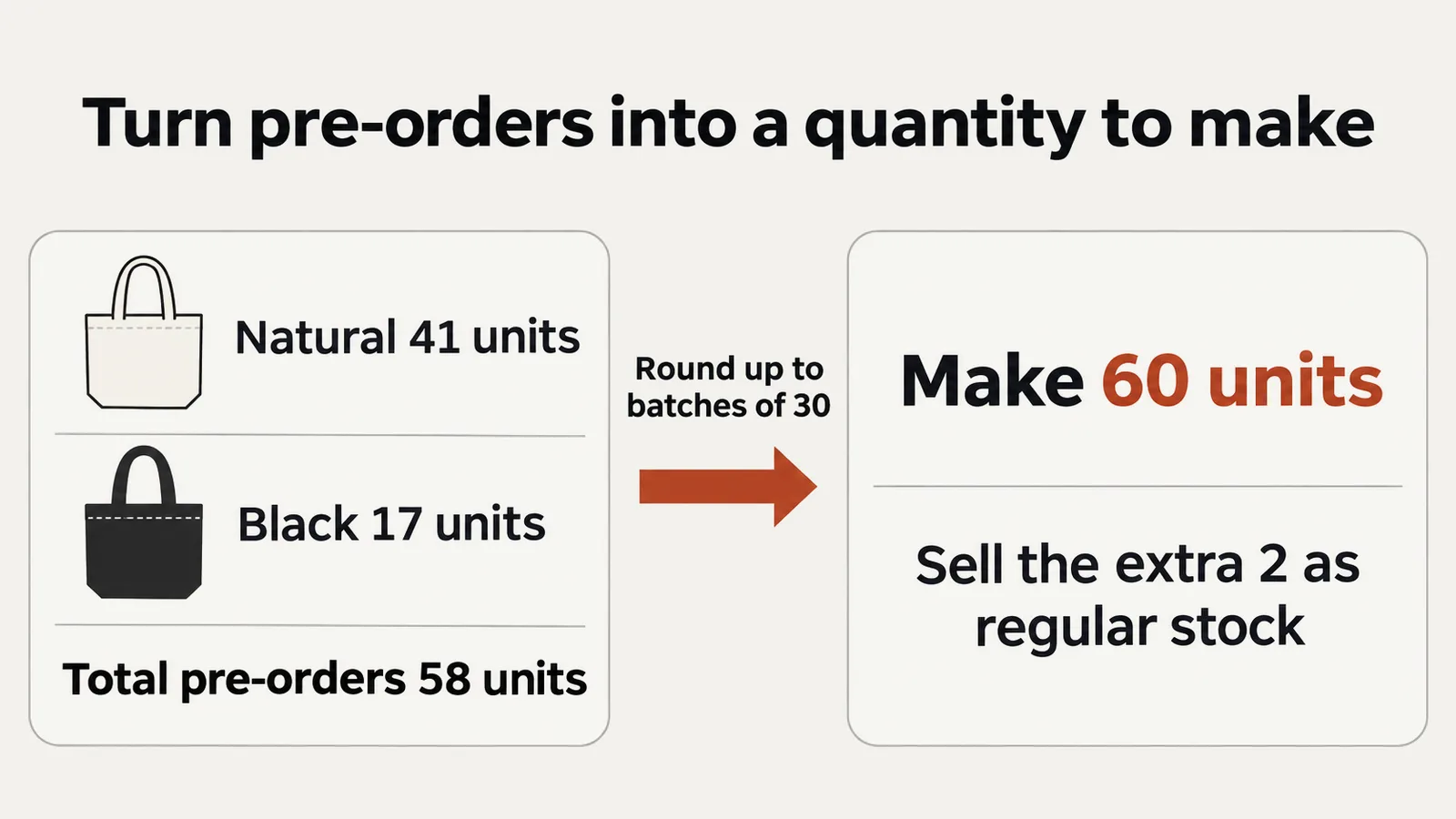
If the workshop takes batches of 30 per color, do the same calculation for each color. Natural rounds up from 41 to 60 and Black from 17 to 30, for 90 in total. That leaves 32 to sell as regular stock, so before you place the order, ask the workshop whether it will accept batches of 30 counted across both colors.
Estimate how many to restock from back-in-stock sign-ups
For products you restock without taking pre-orders, multiply the number of sign-ups that will get the next email by the share of sign-ups that went on to buy. A sign-up is not an order, so don't reorder one unit for every sign-up.
The sign-ups that will get the next email are the ones in “Back-in-stock subscribers” with the status “Not yet notified” or “Sent”. SellRules sends an email every time stock returns, so customers marked “Sent” after the last email will get one again at the next restock.
- In “Back-in-stock subscribers”, filter by product, choose a status, and read the count. It appears as “X of Y”.
- On the SellRules Home screen, look at “How far do back-in-stock sign-ups go on to buy?” for the share of emails sent that led to a purchase. Purchases are orders placed through the link in the email.
- Multiply the sign-ups by that share, then add the units you usually sell between the next restock and the one after it.
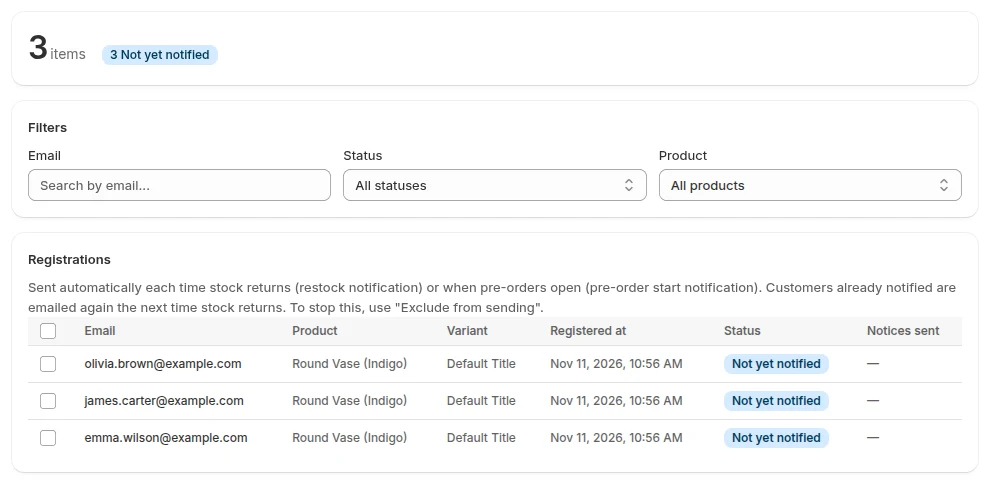
Say you restock the tote bag instead of taking pre-orders. This is the first restock since you started taking sign-ups, so “Sent” is still 0, and “Not yet notified” is 36 for Natural and 18 for Black. Suppose Home shows purchases at 25% of emails sent, based on emails sent for other products. Assume one unit per order.
- Natural: 36 sign-ups × 25% = 9 units
- Black: 18 sign-ups × 25% = 4.5 units, so about 5
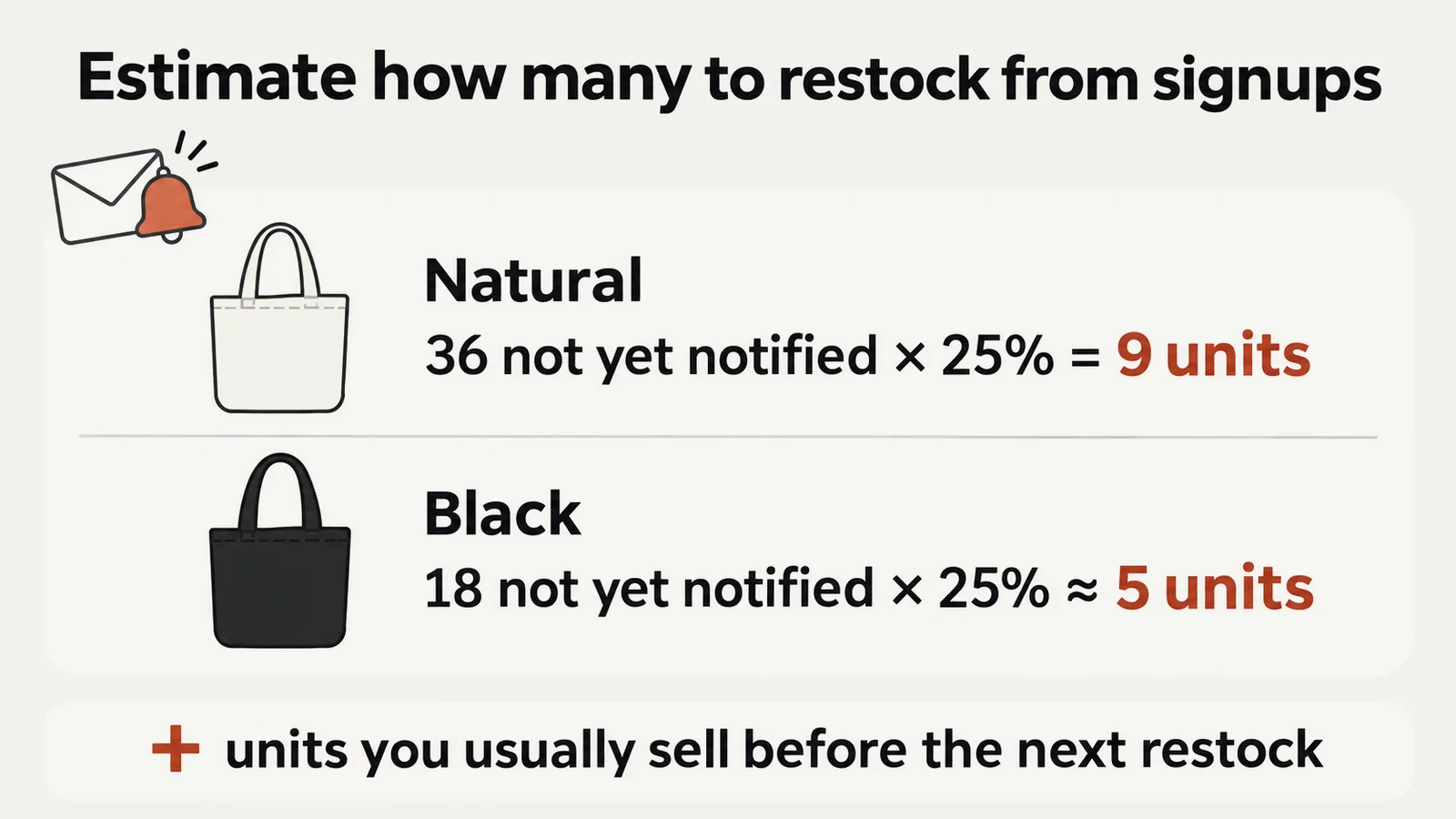
The rate on Home covers your whole store over the past 30 days, not each product. While you have sent only a few emails, the rate can swing a lot, so in that period treat the sign-up count as an upper bound for your reorder quantity. To count by color or size, export the sign-ups with “Export CSV” and count them using the variant and status columns.
For new products, test demand with coming-soon sign-ups and pre-orders
For a product you have never sold, collect sign-ups before launch and decide the quantity after taking pre-orders. Click “Add coming-soon period” on a pre-order schedule, and the product page takes sign-ups during the period before pre-orders. When pre-orders open, everyone who signed up gets an email.
Say you add a new color, Dusty blue, to the tote bag. The one-week coming-soon period brings in 40 sign-ups, and the two weeks of pre-orders that follow bring in 22 pre-orders.
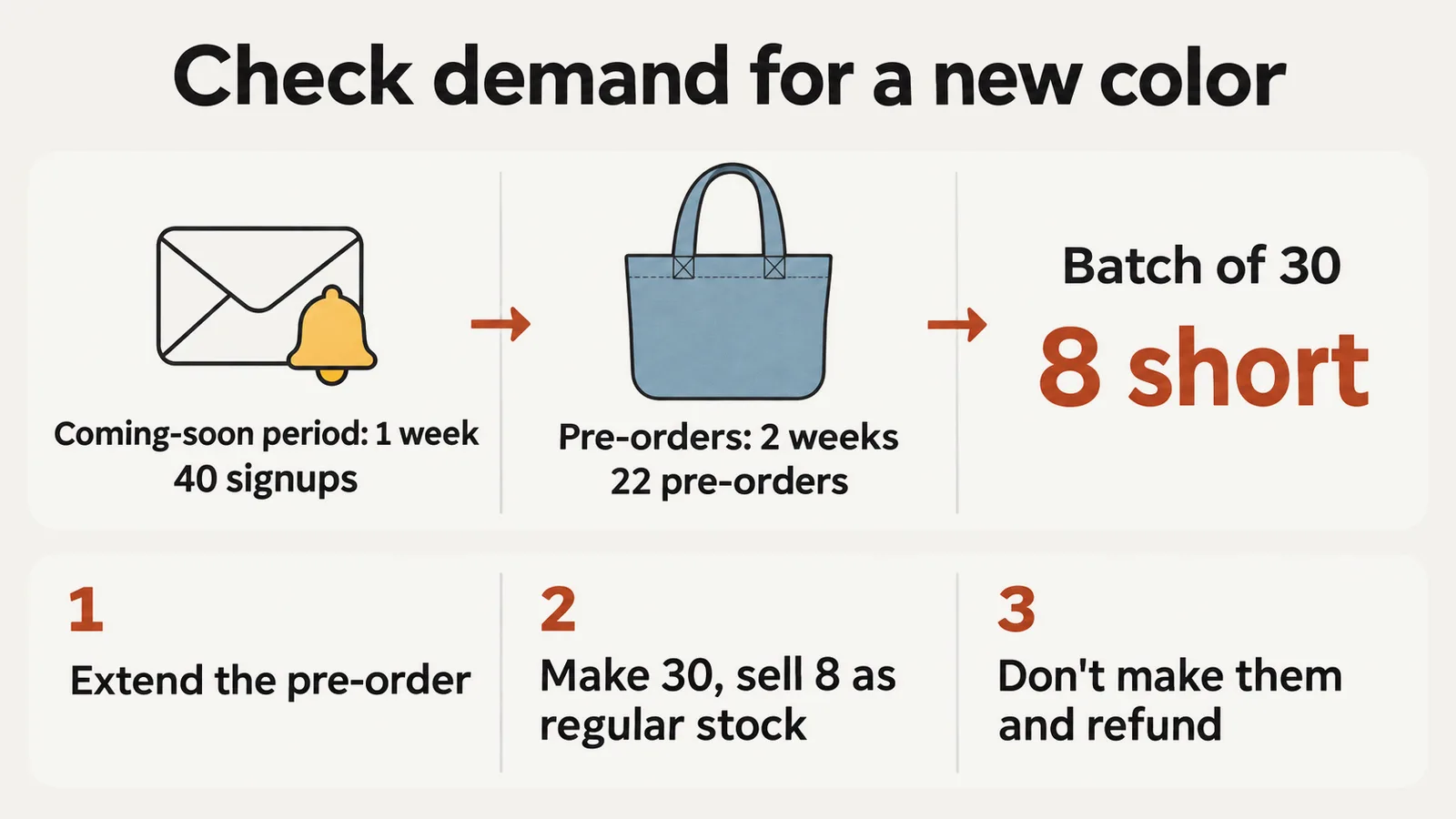
The workshop's batch size is 30, so 22 is 8 short. Choose one of these three.
- Extend the pre-order: if you can still meet the ship date you announced, move the closing date and time later and keep taking pre-orders until you reach 30.
- Make 30 and sell 8 as regular stock: if sales of your existing colors suggest you can sell those 8, order 30.
- Don't make them and refund: don't place the order, and let the customers who pre-ordered know and refund them. To prepare for this, write on the product page before pre-orders open: “If we don't reach 30, we won't make them and will refund you.”
There were 22 pre-orders for 40 sign-ups, or 0.55 units per sign-up. The next time you release a new color, multiply the coming-soon sign-ups by 0.55 to get a rough idea of the pre-orders to expect.
Troubleshooting
| Problem | Cause | Fix |
|---|---|---|
| Pre-orders stopped before the closing date | The pre-order count reached the “Total quantity limit” | If you can make more, raise the limit. If you can't, create a pre-order for the next batch |
| Pre-orders don't show per color | It is still set to “Share the whole-product limit (default)” | Choose “Limit for this variant only”. Pre-orders taken before you change it count only toward the whole product |
| The pre-order count doesn't match the orders list | Canceled and refunded orders are subtracted from the pre-order count | Treat it as the count net of cancellations and refunds, and decide the quantity from it |
Pricing
The total quantity limit, pre-orders per color, back-in-stock sign-ups, and the sign-up-to-purchase rate on Home are all available on the Free plan. The Free plan covers up to 10 pre-order and made-to-order orders in total, and up to 15 back-in-stock and sale-start emails in total.
SellRules plans and pricing
| Monthly price | LaunchEvery feature included | FreeStart with one product |
|---|---|---|
| Monthly price | US$7.99 per month | Free |
| Free trial | 10 days | None |
| Pre-order and made-to-order orders | Unlimited | Up to 10 in total |
| Back-in-stock and sale-start emails (Notify Me) | Unlimited | Up to 15 in total (not refilled monthly) |
| Purchase limits | No limit on products | Up to 1 product |
| Customizable notification emails | Yes | No |
| Deposit payments | Yes | No |
Pre-orders, made-to-order, back-in-stock alerts, purchase limits, stockout switching, deposit payments and order processing are all included in the Launch plan.
The first 10 days of the Launch plan are free. If you remove the app during the trial, you are not charged.
On the Launch plan, back-in-stock and sale-start emails have no sending cap. Required messages such as order confirmations, shipping updates and balance reminders are sent on every plan regardless of the cap.
The Standard and Pro plans are closed to new sign-ups. Shops already on them keep their current terms.
Start by picking one product you'll make next, enter what you can make in “Total quantity limit”, and take pre-orders on it. When your orders or emails grow, switch to the Launch plan (US$7.99 per month), which has no such limits. You can install SellRules from the Shopify App Store, where you can also check the pricing and the free trial terms.
Frequently Asked Questions
Can I see the count the same way for made-to-order products?
Yes. The “Made to order” tab in “Sales schedules” shows “Orders”. Enter the limit in “Total quantity limit”, and you can sort by “Orders: most first”.
Related articles:
- Choosing by industry: pre-orders vs. made to order by industry
- Choosing how you sell in the first place, including pre-orders, made to order and back-in-stock emails: Rules for early-access and limited sales
- Choosing between pre-orders and back-in-stock emails for a sold-out product: Pre-order or waitlist for sold-out products
- Taking pre-orders on your first product with a total quantity limit and a closing date: How to start taking pre-orders
- Showing a sign-up field on sold-out product pages: How to set up back-in-stock emails
- Collecting sign-ups before launch: Collect notification sign-ups before launch
- Managing the orders you took through to shipping, once you've decided the quantity: Managing made-to-order orders
- Taking a set number of pre-orders for produce before harvest: How to take pre-orders for produce before harvest
- Seeing pre-order counts and amounts in one place: See what your pre-order app brings in, in numbers
Products and quantities are examples for illustration, not from a real store.