When you take pre-orders for fruit or vegetables on Shopify before the harvest, put a limit on the number of pre-orders and give shipping as a window such as “late July”. Both the size and the timing of a harvest depend on the weather, so you need to avoid taking more orders than you can ship and avoid promising an exact date.
With the Shopify app SellRules, you set three things in the product's “Sales schedules” entry:
- “Total quantity limit”: a number of boxes a little below your expected harvest
- “Estimated shipping (text)”: “late July”
- “When the pre-order ends”: “End sales and show "Sales ended"”
When the limit is reached, pre-orders stop automatically. If the weather cuts the harvest, lower the total quantity limit to the current number of pre-orders and orders stop on the spot.
What the customer sees
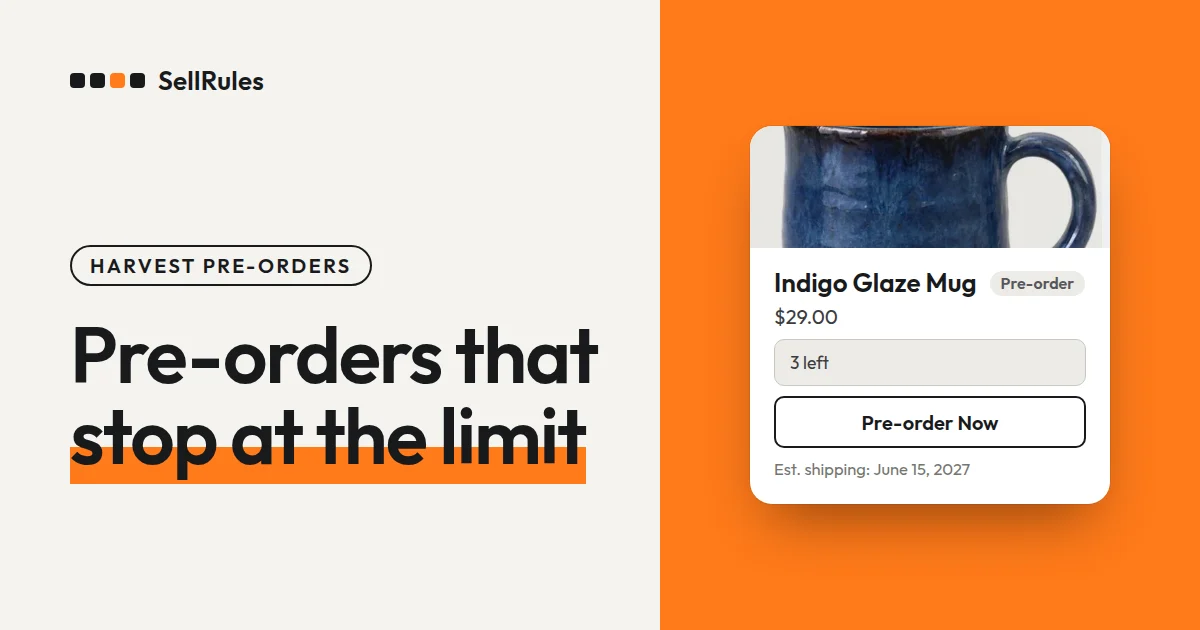
Below is the product page for a box of white peaches on pre-order before the harvest. While pre-orders are open, the buy button changes to a pre-order button with the shipping window under it. Once the total quantity limit is reached, the page shows the product as sold out and stops taking pre-orders.
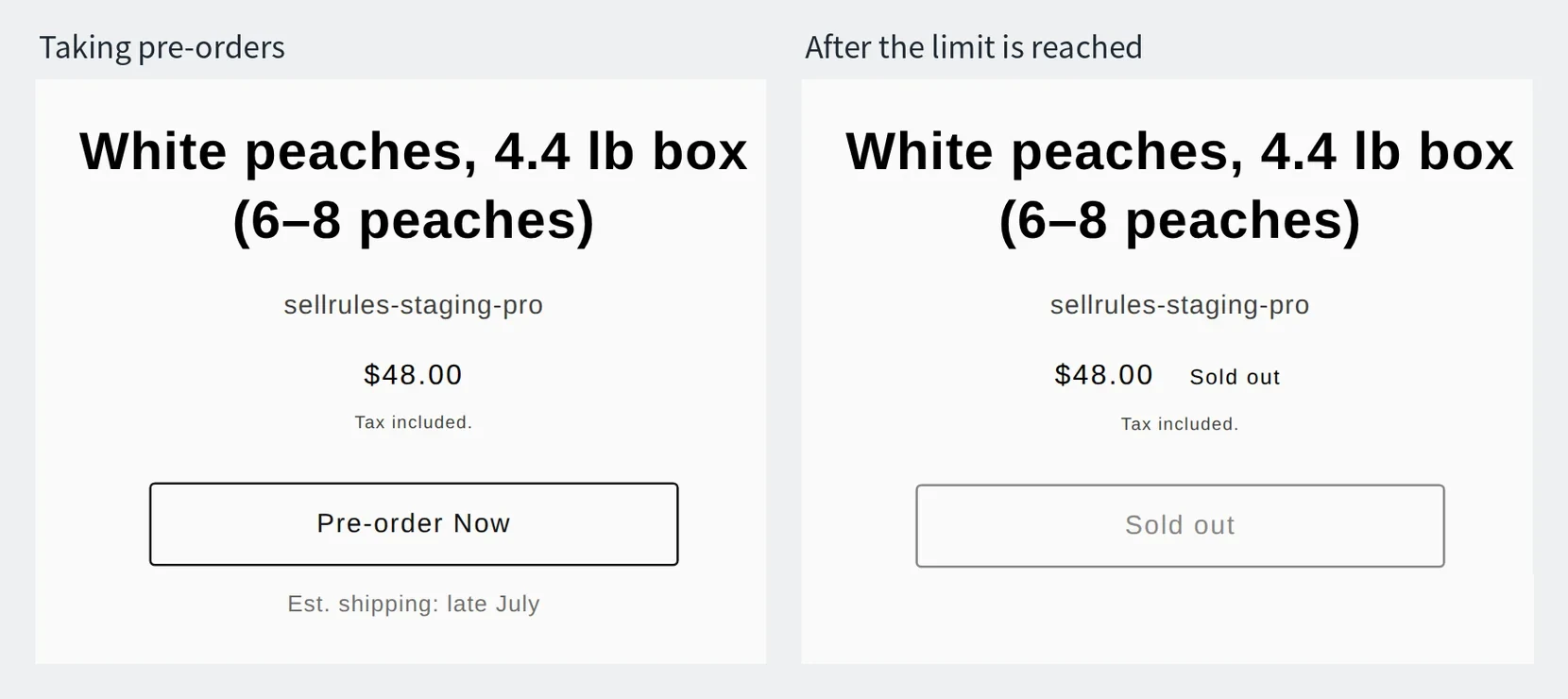
The product page stays up after pre-orders close, so you can use the same page for next year's pre-orders.
How it differs from Shopify's built-in way to take pre-orders
Shopify's built-in option and the SellRules sales schedule
Shopify built-in
SellRules sales schedule
Shopify also has “Continue selling when out of stock” in a product's inventory settings, which lets you take orders with inventory at 0. That setting has no limit on how many you take, so to close orders you turn it off by hand.
The total quantity limit in SellRules counts quantities, so two boxes in one order count as two, and it stops orders as soon as the total reaches the limit. While pre-orders are open, the Shopify inventory count shows how many more boxes you can take, and it goes back to the original count when pre-orders end.
How to set it up in SellRules
How to take pre-harvest pre-orders for produce in SellRules
- 1. Set the product's inventory to 0
- 2. Create the sales schedule
- 3. Enter the limit and the shipping window
- 4. Stop orders if the harvest comes in short
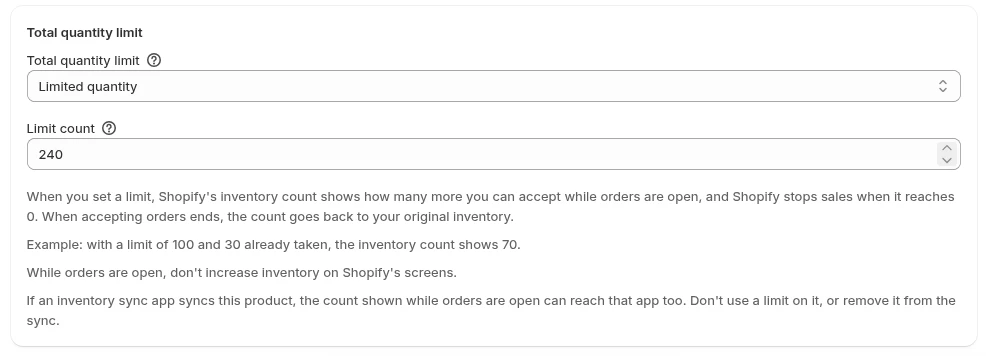
Before you start, track inventory on the product under “Products” in Shopify admin and set the quantity to 0. Once you enter a total quantity limit, SellRules replaces the inventory count with the number of orders still available while pre-orders are open. When that reaches 0, the product shows as sold out and no more orders come in.
- Under “Sales schedules” in SellRules, choose pre-order and pick the product.
- Set “Sale start” to when pre-orders open. For “When the pre-order ends”, choose “End sales and show "Sales ended"”, and set “Date sales end” to match the end of the harvest.
- Under “Total quantity limit”, choose “Limited quantity” and enter the number of boxes you can ship under “Limit count”. For example, if you expect to harvest 300 boxes, go lower, say 240, to allow for losses to the weather.
- Enter “late July” under “Estimated shipping (text)”, and under “Estimated ship date” enter the last day of that window, such as July 31. When you fill in the text, the text is what appears under the buy button.
- Save. Open the product page and check that the pre-order button and “late July” appear.
If you sell a small box and a large box as variants, the way you would colors or sizes, you can choose “Limit for this variant only” for each variant and split the number of boxes between them.
Stopping orders when the harvest comes in short
If the weather cuts your expected harvest, stop pre-orders right away. There are two ways to do it:
| How to stop | What you do | Product page |
|---|---|---|
| Lower the total quantity limit | Set the total quantity limit to the same number as “Pre-orders” in the list and save | Shows as sold out |
| Pause sales | Click “Pause sales” on the sales schedule | Shows “Sales ended” |
Once you've decided not to take any more, lower the total quantity limit. If you don't know the outlook yet and want to stop for a few days and see, use “Pause sales”. Pausing keeps the dates and the limit as they are, and “Resume sales” brings back the same settings.
If, after stopping, the pre-orders you've already taken look likely to ship late, enter a new date with “Change ship date” under “Order progress”, check “Notify customer of delay” and save.
Pricing
The total quantity limit, “Estimated shipping (text)” and pausing sales are available from the Free plan. On the Free plan you can take up to 10 “Pre-order” and “Made to order” orders in total. Start with one variety: enter a small total quantity limit and check that the product page changes to sold out when the limit is reached.
To take more pre-orders than that, switch to the Launch plan (US$7.99 per month). You can install SellRules from the Shopify App Store, where you can also check pricing and trial terms.
Frequently asked questions
Can I set separate limits for each variety, such as early and late varieties?
Yes. Make each variety a variant, the same way you would a color or size, and enter “Limit for this variant only” for each one under “Variant-specific settings”.
Can I let customers who are waiting know when pre-orders open?
Yes. Add a coming-soon period before pre-orders open and turn on “Accept notification sign-ups during the announcement”, and a sign-up field appears on the product page. When pre-orders open, the customers who signed up get an email.
Can I change the price while pre-orders are open?
Yes. When you change the product's price in Shopify, pre-orders placed after that use the new price. The amounts on pre-orders you've already taken don't change.
Related articles:
- Choosing by industry: pre-orders vs. made to order by industry
- Announcing before pre-orders open: Switch from pre-order to regular sales automatically at launch time
- Deciding how many to make from pre-order counts: How many to make or restock, based on pre-order counts
- Planning dates and quantities for a launch or seasonal sale: Preparing a product launch or seasonal sale
The peaches, the number of boxes and the dates are examples.