To switch a new Shopify product from coming soon to pre-order to regular sales at set times, enter the dates in an app that handles sales schedules. Shopify's built-in future publishing sets the time a product page goes live. It can't change the buy button from pre-order to regular sales after the page is published.
Say you're launching a new snowboard on this schedule:
| Phase | Starts | Buy button on the product page |
|---|---|---|
| Coming soon | December 1, 12:00 | Email field and “Get Notified” |
| Pre-order | December 8, 20:00 | “Pre-order Now” |
| Regular sales | December 15, 10:00 | The theme's “Add to cart” |
| Sales ended | January 5, 0:00 | “Sales ended” (can't be bought) |
In SellRules, a Shopify app, you enter these four dates in a sales schedule and save. The buy button on the product page changes at each time, so you don't have to log in to the admin at 8 p.m. to edit the product page.
What customers see
The same product page changes at each phase, as shown below. These screenshots were taken on a test store while moving the dates forward.
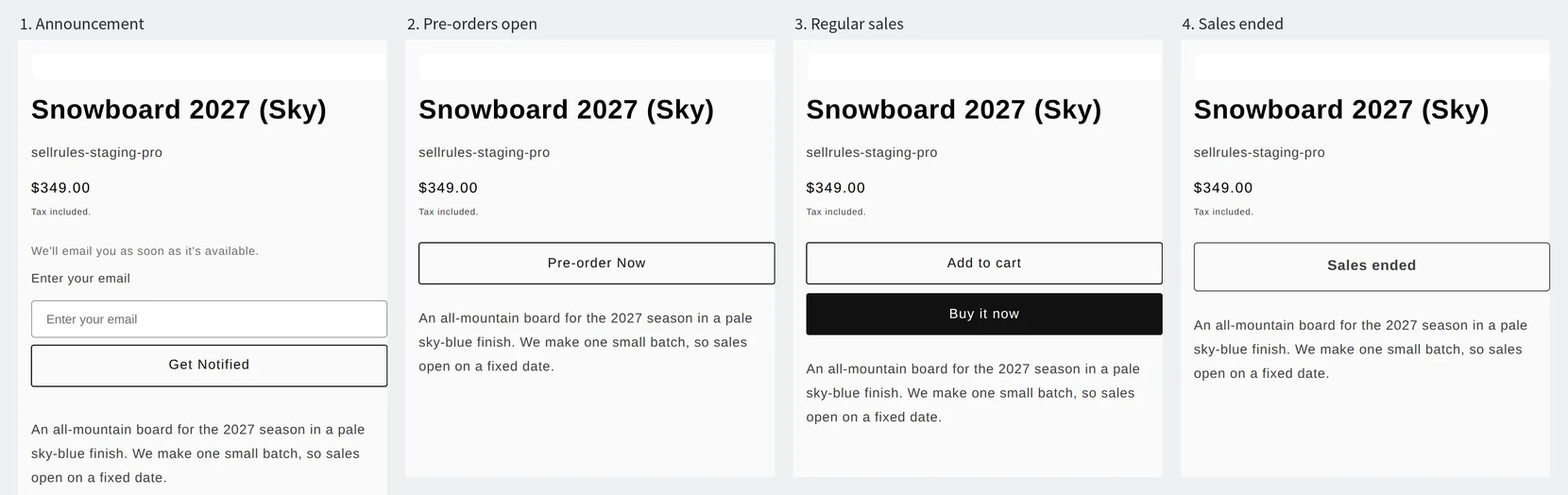
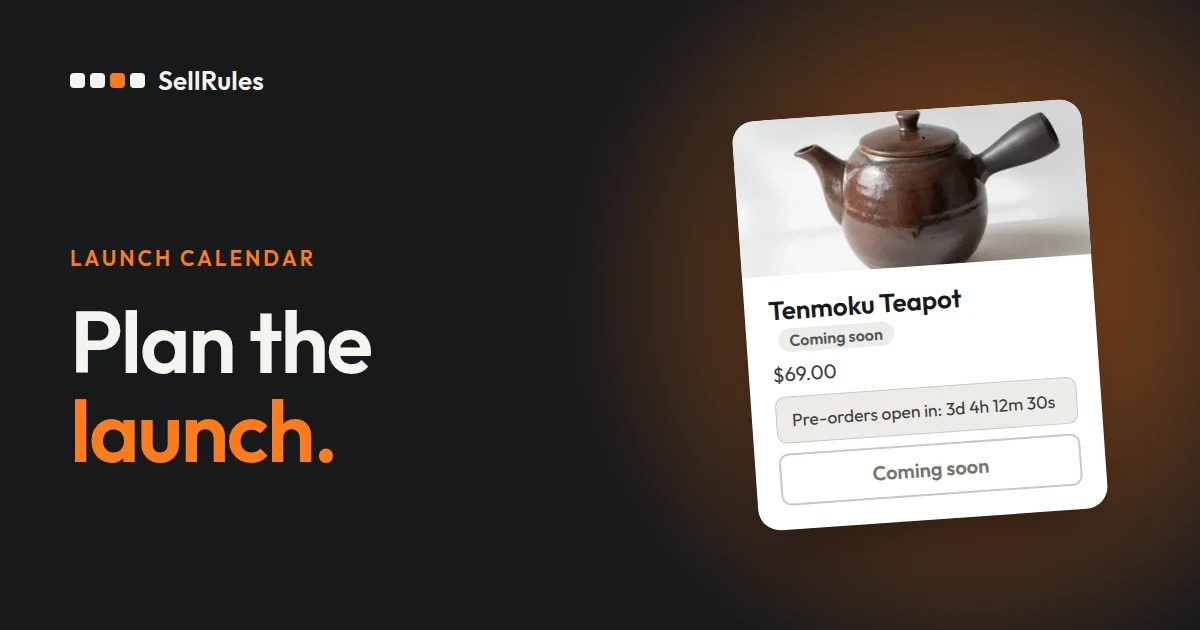
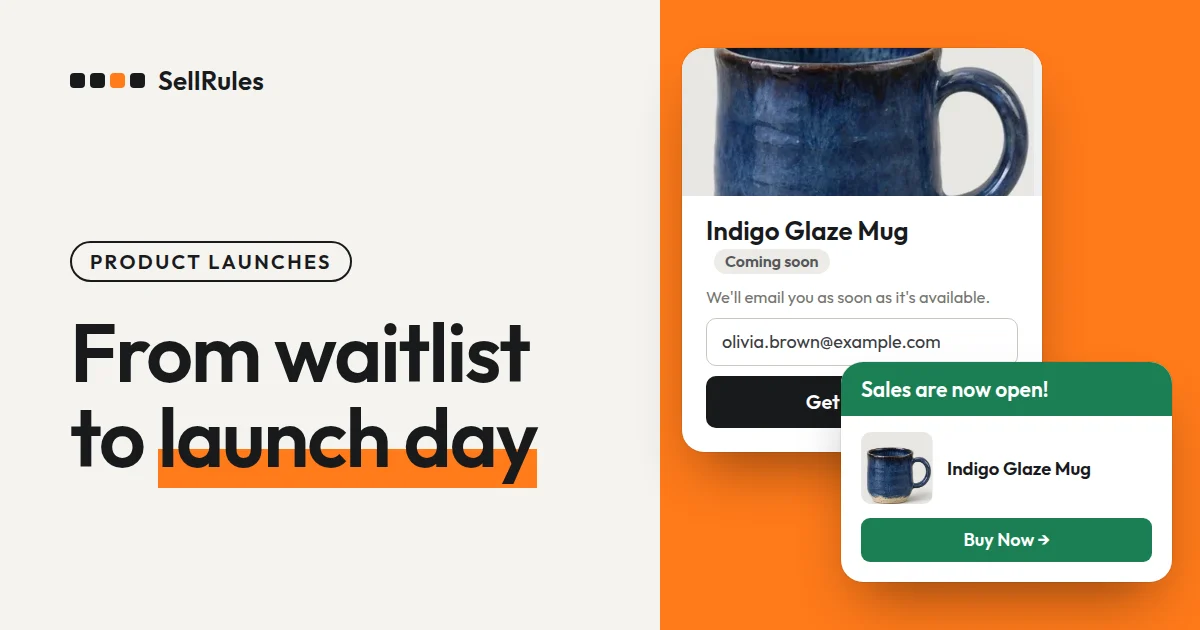
During the coming-soon period, an email field and “Get Notified” appear in place of the buy button. With “Block purchases during the announcement period” turned on, customers can't buy even by going straight to the cart or checkout. Purchases open exactly at the pre-order start time.
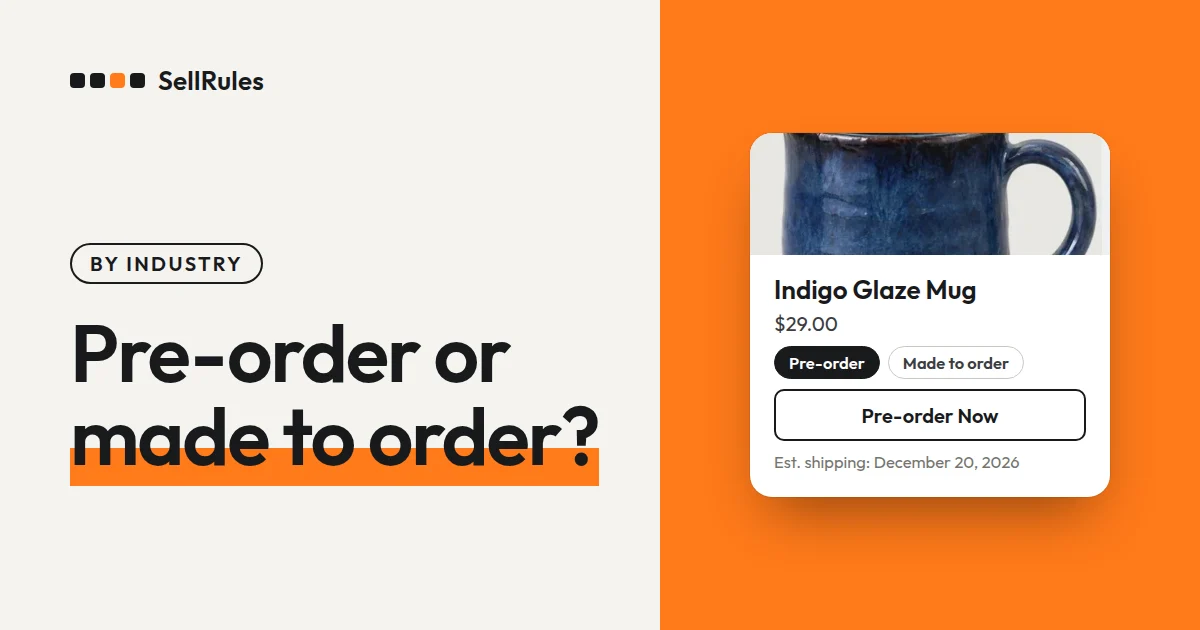
While pre-orders are open, the buy button reads “Pre-order Now”. From the regular sales time, it goes back to your theme's standard “Add to cart”.
On the date regular sales end, “Sales ended” appears where the buy button was, and the product can no longer be bought.
How this differs from Shopify's future publishing
Shopify's future publishing vs. a SellRules sales schedule
Shopify's future publishing
SellRules sales schedule
In Shopify, you can schedule when a product is published on each sales channel (Shopify Help Center, checked November 9, 2026). If you want to keep the product page hidden from everyone until launch and then sell it normally from that time, this setting is all you need.
If you want to show the product page before launch and take sign-ups or pre-orders, or set the time it switches from pre-order to regular sales, use a SellRules sales schedule.
How to set up the schedule in SellRules
What goes into a sales schedule
- Dates and times for the coming-soon start, pre-order start and sale start
- For a limited-time sale, the date regular sales end (the day after your last day of sales)
- Check the dates in the top bar and the customer view table, then create
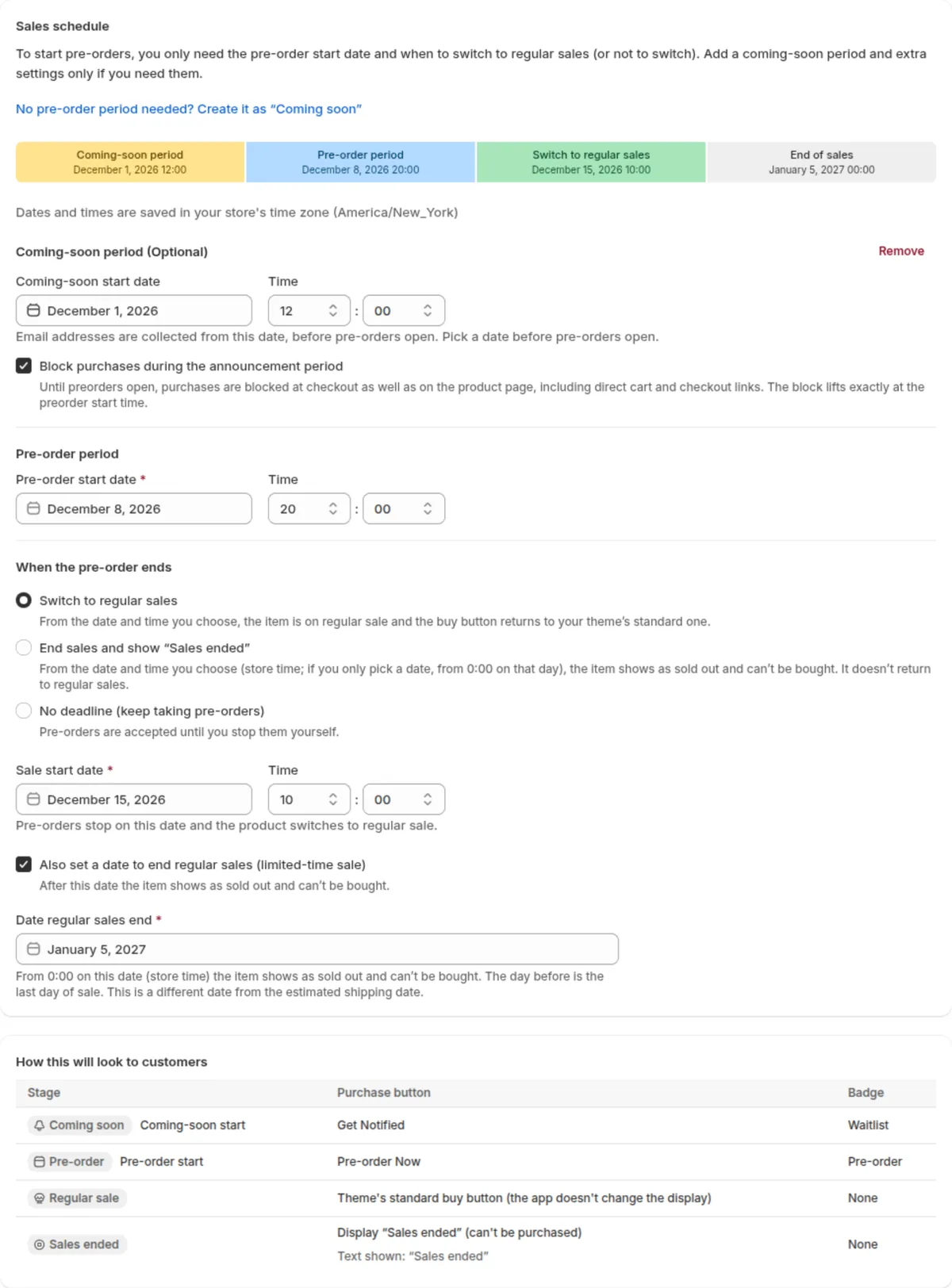
Before you start, make sure SellRules shows up on your product page. If the app embed is turned off in your theme, the display won't change in any phase (what to check when the pre-order button isn't showing).
- In SellRules, go to “Sales schedules”, click “Create pre-order” and choose the product.
- Click “Add coming-soon period” and enter the “Coming soon start” date and time. “Block purchases during the announcement period” is on by default, so leave it on.
- Enter the “Pre-order start date” and time.
- Under “When the pre-order ends”, select “Switch to regular sales” and enter the “Sale start date” and time.
- For a limited-time sale, check “Also set a date to end regular sales (limited-time sale)” and enter the “Date regular sales end”.
- Check the dates in the bar at the top of the screen and the “How this will look to customers” table, then click “Create”.
Keep these four points in mind when you enter the dates:
- Enter times in the time zone shown on the screen under “Dates and times are saved in your store's time zone (…)”. If your store's time zone in Shopify is different from where you are, don't convert to your local time. Enter the time in the zone shown.
- Times are picked in 5-minute steps.
- From the regular sales time, the product sells from your Shopify inventory, so enter the inventory quantity before then.
- For “Date regular sales end” you pick only a date, and sales end at 0:00 on that day. To sell through December 31, enter January 1.
If the coming-soon, pre-order and regular sales dates are out of order, the screen shows “Dates are out of order. Use this order: coming soon, pre-order, regular sales.” and you can't save.
Check before and after each switch
The first time you use it, create a test product, set the pre-order start and sale start a few minutes ahead, and watch it switch. When you're done, unpublish or delete the test product.
| When | What to check |
|---|---|
| Right after you create it | The product page shows the email sign-up field for the coming-soon period, and the product can't be added to the cart |
| The day before a switch | In the “Pre-order / order schedule calendar”, the date, time and time zone of the next switch are right |
| Right after a switch | Open the product page in a new tab and check that the button has moved to the next phase |
A product page that's already open may keep showing the previous display even after the time passes. When you check a switch, reload the page.
If it doesn't switch, check these in order:
| Symptom | Cause | Fix |
|---|---|---|
| SellRules doesn't show up in any phase | The app embed is off in your theme | Turn on “SellRules” under app embeds |
| It switches a few hours off schedule | The times weren't entered in the store's time zone | Re-enter them in the time zone shown on the create screen |
| Sales end one day early | Your last day of sales was entered as “Date regular sales end” | Enter the day after it instead |
| It shows “Sales ended” when pre-orders should be open | Sales are “Paused” | Click “Resume sales” on the edit screen |
Changing the schedule
If the launch is pushed back, change the “Pre-order start” or “Sale start” on the schedule's edit screen and save. As soon as you save, the product page switches on the new schedule.
Saving a new schedule doesn't send any email to customers right away. Before you save, check the following under “What happens when you save” on the edit screen:
- If you change it before pre-orders start, customers who signed up during the coming-soon period get a notice that ordering has started at the new pre-order start time. This notice isn't sent if you've turned it off in notification settings.
- The “Estimated shipping date” on pre-orders you've already taken stays as recorded on each order. To use a new date, change the “Estimated shipping date” on the Orders page and let customers know.
- If you set the schedule's estimated ship date later than the date you gave customers, the periodic delay check automatically sends a delay notice to customers on the affected orders. This notice isn't sent if you've turned it off in notification settings.
To change the schedule for several products at once, select them in the sales schedules list and click “Bulk edit”. Only the fields you check are overwritten on all the selected schedules.
You can select up to 500 at a time, and you can't select “Pre-order” and “Made to order” schedules together.
If you use bulk edit to extend the end date of a pre-order that has ended, it opens for orders again.
Pricing
You can create pre-order sales schedules on the Free plan. The Free plan includes up to 10 pre-order and made-to-order orders in total since you installed the app, and up to 15 emails in total, including notices that ordering has started.
Try setting up one schedule for the next product you launch.
When pre-orders and emails start to add up, switch to the Launch plan (US$7.99 per month). You can install SellRules from the Shopify App Store, where you can also check pricing and free trial terms.
Frequently Asked Questions
How do I start regular sales at launch time without taking pre-orders?
Use “Create coming soon”. Until launch, the product page shows “Coming soon” and customers can't buy. At the sale start time, it switches to regular sales. On the Free plan, you can use coming soon on 1 product.
Can I keep the product page hidden until the coming-soon period starts?
Yes. Turn on “Also switch Online Store publishing” on the create screen. The product is then unpublished before the coming-soon start, published during the coming-soon, pre-order and regular sales phases, and unpublished again after sales end.
Can I pause sales in the middle of a launch?
Yes. “Pause sales” on the edit screen stops purchases and keeps your settings. While sales are paused, customers see “Sales ended”. The schedule keeps running, so when you resume, the product goes to whichever phase matches the date and time you resume.
Related articles:
- Planning dates and quantities for a launch or a holiday sale together: how to plan a product launch or holiday sale
- Collecting email signups before launch: how to collect pre-launch email signups
- Choosing how to sell, such as early access or limited quantities: planning early-access and limited sales
- What to decide before you start taking pre-orders: how to start pre-orders on Shopify
- When the pre-order button doesn't appear: what to check when the pre-order button isn't showing
- Limiting a product to one per customer: setting a “limit one per customer” rule
- Taking pre-orders for CDs and books until release day: Limited pre-order bonuses and the release-day switch
The product page and create screen screenshots were taken on a test store the same day. Following the store's settings, the create screen shows New York time and the customer-facing text in English.
The snowboard and the schedule are examples for illustration.