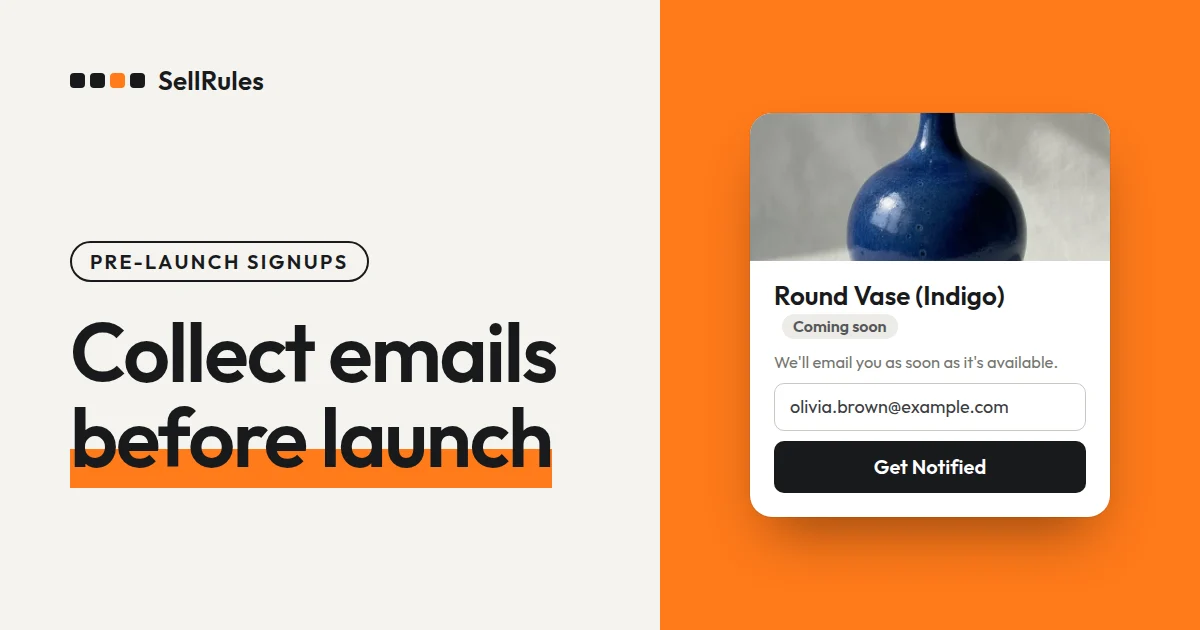
Before you launch a new product on Shopify, you can collect customers' email addresses on the product page and email them when it goes on sale. In the Shopify app SellRules, create a “Coming soon” schedule and check “Accept notification sign-ups during the announcement”. Until launch, the product page shows an email signup form instead of the buy button, and at the sale start time everyone who signed up gets a single “Sale start notification”.
- Before launch, customers can't buy, and the product page shows an email signup form
- At the sale start time, the product switches to regular sale and subscribers get an email
- If you want to start with pre-orders, add a coming-soon period to a pre-order schedule, and subscribers get a “Pre-order start notification” when pre-orders open
Coming soon and pre-orders with a coming-soon period are both available on the Free plan.
What customers see on the product page
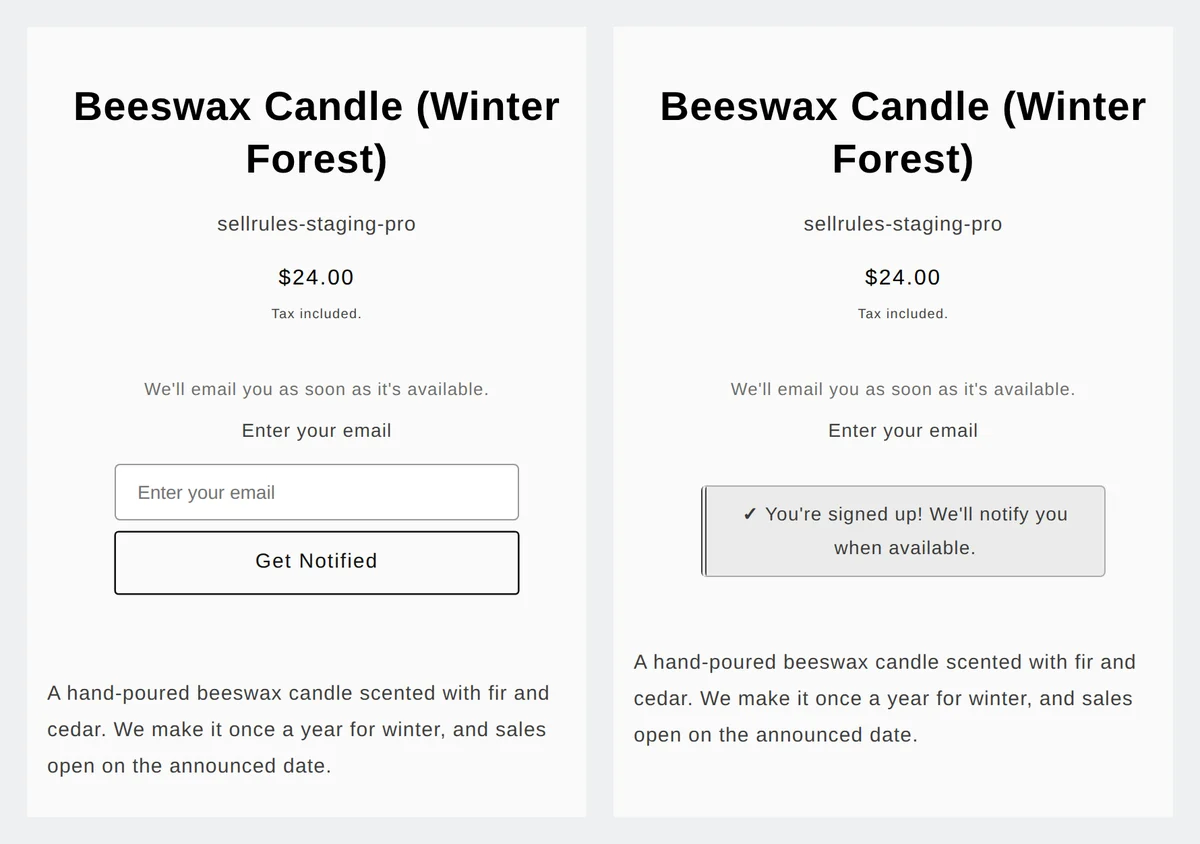
During the announcement, the product page shows a short message, an email field and a “Get Notified” button instead of the buy button. When a customer enters an email address and clicks the button, the form changes right away to a confirmation message.
At the sale start time, the product page switches to the regular buy button, and subscribers get the email below. The subject line is “[Now on sale] Product name”, and the button in the email opens the product page.
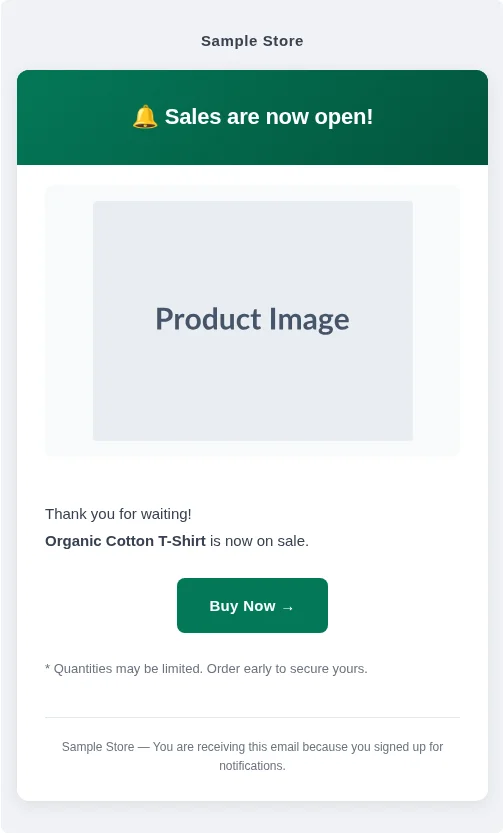
The Sale start notification is sent once to each subscriber at the sale start time. The email is in the store language the customer was viewing when they signed up.
Coming soon, or a pre-order with a coming-soon period?
There are two ways to take signups before launch. If you'll sell normally from launch time, use “Coming soon”. If you want to take pre-orders before launch, add a coming-soon period to a “Pre-order” schedule.
| Coming soon | Pre-order with a coming-soon period | |
|---|---|---|
| When the signup form shows | From coming soon start to sale start | From coming soon start to pre-order start |
| Email subscribers get | Sale start notification (subject “[Now on sale] Product name”, button “Buy Now →”) | Pre-order start notification (subject “[Pre-order Now Available] Product name”, button “Pre-order Now →”) |
| Product page after the start | Regular buy button | Pre-order button |
For how to take pre-orders and switch from pre-orders to regular sale, see how to start Shopify sales automatically at launch time.
How this differs from Shopify on its own
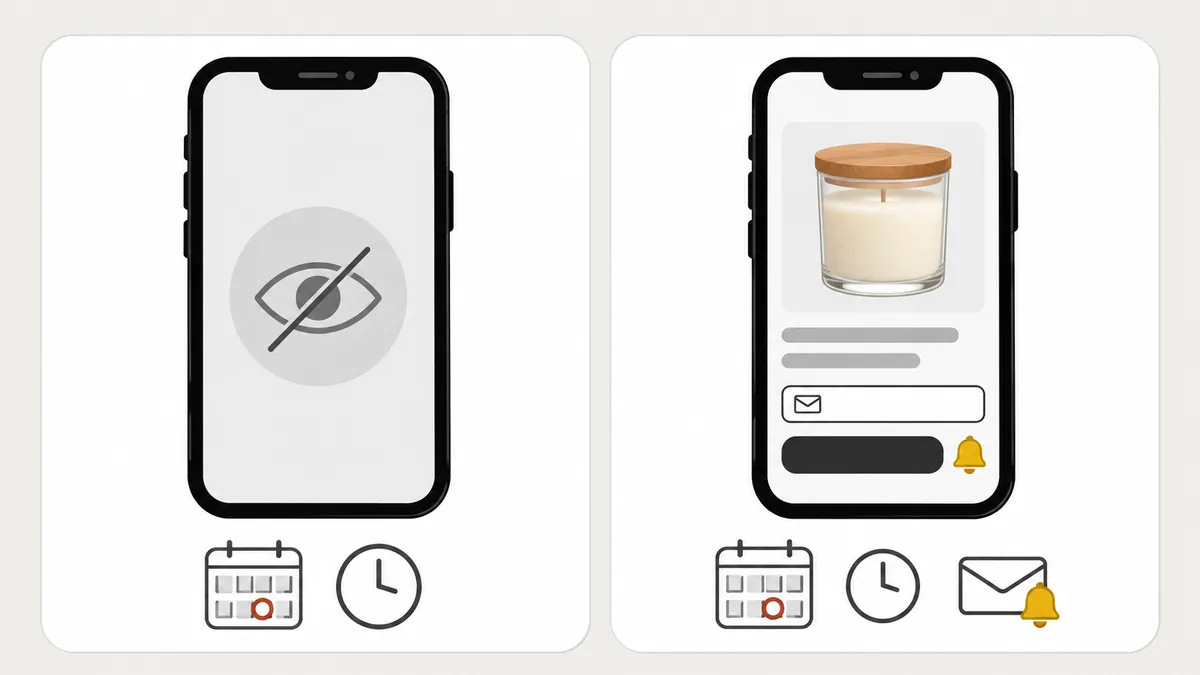
Shopify's built-in scheduled publishing can also make a product page go live at launch time. But until it's published, the product page itself can't be seen, so there's nowhere to collect customers' email addresses before launch.
| Shopify scheduled publishing | SellRules Coming soon | |
|---|---|---|
| Product page before launch | Not visible | Visible, but can't be purchased |
| Email signups before launch | None | Taken through the signup form on the product page |
| Email at launch time | You send it yourself | Sent automatically once to each subscriber |
Coming soon is useful when you want to show the product page early and build a list of customers waiting for the launch.
How to accept notification signups with Coming soon
Before you start, set the product you're launching to “Active” in Shopify Products and make it available on your Online Store. A SellRules schedule doesn't publish the product for you.
If you just installed SellRules, turn on “SellRules” under “App embeds” on the left side of the theme editor and save. If it stays off, the signup form won't appear on the product page.
- In SellRules “Sales schedules”, open the “Coming soon” tab, click “Create coming soon” and choose the product.
- In “Coming soon start”, enter the date and time the signup form should start showing on the product page. If you leave it blank, the announcement starts as soon as you save.
- Check “Accept notification sign-ups during the announcement”. If you don't, the product page shows a “Coming soon” label that can't be clicked instead of the signup form.
- Enter a date and time in “Sale start”, then click “Save” at the top of the screen. Dates and times are saved in your store's time zone.
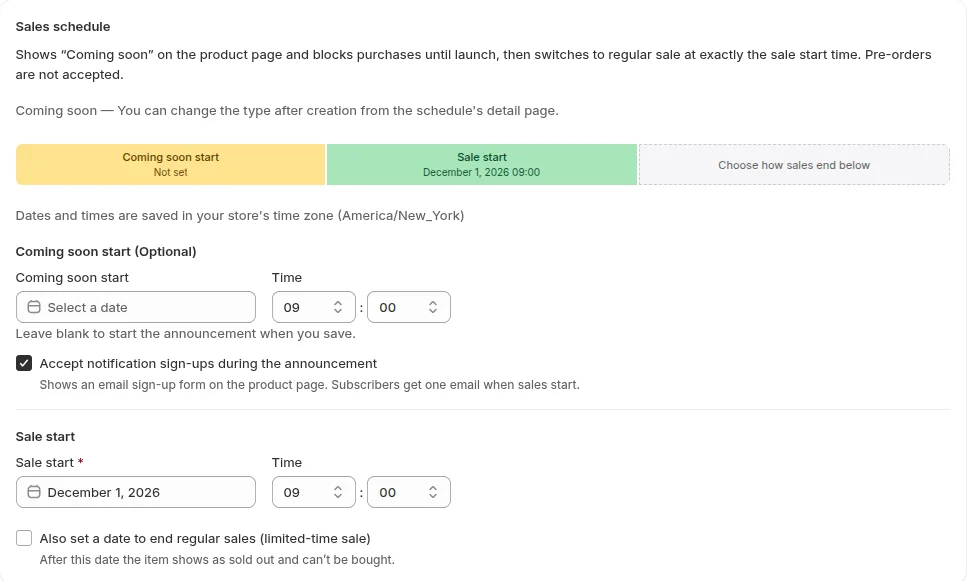
Once you save, the signup form appears on the product page during the announcement. The product switches to regular sale exactly at the sale start time, and the Sale start notification is then sent to subscribers. If a customer added the product to their cart during the announcement, the cart line shows “Not on sale yet. You can't check out with this item until sales start.”
Reword the signup form for a new product launch
The pre-launch signup form is the same form used for back-in-stock alerts on sold-out products. That's why the default wording, “as soon as it's available”, works for both. Adding the launch date and what customers will get by signing up makes it easier for them to decide whether to sign up.
| Setting | Default wording | Example for a new product launch |
|---|---|---|
| Intro text above the form | We'll email you as soon as it's available. | We'll email you once when sales start on December 1 at 9 a.m. |
| Get notified button | Get Notified | Tell me when it's on sale |
| Sign-up complete message | You're signed up! We'll notify you when available. | You're on the list. We'll email you when sales start. |
To change the wording, open “Edit and translate text” under “Button and label text” in SellRules “Settings”, and edit the “Back-in-stock sign-up form” section. If you clear a field, SellRules' built-in wording is shown in the customer's language.
The wording you set here also appears on the back-in-stock signup form. If your store also uses back-in-stock alerts, avoid saying “sales start” outright and keep wording that fits both, such as “as soon as it's available”.
In the product description, add the sale start date and time and make clear that signing up gets customers an email when sales start. For example: “Sales start on December 1 at 9 a.m. If you sign up, we'll email you at that time.”
Test it with a test product before the real launch
Before the real launch, run through the whole flow once with a test product, from signing up to receiving the email.
- Create and publish a test product, and create a Coming soon schedule with the sale start a few minutes away.
- Open the product page and check that the signup form shows your new wording. Sign up with your own email address and check that the sign-up complete message appears.
- In SellRules “Back-in-stock subscribers”, check that your email address is listed as “Not yet notified”.
- After the sale start time passes, check that the Sale start notification is in your inbox.
When you're done, delete the test schedule and unpublish the test product.
After launch, check “Back-in-stock subscribers”
Everyone who signed up is listed in SellRules “Back-in-stock subscribers”. You can filter the list by email address, status and product.
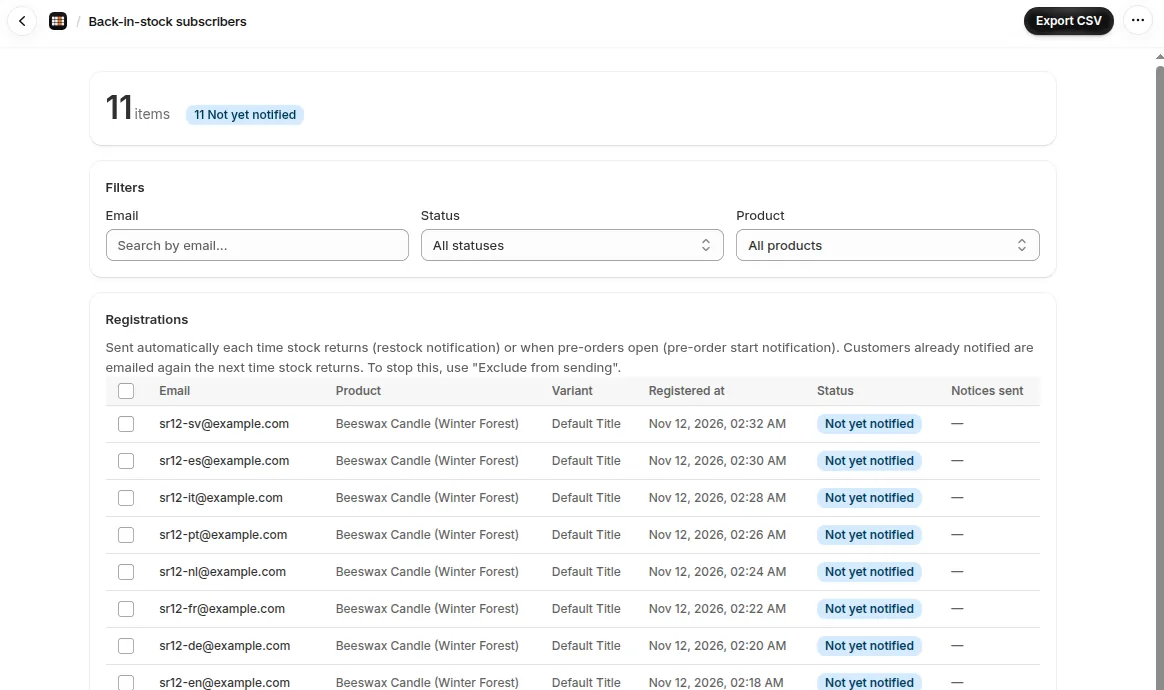
Coming soon signups appear in this same list as back-in-stock signups, and the Sale start notification is sent from here too.
Before the sale starts, the status is “Not yet notified”. Once the sale start time passes and sending begins, it changes to “Sent”. To skip anyone you don't want to email, select them and click “Exclude from sending”.
If you want to contact subscribers yourself, download the list with “Export CSV” in the top right. The CSV includes columns such as email address, “Product title”, registration time and status.
Pricing
Coming soon signups and the Sale start notification are available on the Free plan. On Free, you can set up Coming soon for one product, and you can send up to 15 emails in total since installation, counting back-in-stock alerts too.
The Launch plan (US$7.99 per month) has no limit on the number of Coming soon products or on emails, and lets you rewrite the Sale start notification email in your store's own words. It comes with a 10-day free trial.
Start on the Free plan: pick the next product you're launching, create a Coming soon schedule, and check that everything works from signup to email. You can install SellRules and check pricing on the Shopify App Store.
Frequently Asked Questions
Can I use the number of signups to decide how much stock to order or make?
It shows interest, but it doesn't translate directly into orders. Signing up isn't a promise to buy, so not everyone who gets the email will purchase. Decide how much to order or make by looking at the signup count together with your past sales.
If I push back the launch date, what happens to the people who signed up?
Change the schedule's sale start (or pre-order start for a pre-order schedule) to the new date and time, and subscribers get the email at the new time. If you want to tell them about the delay first, click “Export CSV” in “Back-in-stock subscribers” to download their email addresses and contact them from your store.
Can I send the launch email to my social media followers or newsletter list?
SellRules emails only the people who entered their address in the signup form on the product page. In your social posts or newsletter, link to the product page in the launch announcement and ask readers to sign up there. They'll get the email at the sale start time.
Related articles:
- Switching to pre-orders or regular sale at launch time: How to start Shopify sales automatically at launch time
- Letting customers know when sold-out products are back: How to set up back-in-stock emails
- Choosing how to sell, such as early access or limited quantities: How to plan early-access and limited sales
Products, dates and times are examples for illustration.