When you prepare a new product launch or a seasonal sale for Mother's Day, Christmas or a limited New Year bundle, you need to decide when the announcement starts, what time sales start, the date sales end, how many you'll take and how many each customer can buy. Use pre-order if you want to take orders before launch, or coming soon if you want sales to start at launch time.
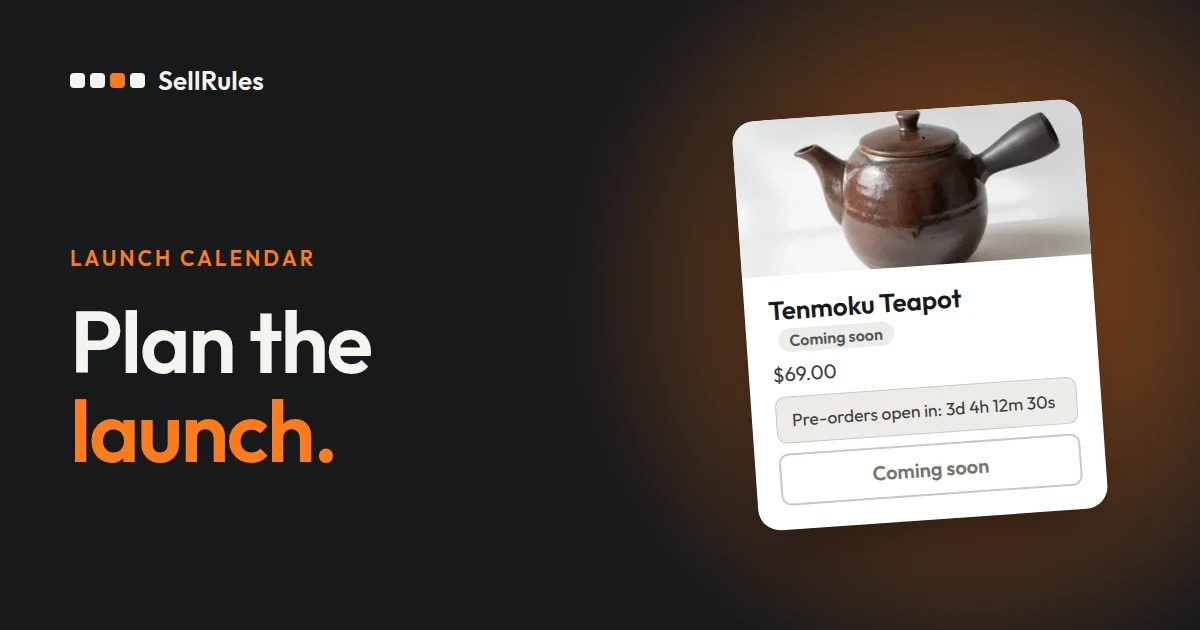
Enter these dates in the schedule you chose, and SellRules switches the product page display and the buy button at each of those times. For a holiday product, work back from the last ship date that still arrives by the holiday to set the date sales end.
This article is written by the developer of SellRules. The setup steps for each task are covered in the articles listed later under “Setup guides for each task”.
Dates to decide from announcement to end of sale
Say you're selling a Mother's Day gift set in limited quantities (an example for illustration).
Plan for the Mother's Day gift set
- April 1: announce the product on its page and start taking sign-ups for a pre-order alert
- April 10, 10:00: start taking pre-orders (up to 300 in total, up to 2 per order)
- April 28, 10:00: switch to regular sales
- May 1: ship the pre-orders
- May 6: last day to take orders
The time between the announcement and the pre-order start is for collecting sign-ups. Set the pre-order period long enough to see how many orders come in before you decide how many to make or stock.
In SellRules, this whole plan goes into one pre-order schedule. Here's which field each date goes in:
| Date to decide | Field in the schedule |
|---|---|
| Date the announcement starts | “Coming-soon start date” |
| Time pre-orders start | “Pre-order start date” |
| Date pre-orders ship | “Estimated ship date” |
| Time it switches to regular sales | “Sale start date” |
| Date sales end | “Date regular sales end” |
The “Estimated ship date” appears below the buy button on the product page. From 0:00 on the “Date regular sales end”, the product shows as sales ended. All dates and times follow the time zone set for your Shopify store.
If you don't need an announcement period, leave the “Coming-soon start date” empty and pre-orders open on the pre-order start date. With an announcement period, the product page takes sign-ups during that time, and everyone who signed up gets an email when pre-orders open (unless you've turned it off in notification settings). Before the coming-soon start date, the product can be bought as usual. To keep the product hidden until then, turn on “Also switch Online Store publishing”.
During the announcement period, turning on “Block purchases during the announcement period” blocks purchases from the buy button and also from direct links to the cart or checkout.
What customers see
Once a product has a schedule, the buy button on the product page changes each time a set date and time arrives. The screens below show a different product, a snowboard, with a pre-order schedule, one phase at a time.
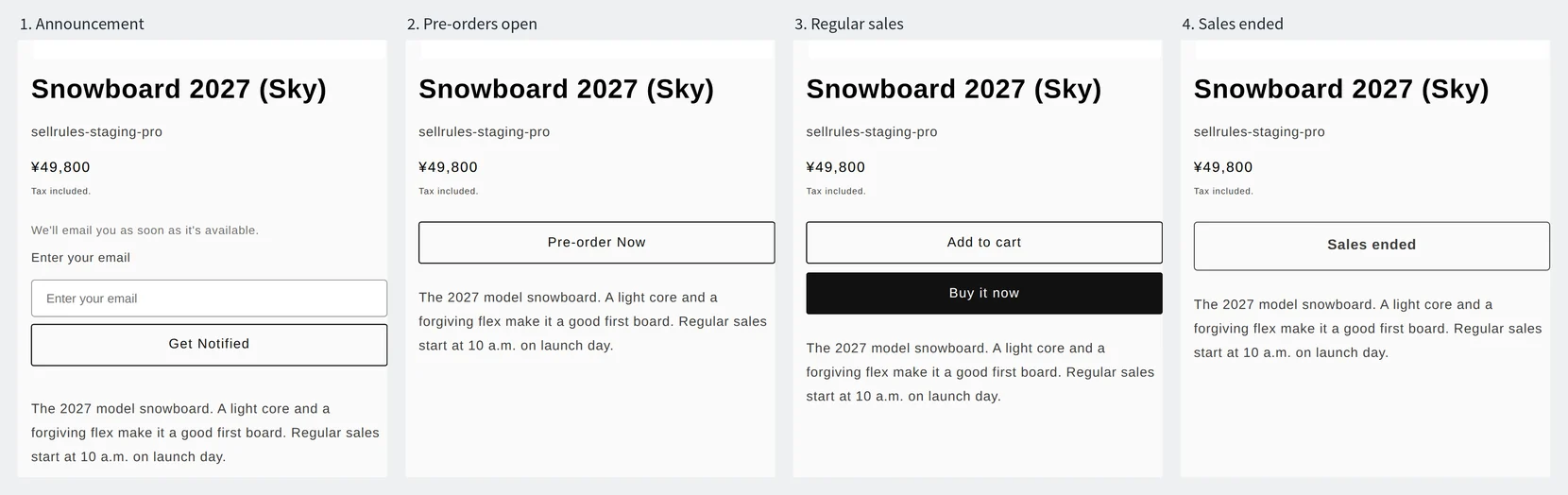
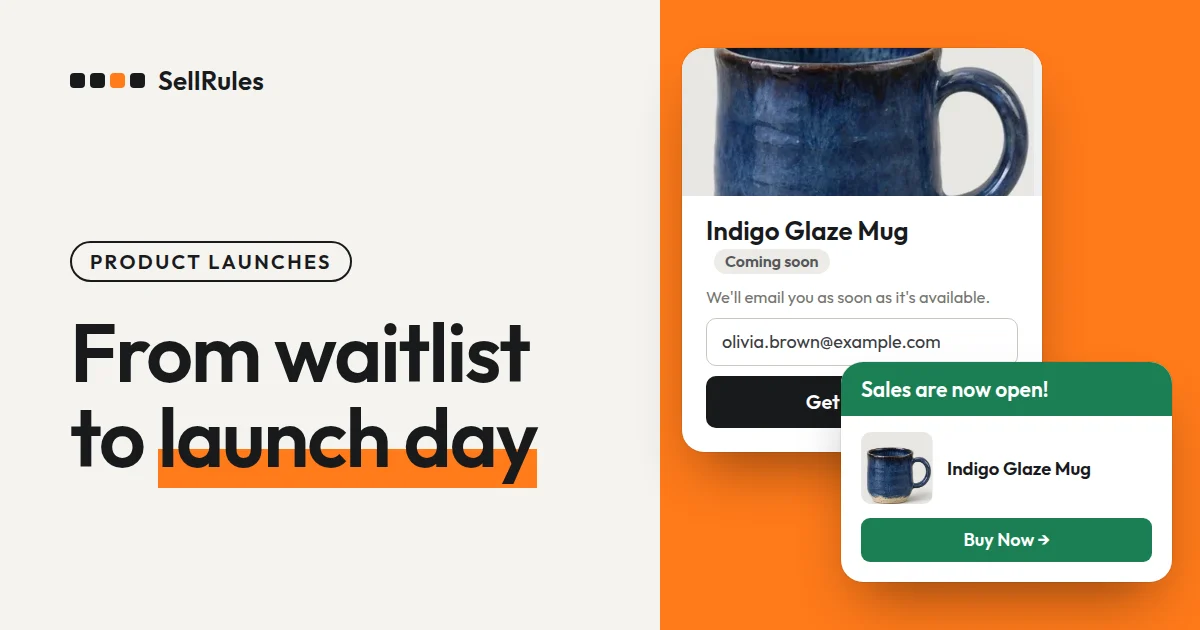
With coming soon there's no pre-order phase. During the announcement, the product page shows “Coming soon” and can't be bought. It switches to regular sales right at the sale start time.
Pre-order or coming soon, and what happens after pre-orders end
Pre-order vs. coming soon
Pre-order
Coming soon
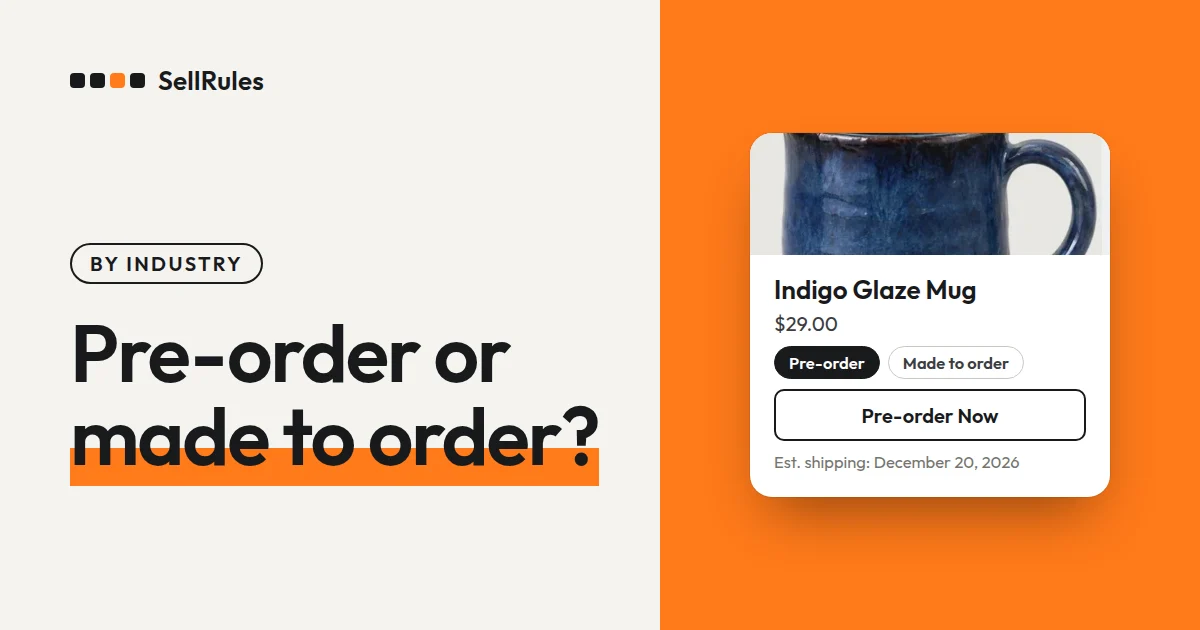
Choose pre-order if you want the number of pre-orders to decide how many you make or stock. Choose coming soon if you'll have the stock ready and want to start selling at launch time. For coming soon, select “No pre-order period (coming soon, then on sale)”, and turn on “Accept notification sign-ups during the announcement” if you want to take sign-ups while the product is announced.
For a pre-order, choose what happens after it ends under “When the pre-order ends”.
| After pre-orders end | What to select under “When the pre-order ends” |
|---|---|
| Keep selling as regular sales while stock lasts | “Switch to regular sales” |
| Make only what was pre-ordered, with no regular sales | “End sales and show "Sales ended"” |
| Keep taking pre-orders with no end date | “No deadline (keep taking pre-orders)” |
To end regular sales on a set date as well, select “Switch to regular sales” and check “Also set a date to end regular sales (limited-time sale)”. The Mother's Day gift set uses this combination, because it keeps selling as regular sales through May 6 after pre-orders end. For a product you make only to match pre-orders, such as a holiday bundle, select “End sales and show "Sales ended"”.
How many you'll take and how many each customer can buy are separate settings
For a limited-quantity product, you decide two numbers: how many pre-orders you'll take, and how many each customer can buy. In the Mother's Day example, pre-orders are capped at 300 in total, and each order is limited to 2.
Numbers to decide for the Mother's Day gift set
- “Total quantity limit”: 300
- Pre-orders taken: 120
- Remaining: 180 (your Shopify inventory while pre-orders are open)
- “Max per order” in purchase limits: 2
Enter how many pre-orders you'll take in “Total quantity limit”. Once it's reached, pre-orders stop. For example, if you've taken 120 out of 300, you can take 300 − 120 = 180 more. While pre-orders are open, your Shopify inventory shows this remaining number. When pre-orders close, your Shopify inventory goes back to its original number, so the number you sell once regular sales start is set by your Shopify inventory.
To limit how many each customer can buy, enter 2 in “Max per order” in purchase limits. To stop customers from getting around the limit by placing several orders, also set “Max per customer (cumulative)” and set purchase eligibility to “Login required (guests cannot purchase)”, because the cumulative limit only counts orders from logged-in customers.
Both limits apply at checkout once you turn on “Purchase limits (SellRules)” under “Checkout rules” in Shopify.
For a holiday product, work back from the last ship date to set the date sales end
Some holidays have a fixed date by which gifts need to arrive, such as Mother's Day (the second Sunday in May), Valentine's Day (February 14) and Christmas (December 25). For these products, your last day to take orders is the day before the last ship date that still arrives by the holiday. If there are days you don't ship in between, leave them out when you count back.
Working back from the last ship date
- May 7: last shipment that arrives by Mother's Day
- May 6: last day to take orders
- “Date regular sales end”: May 7 (shows sales ended from 0:00 that day)
In the Mother's Day example, if the last shipment that arrives in time goes out on May 7, you take orders through May 6. So you enter May 7 as the “Date regular sales end”.
Real stores also announce the order deadline and the shipping time separately. For its 2026 lucky bags (fukubukuro, the mystery bags Japanese stores sell for New Year), Anker Japan set the pre-order period for its online-only bags as “December 26, 2025 (Fri) to January 8, 2026 (Thu), until 17:00” and said they would “ship in order from mid-January 2026” (Anker Japan lucky bags 2026, checked November 13, 2026).
Some stores also set different deadlines by delivery region. In a notice dated February 3, 2026, the Japanese store Minimal set two order deadlines for delivery by February 14: 23:59 on February 11 for Hokkaido, Chugoku, Shikoku, Kyushu and Okinawa, and 23:59 on February 12 for Kanto, Chubu and other regions (Minimal notice, checked November 13, 2026).
Each product has one “Date regular sales end”. If your deadline differs by region, enter the day after the later deadline (February 13 in this example), and put the earlier deadline for the other regions on the product page and in your announcement email.
The product page after sales end
On the date sales end, the product page shows that sales have ended, and the product can no longer be bought. Decide whether to keep the page up or unpublish it.
If you keep the page up, customers who come after the holiday can see that sales have ended. Anker Japan's lucky bag page also showed a message after the sale that sales of the 2026 lucky bags had ended.
To unpublish it, turn on “Also switch Online Store publishing” when you create the schedule. The product is then unpublished before the announcement starts, published during the announcement, pre-order and sales periods, and unpublished again after sales close.
Selling online ahead of a trade show or pop-up
When you show a new product at a trade show or pop-up shop, set the online dates around the event dates. Sell and take payment at the venue with Shopify POS or similar, and use SellRules to set the dates on the product page in your online store.
Online dates set around the event
- Two weeks before the event: “Coming-soon start date”. Take alert sign-ups on the product page and mention them along with the event details
- First day of the event, 10:00 AM: “Pre-order start date”. People who saw the product at the venue and people who couldn’t come can both pre-order online
- After the event: under “Estimated ship date”, enter the day you’ll ship what you made, counting the orders taken at the venue
To take pre-orders from past customers only before the event, set the “Pre-order start date” ahead of the event and set purchase eligibility for the same product to “Tag required”. Turn that rule off on the first day of the event and anyone can pre-order. The steps are in How to sell to members only.
Put the product page URL or a QR code on the flyers and cards you hand out at the venue. Pre-orders open on the first day of the event, and customers who signed up for the alert during the announcement get an email at that time (unless you've turned it off in the notification settings).
What Shopify can do on its own
With Shopify's future publishing, you can publish a product to a sales channel at a date and time you choose (Shopify Help, checked November 13, 2026). The limit on how many items can be added to the cart is a single value shared by all products (Shopify Help, checked November 13, 2026).
| What to prepare | Shopify on its own | SellRules |
|---|---|---|
| Start selling at launch time | Future publishing makes the product live at that time | Keeps the product page visible and switches the buy button at that time |
| Take pre-orders | Needs an app (Shopify Help) | Takes them from the pre-order start date to the sale start date |
| End sales on a set date | Unpublish the product by hand or set inventory to 0 | Shows sales ended from 0:00 on the “Date regular sales end” |
| Limit how many each customer can buy | One cart limit shared by all products | Set per product, per order and as a running total per customer |
If you only need to keep a product hidden and publish it at launch time, future publishing is enough. For products you want to announce or take pre-orders for before launch, or that need to stop selling at a holiday deadline, enter the dates in a SellRules schedule.
What to prepare with other Shopify features
SellRules handles each product's sales schedule, how many you'll take and how many each customer can buy. For a holiday sale, use other Shopify features or apps for the following.
- Letting customers choose a delivery date: edit your theme to add a date picker to the cart page (Add a delivery date picker to your cart). To show estimated delivery dates, use delivery dates setup
- Capping how many orders you take per day: choose a delivery date app on the Shopify App Store that can cap orders per day
- Preparing for a rush of orders at launch time: read Flash sales in the Shopify Help Center and review settings such as shipping rates ahead of time
Setup guides for each task
The articles below walk through the setup for each task.
- Switching from coming soon to pre-order to regular sales on time: How to start sales automatically at launch time
- Setting a deadline and an order cap for each holiday product: Mother's Day, Valentine's Day and Christmas pre-orders
- Collecting alert sign-ups before launch: How to collect notification sign-ups before launch
- Limiting how many each customer can buy: How to set a “limit 1 per customer” rule
- Selling to members first: How to sell to members only
- Checking before you start pre-orders: How to start pre-orders on Shopify
- Taking pre-orders for CDs and books until release day: Limited pre-order bonuses and the release-day switch
- Taking a set number of pre-orders for produce before harvest: How to take pre-orders for produce before harvest
Pricing
Every setting in this article is available from the Free plan. On the Free plan you can take up to 10 “Pre-order” and “Made to order” orders in total, and send up to 15 back-in-stock and sale-start emails in total. You can set purchase limits on up to 1 product, and coming soon on 1 product.
SellRules plans and pricing
| Monthly price | LaunchEvery feature included | FreeStart with one product |
|---|---|---|
| Monthly price | US$7.99 per month | Free |
| Free trial | 10 days | None |
| Pre-order and made-to-order orders | Unlimited | Up to 10 in total |
| Back-in-stock and sale-start emails (Notify Me) | Unlimited | Up to 15 in total (not refilled monthly) |
| Purchase limits | No limit on products | Up to 1 product |
| Customizable notification emails | Yes | No |
| Deposit payments | Yes | No |
Pre-orders, made-to-order, back-in-stock alerts, purchase limits, stockout switching, deposit payments and order processing are all included in the Launch plan.
The first 10 days of the Launch plan are free. If you remove the app during the trial, you are not charged.
On the Launch plan, back-in-stock and sale-start emails have no sending cap. Required messages such as order confirmations, shipping updates and balance reminders are sent on every plan regardless of the cap.
The Standard and Pro plans are closed to new sign-ups. Shops already on them keep their current terms.
Start by picking the next product you'll launch or the product for your next holiday, write down the dates you plan, and enter them in a schedule. As your products and orders grow, switch to the Launch plan (US$7.99 per month), which has no limits. You can install SellRules from the Shopify App Store, where you can also check pricing and the free trial terms.
Frequently Asked Questions
Can I see products for several holidays, like Mother's Day and Christmas, in one place?
Yes. Open “Calendar view” in the sales schedules list, and each product's coming-soon, pre-order and sales periods appear by month in different colors. To change dates on several schedules at once, select them in the list and use “Bulk edit”.
Can I push back the switch from pre-orders to regular sales after pre-orders have started?
Yes. Change the date in the schedule and save, and the switch happens on the new date. If you also move the estimated ship date later, customers with unfulfilled orders who were given the earlier date automatically get a delay notice by email (unless you've turned it off in notification settings).
Related articles:
- Choosing how to sell, such as early access or limited quantities: How to run early-access and limited sales
- When to collect payment for pre-orders: When to charge for pre-orders
- Taking orders or sign-ups after selling out: Pre-orders or back-in-stock alerts for sold-out products
- When a pre-order and an in-stock item are bought together: Pre-orders and in-stock items in one order
- Reduce bulk buying of limited items: how to reduce resale and bulk buying of limited items
- End a sale automatically on a set date: How to end a limited-time sale automatically
The Mother's Day gift set and its dates and quantities are examples for illustration, not from a real store.