When a customer buys a pre-order item and an in-stock item together on Shopify, the order stays as one order and you can still ship the in-stock item first. The SellRules Shopify app splits the order's fulfillment into the pre-order item and the in-stock item, and puts a fulfillment hold on the pre-order item only.
- The in-stock item can ship as soon as the order comes in
- The pre-order item is on hold, so it can't be shipped by mistake before it's ready
- When the pre-order item is ready, click “Start shipment preparation” in SellRules' “Order progress” to release the hold
You decide, order by order, whether to ship everything together or send the in-stock item first.
What customers see in the cart
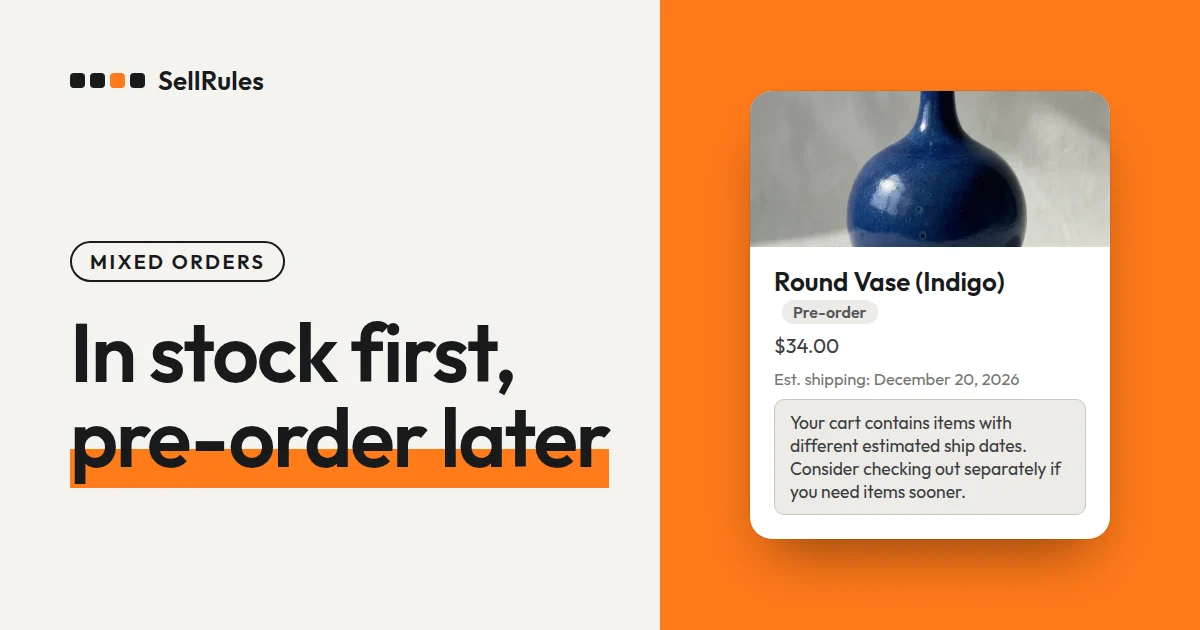
When a pre-order item and an in-stock item are in the same cart, a notice at the top of the cart reads “Your cart contains items with different estimated ship dates. Consider checking out separately if you need items sooner.” The pre-order item's row shows its estimated shipping date.
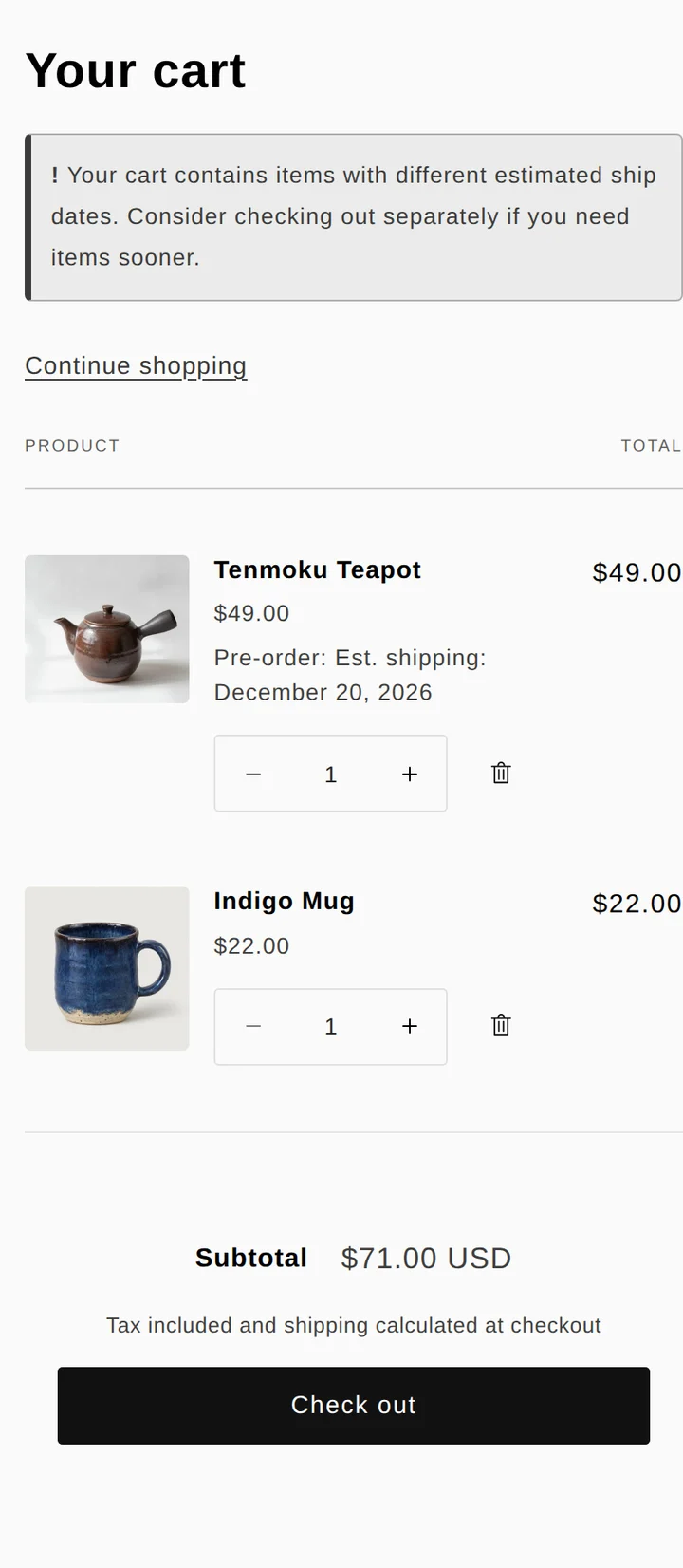
SellRules shows this notice automatically when it finds a pre-order item and an in-stock item in the same cart. It does the same when the cart has two or more pre-order items with different ship dates. Once you've started taking pre-orders, there's nothing else to set up.
After seeing the notice, customers can choose to place separate orders or check out everything in one order. If the pre-order is paid in full at checkout, checkout works like any other order, with one delivery method and one shipping fee.
How the order splits in the Shopify admin
When the order comes in, SellRules splits its fulfillment in two and puts a hold on the pre-order side only. On the Shopify order page, the in-stock item appears in the “Unfulfilled” section and the pre-order item in the “On hold” section.
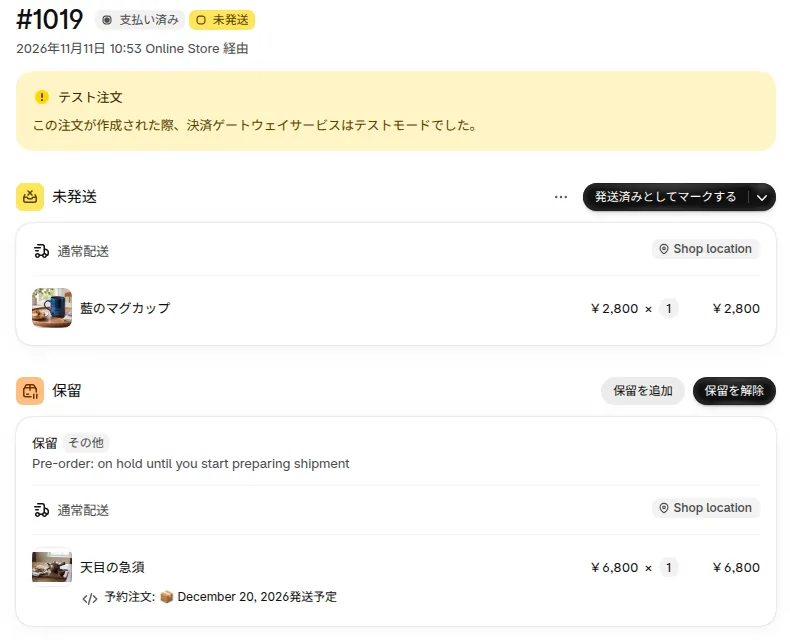
The order timeline records that SellRules split the fulfillment and put the pre-order item on hold. The order also gets a “Pre-order” tag.
The hold reason appears in your store's default language. In a store whose default language is English, it reads “Pre-order: on hold until you start preparing shipment”. The screenshot shows the admin in Japanese, but that store's default language is English, so the reason appears in English.
Made-to-order products work the same way: when one is bought with an in-stock item, only the made-to-order item is put on hold.
SellRules vs. Shopify alone or handling it by hand
When a pre-order item and an in-stock item are in one order
By hand (tags and notes)
SellRules
Shopify itself lets you put a hold on an order's fulfillment, one order at a time from the order page (Shopify Help Center: “Marking your order as on hold”, checked November 12, 2026). SellRules places that hold automatically on orders that contain pre-order or made-to-order items.
Ship the in-stock item first and the pre-order item when it's ready
- Open the order in your Shopify admin. The in-stock item is in the “Unfulfilled” section and the pre-order item is in the “On hold” section, which shows the hold reason.
- In the “Unfulfilled” section, click “Mark as fulfilled”, enter the tracking number and shipping carrier, and record the shipment. The hold on the pre-order item stays in place.
- When the pre-order item is ready, click “Start shipment preparation” (“Start production” for made-to-order items) on that order in SellRules' “Order progress”. Click “OK” in the confirmation, and the hold SellRules placed is released. The progress in “Order progress” changes to “Preparing to ship”.
- On the Shopify order page, check that the pre-order item has moved to the “Unfulfilled” section, then record the shipment with “Mark as fulfilled”.
“Order progress” lists the unfulfilled orders that contain pre-order or made-to-order items, along with each one's estimated ship date and progress.

When you click “Start shipment preparation”, the confirmation reads “This starts shipment preparation for this pre-order. SellRules releases its own shipping holds. Holds set by you or other apps are not released. Continue?”
Once the hold is released, the pre-order item also moves to the “Unfulfilled” section on the order page and can be fulfilled.
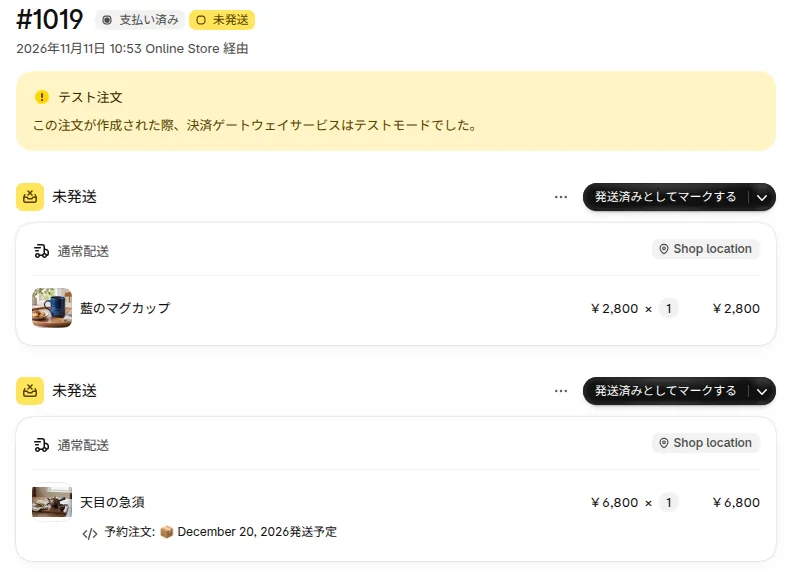
If you haven't shipped the in-stock item yet, you can fulfill both sections together at this point.
Deposit pre-orders hold the whole order until the balance is paid
If you take pre-orders with “Deposit and balance payments”, where only part of the price is charged at checkout, the hold works differently.
| How the pre-order is paid | In-stock item | Pre-order item |
|---|---|---|
| “Full payment at checkout” | Can ship right away | On hold until you click “Start shipment preparation” |
| “Deposit and balance payments” (including no deposit) | On hold until the balance is paid | On hold until the balance is paid and you click “Start shipment preparation” |
An order with “Deposit and balance payments” (including no deposit) gets a hold on the whole order with the reason “SellRules: awaiting balance payment”. This keeps you from shipping before you've been paid. The hold is released automatically when the balance is paid in full or the order is canceled. You don't need to do anything.
For customers who want their in-stock items delivered separately from a deposit pre-order, ask them in the product description to buy the in-stock items in a separate order. Setting up deposits and charging the balance are covered in how to take a deposit on Shopify pre-orders.
In stores with split shipping, a deposit pre-order and in-stock items are split into separate shipments at Shopify checkout, and each one is charged shipping (Shopify Help Center: “Split shipping in Shopify Checkout”, checked November 12, 2026). A pre-order paid in full has one shipment at checkout.
Decide how you'll ship before you tell customers about shipping fees
On an order with a fully paid pre-order and an in-stock item, the customer pays one shipping fee. You can ship it in one of 2 ways.
| How you ship | Packages | Works well for stores that |
|---|---|---|
| Wait for the pre-order item and ship everything together | 1 | Mostly take pre-orders with ship dates coming up soon |
| Ship the in-stock item first and the pre-order item later | 2 | Mostly take pre-orders with ship dates that are still a while away |
Shipping first means 2 packages, and your store covers the cost of the second one. If you want the customer to pay for the second shipment, get their OK first, then add a shipping fee by editing the order in Shopify and charge them for it (Shopify Help Center: “Editing shipping fees in an order”, checked November 12, 2026).
Whichever you choose, tell customers before they buy. Here is an example you could put in the product description.
This item is a pre-order and is expected to ship around December 20. If you order it together with in-stock items, we'll wait until the pre-order item arrives and ship everything together. If you'd like to receive other items sooner, please place a separate order for them.
If you ship in-stock items first, replace everything after the first sentence with “In-stock items ship right away, and the pre-order item ships separately once it arrives.”
Find orders that weren't put on hold by their order tag
Sometimes SellRules can't split the pre-order item and the in-stock item into separate fulfillments. In that case it doesn't place a hold, so the in-stock item isn't held up too, and it adds a tag to the order instead. In a store whose default language is English, the tag is “SellRules: hold manually (mixed order)”.
On an order with this tag, the pre-order item isn't on hold either. When you find one, handle it in this order.
- Filter your Shopify orders list by this tag.
- On the order page, in the “Unfulfilled” section, open the drop-down menu to the right of “Mark as fulfilled”, choose “Mark as on hold”, and put the pre-order item on hold.
- When the pre-order item is ready, release the hold with “Release hold” on the Shopify order page and ship it.
What to check with a test order
Before you start taking pre-orders, buy one pre-order item and one in-stock item with a test payment, and check these 3 places.
| Where to look | What you should see |
|---|---|
| Cart | The notice “Your cart contains items with different estimated ship dates.” and the pre-order item's estimated shipping date |
| Shopify order page | The in-stock item in the “Unfulfilled” section and the pre-order item in the “On hold” section |
| SellRules' “Order progress” | The pre-order item's row listed as “Not started”, and the hold released by “Start shipment preparation” |
If a hold is still there after you click “Start shipment preparation”, check its hold reason. SellRules doesn't release holds placed by you or other apps, so release those from wherever they were placed. On a deposit order, the hold is released once the balance is paid.
Pricing
Pre-orders and made-to-order sales are available on the Free plan for up to 10 orders in total. Holding only the pre-order item works on the Free plan too. From the 11th order onward, and for deposits, you need the Launch plan (US$7.99 per month).
Start by creating one pre-order item on the Free plan, place a test order with it and an in-stock item, and check the cart notice and how the order splits on the order page. You can install SellRules from the Shopify App Store and check its pricing there.
Frequently asked questions
What happens when one order has two pre-order items with different ship dates?
The hold is released for the whole order at once. When you click “Start shipment preparation” on either row, every hold SellRules placed on that order is released, and the other pre-order item can be fulfilled too. Either wait until both items are ready before you click it, or, if you click it early, put the item you aren't shipping yet back on hold from the Shopify order page (in the “Unfulfilled” section, open the drop-down menu to the right of “Mark as fulfilled” and choose “Mark as on hold”).
Is the hold released automatically on the estimated ship date?
No, it isn't released automatically. When the item is ready, release it by clicking “Start shipment preparation” (“Start production” for made-to-order items) in “Order progress”.
Can I release the hold with “Release hold” on the Shopify order page?
Yes, you can. The order becomes ready to fulfill, but in SellRules' “Order progress” it stays “Not started”. If you track progress in “Order progress”, releasing the hold through “Start shipment preparation” keeps the records in sync.
What happens to the holds if I uninstall SellRules?
Holds placed by SellRules stay on the orders after you uninstall the app. After that, release them order by order with “Release hold” on the Shopify order page.
Related articles:
- Getting pre-orders started: how to start pre-orders on Shopify
- Charging only part of the price at checkout: how to take a deposit on Shopify pre-orders
- Choosing how to sell, such as early access or limited quantities: how to set up early-access and limited sales
- What to tell pre-order customers from checkout to delivery: pre-order customer communication
- Printing only the items you're shipping on the packing slip: How to print packing slips for pre-order items
The products and estimated ship dates are examples for illustration.