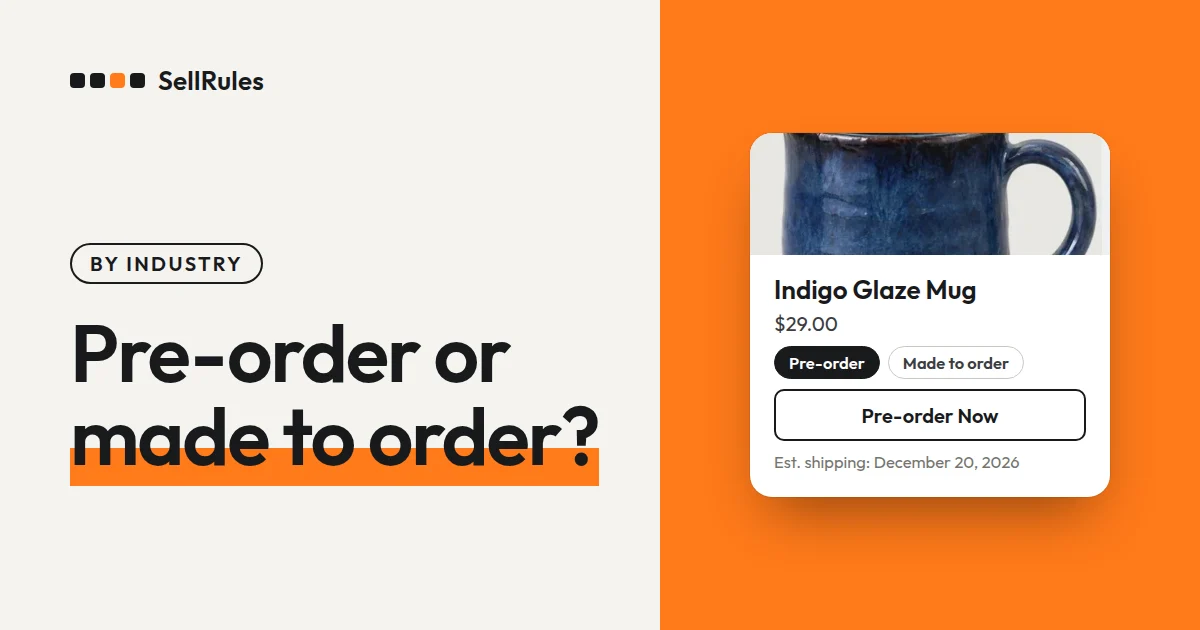
To sell made-to-order products on Shopify, you need an app that supports them, and you create a made-to-order schedule for each product.
With the SellRules app, you only decide 2 things to get started:
- The order start date (when the product page button changes to “Order now”)
- What happens when made-to-order ends (switch to regular sales, end sales, or keep going with no deadline)
If you already know the ship timing, enter it on the same screen, either as a number of days such as “Ships within 14 days of order” or as a fixed date. Start with one product, place a test order to check the product page, the email and the order screen, and then add more products.
How made to order differs from Shopify alone
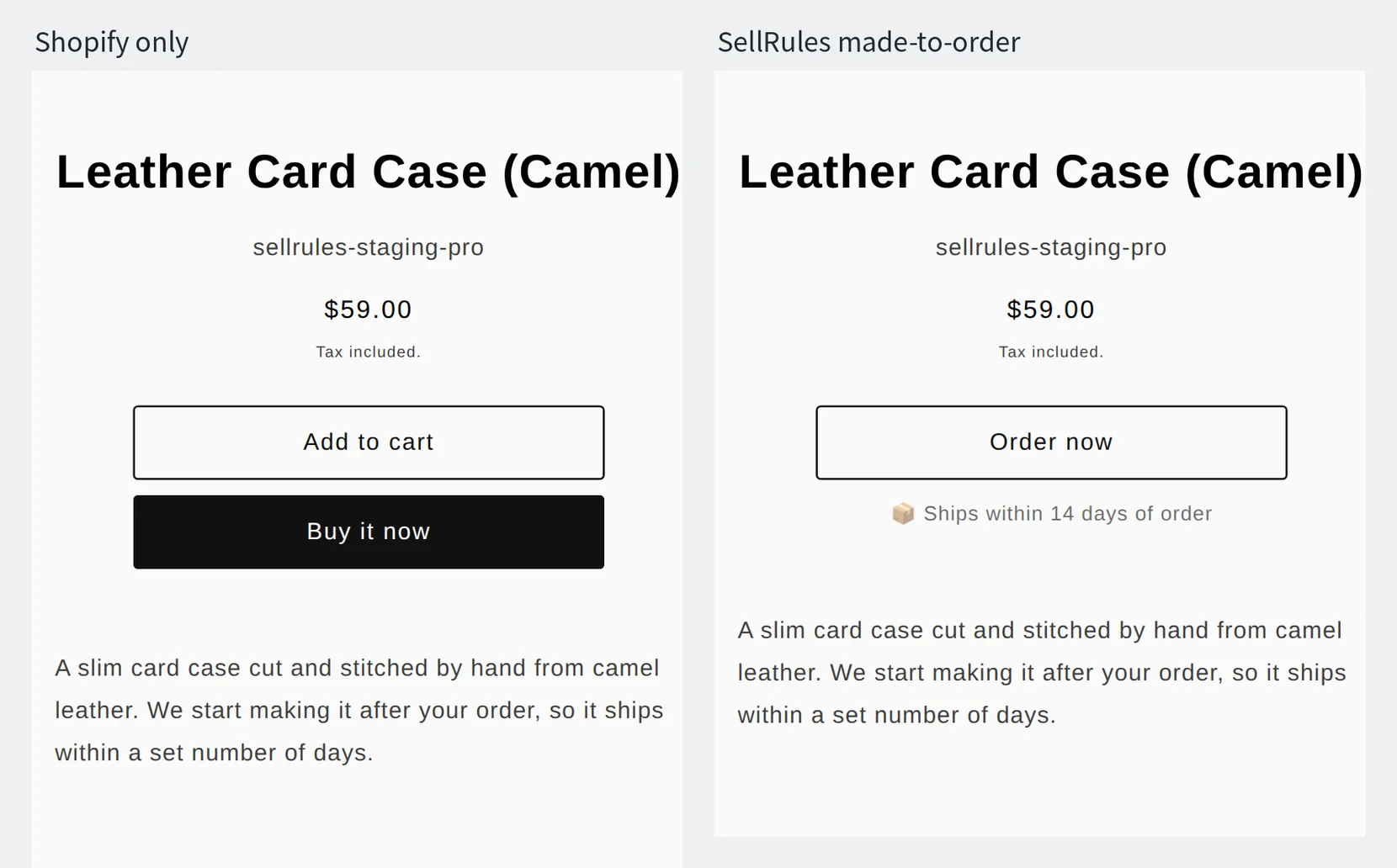
The image above shows two product pages for the same leather card case. The left page uses Shopify settings only, and the right page uses SellRules made to order.
If all you want is to keep taking orders at 0 inventory, you can choose “Sell when out of stock” on the product page in Shopify. But as the left page shows, the buy buttons stay the same, and customers are not told that you make the item after the order or when it will ship.
| What you want | Shopify alone | SellRules |
|---|---|---|
| Tell customers it is made to order | Write it in the product description by hand | The button changes to “Order now” and a ship time appears |
| Set a ship date for each order | Count the days for each order and note them down | With “Ship within X days of order”, each order gets a date counted from its order date |
| Keep orders from shipping before you make them | Put a hold on each order by hand | A hold is placed when the order comes in, and “Start production” releases it |
| Limit how many you accept | Watch inventory and stop sales by hand | Shopify stops sales when the “Total quantity limit” is reached |
How SellRules handles inventory depends on whether you set a total quantity limit.
- No limit: while orders are open, SellRules switches the product's inventory setting to “Sell when out of stock” and changes it back when orders close. You can leave inventory at 0 and still take orders.
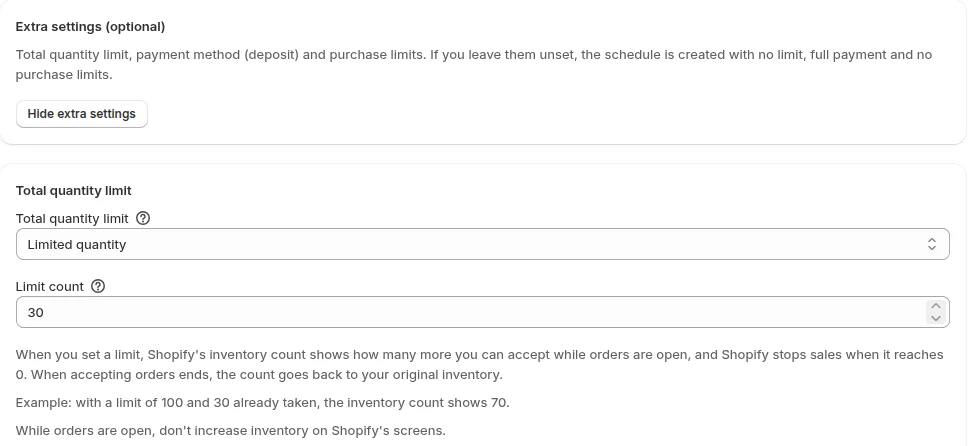
- With a limit: while orders are open, Shopify's inventory count shows how many more orders you can accept, and Shopify stops sales when it reaches 0. When orders close, the count goes back to your original inventory.
What customers see
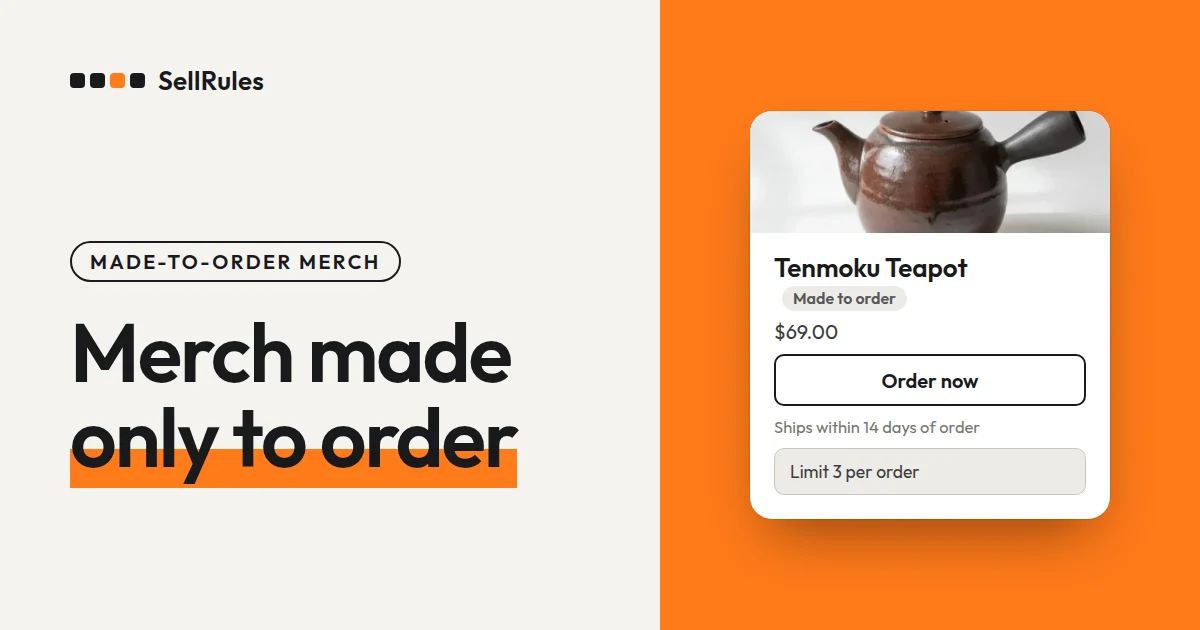
As the right page in the image shows, the buy button changes to “Order now”, with “Ships within 14 days of order” below it. Customers can see before they add to the cart that the item is made after the order and roughly when it will ship. The “Buy it now” button no longer appears, so customers order through the cart.
The cart and checkout are Shopify's own. Payment is the full amount at purchase, as with a regular order.
This is what customers and your store see at each stage.
| Stage | Product page button | What reaches customers and your store |
|---|---|---|
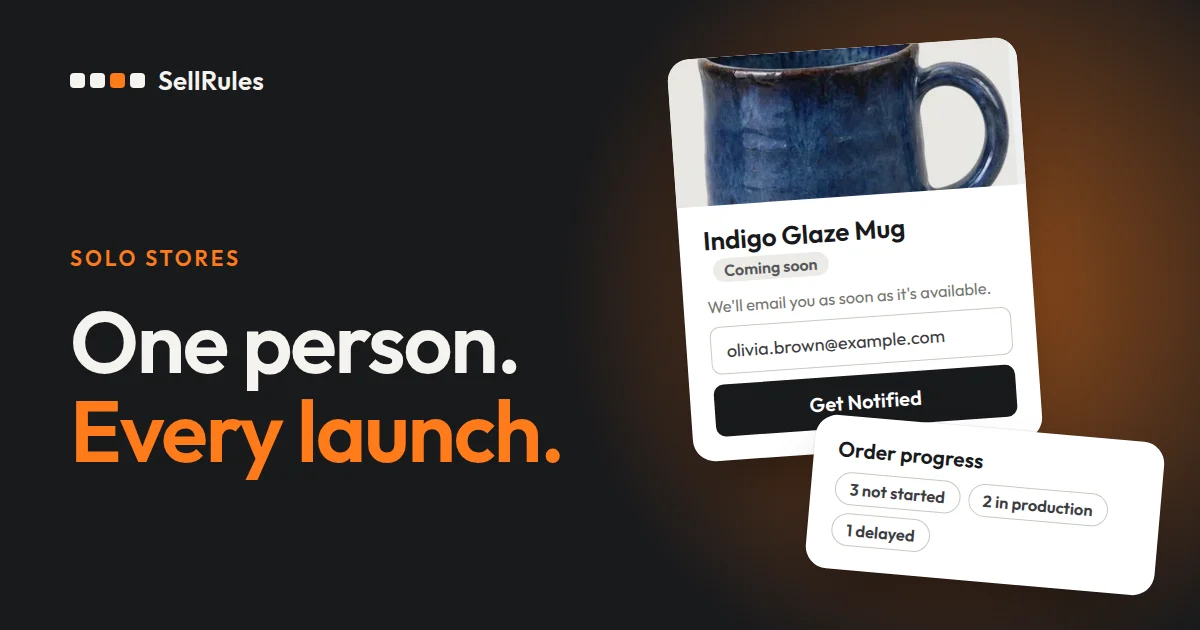
| Before the start date | The regular buy button (with a coming-soon period: “Get Notified” and an email field) | With a coming-soon period, an announcement email goes to the people who signed up at the start time |
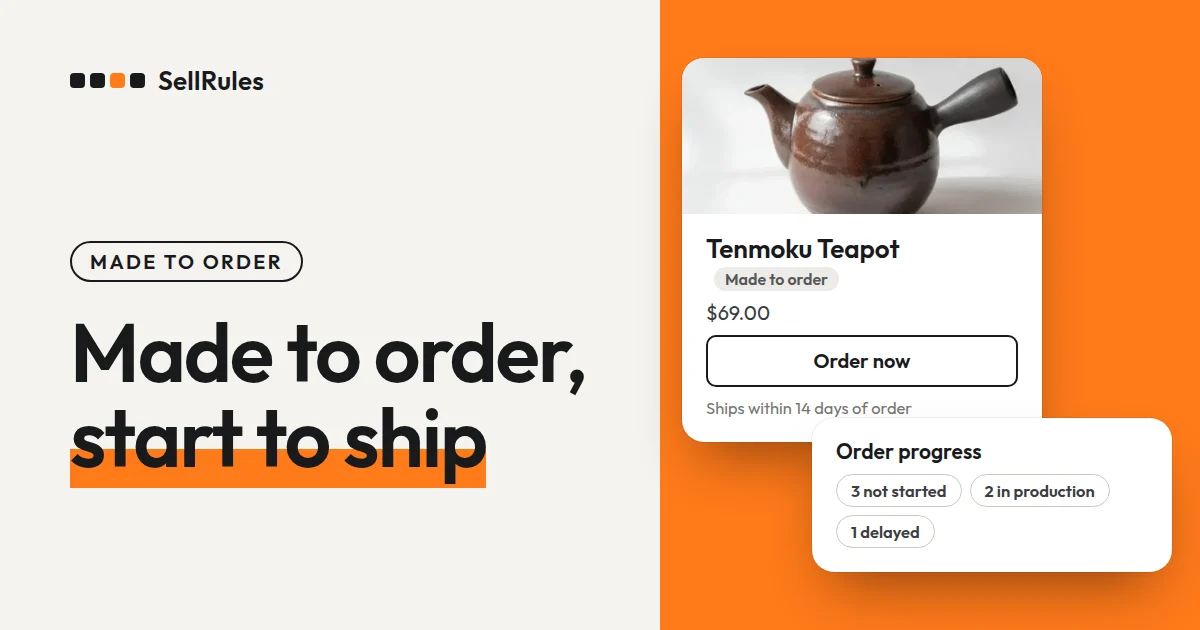
| While made-to-order is open | “Order now” and the ship time | A confirmation email with a subject starting with “[Made to Order]” goes to the customer. The order appears in your “Order progress” as “Not started” |
| After made-to-order ends | Depends on your choice: the theme's regular buy button, or a disabled “Sales ended” button | Nothing (the button just changes) |
Pick your first product
A good first product is one where you know how many days it takes to make one item, such as a leather accessory sewn after the order. If you know the number of days, you can set “Ship within X days of order”.
If a product always ships on the same day no matter when it is ordered, use “Ship on fixed date” and enter that date.
To test, don't use a product that is already selling. Duplicate it and test with the copy. A product that isn't active can't be opened or bought in the store, so you couldn't check the product page or place a test order (Shopify Help: Product status and availability, checked November 12, 2026). When you finish, set the test product to draft or delete it.
Set it up in SellRules
These are the steps from installing SellRules to testing one made-to-order product.
1. Turn on the SellRules app embed in your theme
In Shopify, open Online Store, then Themes, then Customize. Under App embeds on the left, turn on SellRules and save. If it stays off, the product page button will not change even after you enter dates.
2. Create a made-to-order schedule and choose a product
In SellRules, open the “Made to order” tab under “Sales schedules” in the left menu and click “Create made to order”. Use “Select product” to choose one product.
For products with colors or sizes, see the FAQ at the end of this article.
3. Set the order start date and what happens when made-to-order ends
In “Order start date”, enter the date and time when the button should change to “Order now”. The time is saved in your store's time zone. To check a test product right away, enter the current date and time.
Next, under “When made-to-order ends”, choose one of these 3 options:
- Switch to regular sales: from the “Sale start” date, the theme's regular buy button comes back. Use this when you will sell from ready-made stock.
- End sales and show "Sales ended": from the date you choose, the product shows a disabled “Sales ended” button. Use this when you take orders for a set period (for periods and quantities, see how to plan advance and limited sales).
- No deadline (keep taking made-to-order): orders are accepted until you stop them yourself. Use this for a product you will keep making after the order.
If you want to collect email addresses before orders open, click “Add coming-soon period” and add one.
4. Choose the ship timing and create the schedule
Under “How to set the shipping date”, choose one of these 2 options:
- Ship within X days of order: under “Days to ship”, enter the number of days it takes to make one and send it out. The product page shows something like “Ships within 14 days of order”. The estimated ship date is the order date plus these days, so it differs for each order.
- Ship on fixed date: under “Estimated shipping (text)”, enter a time such as “Late December”, and under “Estimated ship date”, enter a date you can keep. The product page shows something like “Est. shipping: Late December”.
If you can only make a limited number, click “Show extra settings”, choose “Limited quantity” under “Total quantity limit” and enter the “Limit count”. If you don't open the extra settings, the schedule is created with no limit, full payment and no purchase limits. For a product with a limit, don't increase inventory in Shopify while orders are open.
Finally, click “Create”.
5. Check the product page and a test order
After the order start date, open the product page and check that it matches the table below. If you have turned on a manual payment method such as bank deposit, you can choose it to place a test order without charging a card (Shopify Help: Processing a test order, checked November 12, 2026).
| What to check | What you should see |
|---|---|
| The buy button on the product page | “Order now”, with the ship time below it |
| The email after one test order | An email arrives with a subject starting with “[Made to Order]” |
| “Order progress” in SellRules | The order is listed with the progress “Not started” |
| The order in Shopify | It has the “Made to order” tag and fulfillment is on hold |
When you finish, cancel the test order in the Shopify admin.
From order to shipment
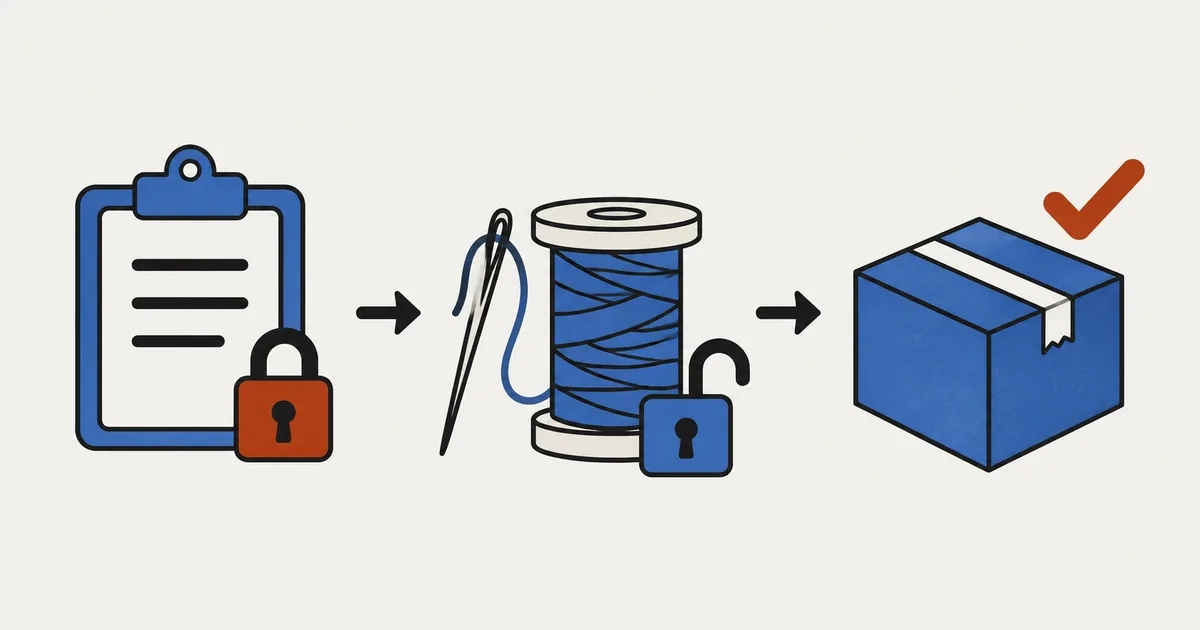
A made-to-order order moves from “order comes in” to “you start making it” to “you ship it”. SellRules puts fulfillment on hold when the order comes in, and releases the hold when you click “Start production”.
| Stage | Your screen | What reaches the customer |
|---|---|---|
| Order comes in | “Order progress” shows “Not started”. The Shopify order has a fulfillment hold | The made-to-order confirmation email |
| You start making it (you click “Start production”) | Progress changes to “In production”. The hold placed by SellRules is released | Nothing |
| You move the ship date later | A “Delayed” mark appears | A delay notice if you chose “Notify customer of delay” |
| You ship it | The order leaves the “Order progress” list | The shipping notice |
To start making an order, click “Start production” on it in “Order progress”. To start several at once, select the orders and click “Start production / prepare shipment”. After the hold is released, record the shipment on the Shopify order page.
If you know you can't make an order in time, use “Change ship date”, enter a “New ship date”, select “Notify customer of delay” and save. The customer receives the new date.
When something doesn't work
| Problem | Cause | Fix |
|---|---|---|
| Every product still shows the regular buy button | The SellRules app embed is off in the live theme | Turn it on and save, as in step 1 |
| The button doesn't change to “Order now” after the start date | The start date is in the future, or you chose a different product | In the “Made to order” tab under “Sales schedules”, check the product's row and date |
| The product shows as sold out while orders are open | The “Total quantity limit” was reached | Raise the limit and orders reopen |
| An order can be fulfilled before you click “Start production” | It shares a fulfillment with regular items, so no hold was placed | Put the fulfillment on hold in the Shopify order page |
| You clicked “Start production” but can't fulfill the order | A hold from another app or a staff member remains | Check the hold reason in the Shopify order page and release any hold that isn't from SellRules |
Orders that could not be held because they were bundled with regular items get the tag “SellRules: hold manually (mixed order)”. If the hold was placed by SellRules, the hold reason on the Shopify order page reads “Made to order: on hold until production starts”.
Pricing
Made to order works on the Free plan. The Free plan covers a lifetime total of 10 pre-orders and made-to-order orders. That is enough to create your first product and see how it works.
When you want to accept orders without that limit, switch to the Launch plan (US$7.99 per month). The Launch plan also includes “Deposit now, balance later (partial payment)”, which takes part of the price at checkout (how to take a deposit on a pre-order).
SellRules plans and pricing
| Monthly price | LaunchEvery feature included | FreeStart with one product |
|---|---|---|
| Monthly price | US$7.99 per month | Free |
| Free trial | 10 days | None |
| Pre-order and made-to-order orders | Unlimited | Up to 10 in total |
| Back-in-stock and sale-start emails (Notify Me) | Unlimited | Up to 15 in total (not refilled monthly) |
| Purchase limits | No limit on products | Up to 1 product |
| Customizable notification emails | Yes | No |
| Deposit payments | Yes | No |
Pre-orders, made-to-order, back-in-stock alerts, purchase limits, stockout switching, deposit payments and order processing are all included in the Launch plan.
The first 10 days of the Launch plan are free. If you remove the app during the trial, you are not charged.
On the Launch plan, back-in-stock and sale-start emails have no sending cap. Required messages such as order confirmations, shipping updates and balance reminders are sent on every plan regardless of the cap.
The Standard and Pro plans are closed to new sign-ups. Shops already on them keep their current terms.
You can install SellRules from the Shopify App Store, where you can also check pricing and trial terms.
Frequently asked questions
What is the difference between made to order and pre-order?
A pre-order sells a product before its launch or restock date, when that date is already set. A made-to-order product is one you make after the order comes in. In SellRules, made to order lets you choose “Ship within X days of order”, so each order gets its own ship date counted from the order date.
Does “Start production” send anything to the customer?
No. “Start production” moves the order to “In production” and releases the fulfillment hold that SellRules placed. Customers receive the made-to-order confirmation email when they order, a delay notice if you change the ship date and choose to notify them, and the shipping and cancellation notices.
Can I make a product with colors or sizes made to order?
Yes. If you choose “Whole product” as the schedule target, every variant becomes made to order. If you choose variants instead, only those variants are made to order.
Related articles:
- See pre-orders, made-to-order and launches in one plan: How to run a Shopify store solo with a sales calendar
- Start pre-orders: How to start pre-orders on Shopify
- Take part of the payment at checkout: How to take a deposit on a pre-order
- Choose an app: How to choose a Shopify pre-order app
The leather card case and the number of days are examples for illustration.