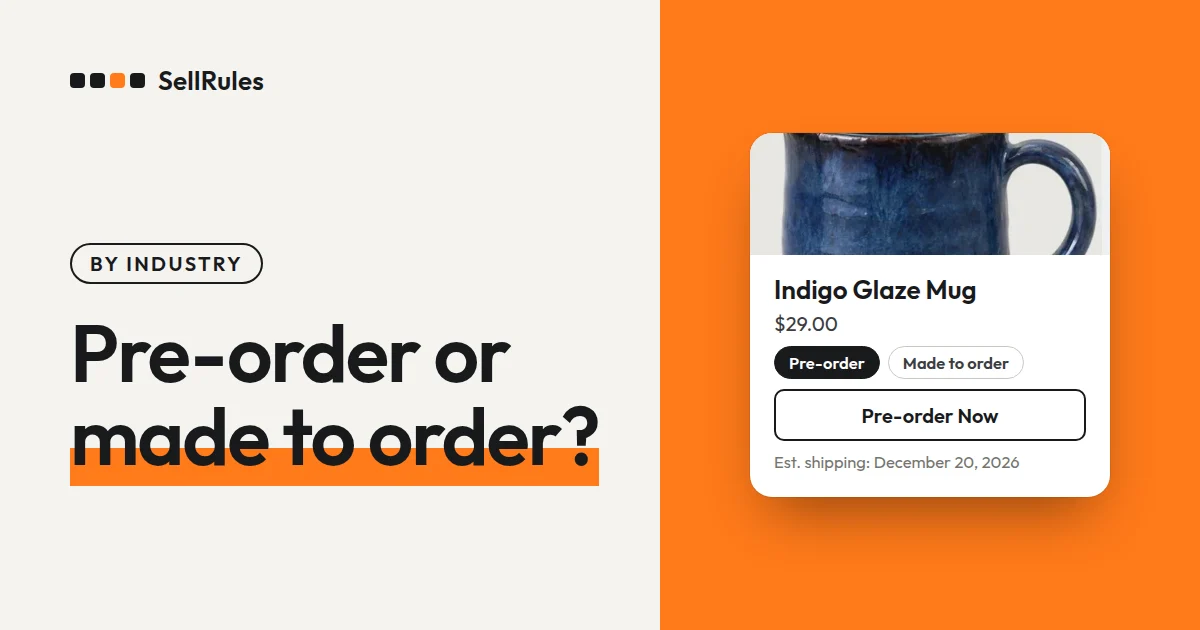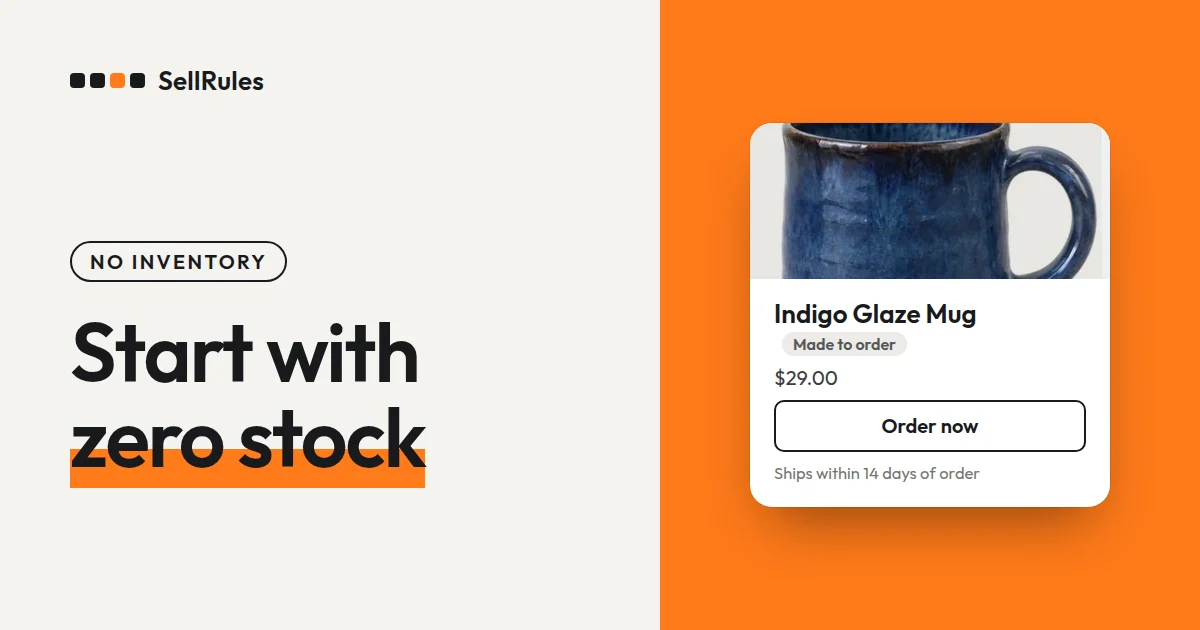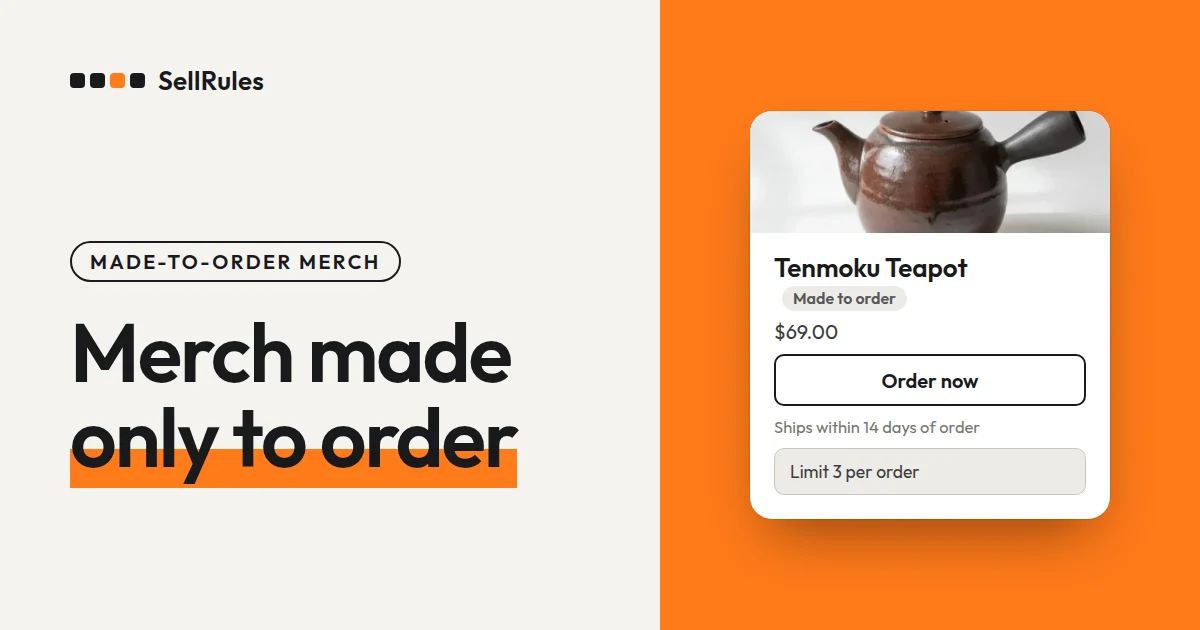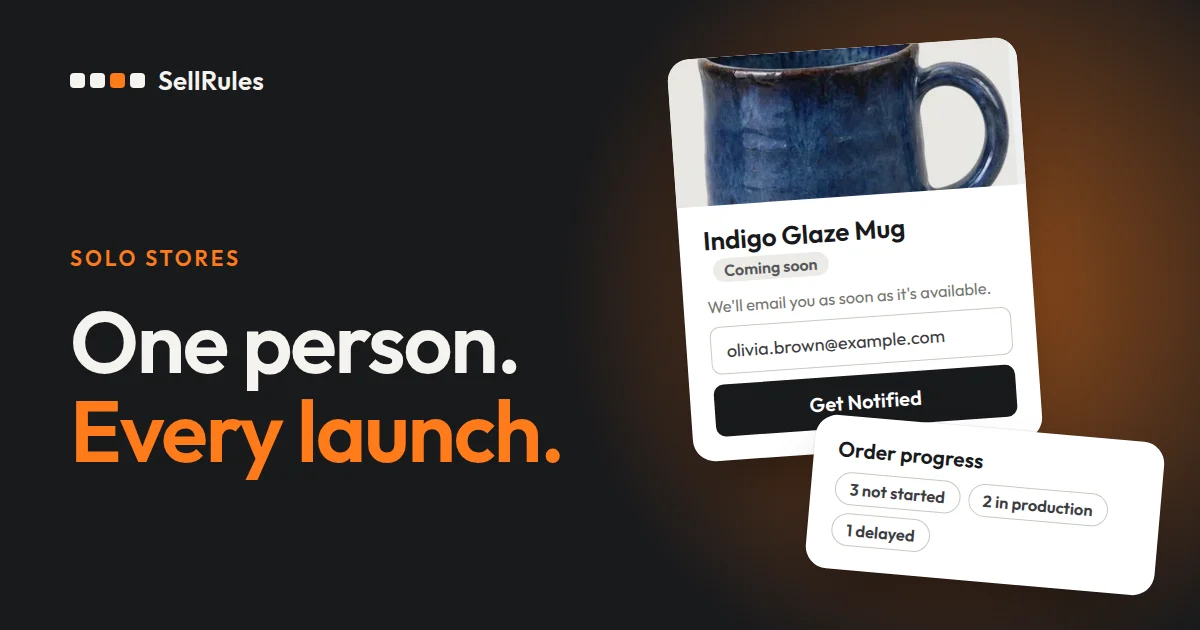
When you run a store alone or with a small team, put each product's announcement, sale start, cutoff and estimated ship date into a sales schedule. The announcement, pre-order, sale and made-to-order periods then line up on the calendar, and you can compare estimated ship dates in the schedule list. SellRules switches the buy button on the product page when the time comes, emails customers who signed up for notifications when pre-orders or sales start, and sends a delay notice when you move an estimated ship date later.
What stays with you is making the product, shipping it, and choosing a new date when you can't make the old one. If a sale starts on a day off or late at night, you don't have to sit at your computer and wait.
This article is written by the developer of SellRules. The setup steps for pre-orders, made-to-order sales and coming-soon launches are covered in the articles listed later under “Setup guides for each job”.
Which jobs you do by hand and which the app can handle
Here are the jobs in a typical month, first done by hand and then handled by SellRules.
| Job | Done by hand | Handled by SellRules |
|---|---|---|
| Start announcing a launch | Rewrite the product page text and set up a way to collect sign-ups | At the “Coming soon start” date and time, the buy button changes to a sign-up field (“Get Notified”) |
| Start pre-orders or sales | Publish at the right time and fix the buy button | The buy button switches at the date and time you set for pre-orders or sales |
| Tell people it has started | Build a list of sign-ups and send the emails | Customers who signed up during the announcement get a “Pre-order start notification” when pre-orders open, or a “Sale start notification” when a coming-soon product goes on sale |
| Close orders | Stop selling on the cutoff day | At 0:00 on the “Date sales end”, the product shows “Sales ended” |
| Shipping runs late | Contact each customer about their order | When you move the estimated ship date later, customers with unshipped orders get a delay notice |
| Start making and shipping | Go through the order list one by one | Orders you haven't started appear as “Not started” in “Order progress”. Making and shipping them is still your job |
In the right-hand column, the switches and emails happen at the dates and times you entered in the sales schedule.
Example: planning one month
Say you sell the following 3 products in December. They are examples for illustration.
- A new ceramic plate: announce it on December 1, open pre-orders on December 8, and ship on January 22
- A classic linen apron: take made-to-order orders from December 1, shipping 14 days after each order
- A winter mystery box (a boxed bundle of winter items, sold at year end): go on sale on December 26, announce it on the product page until then, and collect email sign-ups
In SellRules you create all 3 as “Sales schedules”. For the plate, create a pre-order schedule and enter “Coming soon start”, “Pre-order start date” and “Estimated ship date”. For the apron, create a made-to-order schedule and enter “Order start date” and “Ship within X days of order”. For the mystery box, create a coming-soon schedule, enter “Sale start”, and turn on “Accept notification sign-ups during the announcement”.
The schedules you create appear month by month in the “Calendar view” under “Sales schedules”. The announcement, pre-order, sale and made-to-order periods are color coded, and “Product status” on the right shows each product's current stage and the date and time of its next switch. Estimated ship dates are listed per product in the “Sales schedules” list.
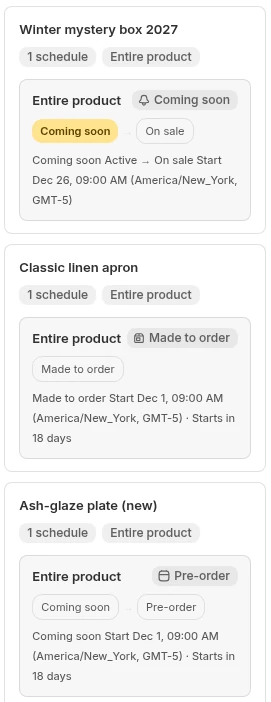
At the start of the month, look in the calendar for weeks where order periods overlap, and compare estimated ship dates in the list. That keeps pre-order shipments and made-to-order production from piling up in the same week.
How to fix a shipping delay
When a pre-order's estimated ship date slips, open the schedule in “Sales schedules” and change its estimated ship date to the new date. For schedules with a fixed estimated ship date, SellRules checks unshipped orders every 5 minutes and sends a delay notice to customers whose estimated ship date is now later than the one they were given when they ordered.
To push back the dates for several products at once, select the schedules in the list and open “Bulk edit”. You can select up to 500 at a time, and only the fields you check among “Periods and stages”, “Shipping”, “Quantity limit” and “Purchase limits” are changed. When you move an estimated ship date later, the number of orders that will get a notice is shown before you save, for example “3 unshipped order(s) will automatically get a delay notice at the next delay check.”
For made-to-order items, where some orders run late and others don't, open “Order progress”, select that order, and enter the new date under “Change ship date”. Check “Notify customer of delay” and save, and the customer receives the new date. To change several orders at once, select them and use “Bulk edit ship date”.

The screens to check once a week
SellRules handles the daily switching, so three screens are enough for a weekly check.
| Screen | What to look at |
|---|---|
| Calendar view | What switches in the next two weeks |
| Order progress | The number of “Not started” orders, and orders marked “Delayed” |
| Email log | Whether the pre-order start, sale start and delay emails went out as planned |
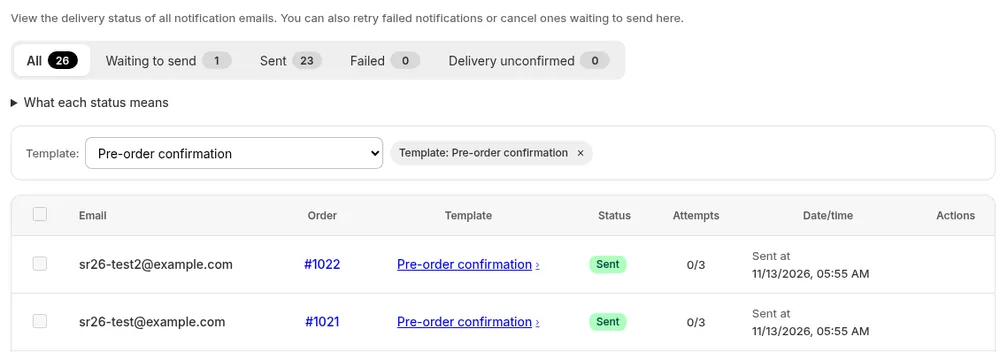
To change a plan, open the schedule's details from the product on the calendar and edit it there.
When someone helps you
If a family member or staff member packs and ships orders, Shopify Flow can tell them what happened in SellRules. SellRules offers 4 Flow triggers, “Delivery delay detected”, “Pre-order or made-to-order received”, “Sales phase changed” and “Back-in-stock signup”, and one action, “Switch sales phase”.
For example, you can send an internal email to the person in charge whenever a pre-order or made-to-order order arrives, or notify them when a shipping delay is detected. The setup is explained in the guide under “Connecting with Shopify”.
What to check when you hand over the work
What staff can do in the Shopify admin is set in the user settings under “Settings” (Shopify Help, checked November 14, 2026). SellRules has no permissions per person: anyone who can use the app sees the same screens.
When you hand over the work, go through these with the new person so they can see the whole plan.
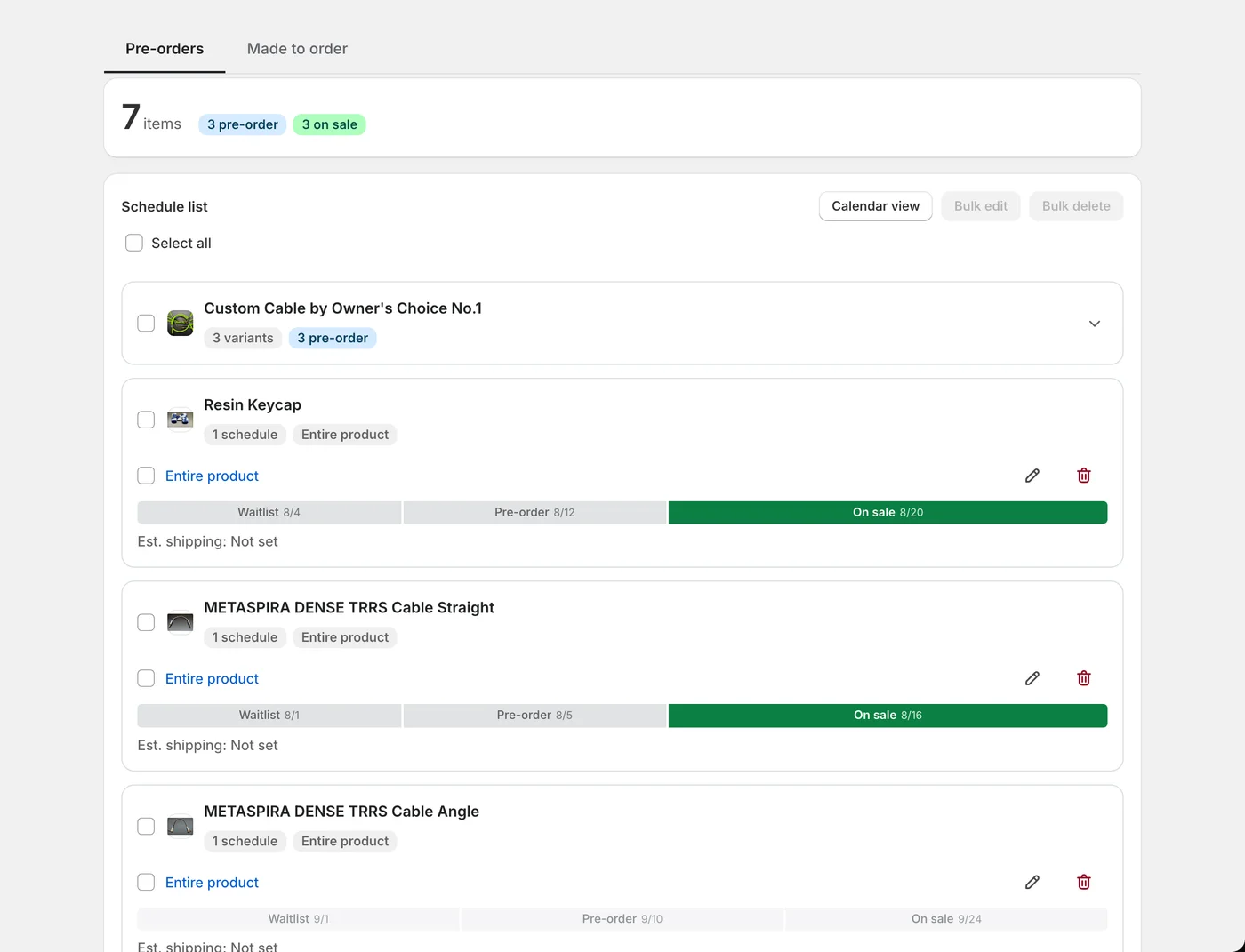
- The schedule list: schedules not yet started, “Active” and “Paused”, and the dates and times of upcoming announcements, sale starts and cutoffs
- “Sold-out switch”: the products that switch to pre-orders or back-in-stock notices when they sell out
- “Sender email address” and “Contact email address”: who customer emails come from, and where replies arrive
- “Email log”: the emails already sent to customers
- Due dates for the balance of a partial payment: if you take pre-orders with “Deposit now, balance later (partial payment)”, the orders in “Order progress” whose balance is still to be charged, and their due dates
- Orders on hold: in “Order progress”, made-to-order orders before production has started, and orders waiting for the balance payment
What Shopify can do on its own
With Shopify's future publishing, a product stays off your online store until the date and time you choose, then goes live (Shopify Help, checked November 14, 2026). Shopify Flow runs the actions you choose when something happens in your store (Shopify Help, checked November 14, 2026).
| What you want | Shopify's built-in feature | SellRules |
|---|---|---|
| Start selling at launch time | Future publishing makes the product live at that time | Shows the product page with an announcement, then switches the buy button at that time |
| See the month's plan | Open each product's publish date to check it | Lines up the announcement, pre-order, sale and made-to-order periods on one calendar |
| Tell customers about a shipping delay | Contact each customer about their order | When you move the estimated ship date later, sends a delay notice for unshipped orders |
If you only need to hide a product and publish it at a set time, future publishing is enough. If you want to announce a launch beforehand, or manage pre-orders and made-to-order sales together with estimated ship dates, put the plan together in SellRules.
Setup guides for each job
The setup steps for each feature are in these articles.
- Coming soon and announcements: How to start selling automatically at launch time
- Pre-orders: How to start taking pre-orders on Shopify
- Made-to-order and Order progress: How to start made-to-order sales on Shopify
- Choosing launch dates for new and seasonal products: A launch calendar for new and seasonal products
- When a customer buys a pre-order item and a regular item together: Pre-order and regular items in one order
- The wording of delay and sale start emails: How to edit your pre-order and back-in-stock emails
Pricing
On SellRules, sales schedules, the calendar view, delay notices and order progress are all available on the Free plan. On the Free plan you can take up to 10 pre-order and made-to-order orders in total, and send up to 15 back-in-stock and sale-start emails in total.
SellRules plans and pricing
| Monthly price | LaunchEvery feature included | FreeStart with one product |
|---|---|---|
| Monthly price | US$7.99 per month | Free |
| Free trial | 10 days | None |
| Pre-order and made-to-order orders | Unlimited | Up to 10 in total |
| Back-in-stock and sale-start emails (Notify Me) | Unlimited | Up to 15 in total (not refilled monthly) |
| Purchase limits | No limit on products | Up to 1 product |
| Customizable notification emails | Yes | No |
| Deposit payments | Yes | No |
Pre-orders, made-to-order, back-in-stock alerts, purchase limits, stockout switching, deposit payments and order processing are all included in the Launch plan.
The first 10 days of the Launch plan are free. If you remove the app during the trial, you are not charged.
On the Launch plan, back-in-stock and sale-start emails have no sending cap. Required messages such as order confirmations, shipping updates and balance reminders are sent on every plan regardless of the cap.
The Standard and Pro plans are closed to new sign-ups. Shops already on them keep their current terms.
To start, pick one product you will sell next month, enter its announcement and sale start dates in a sales schedule, and see it on the calendar. When products and orders grow, switch to the Launch plan (US$7.99 per month), which has no limits. You can install SellRules from the Shopify App Store, where the pricing and free trial terms are also listed.
Frequently Asked Questions
Which time zone does the sale start time use?
It uses the time zone set for your Shopify store. The dates and times you enter in SellRules are saved as times in that time zone, and the schedule screens show the time zone next to them.
Can I bulk edit pre-order and made-to-order schedules together?
No. Bulk edit works only on pre-order schedules together or made-to-order schedules together. To push back the estimated ship dates for both, select each type again and edit twice.
Related articles
- Choosing how to run an early-access or limited sale: Choosing early-access and limited sales
- Setting cutoffs and order counts around a holiday: Taking pre-orders for holidays and gift boxes
- Deciding how many to make from pre-order counts: Deciding how many to make or buy from pre-orders
- Ending a limited-time sale on time: How to end a limited-time sale automatically on time
- Starting a brand without stock: Choosing between made-to-order and pre-orders
The products and dates are examples, not a real store's.