You can edit 12 of the emails SellRules sends to your customers, including the pre-order confirmation, the delay notice and the restock notification. For each one, you can turn it on or off under “Settings” > “Email templates” and edit its subject, body and header design.
Text is saved per language, and customers get the email in the language they ordered in. The “Email log” shows the status of every email you send, and you can resend any that failed.
Start with the email you send most, either the pre-order confirmation or the made-to-order confirmation. Edit that one, send a test to yourself to see how it looks, then move on to the others.
What your customers see
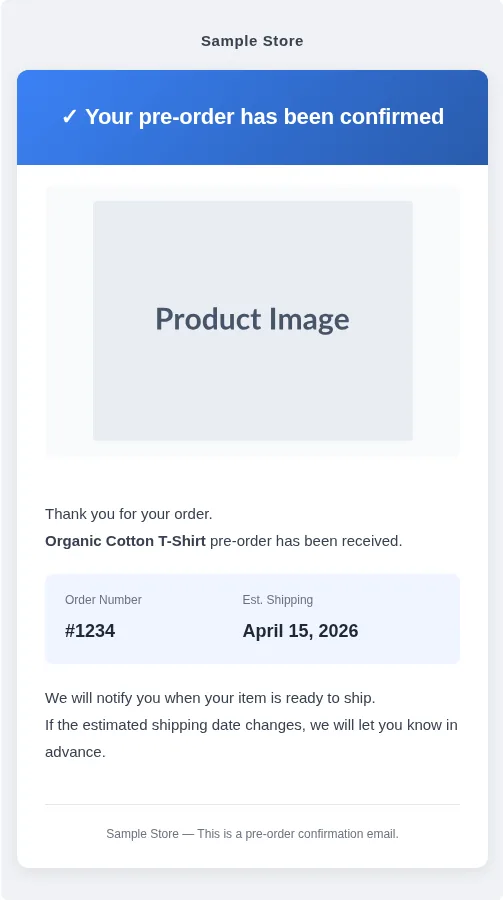
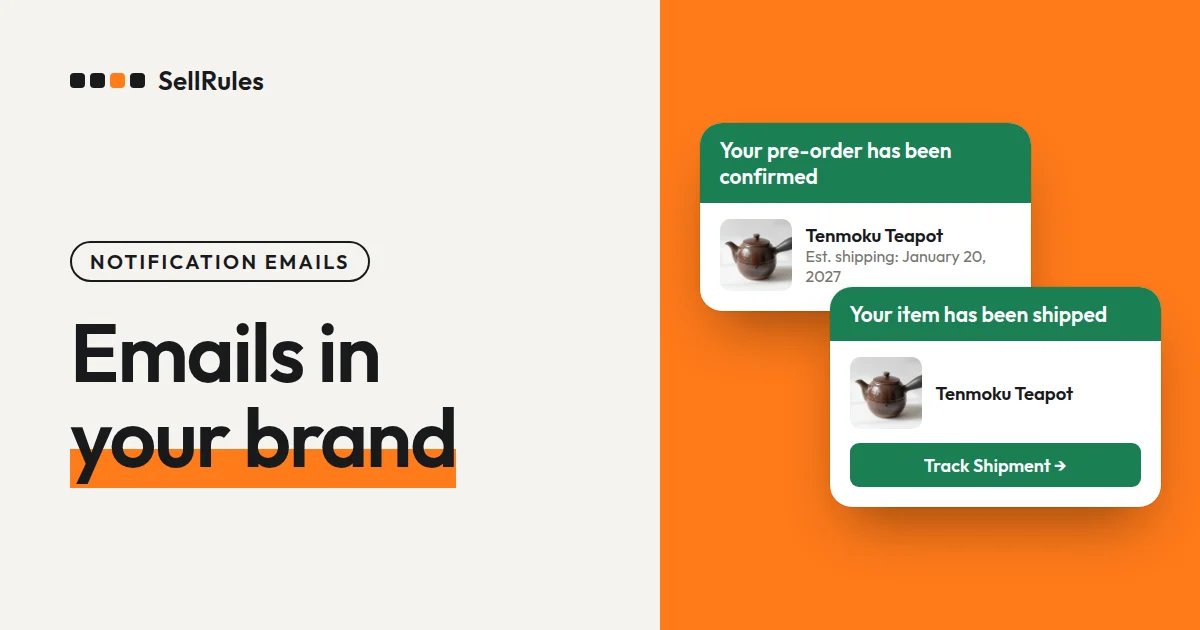
When someone places a pre-order, they get the pre-order confirmation above. The subject is “[Pre-order Received] Your order for (product name) has been confirmed”, and the body includes the order number and estimated shipping date.
If you don't edit anything, this standard text is what goes out. To make it sound like your store, change the header color and text, rewrite the opening lines, or add your contact details at the end, checking the result against the preview as you go.
The 12 emails you can edit, and when each is sent
The 12 emails fall into three groups: pre-order and made-to-order orders, restock and sale-start announcements, and deposit balances. SellRules sends each one when the event below happens. The one exception is the delay notice sent when you change an order's estimated shipping date: it only goes out if you select “Notify customer of delay”.
| When it's sent | |
|---|---|
| Pre-order confirmation | A pre-order is placed |
| Made to order confirmation | A made-to-order item is ordered |
| Delay notice | You push the estimated shipping date back (sent to customers whose order hasn't shipped yet) |
| Shipped notice | A pre-order or made-to-order item has shipped |
| Cancellation confirmation | An order cancellation is complete |
| Pre-order start notification | Pre-orders open (sent to back-in-stock subscribers) |
| Sale start notification | Sales open (sent to people who signed up during the announcement) |
| Restock notification | Stock comes back (sent to back-in-stock subscribers) |
| Balance payment reminder | Before the balance due date, and after it has passed |
| Balance payment received | The balance payment goes through |
| Balance payment failed | The balance payment fails, or the customer needs to take action |
| Balance due date changed | The balance due date changes |
The four balance emails appear in the list if you have deposits and balance payments turned on, or if you have orders with an unpaid balance. If you don't use deposits, the list shows the other eight.
How this differs from Shopify's own notifications
Shopify's “Customer notifications” are emails sent for order and delivery events, such as “Order confirmation”, “Shipping confirmation”, “Shipping update” and “Order canceled” (Shopify Help Center, checked November 13, 2026). That list doesn't include emails about a pre-order's estimated shipping date, changes to that date, restocks, or deposit balances.
SellRules emails cover these pre-order, made-to-order and back-in-stock situations.
| Situation | Shopify “Customer notifications” | SellRules email |
|---|---|---|
| A pre-order is placed | Order confirmation (order details) | Pre-order confirmation (estimated shipping date) |
| The estimated shipping date is pushed back | Not in the list | Delay notice (original and new dates) |
| Stock is back, or pre-orders open | Not in the list | Restock notification, Pre-order start notification, Sale start notification |
| The balance due date is coming up | Not in the list | Balance payment reminder |
A pre-order gets both Shopify's “Order confirmation” and the SellRules “Pre-order confirmation”. Leave the order details to the Shopify email, and use the SellRules email for the estimated shipping date and what the customer will hear from you next. That way each email has a clear job.
How to customize the emails in SellRules
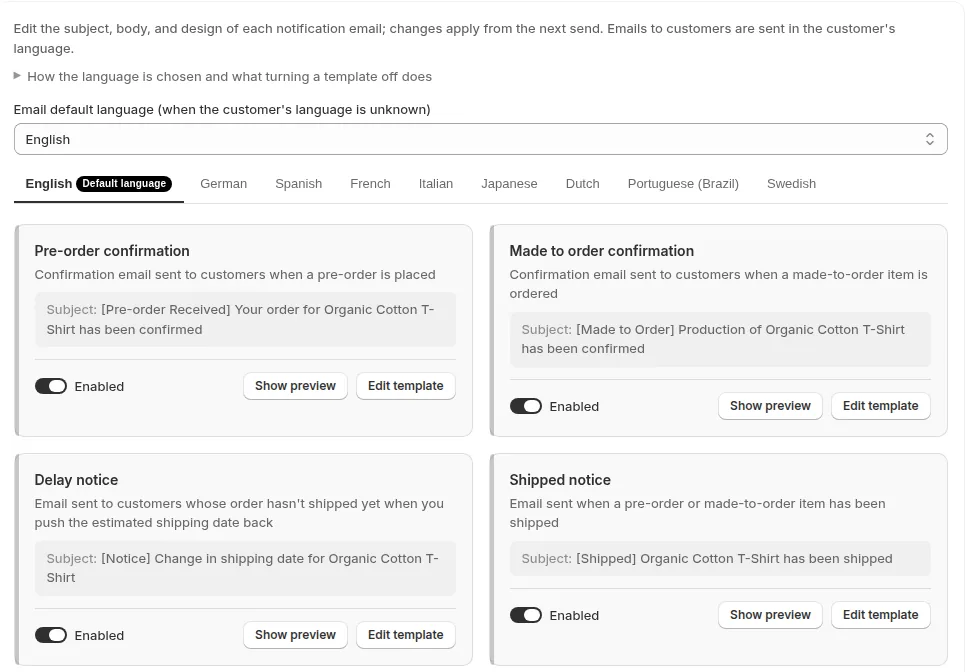
You edit emails one at a time under “Settings” > “Email templates” in SellRules. Each card in the list shows the email's subject and a switch that controls whether it's sent.
- Under “Email default language (when the customer's language is unknown)”, pick the language most of your customers use. Orders with no customer language on record, such as orders created by staff, get emails in this language.
- Switch off the card for any email your store doesn't use. A disabled email is marked “Stopped” and isn't sent, including emails already waiting to send. If you turn it back on later, the emails skipped in the meantime aren't sent.
- Click “Edit template” on the email you want to change and rewrite the subject, header, body and footer (see the editor below).
- Enter your own email address under “Test recipient” and click “Send test”. You'll get an email whose subject starts with “[Test]”. Check how it looks on both your phone and a computer.
- Click “Save”. The saved text is used starting with the next email that goes out.
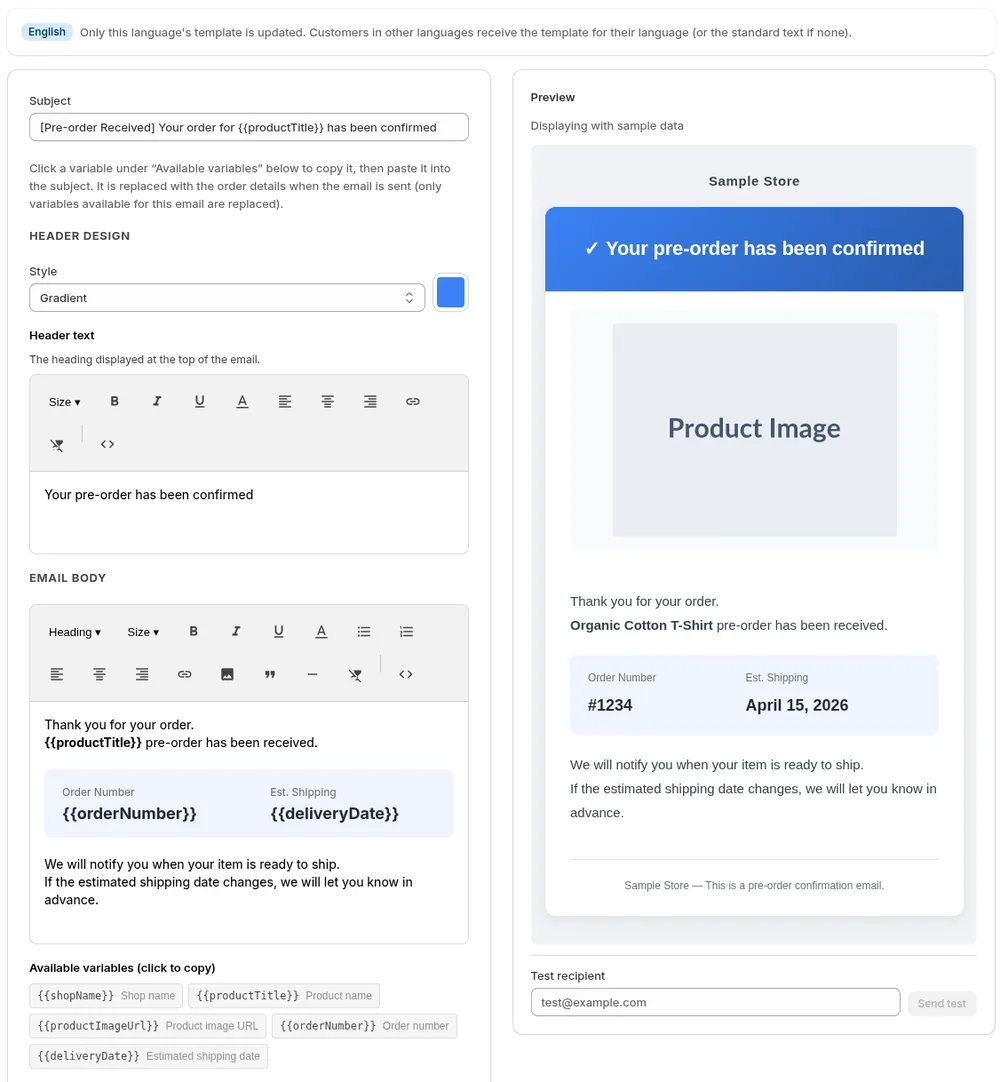
As you edit on the left, the “Preview” on the right shows the email with sample data. You can change these five fields.
| Field | What you can change |
|---|---|
| Subject | The subject line shown in the inbox. Variables can add the product name or order number |
| Header design | The header “Style” (Default, Gradient, Simple (solid) or None) and color |
| Header text | The heading at the very top of the email |
| Email body | The main text. Supports bold, links, images and lists, or you can write it in HTML |
| Footer text | The text at the very bottom of the email, for contact details or notes from your store |
For values that change with each order, such as the order number, estimated shipping date and product name, pick them from the “Available variables (click to copy)” list and paste them in. Each email has its own set of variables. For example, the delay notice offers “Original date”, “New date” and “Reason for change”, and the restock notification offers “Product page URL”.
To go back to the original text, click “Reset to default template” in the editor, then click “Save”.
Editing for each language
SellRules sends emails in the customer's language. Order emails use the language of the checkout the customer ordered in. Restock and pre-order start emails use the language of the product page where the customer signed up.
Your edits are saved to the language tab you had selected. Text you edit on the English tab isn't used for customers who ordered in Spanish. They get the text on the Spanish tab.
| Customer's language tab | What the customer gets |
|---|---|
| Edited and saved | Your edited text for that language |
| Not edited (one of the 9 SellRules standard languages) | The SellRules standard text |
| Not edited (a language without standard text, such as Korean or Chinese) | The text in your default email language |
If you sell to customers who shop in other languages, edit your English text first, then switch the language tab above the list and edit the same email. You'll see one language tab for each language published in your Shopify store.
Checking the email log to see what was sent
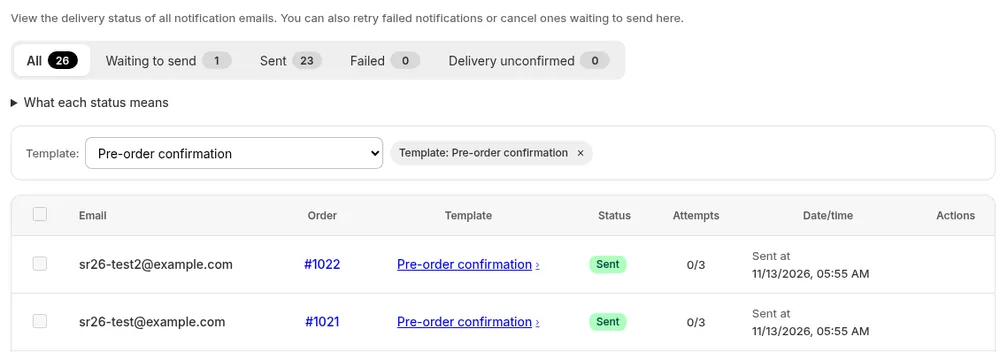
Every email SellRules sends gets its own row in “Email log” in the left menu. Each row shows the recipient, the order, which email it was, its status, how many send attempts were made, and the date and time. Click a template name to open the subject and body of that email as rendered with the current template.
| Status | What it means | What you do |
|---|---|---|
| Waiting to send | It's sent automatically at the scheduled time | Click “Cancel” if you want to stop it |
| Retry scheduled | It couldn't be sent for now, and SellRules will try again automatically | Wait |
| Sent | The email sending service accepted it | Nothing |
| Failed | It reached the limit of automatic retries | Check the address and click “Retry” |
| Delivery unconfirmed | SellRules couldn't confirm whether it was delivered | Check with the customer whether it arrived |
| Cancelled | You cancelled it, or a setting stopped it, so it won't be sent | Check the reason shown on the row |
For “Delivery unconfirmed” emails, SellRules doesn't retry automatically and doesn't show a “Retry” button, to avoid sending the customer the same email twice. If the email didn't arrive, click the template name to check what it said, then contact the customer directly, for example from the order page in Shopify.
After editing a template, filter the log with “Template:” for that email and check that the next order's email shows “Sent”. To see the text customers will get, send a test to yourself from the editor.
If emails aren't going out as expected, use this table to find the cause.
| Symptom | Cause | Fix |
|---|---|---|
| The email shows “Cancelled”, and the row says it wasn't sent because it's turned off in your settings | You switched that email off in the list | Switch it back on. Emails from the time it was off aren't sent |
| You pushed the estimated shipping date back, but no delay notice went out | You didn't select “Notify customer of delay” on the order screen | Select “Notify customer of delay” when you change the estimated shipping date |
| Customers who ordered in Spanish don't get your edited text | You only edited the English tab | Switch to the Spanish tab and edit the same email |
| Retrying still ends in “Failed” | The customer's email address is invalid | Check the error on the row and confirm the correct address with the customer |
Pricing
SellRules emails go out with the standard text on the Free plan too. On the Free plan, restock, pre-order start and sale-start emails are capped at 15 in total from the day you install.
Template editing, turning individual emails on and off, and the email log are available on the Launch plan (US$7.99 per month). If you want your pre-order confirmation to sound like your store, or want to check that each email was sent, try editing the pre-order confirmation on the Launch plan and sending yourself a test. You can install SellRules from the Shopify App Store, where you can also check pricing and trial terms.
Frequently Asked Questions
What order number and product name appear in a test email?
The same sample product name, order number and estimated shipping date as the editor preview, plus your store name. The subject starts with “[Test]”, and no real order details are used. The test uses the text you're currently editing, so you can see how it looks before you save.
Where do customer replies go?
To the address you enter in “Contact email address” under “Settings”. If it's blank, replies go to your Shopify store email address. To send from an address on your own domain, register it under “Sender email address” and add the DNS records shown there.
Can I cancel an email after it's been sent?
No. A “Sent” email can't be cancelled. You can only cancel emails that are still “Waiting to send” or “Retry scheduled” in the email log. Click “Cancel” on the row, and that email won't go to the customer.
Related articles:
- Seeing what else SellRules does: SellRules features
- Choosing how to sell, from pre-orders and made-to-order to limited quantities: How to set up early-access and limited sales on Shopify
- Starting restock notifications: How to set up back-in-stock emails
- Collecting sign-ups before launch: Pre-launch notification sign-ups
- Deposits and balance emails: Pre-order deposits and balance payments
- The full list of variables: Guide: “Notification emails and the delivery log”
- What to tell pre-order customers from checkout to delivery: Pre-order customer communication
- Replying to pre-order questions: Reply templates for pre-order questions
The product name, order number and estimated shipping date in the emails are the editor's sample data.