SellRules is a Shopify app that lets you set when each product sells, who can buy it, how many they can buy and how it is sold. You can take orders for items that haven't arrived yet as a pre-order, sell items you make after the order comes in as made to order, announce a product as coming soon until its launch time, and use purchase limits to control how many each customer can buy and who can buy. You set all of this per product.
After an order comes in, SellRules holds the pre-order items until you are ready to ship them, and emails your customers when an estimated ship date changes. Taking part of the price up front as a deposit is a Launch plan feature. You can try every other way of selling on the Free plan.
This article is written by the developer of SellRules. The step-by-step setup for each feature is covered in the articles linked from each section.
Pick a feature by what you want to do
The table below lists common goals and the SellRules feature that handles each one. The right-hand column shows which plan includes it.
| What you want to do | SellRules feature | Plan |
|---|---|---|
| Take part of the price for a pre-order up front and charge the balance later | “Deposits and balance payments” | Launch |
| Take orders for items that haven't arrived, with an estimated ship date and a quantity limit | “Pre-order” | Free and up |
| Sell items you make after the order comes in | “Made to order” | Free and up |
| Announce a product ahead of launch, then start selling at the launch time | “Coming soon” | Free: one product |
| Switch to pre-orders or back-in-stock alerts when a product sells out | “Sold-out switches” | Free and up |
| Limit quantity per order or per customer, or limit who can buy | “Purchase limits” | Free: up to 1 product |
| Ship pre-order and in-stock items separately, and track production | “Order progress” | Free and up |
| Tell customers about restocks, sale starts and changed ship dates | Emails | Free: default text. Editing the text: Launch |
Take part of the price up front for pre-orders
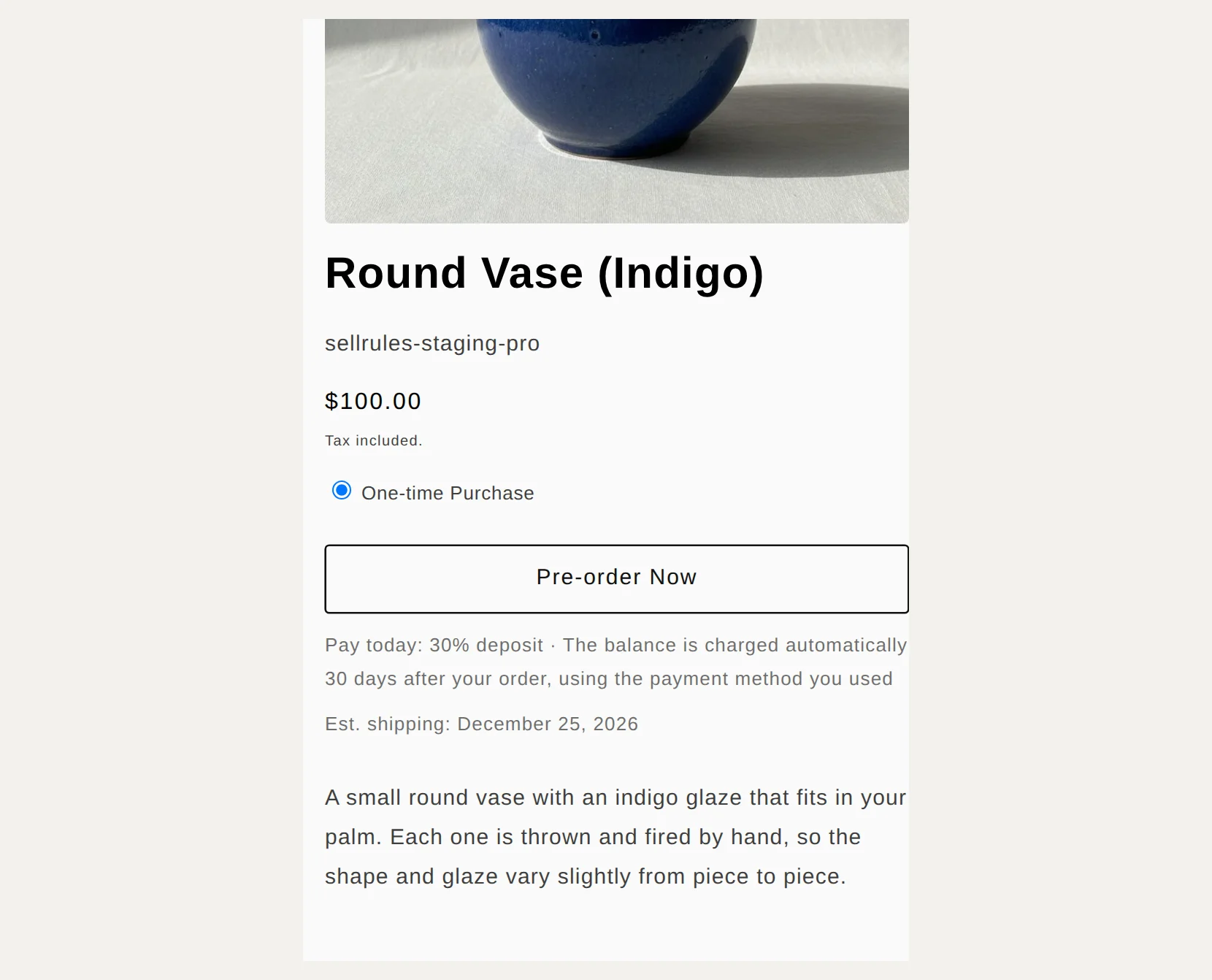
For pre-orders, you can choose “Deposits and balance payments”: the customer pays part of the price at checkout and the balance is charged on a due date you set. On the product page, the customer sees how much is due today before clicking “Pre-order Now”.
- Set the deposit percentage and the balance due date: How to take a deposit on Shopify pre-orders
- Decide whether to collect the full price up front or only part of it: When to charge for pre-orders
Take orders before launch or while sold out
You can take orders for products with no stock yet by choosing how they sell in SellRules “Sales schedules”. There are three ways to sell:
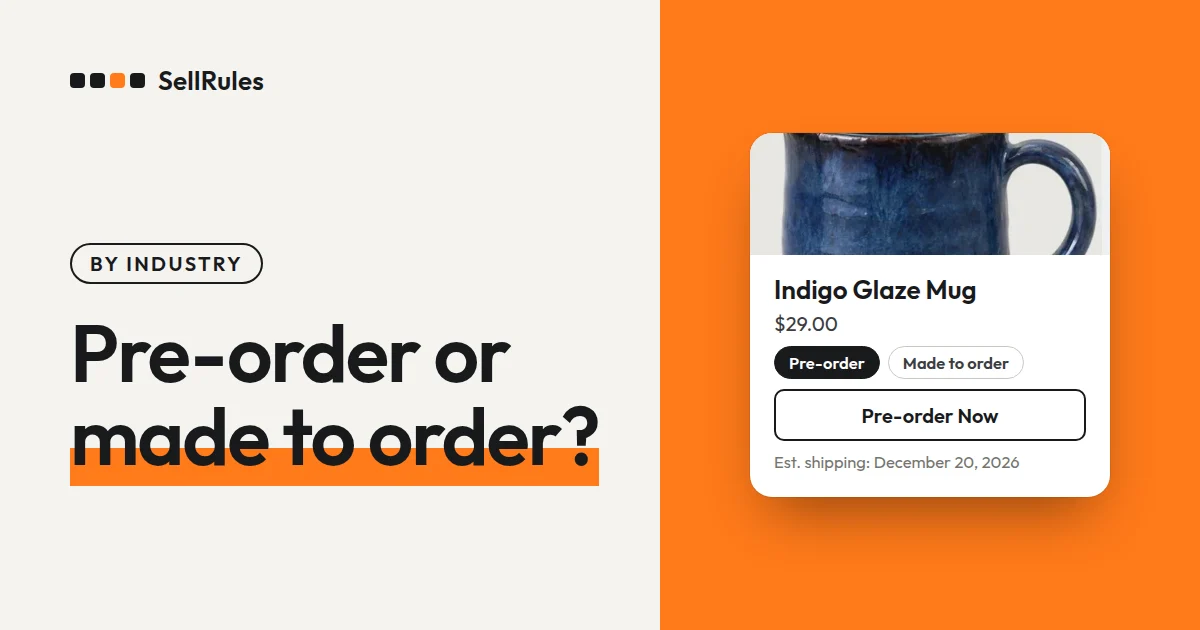
- “Pre-order”: take orders for items that haven't arrived yet, with an “Estimated shipping date” and a “Total quantity limit”. The button changes to “Pre-order Now”.
- “Made to order”: sell items you make after the order comes in. The button changes to “Order now”, and you show the shipping time with either “Ship on fixed date” or “Ship within X days of order”.
- “Coming soon”: from the “Coming soon start” until the “Sale start”, the product page announces the launch, and the product goes on sale at the sale start time. While the announcement is up, customers can sign up to be told when sales begin.
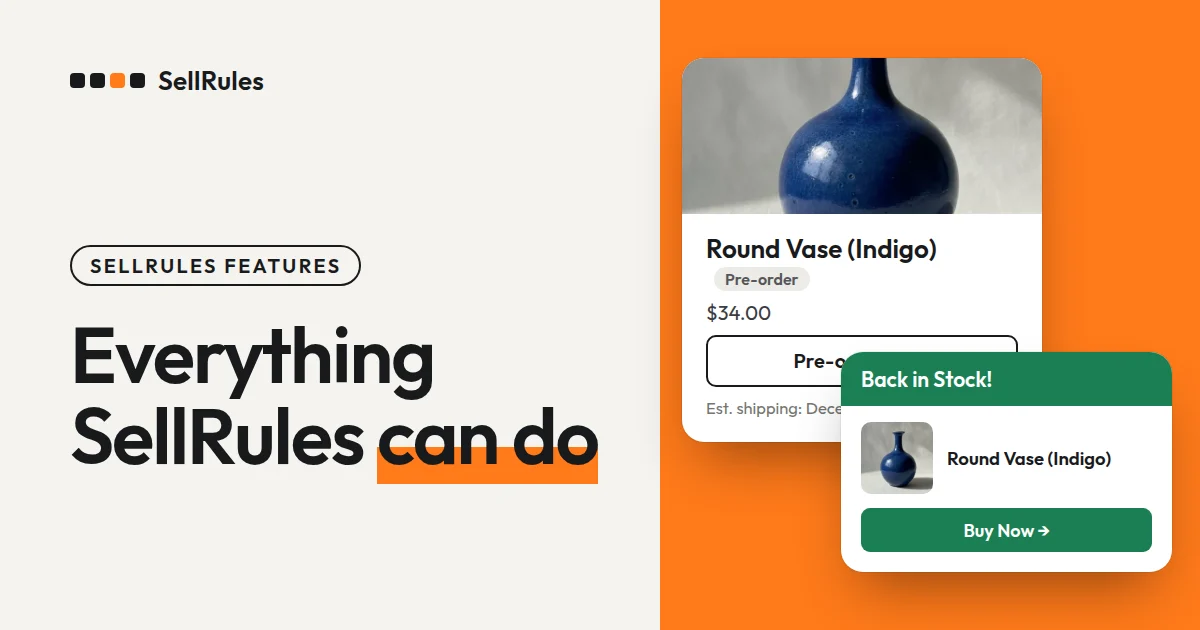
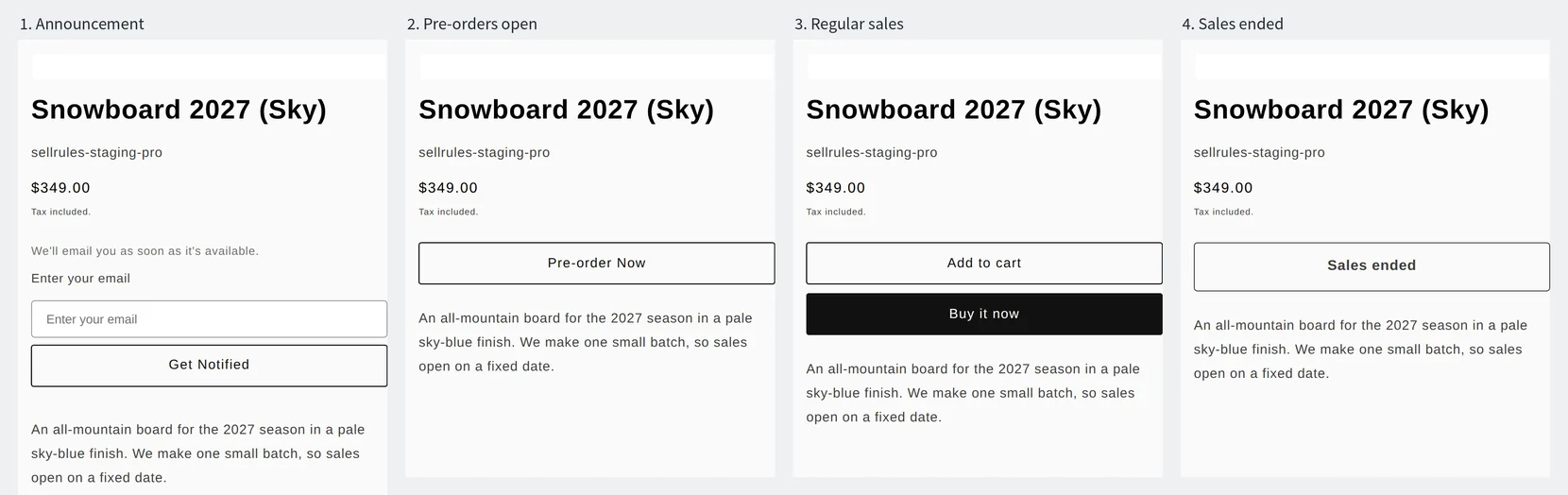
You can also set up one product so the button changes at each phase: announcement, pre-order, regular sale and end of sale. Customers see the product page like this:
With “Sold-out switches”, a product whose inventory reaches 0 switches automatically to pre-order, made to order or “Back-in-stock notification only”. When inventory comes back, the product returns to regular sales.
To change dates for many products the same way, use “Bulk edit” in “Sales schedules”, and check each month's plan in “Calendar view”. Use “Variant-specific settings” to give each color or size its own dates or limits, and “Pause sales” to stop selling quickly, for example when you find a defect. You can also switch the sales phase from Shopify Flow.
Each part of the setup has its own article:
- What to decide before you start pre-orders: How to start pre-orders on Shopify
- Whether to take pre-orders or collect back-in-stock signups when a product sells out: Pre-order, made to order or back-in-stock alerts
- Email customers when stock comes back: How to set up back-in-stock emails
- Collect signups before launch: Pre-launch email signups
- Plan the dates for announcement, pre-order and regular sale: Switch from pre-order to regular sales at a set time
- Switch the sales phase from Shopify Flow: Shopify integrations in the SellRules user guide
- Start with made to order and no inventory: How to start a brand without inventory
- Decide how many to make from your pre-order count: Use pre-order counts to decide how many to make
- Set deadlines and order caps for holidays: Holiday pre-orders: deadlines and order caps
- Plan a year of launches and pre-orders: Plan product launches and holiday sales
Decide who can buy, how many and for how long
For limited editions and members-only products, use purchase limits to set how many each customer can buy and who can buy. Limit quantity with “Max per order” and “Max per customer (cumulative)”. The cumulative limit applies to customers who are logged in when they buy. Choose who can buy under “Purchase eligibility”: “No restriction”, “Login required”, “Tag required” or “Purchases blocked”.
To sell for a limited time, choose “Also set a date to end regular sales (limited-time sale)” in “Sales schedules”. Once that date and time passes, the product page shows “Sales ended”.
- Limit quantity per order or per customer: How to limit purchases per customer
- Sell only to members: Members-only products with customer tags
- Stop one person from buying many units of a limited product: How to reduce bulk buying of limited products
- End a sale automatically on a set date: How to end a limited-time sale automatically
- How to combine these ways of selling: Early-access and limited sales on Shopify
Process pre-order and made-to-order orders
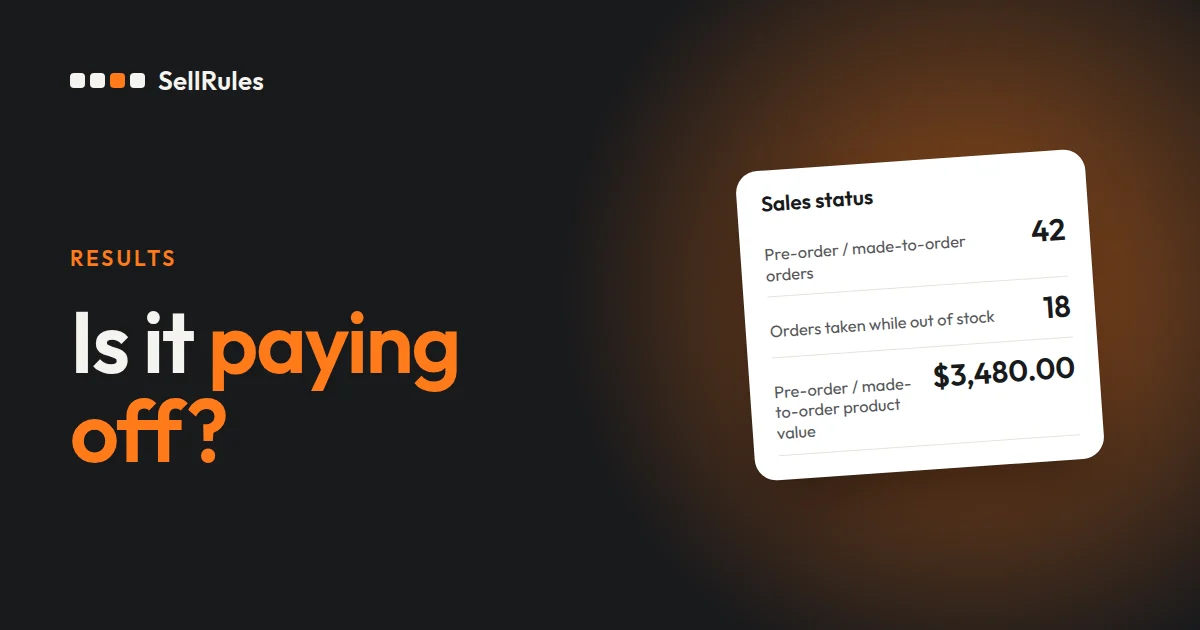
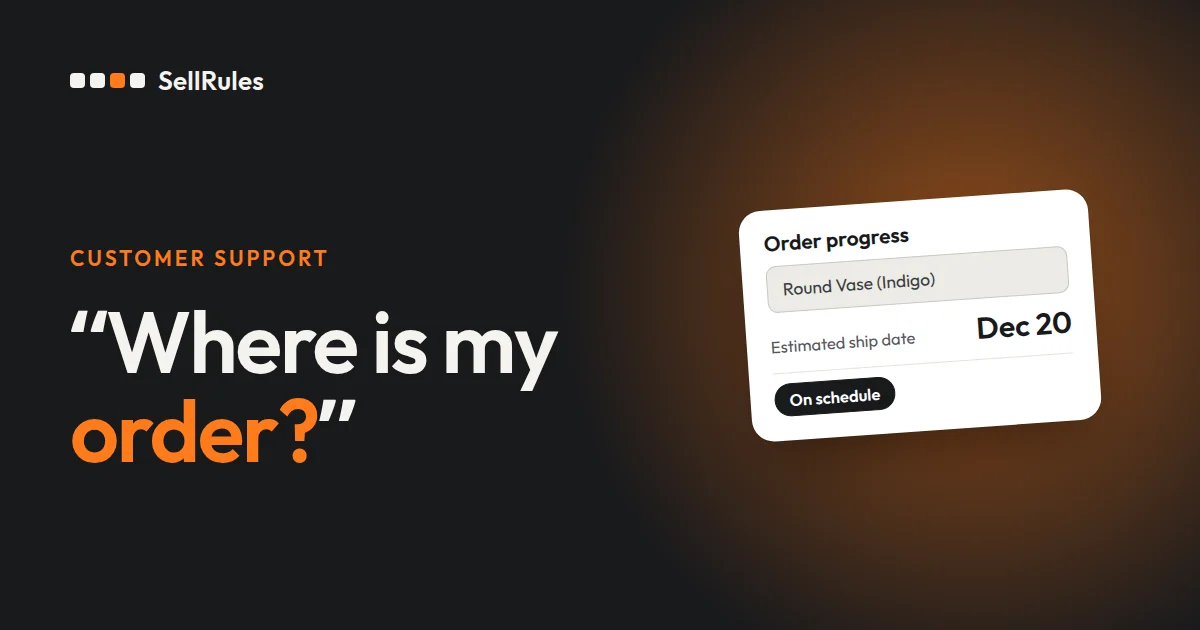
Pre-order and made-to-order orders taken through SellRules appear on the SellRules “Order progress” page, with their estimated ship date and progress.

Orders are grouped by “Not started”, “In production” and “Delayed”. Pre-order items stay on hold until you click “Start shipment preparation” or “Start production”. If an order contains both pre-order and in-stock items, only the pre-order items are held.
When a ship date slips, click “Edit ship date”, enter the new date and select “Notify customer of delay”, and the customers on those orders get an email. When orders are ready to go, print their packing slips together and ship them all at once with “Bulk fulfill in Shopify”. You can also set SellRules to hide cash on delivery as a payment method for orders that include pre-order items.
- Pre-order and in-stock items in the same order: How to ship in-stock items first
- Track made-to-order orders and production: How to manage made-to-order orders
- Keep customers from choosing cash on delivery for pre-orders: How to hide cash on delivery for pre-orders
Keep customers informed
SellRules sends 12 kinds of customer emails, including “Pre-order confirmation”, “Delay notice” and “Restock notification”, and you can edit the text of every one. Each email goes out in the customer's language, and the Free plan sends them with the default text. You can see who signed up for restock or sale-start alerts in “Back-in-stock subscribers”. To rewrite the text and design in your store's own words, use “Email templates” in Settings, and check sent emails in the “Email log”. These two are Launch plan features.
The text on product page buttons and badges shows automatically in 9 languages, including English and Japanese. To change the wording to match your store, edit it under “Button and label text” in Settings.
- Edit the email text: How to customize pre-order and back-in-stock emails
- Edit the button and badge text: How to change the pre-order button and badge
Pricing
SellRules has two plans: Free and Launch. On the Free plan you can take up to 10 pre-order and made-to-order orders in total and send up to 15 back-in-stock and sale-start emails in total. You can set purchase limits on up to 1 product and use coming soon on one product.
SellRules plans and pricing
| Monthly price | LaunchEvery feature included | FreeStart with one product |
|---|---|---|
| Monthly price | US$7.99 per month | Free |
| Free trial | 10 days | None |
| Pre-order and made-to-order orders | Unlimited | Up to 10 in total |
| Back-in-stock and sale-start emails (Notify Me) | Unlimited | Up to 15 in total (not refilled monthly) |
| Purchase limits | No limit on products | Up to 1 product |
| Customizable notification emails | Yes | No |
| Deposit payments | Yes | No |
Pre-orders, made-to-order, back-in-stock alerts, purchase limits, stockout switching, deposit payments and order processing are all included in the Launch plan.
The first 10 days of the Launch plan are free. If you remove the app during the trial, you are not charged.
On the Launch plan, back-in-stock and sale-start emails have no sending cap. Required messages such as order confirmations, shipping updates and balance reminders are sent on every plan regardless of the cap.
The Standard and Pro plans are closed to new sign-ups. Shops already on them keep their current terms.
The Launch plan (US$7.99 per month) removes the limits on orders, emails and products, and adds deposits and email editing. To start, pick one product, either the next one you plan to launch or one that is sold out, choose a feature from the table and set it up. You can install SellRules from the Shopify App Store, where you can also check the pricing and the free trial terms.
Frequently Asked Questions
Do I have to uninstall SellRules to stop using it?
No. Turn off the SellRules app embed in your theme editor, and the button on your product pages goes back to your theme's “Add to cart”. Your sales schedules and other settings stay in place, so you can turn the embed back on and pick up where you left off.
Are orders taken through SellRules different from regular Shopify orders?
No. They are created as regular Shopify orders and appear in your Shopify orders list. Payment and shipping use your existing Shopify payment and shipping settings. SellRules adds a tag to pre-order and made-to-order orders and handles shipping holds and ship dates on its “Order progress” page.
Related articles:
- Compare apps before you choose: Shopify pre-order apps compared
- Switch from another app: How to switch Shopify pre-order apps
- When the pre-order button doesn't show: Pre-order button not showing: causes and fixes
- Printing only the items you're shipping on the packing slip: How to print packing slips for pre-order items
- Getting help with settings from ChatGPT or Claude: Approve the AI's proposal before it goes live
- Seeing pre-order counts and amounts in one place: See what your pre-order app brings in, in numbers