When you switch Shopify pre-order apps, keep fulfilling open pre-orders in your current app and take the next product’s pre-orders in the new one. Pre-order settings and back-in-stock subscribers do not move to the new app on their own, so export them before you switch. And if the old app turned on “Sell when out of stock”, check it on the Shopify product page before you create a new pre-order.
This article uses a move to SellRules as the example and covers six steps, in order:
- Export open orders and your promises
- Check “Sell when out of stock”
- Run the next product that opens in the new app
- Tell back-in-stock subscribers yourself
- Pick a switch date and a way back
- Check what’s left before you uninstall the old app
The order for moving from SellRules to another app is at the end.
What customers see during the switch
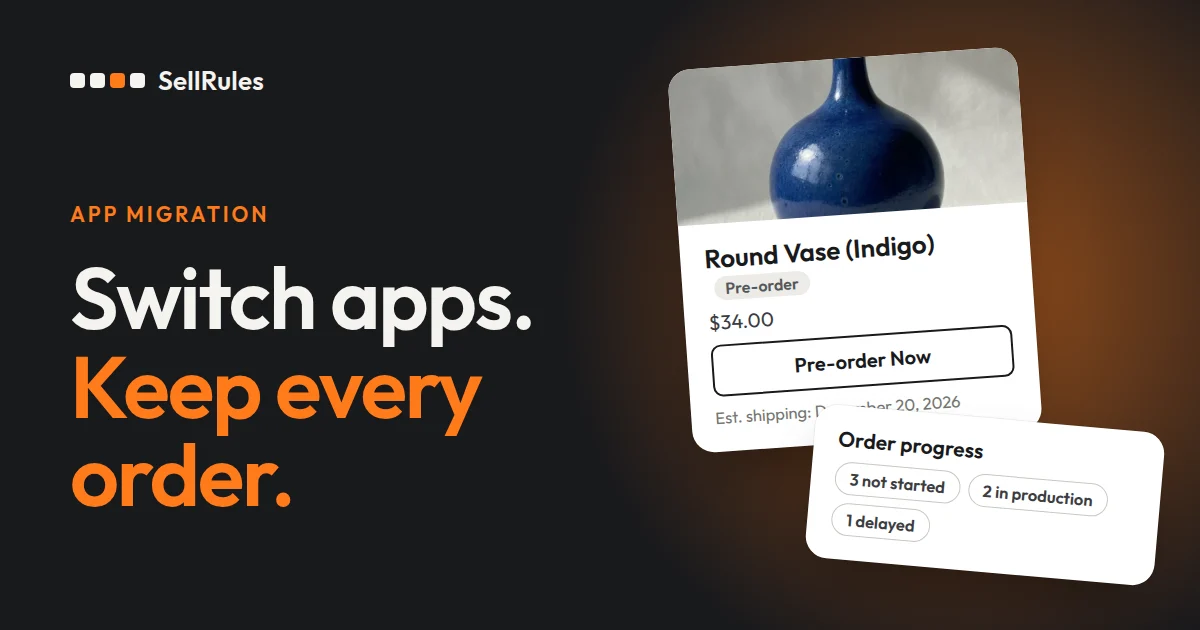
If each product is handled by only one of the two apps, a product page shows only one pre-order display, even in the middle of a switch. Products still taking orders keep the old app’s display, and the next product that opens uses the new app’s.
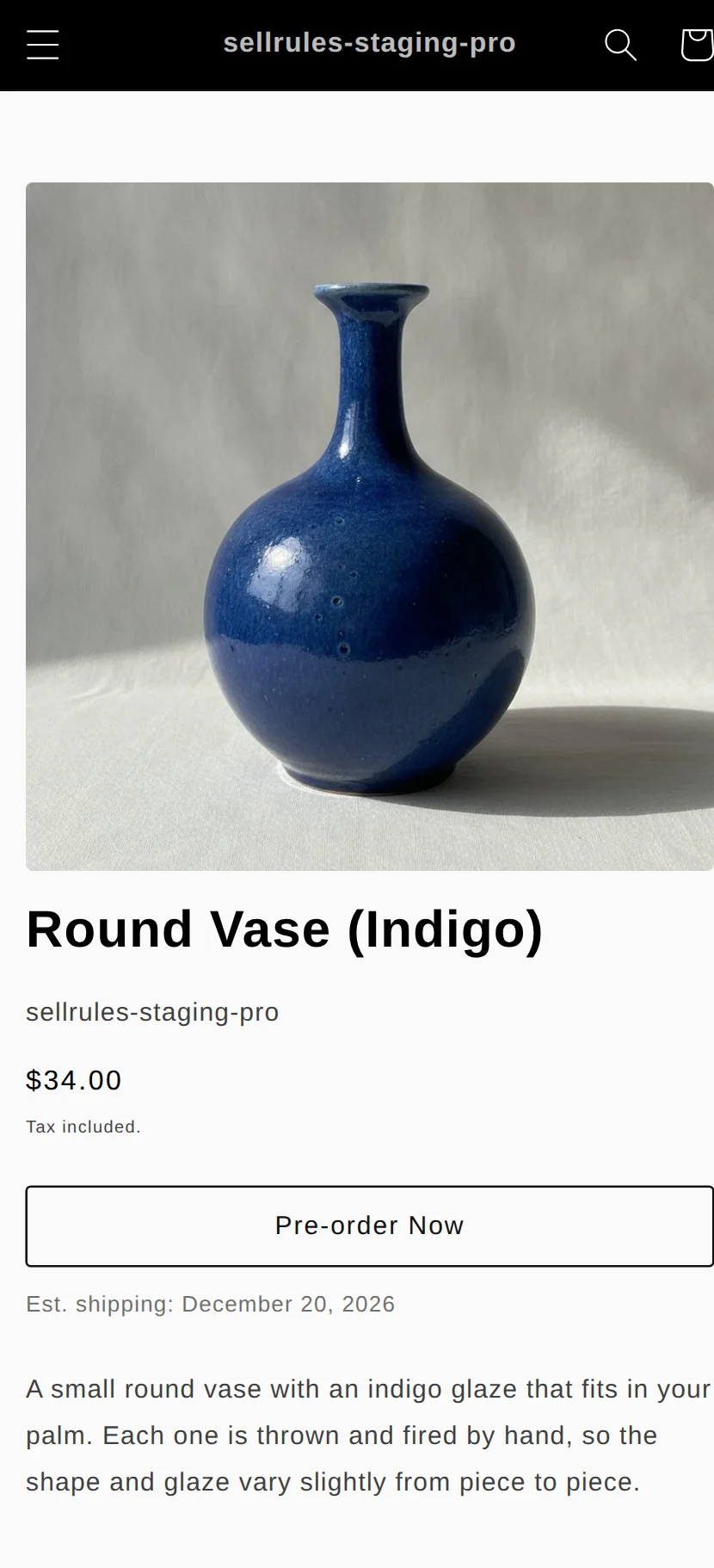
Customers cannot tell which app a product runs on. The trouble starts when the same product is set up in both apps. The product page then shows two pre-order buttons or sign-up forms, and customers get two restock emails. Decide which app handles each product.
What stays in Shopify and what goes with the app
What carries over depends on whether the data lives in Shopify or inside the app. Data in Shopify stays when you uninstall an app. Data inside the app is no longer usable once the app is gone.
| Data | Where it lives | After you uninstall the app |
|---|---|---|
| The pre-orders themselves | Shopify orders | They stay. You can keep fulfilling and refunding them from the Shopify order page |
| Shipping-date management, balance charges and notification emails | The app | They stop |
| Back-in-stock subscribers | The app | They do not transfer. Export them if the app allows it |
| Pre-order dates and product page wording | The app | They do not transfer. Recreate them in the new app |
| “Sell when out of stock” | The Shopify product | It can stay on after the app turned it on |
| Order tags and fulfillment holds | Shopify orders | They can stay |
Shopify’s help center says that when you uninstall a pre-order app, the pre-order data it created (except customers’ payment information) is deleted after 48 hours. For orders where your current app manages the shipping date or charges the balance, the safest approach is to keep that app installed until the orders ship.
1. Export open orders and your promises
Start by writing down what you have promised customers, before you change any setting. Once you uninstall the old app, you can no longer open its screens. All you keep is your Shopify orders and whatever you saved.
Record these four things:
- Unshipped pre-orders: order number, product, the shipping estimate the customer was given, and payment status (paid in full, or when the balance will be charged)
- Settings of products currently taking pre-orders: products and variants, start and end dates and times, order limits, and the shipping estimate wording on the product page
- Back-in-stock subscribers: customers waiting for a restock or launch email, if the old app lets you export them
- Planned emails: the emails that would go out when pre-orders open or stock arrives, and their wording
For example, say you have 23 open pre-orders: 15 customers were told “Ships late this month” and 8 were told “Ships early next month”. Another 41 people are signed up for back-in-stock emails. Listing counts and promises like this lets you check later which orders each app is tracking and whether you have told everyone.
You can export orders from the Shopify “Orders” list. For the old app’s settings screens, copy them down or save screenshots.
2. Check “Sell when out of stock”
Many pre-order apps turn on Shopify’s “Sell when out of stock” setting (Shopify Help calls it “Continue selling when out of stock”) for a product so it can take orders at 0 stock. This setting belongs to the Shopify product, not to the app, so it can stay on after you uninstall. If it stays on, orders keep coming in for a product with 0 stock after pre-orders end, and you can sell more than you can make.
There is a second reason when you move to SellRules. Before SellRules creates a sales schedule, it records which variants already had the setting on as “turned on by the store”, and it turns it back on when you delete the schedule. So if you create a SellRules pre-order while the old app’s setting is still on, deleting the schedule after the pre-order ends turns it on again.
Fix it in this order:
- In the Shopify admin, open “Products”, open the product you are moving, and check “Sell when out of stock” on each variant.
- For products whose pre-orders in the old app have ended, turn it off and save on every variant you do not want to sell at 0 stock.
- Only then create the SellRules sales schedule.
In the inventory section of the product page, “Sell when out of stock” appears as a chip below the stock table, next to the SKU and Barcodes chips, and shows whether it is on or off.
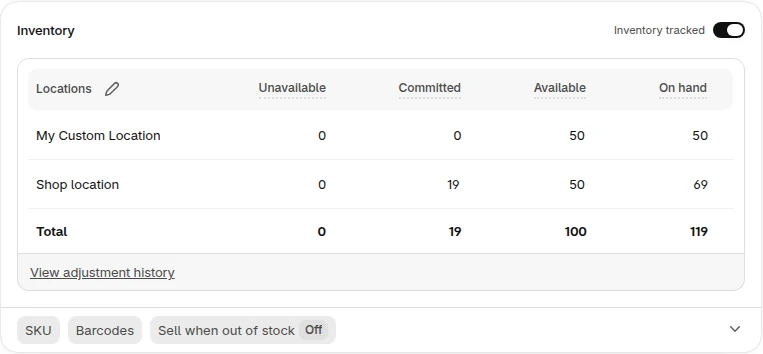
If you notice only after creating a schedule in SellRules, turning it off on the Shopify product page does not help, because SellRules overwrites it with the value the schedule needs. Delete the schedule, turn off the variants that went back to on in the Shopify product page and save, then create the schedule again.
For a made-to-order product that you can always produce, leaving the setting on is what you want. Turn off only the settings the old app turned on for pre-orders.
3. Run the next product that opens in the new app
Do not switch every product at once. Try one product whose pre-orders open next, and keep the products already taking orders in the old app while you test. In SellRules, set it up in this order:
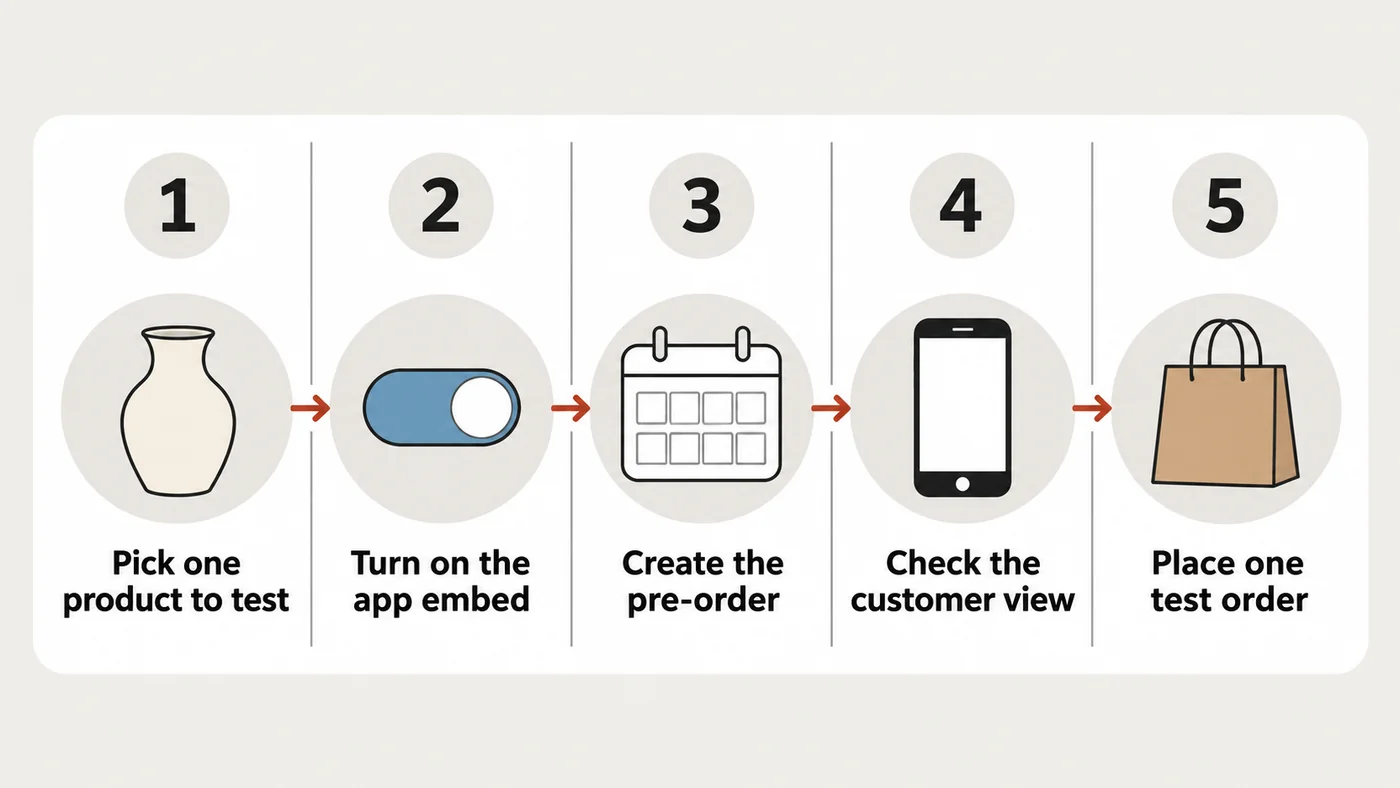
- Pick one product to test. Use the product you will open for pre-orders next, or a test product, not one that is taking orders in the old app.
- Turn on the app embed. In the Shopify theme editor, open “App embeds”, turn on “SellRules” and save.
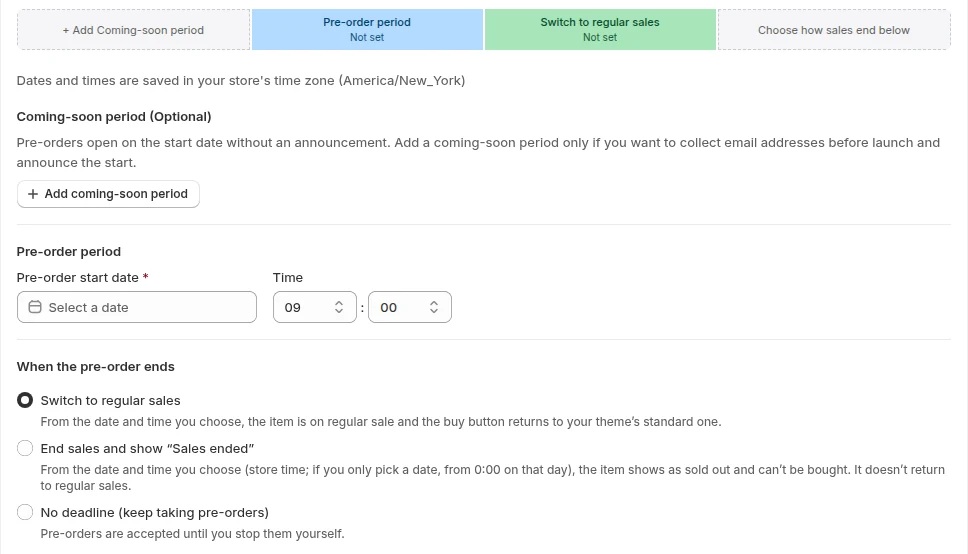
- Create the pre-order. In SellRules, go to “Sales schedules”, click “Create pre-order”, and enter the start and end dates, limit and shipping estimate, comparing them with your exported records. If you are rethinking the order period, limit or what happens once it sells out, first write out the sales plan for one product using how to plan early-access and limited sales, then enter it.
- Check the customer view. Open the product page on your live store, not the theme editor preview, and confirm that one “Pre-order Now” button and one shipping estimate appear. If they do not, work through what to check when the pre-order button does not appear.
- Place one test order. Confirm that the order appears in your Shopify order list and also in SellRules “Order progress”.
When you have finished checking, unpublish or delete the test product.
4. Tell back-in-stock subscribers yourself
Customers who signed up for back-in-stock emails in the old app do not move to the new app. Contact them directly from your store.
- If the old app has an export feature, export the subscribers.
- When you know the restock or pre-order opening, email that list from your store. Leave out anyone who asked to stop receiving emails.
- Add a line asking them to sign up again on the product page. From the next restock, the new app will notify them.
In SellRules, when a pre-order starts on a product that has back-in-stock sign-ups, SellRules sends the subscribers a pre-order start notice.
5. Pick a switch date and a way back
If one product works, you can widen the switch to the rest. First decide the switch date and how you would go back.
- Switch date: pick a quiet day, or just before a new pre-order opens. Avoid the days before a big launch and weeks when many shipments are due.
- Way back: if the new app does not work, delete the new app’s pre-order and recreate it in the old app. In SellRules, deleting a sales schedule takes the product out of pre-order. For “Sell when out of stock”, the variants SellRules turned on go back to off, and the ones that were already on before the pre-order stay on. Keep the old app installed until the switch has settled.
Do not rely on turning off the theme app embed as your way back. The product page goes back to the normal buy button, but the product’s “Sell when out of stock” stays on, so it can still be sold at 0 stock.
Track orders by the app that took them. Follow orders taken in the old app in that app or on the Shopify order page. Follow SellRules orders through to shipping in SellRules “Order progress”.
6. Check what’s left before you uninstall the old app
Uninstall the old app once its open orders are handled and the new app is running. Before you do, check these:
- Unshipped orders and balances: if the old app charges balances, finish collecting them before you uninstall. Automatic charging stops when you remove it.
- Data export: export your back-in-stock subscribers and settings. Shopify’s help center also advises exporting the data you need before you uninstall.
- Billing: for apps billed through Shopify, uninstalling stops the next recurring charge. You may still be billed for the current billing period. If an app bills outside Shopify, uninstalling does not stop the billing, so cancel it separately.
- Code left in your theme: if the app added code to your theme, uninstalling may not remove it. Check the app’s instructions or ask its developer.
- Who sends the emails: check that emails the old app was going to send do not overlap with the new app’s.
After you uninstall, clean up what remains in Shopify. Remove fulfillment holds the old app placed with “Release hold” on the Shopify order page. You can also remove order tags there if you no longer need them.
What changes when SellRules takes the orders
On products you switch to SellRules, SellRules takes over some of what you have been checking by hand.
- Restoring “Sell when out of stock”: it remembers the variants you had turned on before the pre-order, and restores them when you delete the sales schedule.
- Pre-order start emails: when a pre-order starts on a product with back-in-stock sign-ups, it automatically sends the subscribers a pre-order start notice.
- Checks before you uninstall: “Settings” lists what is deleted and what stays, plus the number and total of orders with an uncollected balance.
Switching checklist
The steps above, arranged by where to check and when. Items marked “the old app’s instructions” are things to confirm in your app’s documentation or with its developer.
| What to check | Where | When |
|---|---|---|
| Unshipped pre-orders, and the shipping estimates and payment terms you gave | Shopify order list | Before switching |
| Back-in-stock subscribers and pre-order settings exported | The old app’s screens and instructions | Before switching |
| “Sell when out of stock” turned on by the old app | Shopify product page | Before creating the new pre-order |
| Product page and a test order for one new pre-order | Your live store | While testing |
| No product set up in both apps | Settings screens of both apps | From testing until the switch |
| Your way back, and which app tracks each order | Your store’s own rules | Before switching |
| Balance collection, how billing stops, code left in the theme | The old app and its instructions | Before uninstalling |
| Leftover fulfillment holds and tags | Shopify order page | After uninstalling |
Pricing
You can stay on the SellRules Free plan, create a pre-order for the one product that opens next, and check everything from the product page to one test order. The Free plan accepts up to 10 pre-order and made-to-order orders in total since you installed the app.
SellRules plans and pricing
| Monthly price | LaunchEvery feature included | FreeStart with one product |
|---|---|---|
| Monthly price | US$7.99 per month | Free |
| Free trial | 10 days | None |
| Pre-order and made-to-order orders | Unlimited | Up to 10 in total |
| Back-in-stock and sale-start emails (Notify Me) | Unlimited | Up to 15 in total (not refilled monthly) |
| Purchase limits | No limit on products | Up to 1 product |
| Customizable notification emails | Yes | No |
| Deposit payments | Yes | No |
Pre-orders, made-to-order, back-in-stock alerts, purchase limits, stockout switching, deposit payments and order processing are all included in the Launch plan.
The first 10 days of the Launch plan are free. If you remove the app during the trial, you are not charged.
On the Launch plan, back-in-stock and sale-start emails have no sending cap. Required messages such as order confirmations, shipping updates and balance reminders are sent on every plan regardless of the cap.
The Standard and Pro plans are closed to new sign-ups. Shops already on them keep their current terms.
When you move the rest of your products and orders grow, or if your current app takes deposits and balance payments, switch to the Launch plan (US$7.99 per month), which has no order limit and includes deposits and balance payments. You can install SellRules from the Shopify App Store, where the pricing and free trial terms are also listed.
See SellRules features and pricing
If you still have questions around the switch, these articles pick up from here:
- If you are still comparing apps, see how to choose a pre-order app, which compares payment timing and sales rules
- For choosing between back-in-stock alerts and pre-orders, see pre-orders or back-in-stock alerts for sold-out products
- For taking SellRules orders through to shipping, see managing made-to-order orders through to shipment
Moving from SellRules to another app
When you uninstall SellRules, follow this order:
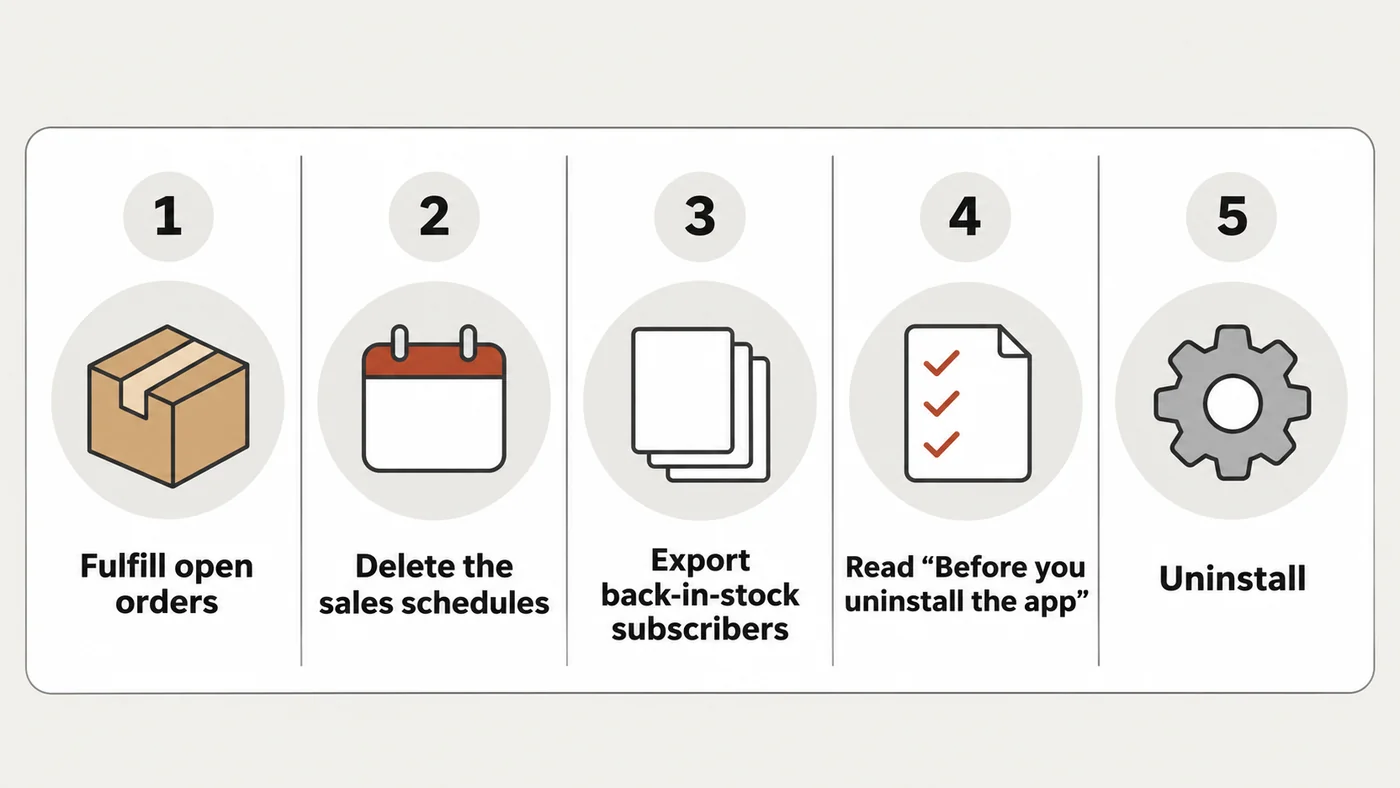
- Keep SellRules installed and fulfill the open orders. For deposit orders, finish collecting the balances.
- Delete the sales schedules you created in SellRules. The “Sell when out of stock” settings SellRules turned on for pre-orders go back to off when you delete them. For products where you set a pre-order limit, check after deleting that the Shopify stock is back to its original number. If it is not, click “Remove the remaining count from stock” in “Settings”.
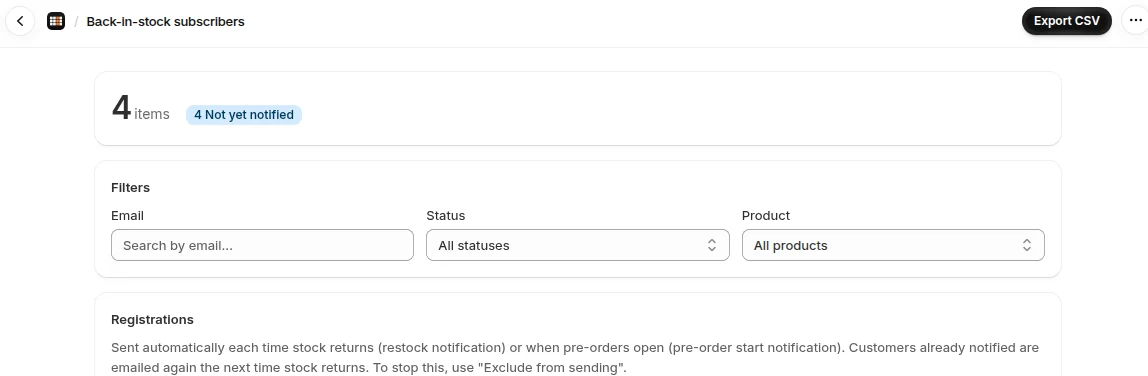
- To keep your back-in-stock subscribers, export them with “Export CSV” on the “Back-in-stock subscribers” page. Rows with the status “Excluded” are sign-ups where the customer unsubscribed or you removed the customer from sending.
- In SellRules “Settings”, read “Before you uninstall the app” to see what is deleted, what stays in Shopify, and which orders have an uncollected balance.
- In the Shopify admin, go to “Settings” → “Apps” and uninstall it.
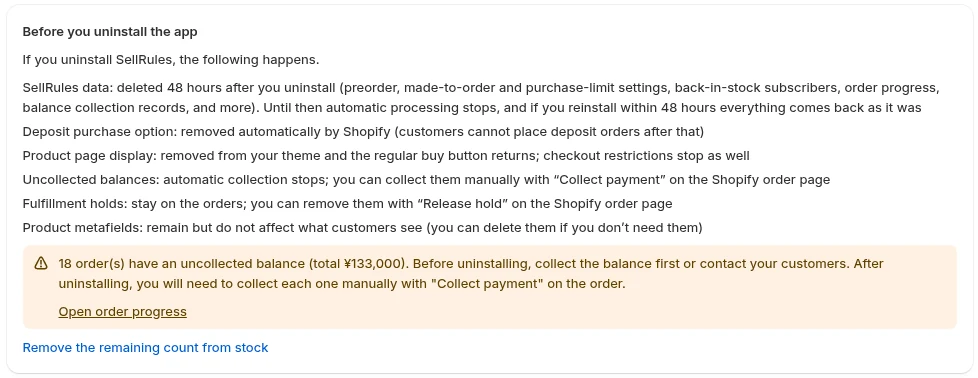
SellRules data (your sales settings, back-in-stock subscribers, order progress, balance collection records and so on) is deleted 48 hours after you uninstall. Shopify removes the deposit purchase option automatically, so no one can order with a deposit after that. Uncollected balances are no longer charged automatically, and you collect them by hand with “Collect payment” on the Shopify order page. Fulfillment holds and the “Sell when out of stock” setting stay as they were when you uninstalled, so fix anything you no longer need in the Shopify admin. For how to release holds, see shipping pre-order and regular items together, and releasing holds.
Frequently Asked Questions
Can I move pre-orders from my old app into SellRules?
No. The “Order progress” page in SellRules tracks only orders placed through a SellRules pre-order after you installed it. Earlier orders stay in Shopify as ordinary orders, so keep fulfilling them from your old app or the Shopify order page.
If I uninstall SellRules, do I get my settings back by reinstalling?
If you reinstall within 48 hours of uninstalling, your sales settings and back-in-stock subscribers come back as they were. After 48 hours, SellRules deletes its data and it cannot be restored.
Do I pay for both my old app and SellRules while I switch?
The SellRules Free plan costs nothing. While you test with one upcoming product, you pay only what you already pay for your old app. The old app keeps billing under its own terms until you uninstall it.
What happens to pre-order apps and uninstalls is based on Shopify’s help center pages on pre-orders and uninstalling apps, checked on November 12, 2026. Order counts and similar figures are examples. For current pricing, see the Shopify App Store listing.