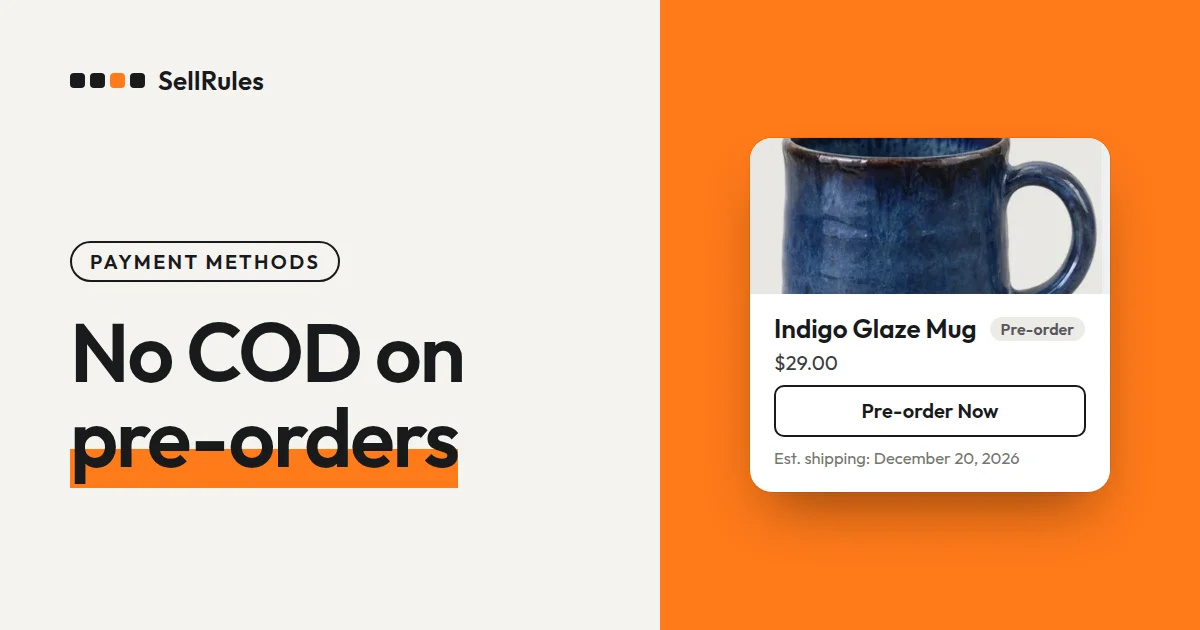
To turn off cash on delivery only for orders that include pre-order items, you need an app that shows payment methods based on what's in the cart. Shopify's standard settings only let you turn cash on delivery on or off for your whole store.
Say you open pre-orders for a clay pot from your next kiln firing, shipping three months out. If you take those pre-orders with cash on delivery, you don't get paid until the pot reaches the customer. If cash on delivery is hidden only on orders that include the pre-order pot, you can keep selling the small plates you have in stock with cash on delivery, just as before.
In the SellRules Shopify app, go to “Settings”, find “Hide cash on delivery”, and set these two options:
- Check “Hide cash on delivery when a pre-order or made-to-order product is in the cart”
- Set “How to decide which payment methods to hide” to “Detect automatically (recommended)”
What customers see at checkout
In the “Payment” section of checkout, cash on delivery disappears only when a pre-order product is in the cart. The screenshot below compares a cart with only in-stock small plates and a cart where the pre-order clay pot was added to the plates.
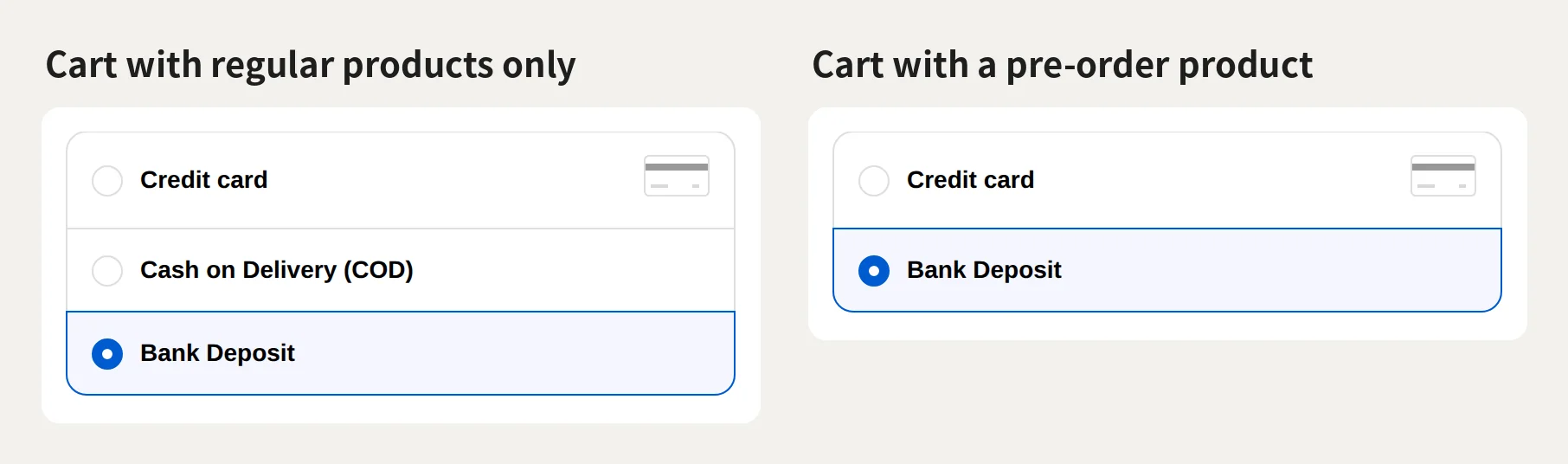
Here's what happens for each kind of cart:
| What's in the cart | Cash on delivery |
|---|---|
| Regular products only | Available |
| Pre-order products only | Not shown |
| Pre-order and regular products | Not shown |
| Includes a made-to-order product | Not shown |
Credit card and Bank Deposit stay available even when a pre-order product is in the cart. Only cash on delivery is hidden, so customers can finish their order with another payment method.
How this differs from Shopify's standard settings
Shopify's standard settings vs. SellRules cash on delivery hiding
Shopify's standard settings
SellRules cash on delivery hiding
In Shopify, you turn manual payment methods such as Cash on Delivery (COD) and Bank Deposit on or off in the admin under “Settings → Payments” (Shopify Help Center, checked November 12, 2026). Whether a method is on or off applies to your whole store, so you can't change it per product or per cart.
To show payment methods based on what's in the cart, you use “Payment customizations” on the same “Payments” page. When you install SellRules, “Payment method restrictions (SellRules)” is added there, and your SellRules settings decide which payment methods are hidden.
How to set it up in SellRules
If you didn't uncheck the “Cash on delivery” option when you created your pre-order, this setting is already on. If you haven't created a pre-order yet, turn it on in Settings.
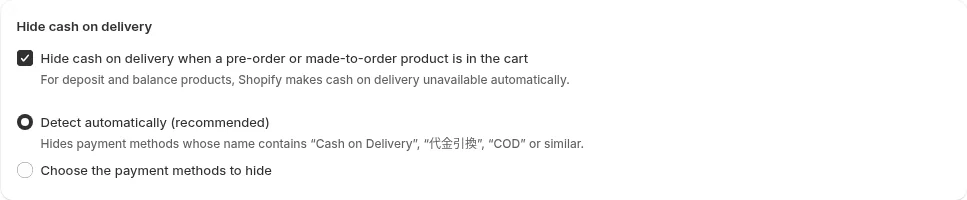
- Open “Settings” in SellRules and, under “Hide cash on delivery”, check “Hide cash on delivery when a pre-order or made-to-order product is in the cart”.
- Leave “How to decide which payment methods to hide” set to “Detect automatically (recommended)”. Payment methods whose name contains “Cash on Delivery”, “COD” or similar are hidden.
- Click “Save”. When “Saved. The listed payment methods will be hidden when a pre-order or made-to-order product is in the cart.” appears, the setting is on.
The screens for creating a “Pre-order”, a “Made to order” or a “Sold-out switch” also have a “Cash on delivery” field. If you create it with “Do not show cash on delivery when a pre-order or made-to-order product is in the cart (recommended)” left checked, the same setting as in Settings is turned on for your whole store.
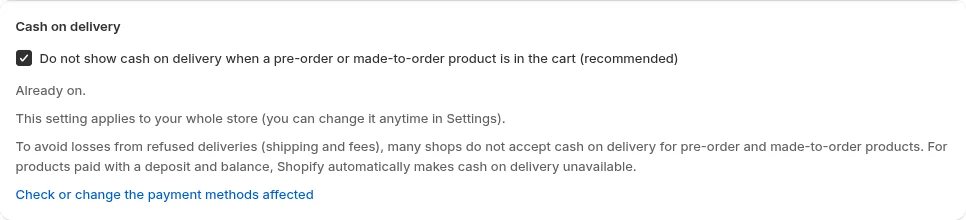
This field changes your store-wide setting, not just that one pre-order. If you uncheck it and create the pre-order, the store-wide setting is turned off, and cash on delivery is no longer hidden for any order.
Hide payment methods with other names, like “Collect on delivery”
Automatic detection recognizes cash on delivery by the payment method's name. If you take cash on delivery under another name, such as “Collect on delivery”, or you also want to turn off Bank Deposit, select “Choose the payment methods to hide”.
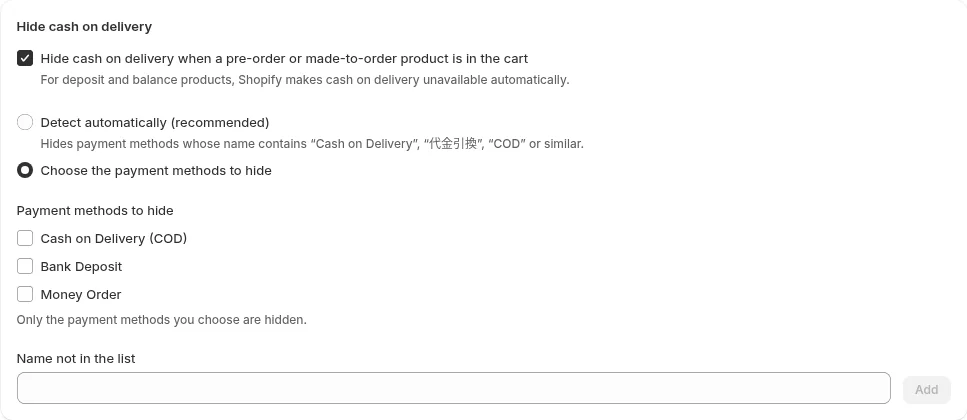
Pick methods from the list, or type a payment method's name in “Name not in the list” and click “Add”, then save. Once you choose methods yourself, automatic detection is no longer used, and only the methods you chose are hidden.
“Cash on Delivery (COD)” in the list is the same payment method customers see at checkout. Since automatic detection is no longer used, select it too if you still want cash on delivery hidden. If Bank Deposit has disappeared from checkout as well, check whether “Bank Deposit” is selected in the list, clear it, and save.
Test which orders hide it and which keep it
After saving, go through checkout to the “Payment” section with a cart of regular products only and with a cart that includes a pre-order product, and check that the results match the table above. You don't need to place the order.
If cash on delivery still appears with a pre-order product in the cart, check these three things:
| What to check | How to fix it |
|---|---|
| The “Hide cash on delivery” checkbox in SellRules | Check it and save |
| The name of the payment method you use for cash on delivery | If the name doesn't contain “Cash on Delivery” or “COD”, add it under “Choose the payment methods to hide” |
| “Settings → Payments → Payment customizations” in Shopify | Turn on “Payment method restrictions (SellRules)” |
Pricing
Cash on delivery hiding is available starting on the Free plan. On the Free plan, you can take up to 10 pre-order and made-to-order orders in total, counted from the day you install the app.
Start by creating one pre-order product on the Free plan, then compare the “Payment” section of checkout with a cart of regular products only and a cart that includes the pre-order product. If you need to take more pre-order and made-to-order orders than that, switch to the Launch plan (US$7.99 per month). You can install SellRules from the Shopify App Store, where you can also check the pricing.
Frequently Asked Questions
What happens if only some colors or sizes of a product are on pre-order?
Cash on delivery is hidden only when a color or size set to pre-order or made-to-order is in the cart. Customers who buy only in-stock colors or sizes can still choose cash on delivery.
Do I need this setting for pre-orders that take a deposit?
No. As the SellRules settings screen notes, when a “Deposit now, balance later (partial payment)” product is in the cart, Shopify makes cash on delivery unavailable regardless of this setting. Use this setting to turn off cash on delivery for pre-orders where you collect the full amount at checkout.
Related articles:
- Seeing what else SellRules does: SellRules features
- Deciding how to use pre-orders, restocks and purchase limits together: How to start early-access and limited sales
- Starting pre-orders in the first place: How to start taking pre-orders
- Taking only part of the payment at checkout: How to take pre-orders with a deposit
- Shipping when a pre-order product and a regular product are bought together: Ship regular items first, or all together?
- Deciding when to collect payment on pre-orders that ship more than a month out: When to collect payment on long pre-orders
The clay pot, the small plates and the shipping timing are examples for illustration.