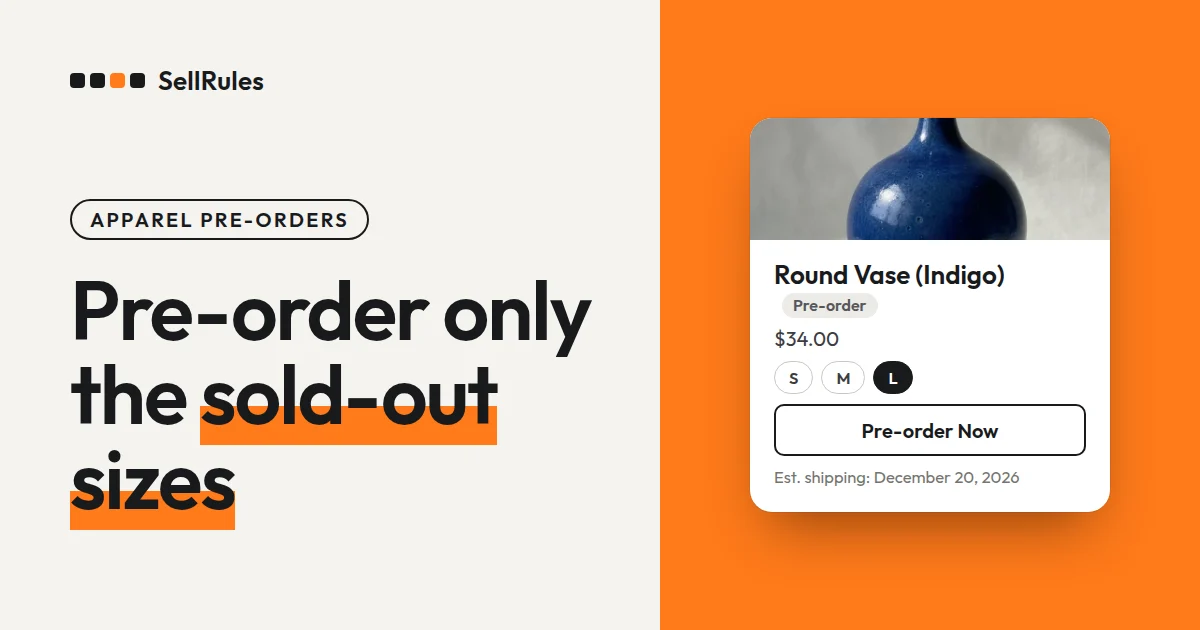
For apparel pre-orders, don't put the whole product on pre-order. Switch only the sizes and colors that have reached 0 inventory. Even for the same shirt, a few variants such as M or Navy sell out early while the other sizes are still in stock.
In the Shopify app SellRules, you create a “Sold-out switch” for the product. Each variant then moves to pre-order automatically when its inventory reaches 0, and returns to regular sales when stock arrives and inventory goes above 0.
Take a linen shirt in 2 colors and 3 sizes as an example. Only Navy M has sold out, and the extra production run arrives in mid-December. The buy button on the product page then depends on the size and color the customer selects.
| Size and color selected | Inventory | Buy button |
|---|---|---|
| Ecru S, M and L; Navy S and L | 3 each | The regular “Add to cart” |
| Navy M | 0 | “Pre-order Now” and “Est. shipping: Mid-December” |
If you put the in-stock sizes on pre-order too, orders for items you could ship right away get handled like orders waiting for stock. If you leave the size showing as sold out, you lose orders from customers who are willing to wait.
For everything you need to decide for pre-orders and limited sales, start with how to set up early-access and limited sales on Shopify.
What customers see
This is the product page of the same linen shirt with Navy S and with Navy M selected. When the customer picks a different size, the buy button changes on the spot.
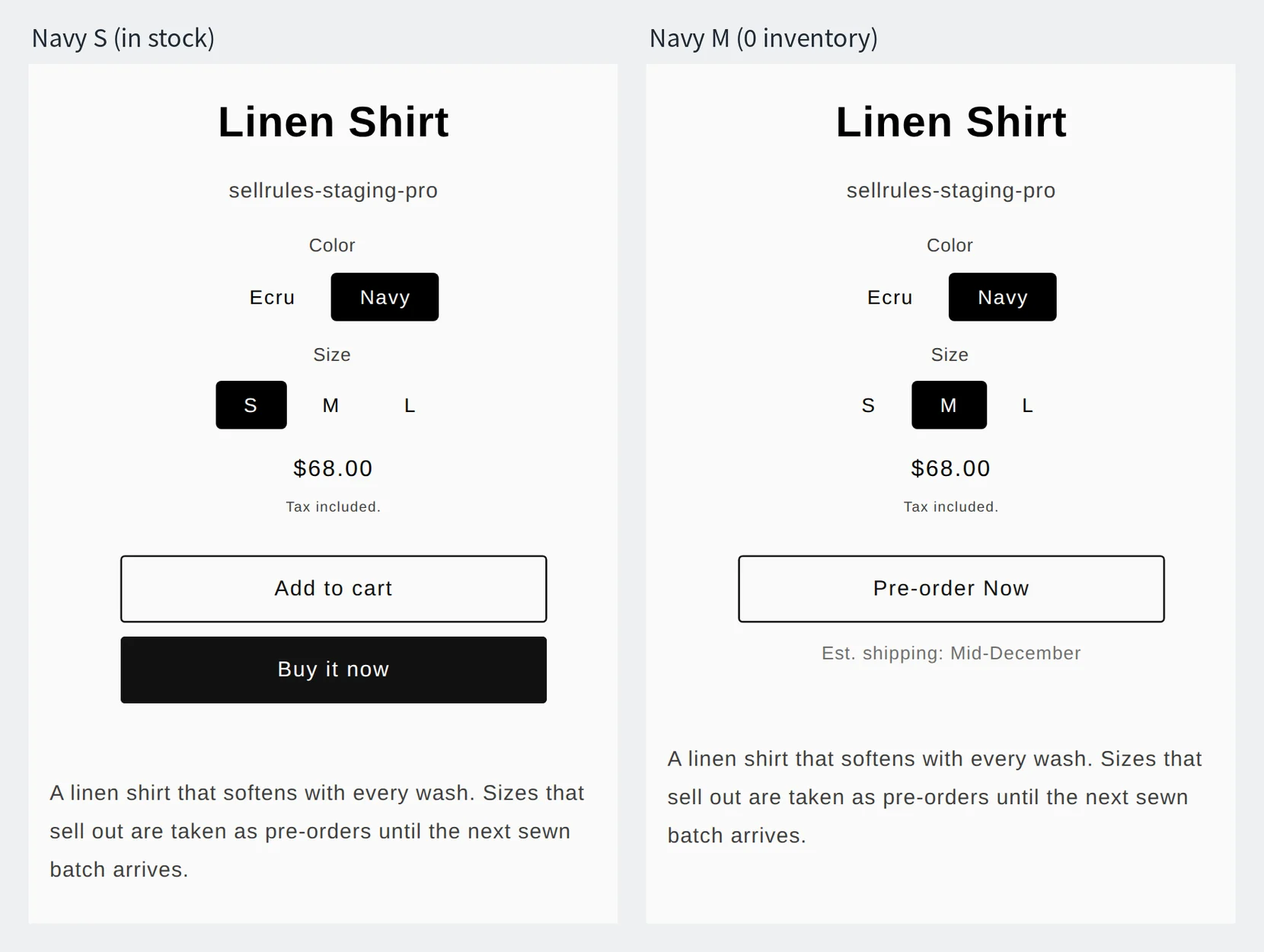
Only Navy M, which has 0 inventory, is on pre-order. The price and the product description stay the same.
How this differs from using Shopify's built-in features alone
Shopify's built-in features alone vs. SellRules
Shopify built-in features alone
SellRules
With Shopify's built-in features, you can also take orders for a size with 0 inventory by turning on “Sell when out of stock” for each variant. The buy button still shows the regular “Add to cart”, though, so you add the restock timing to the product description or the size name to make it clear that the order waits for stock.
After the stock arrives, you turn the setting back off yourself.
If only a few products take pre-orders and you can check for sold-out sizes every day, the built-in features are enough.
Decide per size and color whether to take pre-orders
For apparel pre-orders, the setup depends on which sizes and colors are affected and when the stock arrives.
| Situation | SellRules setup |
|---|---|
| Some sizes of a core item have sold out, and you know when the extra production run arrives | Create a sold-out switch for the “Whole product” and select “Pre-order” |
| The number of pieces in the extra run differs by size | Create a sold-out switch for each size and enter a limit for each |
| You take orders for a new item before its release, and the colors arrive at different times | Create a pre-order in “Sales schedules” and select the variants for each color under “Schedule scope” |
For sizes with no restock planned, take back-in-stock signups instead of pre-orders.
Without a limit, negative inventory shows how many pre-orders you have taken
For a size that the sold-out switch has moved to pre-order, SellRules turns on “Sell when out of stock”, so the inventory in Shopify goes down from 0 with each pre-order. After 5 pre-orders for Navy M, the inventory is −5.
When the stock arrives, add the full quantity that arrived. If 20 more pieces arrive, the inventory becomes −5 + 20 = 15, and Navy M returns to regular sales as soon as it goes above 0.
Once you ship the 5 pre-orders, the remaining 15 pieces sell as regular stock.
| Point in time | Navy M inventory | Buy button |
|---|---|---|
| Sold out | 0 | “Pre-order Now” |
| 5 pre-orders taken | −5 | “Pre-order Now” |
| 20 pieces arrived and added to inventory | 15 | The regular “Add to cart” |
If you don't want to take more pre-orders than the extra run can cover, go to “Total quantity limit” in the sold-out switch, select “Limited quantity” under “Limit type”, and enter the number of pieces being produced in “Limit count”. The limit is counted per variant, so if you enter 20, each size and color accepts up to 20 pre-orders.
If the number of pieces differs by size, create a sold-out switch for each size and enter a limit for each.
For a size with a limit, the inventory in Shopify shows the number of pre-orders still available while pre-orders are open. When the limit is reached, pre-orders stop and the inventory returns to the original number minus the pre-orders taken (−20 if you took 20 starting from 0).
Don't add inventory in the Shopify admin while pre-orders are open. Add the stock that arrived after pre-orders have stopped. If the stock arrives before the limit is reached, set “Limit type” back to “Unlimited” first, then add the inventory.
Decide how to ship orders that also include in-stock items
When a customer adds the Navy M pre-order and an in-stock Ecru S to the cart together, the top of the cart shows “Your cart contains items with different estimated ship dates. Consider checking out separately if you need items sooner.” The line for the pre-order size shows when it ships.
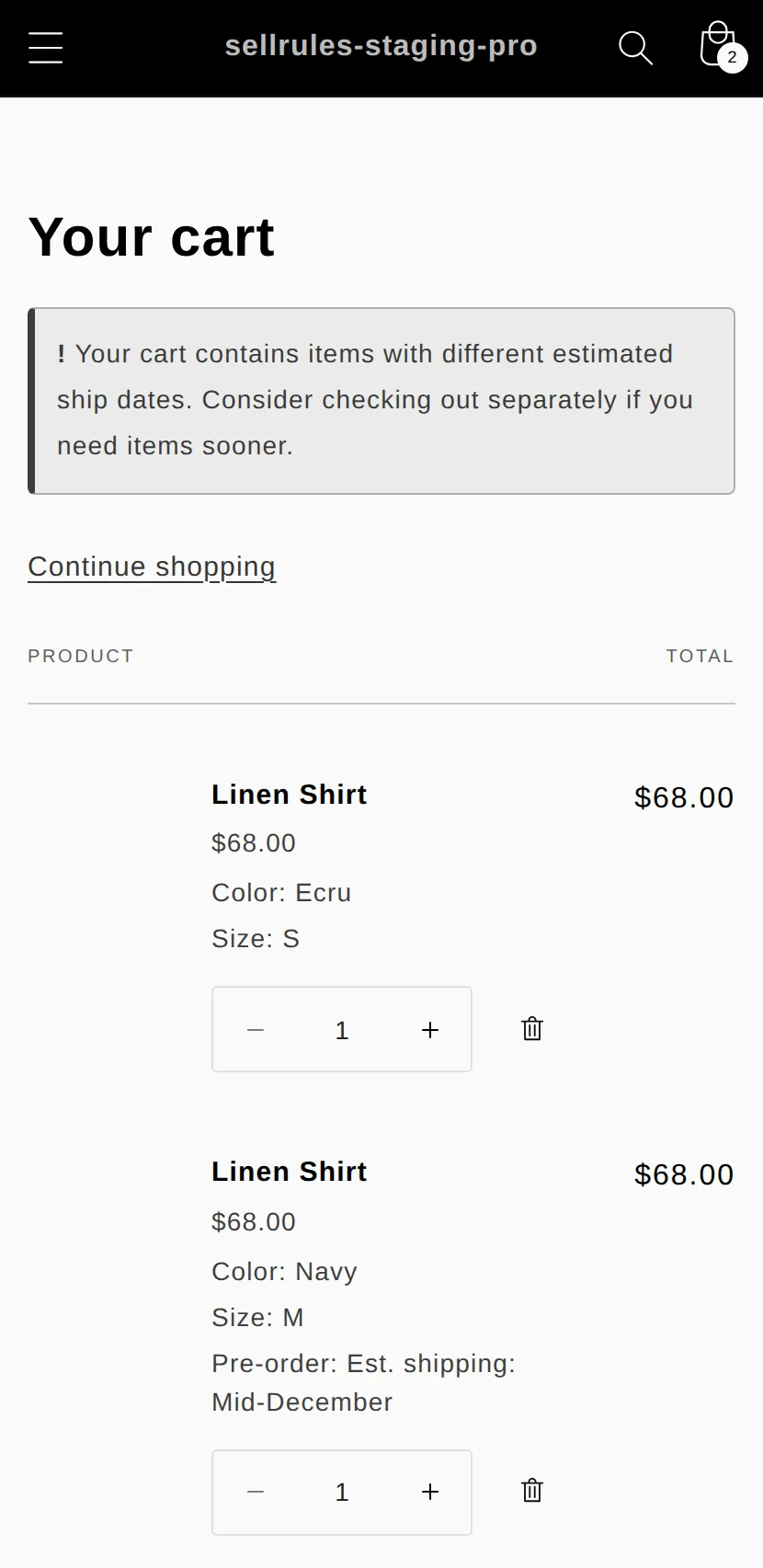
When one order contains both pre-order and in-stock items, there are two ways to ship it: send everything together, or send the in-stock items first.
The apparel brand Good American says on its pre-order help page that when an order contains pre-order items and items ready to ship, the items are shipped together (Good American: Pre-orders, checked November 14, 2026).
| How you ship | Fits stores that | What to tell customers |
|---|---|---|
| Everything together | Want to pay for shipping only once | The order arrives together after the pre-order item comes in |
| In-stock items first | Want in-stock items delivered right away | The order arrives in two shipments, and the shipping charge for the second one |
In an order that mixes both, SellRules places a fulfillment hold on the pre-order items only, so you can send the in-stock items first. How to release the hold and how to set shipping rates are covered in pre-orders and in-stock items in one order.
How to switch sold-out sizes to pre-order in SellRules
The sold-out switch is under “Purchase limits & sold-out” in the SellRules left menu.
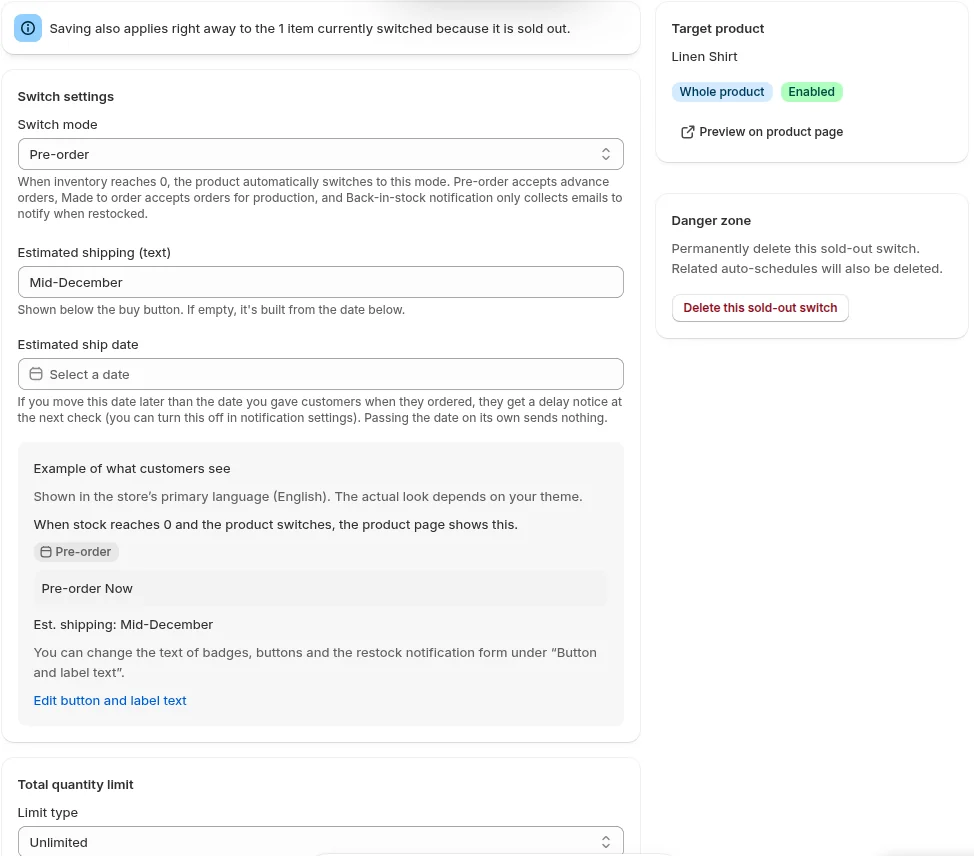
- Open the “Sold-out switches” tab, click “Create rule” and select the product. If you select only the product, the switch covers the “Whole product”, and every size and color switches when its inventory reaches 0. To set different limits by size, select the sizes and colors in the product picker. If you create switches for both the whole product and a variant, the one for the variant is used
- Select “Pre-order” under “Switch mode”, and in “Estimated shipping (text)” enter when the stock is due, such as “Mid-December”. “Est. shipping: Mid-December” appears below the buy button
- To cap the number of pre-orders, select “Limited quantity” under “Limit type” in “Total quantity limit” and enter the “Limit count”
- Save. Inventory is checked about every 5 minutes, so after you save, a size with 0 inventory takes about that long to switch to pre-order
Sizes that have switched appear in the “Sales schedules” list with an “Auto” label. On the product page, select a size with 0 inventory and check that “Pre-order Now” and the shipping estimate are shown.
When the stock arrives, add the quantity that arrived to the inventory in Shopify.
If the sold-out switch doesn't work, here are the causes and fixes.
| Symptom | Cause | Fix |
|---|---|---|
| A size with 0 inventory doesn't switch to pre-order | The whole product has a pre-order or made-to-order sales schedule that you created by hand | Delete that sales schedule, or take the orders with the sales schedule instead of the sold-out switch |
| A product without inventory tracking doesn't switch to pre-order | Inventory isn't counted, so there is no way to tell that it reached 0 | Turn on “Track quantity” on the product page in the Shopify admin |
| The size stays on pre-order after the stock arrives | The inventory after you added stock is 0 or below | Add more than the number of pre-orders taken, and it returns to regular sales |
| A size with a limit stays on pre-order after the stock arrives | While a limit is set, the inventory counts the pre-orders still available | Set “Limit type” back to “Unlimited”, then add the inventory |
Pricing
The sold-out switch is available on the Free plan. The Free plan accepts up to 10 pre-order and made-to-order orders in total from the time you install.
Pick one product that has a sold-out size and create a sold-out switch for it.
For products with many pre-orders, use the Launch plan (US$7.99 per month). You can install SellRules from the Shopify App Store, where you can also check the pricing and the length of the free trial.
SellRules plans and pricing
| Monthly price | LaunchEvery feature included | FreeStart with one product |
|---|---|---|
| Monthly price | US$7.99 per month | Free |
| Free trial | 10 days | None |
| Pre-order and made-to-order orders | Unlimited | Up to 10 in total |
| Back-in-stock and sale-start emails (Notify Me) | Unlimited | Up to 15 in total (not refilled monthly) |
| Purchase limits | No limit on products | Up to 1 product |
| Customizable notification emails | Yes | No |
| Deposit payments | Yes | No |
Pre-orders, made-to-order, back-in-stock alerts, purchase limits, stockout switching, deposit payments and order processing are all included in the Launch plan.
The first 10 days of the Launch plan are free. If you remove the app during the trial, you are not charged.
On the Launch plan, back-in-stock and sale-start emails have no sending cap. Required messages such as order confirmations, shipping updates and balance reminders are sent on every plan regardless of the cap.
The Standard and Pro plans are closed to new sign-ups. Shops already on them keep their current terms.
Frequently Asked Questions
If I change the estimated shipping date later, does it update sizes that are already on pre-order?
Yes. Change “Estimated shipping (text)” on the sold-out switch edit screen and save, and the text shown for the sizes that are on pre-order at that point changes too.
What happens to sizes already on pre-order if I disable the sold-out switch?
If you disable the switch, sizes that have already switched stay on pre-order, and sizes that sell out after that no longer switch. To stop pre-orders for the sizes that have already switched too, delete the sold-out switch.
Can I use the same steps for made-to-order clothing?
Yes. Select “Made to order” under “Switch mode”. The buy button for a size that has reached 0 inventory then changes to the made-to-order button, and you can show the number of days from order to shipping.
Related articles:
- Choosing how to sell: planning early-access and limited sales
- Choosing by industry: pre-orders vs. made to order by industry
- Shipping orders that mix both: pre-orders and in-stock items in one order
- Pre-orders or back-in-stock alerts: pre-orders or back-in-stock alerts for sold-out products
The linen shirt and the quantities are examples for illustration. The store's policy is as stated on the public page linked above.