When you learn that a pre-order product will be late, first decide whether you are delaying it or canceling it. For a delay, tell customers the new ship date, then cancel and refund only the orders of those who can't wait. For a cancellation, cancel every pre-order for that product and refund what you received.
If you use SellRules, changing the ship date in “Order progress” is all it takes to send the customer a delay notice. Orders taken with “Deposit now, balance later (partial payment)” can be canceled and refunded from the same screen, and orders paid in full are canceled on the Shopify order page.
Delay or cancellation: what to do in each case
| Situation | What to tell customers | What to do with the orders |
|---|---|---|
| Delayed, and you have a new date | The new ship date and the reason | Cancel and refund only the orders of customers who can't wait |
| Delayed, with no date yet | That it will be late, and when you will update them next | Stop new pre-orders and accept cancellations from customers who can't wait |
| The restock or production is canceled | That it is canceled, and how and when you will refund | Cancel and refund every pre-order for that product |
In every case, stop taking new pre-orders first. That way the number of customers you have to contact and refund stops growing once you know about the delay. In SellRules, click “Pause sales” in “Sales schedules”. The product page then shows “Sales ended” where the buy button was, and no new pre-orders come in. Your dates and limits are kept, so you can resume from the same screen.
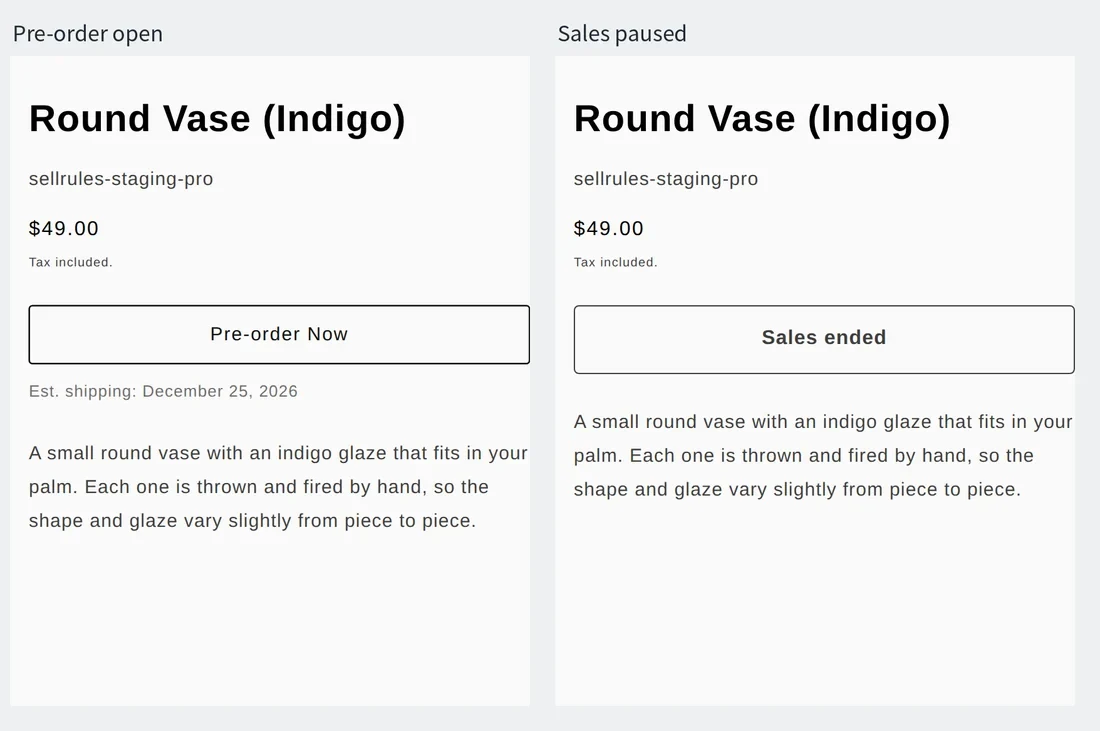
When a product is delayed and you have no date yet, don't enter a date you aren't sure of. SellRules sends a delay notice every time the ship date moves later, so if you move the date several times, customers get an email each time.
How this differs from handling it with Shopify alone
Handling a delay or cancellation: Shopify alone vs. SellRules
Shopify alone
SellRules
Shopify itself can cancel and refund orders and send the customer a cancellation notification. The work is in the step before that: telling everyone it will be late, along with the new date. With Shopify alone, you write and send an email for each order and keep your own record of who you emailed.
For a delay: send the new ship date
Change one order at a time
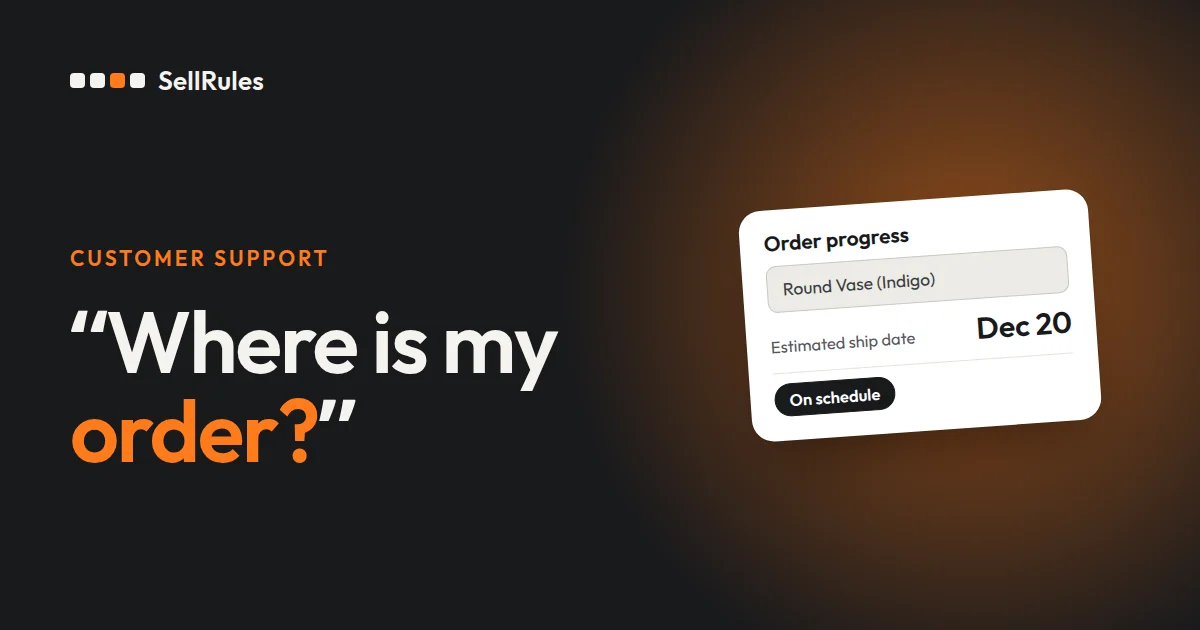
In “Order progress” in SellRules, click “Edit ship date” on the row of the order.
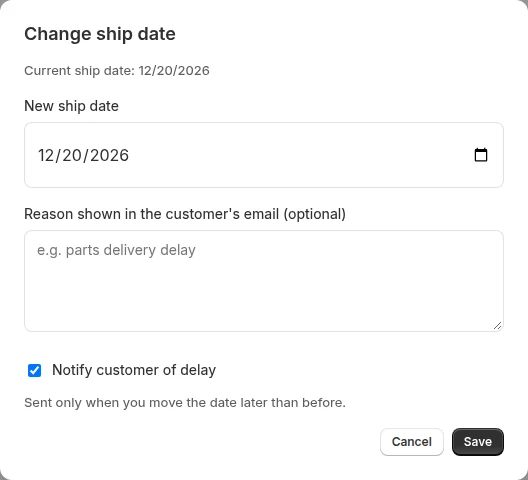
Choose the “New ship date”, write why it is late under “Reason shown in the customer's email (optional)”, leave “Notify customer of delay” checked and save. The notice is sent only when you move the date later than the previous ship date. It is not sent when you move the date earlier or save without changing it.
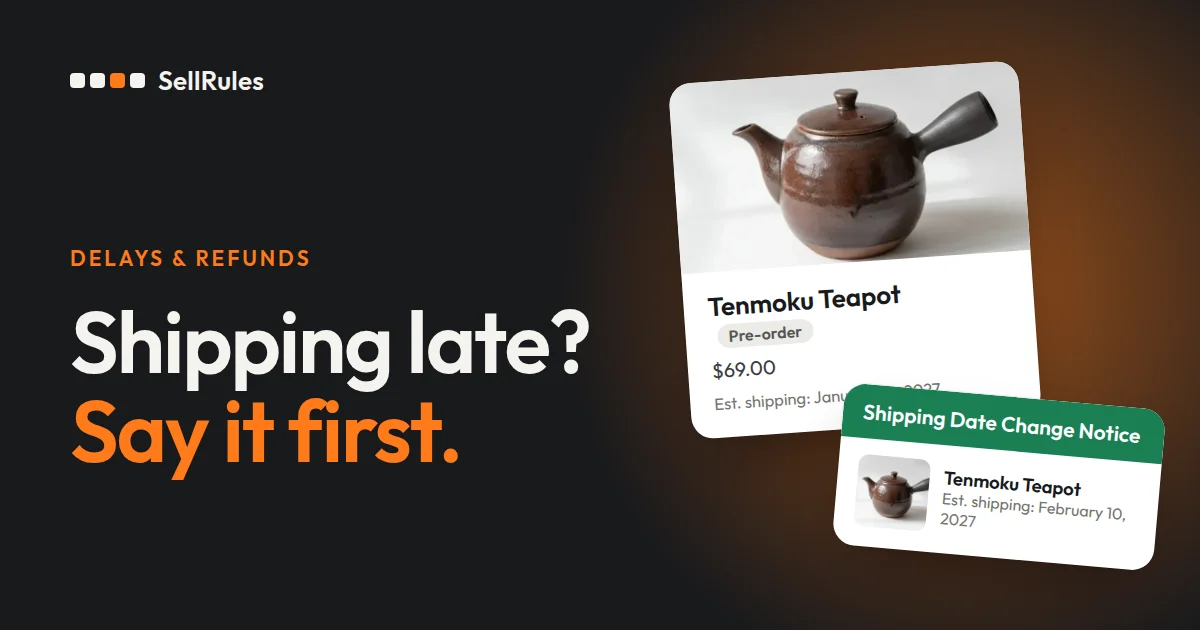
The customer receives an email with the subject “[Notice] Change in shipping date for (product title)”.
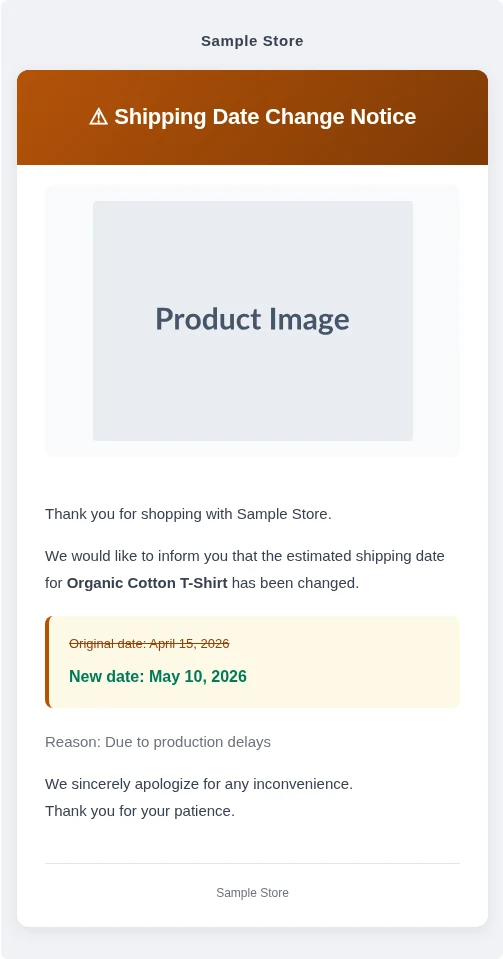
The original date is struck through and the new date is in bold next to it, so the customer can see at a glance what changed and by how much.
This email doesn't mention canceling, so if you want customers to choose between waiting and canceling, add that to the reason field. The field holds up to 500 characters, so after the reason for the delay, write the deadline for cancellation requests and how to reach you.
Your order will ship later than planned because of a production delay. If you would rather not wait, please reply to this email by December 20. We will cancel your order and refund you in full.
Change several orders at once
When you have several orders for the same product, check the box to the left of each order in “Order progress” and click “Bulk edit ship date”. To select every order that matches the list's filters, click “Select all X that match” when it appears. After you save, a message such as “Updated ship date for X orders (Y notified)” shows how many notices were sent.
If you moved the date on the sales schedule
Moving the “Estimated ship date” on the sales schedule later also sends the delay notice automatically. That notice has no reason in it, though, so if you want to add a note about canceling, change the ship date on the orders as described above. For changing lead times on made-to-order products, see the made-to-order article.
Canceling and refunding: the steps depend on how the order was paid
Whether a customer asks to cancel because of a delay or you are canceling everything, how you cancel an order depends on how you took payment for it.
| How the order was paid | Where to cancel | Refund |
|---|---|---|
| Paid in full at checkout | The Shopify order page | Choose where the refund goes on the cancel screen |
| Deposit paid, balance still due | “Order progress” in SellRules | The amount received goes back to the original payment method |
| Bought together with regular items | “Refund” on the Shopify order page | Refund only the pre-order item |
Orders paid in full: cancel in Shopify
On the Shopify order page, click “More actions” at the top right, then “Cancel order”.
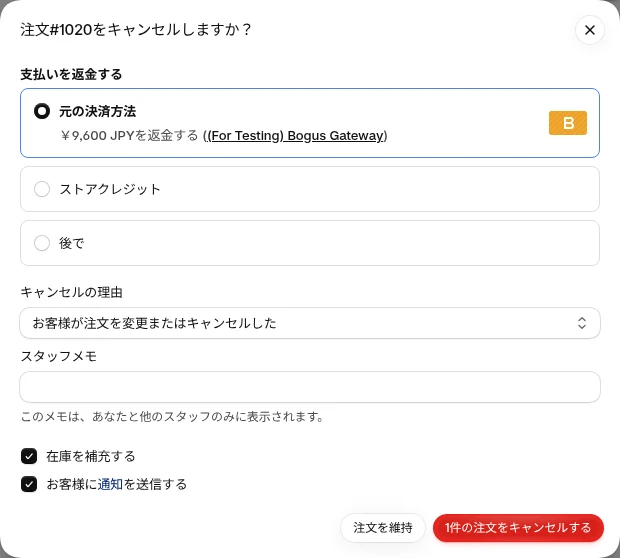
You decide 4 things on this screen:
- “Refund payment”: by default the full amount goes back to the “Original payment method”. “Store credit” returns it as a balance the customer can spend in your store, and “Later” cancels the order now and leaves the refund for afterward
- “Reason for cancellation”: if the product itself is canceled, choose a reason that puts the cause on the store's side, not the customer's
- “Restock inventory”: restocking a product that will never arrive leaves units in your inventory count that don't exist. For a cancellation, clear the checkbox or review the count afterward
- “Send a notification to the customer”: when checked, the customer receives Shopify's cancellation email
Clicking “Cancel order” cancels and refunds in one step. When a pre-order is canceled in Shopify, SellRules also sends the customer its “Cancellation confirmation” email, so together with Shopify's notification the customer receives 2 emails. If you want only one, clear “Send a notification to the customer” on the Shopify screen, or turn off the “Cancellation confirmation” email under “Email templates” in SellRules (Launch plan).
If you have many orders to cancel, you can select them in the Shopify order list and cancel them in bulk, up to 250 orders at a time. According to Shopify Help, a bulk cancellation might refund the full amount without showing the refund prompt, and if the selection includes orders you have already refunded, they can be refunded twice. Cancel orders one by one when they are already refunded or when you want to choose where the refund goes.
Deposit orders: cancel in SellRules
An order taken with a deposit still has a scheduled payment for the balance. The Shopify order page may not let you cancel an order that still has a scheduled payment, so cancel these orders from SellRules.
In “Order progress”, click “Details” on the order, then click “Cancel this order” in the “Balance collection details” panel that opens.
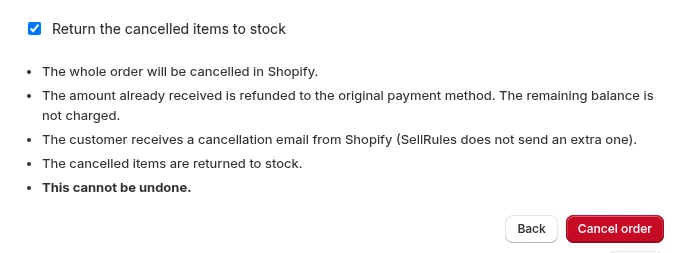
“Confirm cancellation” shows the “Estimated refund”, which is the amount you received minus anything already refunded. When you click “Cancel order”, the whole order is canceled in Shopify, the amount you received is refunded to the original payment method, and the remaining balance is not charged. The customer receives a cancellation email from Shopify, and SellRules does not send another one. If the product will never arrive, clear “Return the cancelled items to stock” before you cancel.
If an automatic balance charge is in progress on the order, the cancellation runs once the result of that charge is known. An order that also contains regular items can't be canceled here, so handle it on the Shopify order page.
If the date is only moving later, you can also extend the balance due date and keep the order. In the same “Balance collection details” panel, enter a date under “New due date” and click “Change due date”. The payment terms in Shopify are updated, and the customer receives an email about the new due date.
Orders that include regular items: refund only the pre-order item
If the regular items have already shipped or will ship as planned and you only want to cancel the pre-order item, click “Refund” at the top right of the order page.
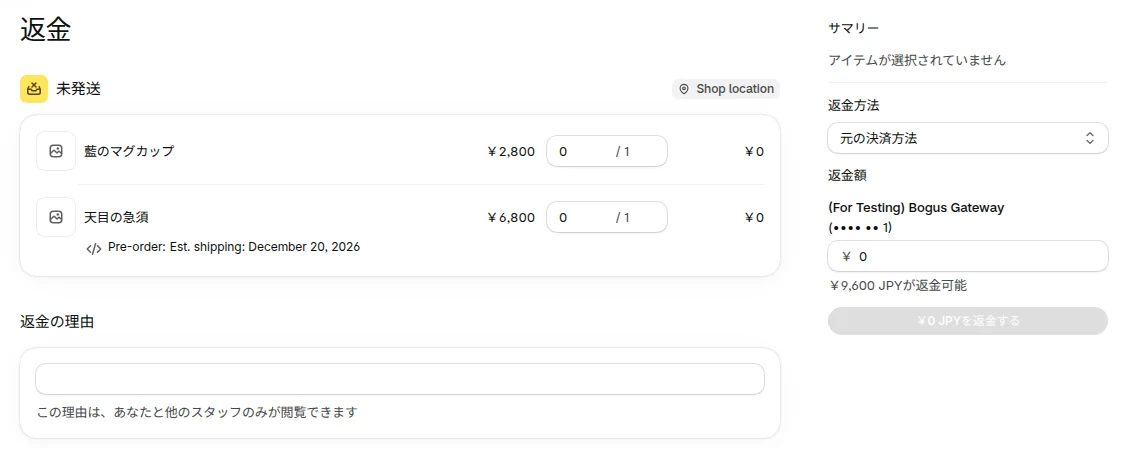
Enter a quantity only on the row of the pre-order item, and its amount is added to the refund total. The row shows the ship date that SellRules attached when the customer added the item to the cart, so you can tell which item is the pre-order. “Reason for refund” is visible only to your staff, so explain the refund to the customer separately.
Refunding orders paid by a manual payment method
If you received the money outside Shopify, for example by bank deposit, check or cash on delivery, canceling or refunding the order in Shopify only records it. No money goes back to the customer, so you return it yourself.
In the email that announces the cancellation, ask the customer how they would like to receive the refund and say roughly when you will send it. If a fee applies, say who covers it in the same email so you get fewer questions. After you send the money, record the refund on the Shopify order so that its payment status matches what happened.
What SellRules does after an order is canceled
When a pre-order is canceled in Shopify, SellRules does these 3 things automatically:
- Sends the customer the “Cancellation confirmation” email (except for orders canceled from SellRules)
- For products with a “Total quantity limit”, adds the canceled quantity back to what you can still accept. A product that had stopped at its limit starts taking orders again
- For products with purchase limits, removes the canceled quantity from that customer's purchase record
If you don't want a canceled product to start taking orders again, set the sales schedule to “Pause sales” before you begin canceling.
Finally, check the remaining orders
Once the cancellations and refunds are done, check that the state of the orders matches what you told customers.
- In “Orders” in Shopify, filter by product title and the “Pre-order” tag. SellRules tags pre-orders with “Pre-order” and made-to-order orders with “Made to order”
- For a cancellation, check that the number of canceled and refunded orders is what you expect. An order whose payment status hasn't changed to “Refunded” is one where you chose “Later” for the refund, or one paid by a manual method where you haven't sent the money back yet
- For a delay, filter by “Delay” in “Order progress” in SellRules and check the number of orders that were sent a new date. Use “Export CSV” to save the list so you don't have to search each time a customer asks
What SellRules settings can't fix, and who to contact
The cases below are handled outside SellRules.
- Partially fulfilled orders: Shopify won't let you cancel the whole order. Refund the unfulfilled pre-order item with “Refund” on the order page
- Orders where you lost a chargeback: cancel the order and choose “Later” for the refund. According to Shopify Help, this avoids refunding the customer a second time
- Orders created by another app or being processed by a third-party fulfillment service: you may need to cancel in that app or service before you cancel in Shopify
If something in SellRules doesn't behave as you expect, write to us through the contact page or use “Bug report” at the bottom of the app screen. Include your store URL, the order number, what you clicked and the message you saw.
Frequently asked questions
Can customers cancel a deposit pre-order themselves?
Yes. The “Balance payment reminder” and “Balance due date changed” emails that SellRules sends include a “Cancel this order” link. The page behind the link shows the estimated refund, and the customer can cancel the order without contacting your store. This is useful when you have announced a delay and want customers who can't wait to be able to choose for themselves.
Do I get the payment processing fees back when I cancel and refund an order?
No. According to Shopify Help, the credit card transaction fees from the original payment aren't returned to you when you refund. When you refund every order for a canceled product, you return the full amount you received, and the fees stay with your store as a cost.
Pricing
Changing ship dates, sending delay notices and filtering in “Order progress” all work on the Free plan. The Free plan covers a lifetime total of 10 pre-orders and made-to-order orders.
To rewrite the delay notice in your store's own words, to turn off the “Cancellation confirmation” email, or to take pre-orders with a deposit and then extend the balance due date or cancel the order when there is a delay, use the Launch plan (US$7.99 per month). You can install SellRules from the Shopify App Store, where you can also check pricing and the length of the free trial.
SellRules plans and pricing
| Monthly price | LaunchEvery feature included | FreeStart with one product |
|---|---|---|
| Monthly price | US$7.99 per month | Free |
| Free trial | 10 days | None |
| Pre-order and made-to-order orders | Unlimited | Up to 10 in total |
| Back-in-stock and sale-start emails (Notify Me) | Unlimited | Up to 15 in total (not refilled monthly) |
| Purchase limits | No limit on products | Up to 1 product |
| Customizable notification emails | Yes | No |
| Deposit payments | Yes | No |
Pre-orders, made-to-order, back-in-stock alerts, purchase limits, stockout switching, deposit payments and order processing are all included in the Launch plan.
The first 10 days of the Launch plan are free. If you remove the app during the trial, you are not charged.
On the Launch plan, back-in-stock and sale-start emails have no sending cap. Required messages such as order confirmations, shipping updates and balance reminders are sent on every plan regardless of the cap.
The Standard and Pro plans are closed to new sign-ups. Shops already on them keep their current terms.
Related articles:
- What to tell customers from before purchase to delivery: Shopify pre-order customer communication
- The emails customers receive and how to edit them: How to customize Shopify pre-order and back-in-stock emails
- Take part of the price up front and charge the balance later: How to take a deposit on Shopify pre-orders
- When to take payment for a pre-order: When to charge for Shopify pre-orders
- Choose between pre-orders, made to order, limited quantities and more: How to run early-access and limited sales on Shopify
The Shopify cancellation steps and the bulk cancellation limit follow the Shopify Help article “Canceling orders” (checked November 14, 2026).