SellRules and RuffRuff Pre Order are both Shopify apps that handle pre-orders, deposits, members-only sales and purchase limits.
SellRules fits stores that don't want to pay a fee based on pre-order sales. It also fits stores that want to set a total limit per customer on the purchase limit screen, and stores that want to send back-in-stock emails from the same app.
This article is written by the developer of SellRules. The RuffRuff Pre Order column contains only what its Shopify App Store listing, its developer's product page and its help page on plans said on November 16, 2026. Those pages are in Japanese, so the quotations are translated from them.
What the 2 apps' pages say (November 16, 2026)
The first table covers who can buy and how many, and the second covers how each app collects payment and sends back-in-stock alerts. Text in quotation marks is the wording of the App Store listing unless the cell names another page. “Tag required” and “Login required” are setting names on the SellRules admin screen.
| Item | SellRules | RuffRuff Pre Order |
|---|---|---|
| Members-only sales by customer tag or login | Yes (“Tag required”, “Login required”) | Yes (conditions can be set by “customer tag and login status”) |
| Limit per order | Yes | “Set a maximum quantity that can be bought in one order” |
| Total limit per customer | Yes (entered on the purchase limit screen) | “By using Shopify Flow together with RuffRuff Pre Order, you can sell up to 1 per person” (product page) |
| Item | SellRules | RuffRuff Pre Order |
|---|---|---|
| Deposits | Yes (“Deposits and balance payments”) | “Supports full payment upfront, full payment later and deposits” |
| Balance charging | “Auto-charge the rest when due” | “You can set a due date for the remaining balance, and charge the deferred payments of the selected orders in bulk” |
| Back-in-stock emails | “Automate preorder and restock emails” | “Extends the back-in-stock feature of Klaviyo or Omnisend” (product page) |
| Switch to pre-orders or back-in-stock alerts when sold out | Yes | “Take an unlimited number of pre-orders for unreleased and out-of-stock products” |
These pages change, so open them again before you install an app.
3 conditions where SellRules fits
If any of the 3 conditions below applies to your store, you have a reason to choose SellRules.
You don't want to pay a fee based on pre-order sales
SellRules charges a monthly price only, with no fee based on pre-order sales. The Launch plan also has no cap on the number of pre-orders or notification emails. RuffRuff Pre Order has a pre-order fee of 3% on its Starter plan and 1% on its Basic plan, and its help page on plans says the fee is charged on the total of the orders that include a pre-order product.
For example, when the orders that include a pre-order product add up to $10,000 in a month, the 3% fee on the Starter plan comes to $300. On SellRules, the price stays at the monthly price whatever your pre-order sales are.
You want to set a total limit per customer on the purchase limit screen
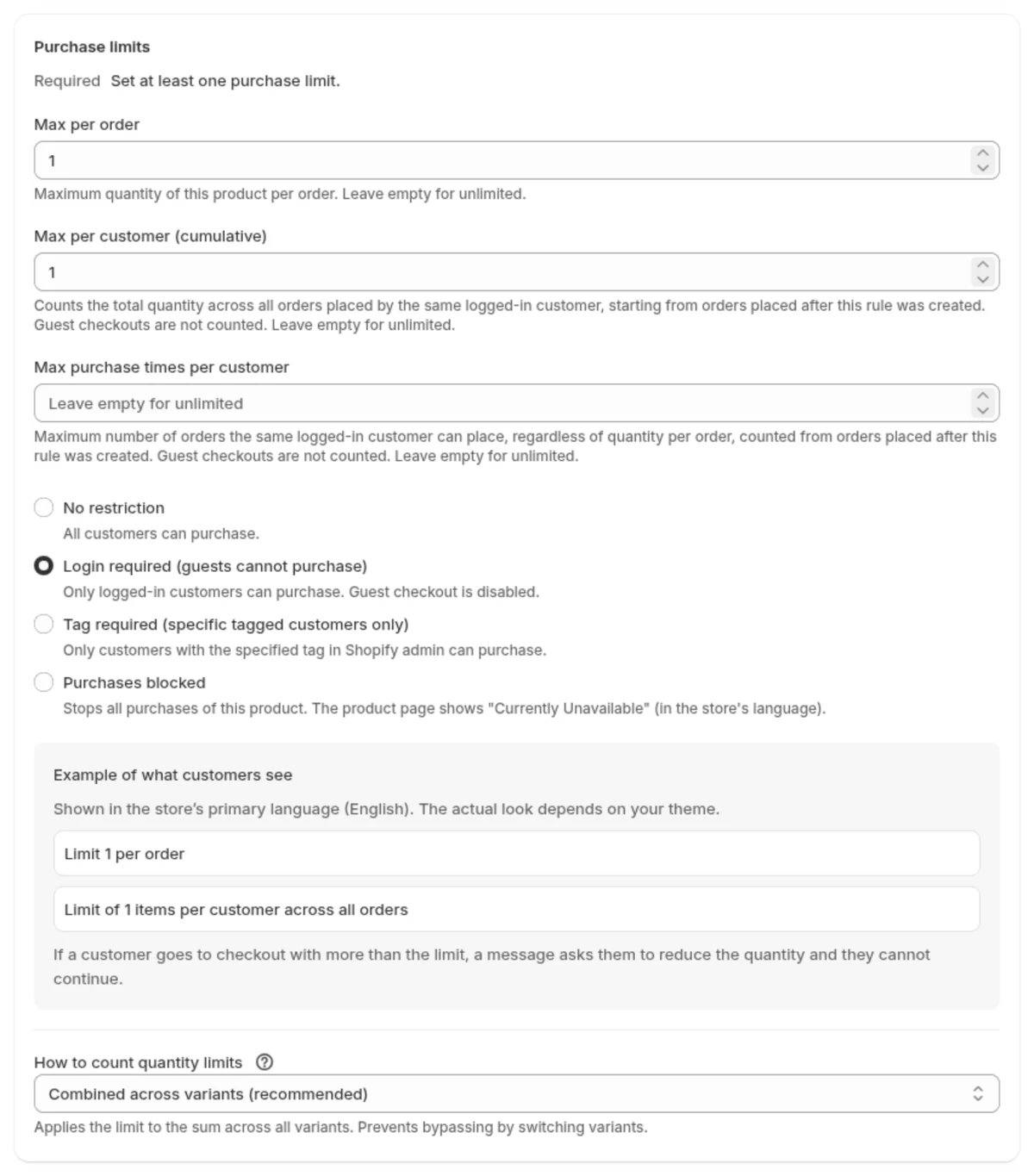
To stop a customer from buying several units by splitting them across orders, you cap the total per customer. A SellRules purchase limit has a field for this total limit next to the limit per order, so you can apply “1 per customer” to pre-order products by entering a number, without building a workflow in another tool.
To count a customer's total, set purchase eligibility to “Login required” so that SellRules knows whose order it is.
You want to send back-in-stock emails from the same app
SellRules uses the sold-out switch to move a sold-out product to pre-orders or to back-in-stock sign-ups. SellRules itself sends the back-in-stock email, so you don't need a separate email app for it. When the product is restocked, customers who signed up get this email automatically.
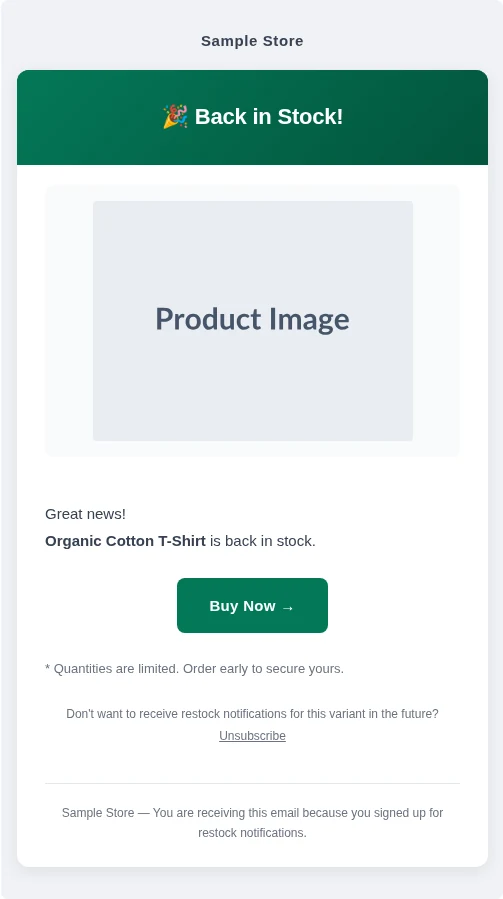
Because pre-orders and back-in-stock alerts are set up in the same admin, you can choose for each product whether to take pre-orders for the next restock or to notify customers once it arrives.
Set up your first pre-order in SellRules
From installing SellRules to starting your first pre-order, there are 3 steps.
- Install SellRules from the Shopify App Store and turn on the app embed in your theme.
- In “Sales schedules”, select a product, enter the pre-order start date and the shipping estimate, and save.
- To limit quantities, open “Purchase limits” under “Purchase limits & sold-out”, select the same product, enter “Max per order” and “Max per customer (cumulative)”, and save.
After saving, open the product page and check that the button has changed to “Pre-order Now” and that the shipping estimate is shown.
Pricing
Here is the pricing of the 2 apps as of November 16, 2026. The SellRules row and the free trials are from the App Store listings. The US dollar prices and fees for RuffRuff Pre Order are from its help page on plans.
| App | Monthly price and fees | Free plan and free trial |
|---|---|---|
| SellRules | Free $0 / Launch US$7.99 per month (no pre-order fee) | Free plan available. 10-day free trial |
| RuffRuff Pre Order | Starter $9 with a 3% pre-order fee / Basic $52 with a 1% fee / Pro $199 with no fee | 3 paid plans. 3-day free trial |
On the SellRules Free plan you can use pre-orders and made-to-order sales, the sold-out switch and back-in-stock alerts. Deposits and automatic balance charges are available on the Launch plan.
A monthly price with no fee on pre-order sales, a total limit per customer that you enter on one screen, and back-in-stock emails sent from the same app: these are the reasons to choose SellRules. Start a pre-order for one product on the Free plan and check how the product page looks. You can install SellRules from the Shopify App Store.
The setup steps are in how to limit a product to 1 per customer, how to set up back-in-stock emails and planning early-access and limited sales.
Frequently Asked Questions
What should I do with open pre-orders when I switch from RuffRuff Pre Order?
Finish collecting balances and shipping for the orders you have already taken in RuffRuff Pre Order before you switch. Shopify's help says that uninstalling a pre-order app deletes the pre-order data it created (except customers' payment information) after 48 hours. If you start only new pre-orders in SellRules, the open orders are not affected.
Where do I see who signed up for back-in-stock alerts in SellRules?
Open “Back-in-stock subscribers” in SellRules to see the sign-ups and the sending status for each product. When the product is restocked, the customers who signed up get the back-in-stock email automatically.
Will I be billed in US dollars?
Only if your store's billing currency is US dollars. App prices are set in US dollars, and Shopify bills you in your store's billing currency. If that currency is different, the amount on your bill depends on the exchange rate on the billing date.