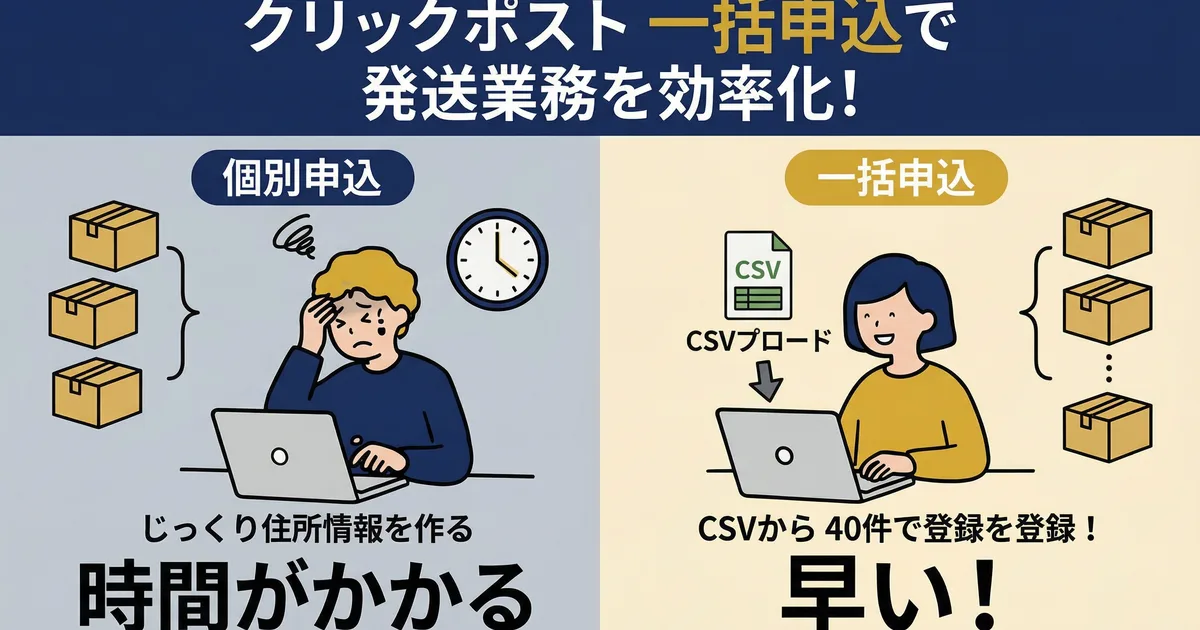
How to Use Click Post Bulk Application: 40 Items per Upload and CSV Splitting
Click Post Bulk Application imports destination details from a CSV. Japan Post's CSV guide allows up to 40 items per upload. For 41 or more, split the order rows so each file contains no more than 40, then upload the files separately.
What to check before applying in bulk
| Item | What to check |
|---|---|
| Items per CSV upload | Up to 40 |
| 41 or more items | Split the CSV into files with no more than 40 items and upload separately |
| CSV format | Use the official template and keep its column names and order |
| Encoding | The official guide specifies Shift-JIS |
| Register tracking numbers in Shopify | Upload the original Click Post label PDF, review the candidate numbers and order matches shown, then confirm registration |
If you have more than 40 orders, keep track of which orders are in each file and compare the order numbers before and after uploading to find duplicates or omissions. Check the screen and the official Click Post guide for current printing limits and payment of Click Post postage to Japan Post.
Steps for Bulk Application
1. Prepare the official CSV template
Download Click Post's official template and enter postal code, name, address, and contents. The recipient name is limited to 20 full-width or 40 half-width characters, excluding the honorific. Each of address lines 1–4 has the same character limit. Contents are limited to 15 full-width or 30 half-width characters. Enter the postal code as 7 half-width digits without a hyphen, or 7 half-width digits plus one half-width hyphen (8 characters total).
Use CSV text in Shift-JIS and keep the template header unchanged. See the official CSV guide for details.
2. Split orders above 40 items
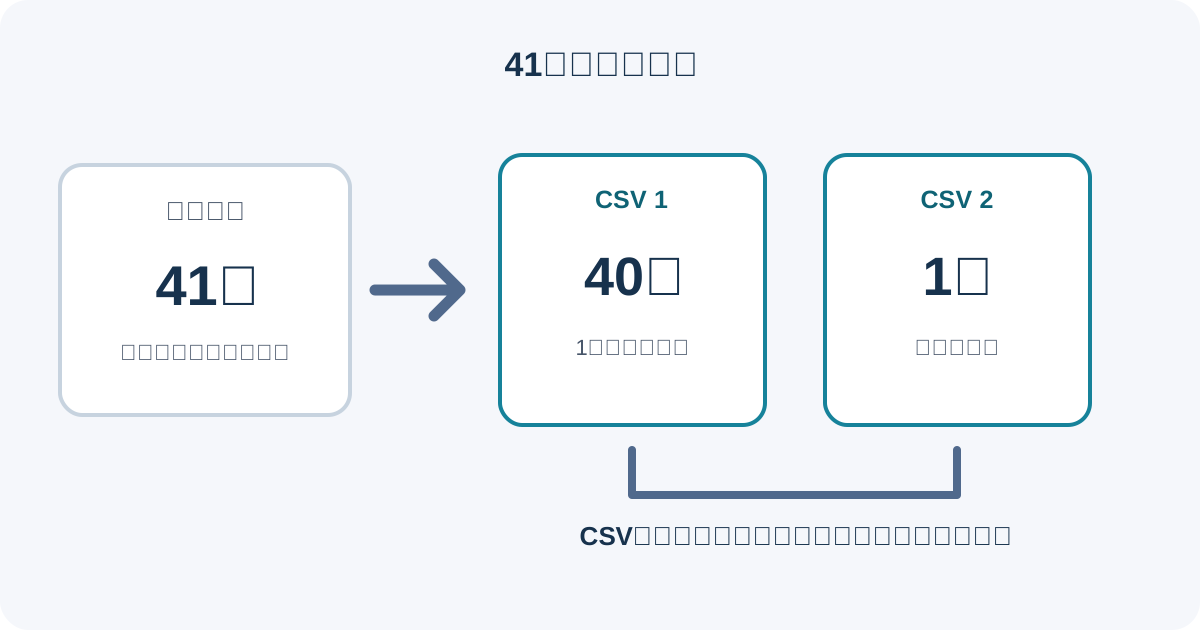
Count the order rows and split the CSV so no file contains more than 40 items. For example, split 41 orders into 40 and 1, then upload the files in 2 submissions. Compare the original order list with the order numbers in each CSV to find duplicates or omissions.
3. Upload the CSV in Bulk Application
Open Bulk Application in Click Post and upload the prepared CSV. Check the import result and destination details. If an error appears, correct the file using the official template and its requirements.
4. Get the label PDF after applying
Review the imported details, continue the application, and obtain the shipping labels issued by Click Post. Check the latest instructions on the application screen for printing limits and payment of Click Post postage to Japan Post. This article does not claim a specific batch-print limit or whether payment can be made in one transaction.
5. Register tracking numbers in Shopify if needed
Instant Ship! for Click Post can export compatible CSV files from selected Shopify orders. The app reads the tracking number from the original label PDF and searches for an exact Shopify order-name match. If a postal code is present, it cross-checks that value; only when there is no order name does it search for candidates by postal code. Review the candidates shown and confirm registration to the correct order.
What to verify after splitting a CSV
- Each CSV contains no more than 40 items
- Order numbers in the original list and each file match
- No order appears in more than one CSV
- Official template columns, order, and input requirements are preserved
- The import result shows no errors
If a CSV fails because of an address field or encoding, see Click Post CSV import troubleshooting. It explains address-field limits and postal-code formats.
For the full workflow from CSV creation to tracking-number registration, see the Shopify × Click Post shipping guide.
Frequently asked questions
How many items can I submit in one Click Post Bulk Application?
Japan Post's CSV guide allows up to 40 items per upload. For 41 or more, split the CSV so each file contains no more than 40 items, then upload the files separately.
If I split the CSV, do I need to register tracking numbers separately?
The app reads the tracking number from the original label PDF and searches for an exact Shopify order-name match. If a postal code is present, it cross-checks that value; only when there is no order name does it search for candidates by postal code. Review the candidates shown and confirm registration to the correct order.
How many labels can I print at once?
The number of labels and the screen workflow may change, so check the latest information shown by Click Post after applying. This article does not state a specific maximum.
To review the app’s features for exporting CSVs from Shopify orders and confirming tracking-number candidates from an original Click Post label PDF, see the Instant Ship! for Click Post app guide.