
How Long Does Shipping 10 Orders a Day Take? 4 Steps and Time by Order Volume
Shipping 10 orders a day with Shopify and Click Post takes about 14 minutes when you add up the four steps. For 20 orders it is about 24 minutes, and for 40 orders about 44 minutes. The step that grows with volume is packing (step 3). CSV export, Click Post payment, and tracking-number sync are counted as roughly constant, whatever the number of orders.
This article gives the time for each of the four steps and estimates for 10, 20, and 40 orders in a table with the formula. The figures are not measurements. They are estimates calculated from the per-order and per-batch times assumed in this article.
Why Shipping Takes So Long
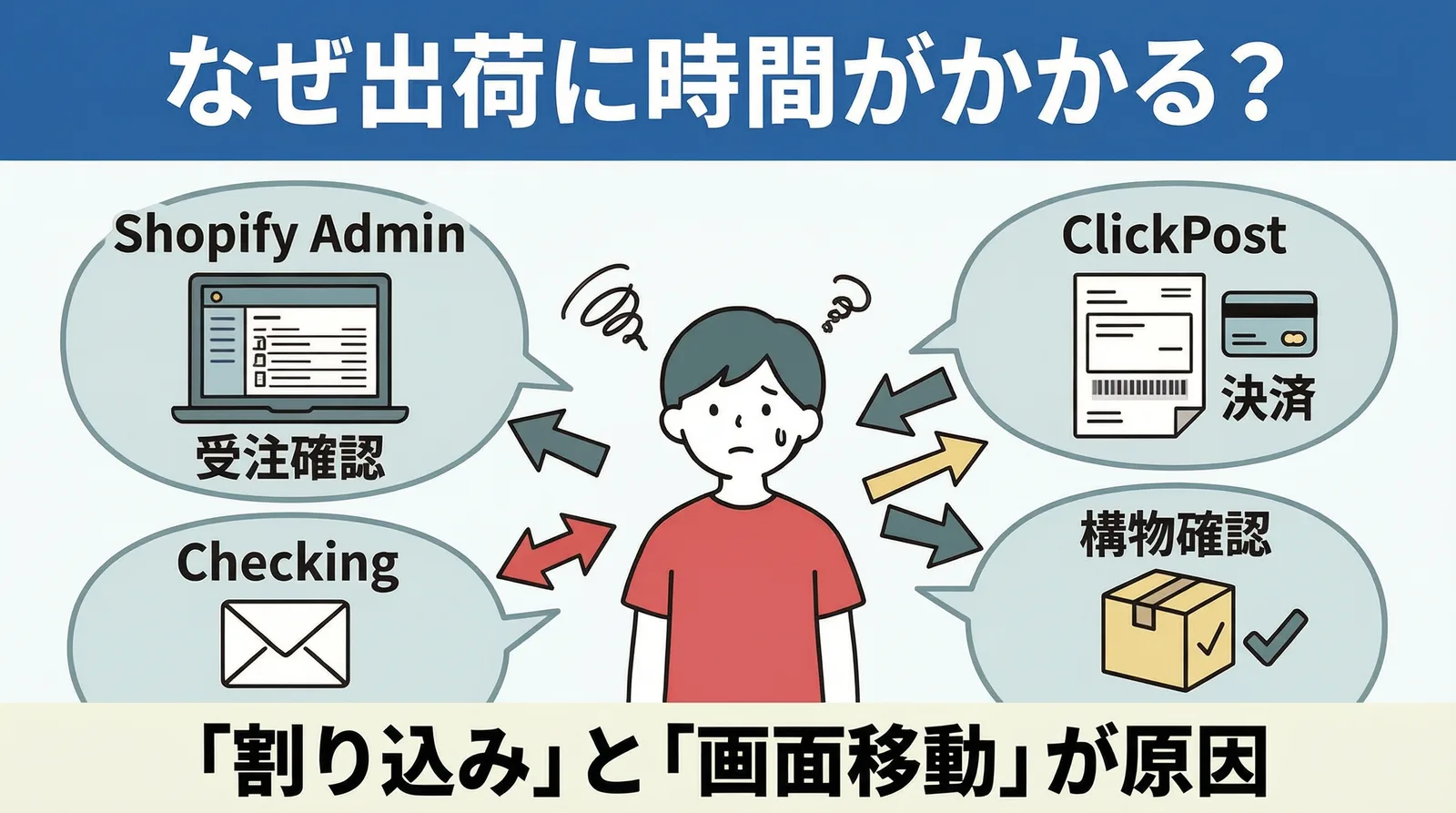
The work keeps bouncing back and forth
Shipping takes long because of the number of orders, and also because of the back-and-forth between tasks.
The flow looks like this:
- Open the Shopify admin, check orders, and export a CSV
- Switch to Click Post, upload the file, pay, and print the labels
- Go back to Shopify and enter the tracking numbers
The screen switching and the checking of where you left off add directly to your working time.
"While I'm at it" tasks interrupt the flow
Do you answer emails, check inventory, or count packing supplies while you ship? Interruptions like these push a day's shipping past the estimates in the tables below.
The Four Steps of Shipping and How Long Each Takes
Shipping work breaks down into four steps. Knowing roughly how long each one takes shows you where the time goes.
| Step | Task | Time for 10 orders (estimate) |
|---|---|---|
| 1. CSV export | Export order data from Shopify as CSV | About 1 minute |
| 2. Click Post payment | Upload CSV -> bulk application -> payment | About 2 minutes |
| 3. Label printing and packing | Print labels -> pack items -> attach labels | About 10 minutes |
| 4. Tracking sync | Import shipping labels -> sync in bulk | About 1 minute |
| Total | About 14 minutes |
Packing, step 3, makes up well over two-thirds of the total. All the other steps together take only about 4 minutes.
Steps 1, 2, and 4 are computer work, and step 3 is hands-on work. Rather than alternating between the two, finish the computer tasks first and then start packing. You lose less time to switching.
Which Step Grows as Order Volume Rises?
The step that grows is label printing and packing (step 3). Steps 1, 2, and 4 are done in one operation each, so they are counted as roughly constant whatever the number of orders. Step 3 is counted as about 1 minute per order. That minute depends on your products and how practiced you are, so timing your own packing once will give you a closer estimate.
Estimated total = 4 minutes (steps 1, 2, and 4) + 1 minute x number of orders
| Orders | Step 3 (label printing and packing) | Estimated total |
|---|---|---|
| 10 orders | About 10 minutes | About 14 minutes |
| 20 orders | About 20 minutes | About 24 minutes |
| 40 orders | About 40 minutes | About 44 minutes |
This table is calculated from the per-order and per-batch times assumed in the table above. It is not a measurement. With four times the orders at 40, the total is only a little over three times as long, because all of the extra 30 minutes comes from step 3.
A single Click Post bulk application accepts up to 40 orders per upload, and 41 or more must be split (Click Post's official CSV guide says "the upload limit per batch is 40 orders," checked on November 14, 2026). For how to split, see how to use Click Post bulk application. For how to handle stretches with 41 or more orders, see the busy-season bulk shipping article.
Running the Four Steps in Order
Step 1: CSV export, about 1 minute
In the app, select the unfulfilled orders and export the CSV. In the next step, you upload this CSV to Click Post's bulk application.
At this point, take a quick look at how many orders you are shipping and what they contain. Knowing which packaging you need, such as envelope sizes, makes the later work smoother.
Step 2: Payment in Click Post, about 2 minutes
Upload the CSV to Click Post's bulk application and complete payment. After payment, download the shipping-label PDF.
For 10 orders, a single bulk application is enough.
Step 3: Label printing and packing, about 10 minutes
Print the downloaded labels and cut them apart, pack the products, and attach the labels. This is the step that takes the most time.
To pack faster, get these things ready:
- Keep envelopes in A4, A5, and long size 3, and pick one to fit each product
- Fix the tape cutter, scissors, and cushioning material where you can reach them
- Put finished packages in one place with the label side up
When the packing steps are the same every time, you spend less time thinking.

Step 4: Bulk tracking-number sync, about 1 minute
Once packing is done, import the shipping labels you downloaded into the app. The app reads the tracking numbers from the labels and matches them to the candidate Shopify orders. Check the candidates and the addresses, then click "Run registration" and each order gets its tracking number and the customer receives a shipping notification (you cannot suppress the notification for this registration).
These four steps take you from CSV export to tracking-number registration. You never type tracking numbers into orders by hand. Orders whose candidate cannot be identified are registered manually on the Shopify order page.
Time-Saving Tips
Fix a time for shipping
If you set a time of day to start shipping, you can use the tables above to estimate how many orders fit in that slot and how long they take. A day that takes 14 minutes and a day that takes 44 minutes call for different plans around them.
For how to choose the time and how to handle exceptions as part of a routine, see how to turn shipping into a routine.
Never run out of packing supplies
If you run out of envelopes mid-job, the time per order jumps while you go shopping or look for substitutes. Before you start, check what is left of your envelopes, tape, and cushioning material.
Do not finish orders one at a time
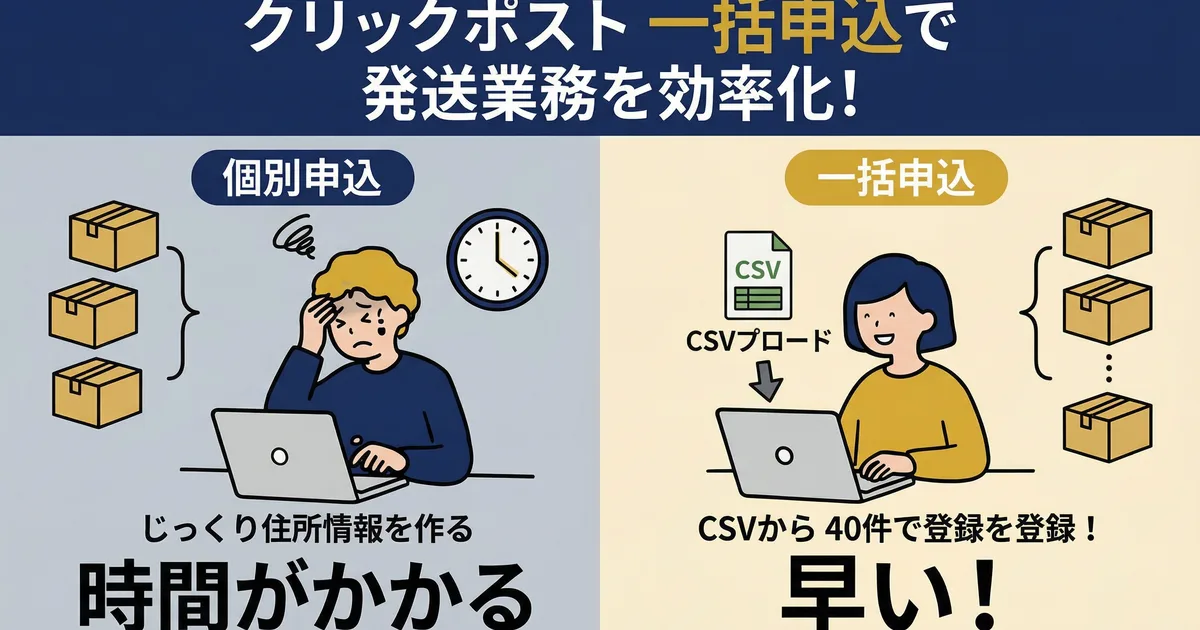
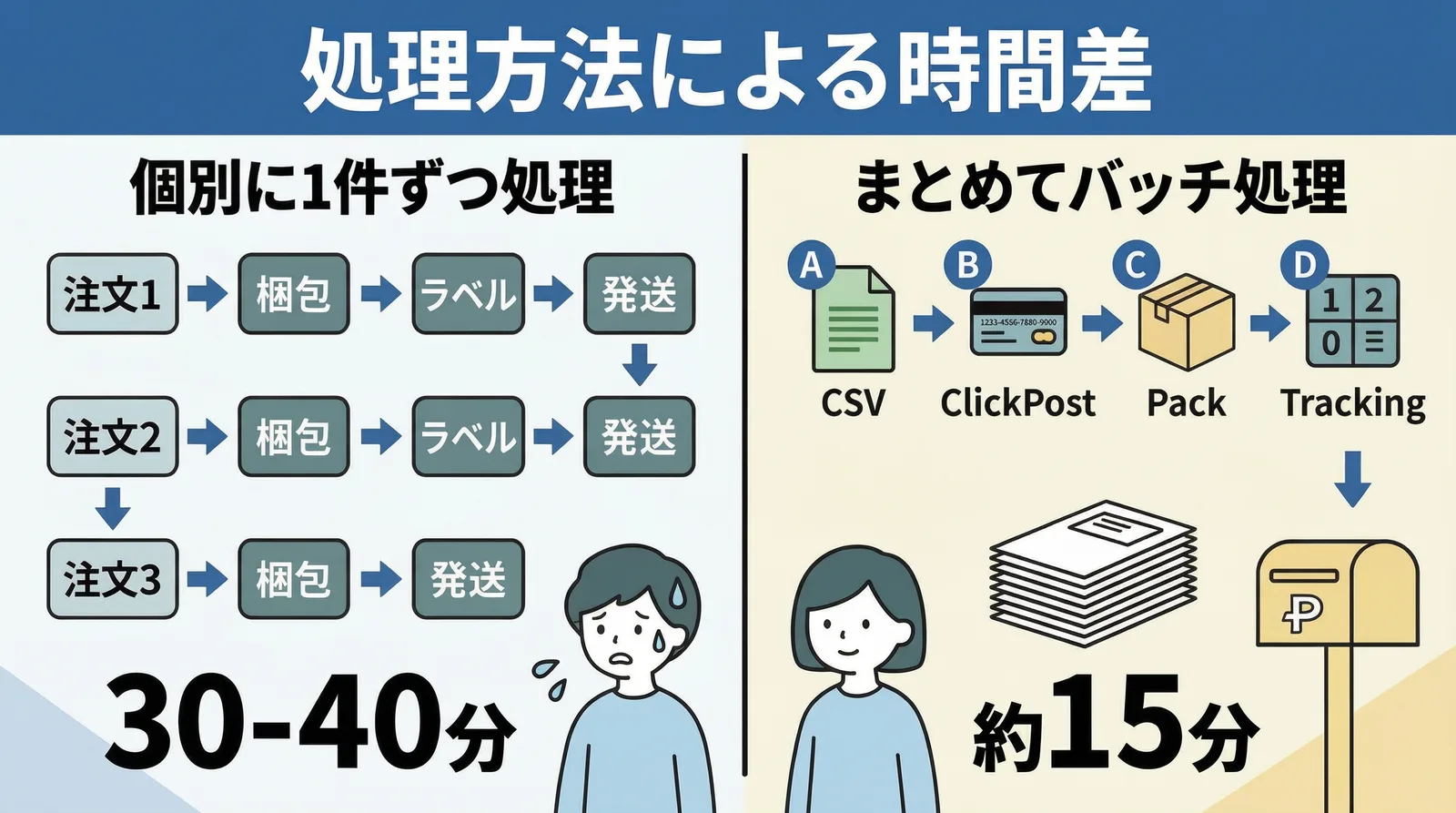
Finishing each order on its own, as "check, pack, label, enter tracking number," looks careful but takes longer. Doing the same kind of task for all orders together (batch processing) removes the switching cost and finishes faster.
| Processing style | Screen switching | Tracking numbers |
|---|---|---|
| One order at a time | A lot | Typed in each time |
| Batch processing | Little | Synced in bulk |
Frequently Asked Questions
Q. How long does it take on days with 20 or 40 orders?
As the table above shows, about 24 minutes for 20 orders and about 44 minutes for 40. Steps 1, 2, and 4 barely change as orders grow. What grows is the time for step 3, label printing and packing.
Q. How long does it take on days with only 1 or 2 orders?
Steps 1, 2, and 4 together take about 4 minutes and step 3 about 1 minute per order, so 1 or 2 orders take about 5 to 6 minutes. The procedure on a light day is the same as on a 10-order day.
Q. How can I pack faster?
If you sell a fixed set of products, set a standard envelope and cushioning combination for each so your hands never stop. For example, "keycaps in bubble wrap in an A5 envelope" and "cables as they are in a long size 3 envelope." Deciding a packing pattern per product cuts the time spent hesitating.
Conclusion
Running the four steps in order, 10 orders a day take around 14 minutes. The step that grows with volume is step 3, so 20 orders come to about 24 minutes and 40 orders to about 44 minutes.
If you want to try making shipping more efficient, take a look at Instant Shipping! for Click Post from JizaiDev.
Related Reading
- Streamlining Shopify and Click Post Shipping — A step-by-step workflow from CSV export to tracking number sync
- How to Get Through Busy-Season Bulk Shipping with Task Splitting and Preparation — Busy-season bulk shipping comes down to preparation (securing packing supplies, planning CSV splits) and task splitting...
- How to Turn Shipping into a Routine — Turning shipping into a routine means fixing the time, fixing the steps, and setting rules for exceptions...