Shopify × Click Post Shipping Guide: The Flow from CSV Export to Tracking Registration
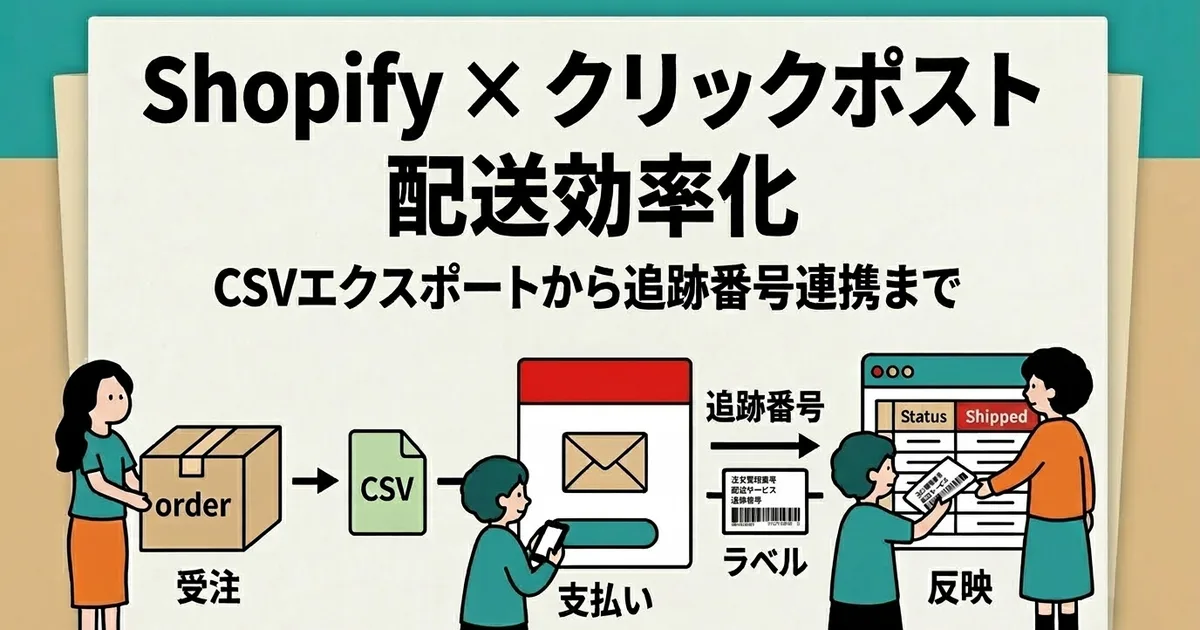
After exporting a CSV from Shopify, the merchant applies for Click Post shipments, pays postage, and creates labels on the Japan Post website. After shipping, tracking numbers are brought back to Shopify. The steps supported by the app and the steps you must review and complete are distinct.
| Step | Action | What to check |
|---|---|---|
| Create CSV | Select unfulfilled orders and create a Click Post CSV for 1–40 orders | Review address and item warnings, truncation, and character substitutions |
| Apply, pay, and create labels | The merchant uploads the CSV and completes these steps on the Click Post website | This work happens outside the app on Japan Post’s website |
| Register tracking | Review order candidates extracted from the original PDF and submit registration | Up to 2 original PDFs, 10 MB each, 80 labels total; a shipping notification is sent |
If you want to jump straight to a specific topic, here are quick links to related guides addressing the most common fulfillment headaches:
- Packages returned due to address errors or character limits → Preventing Address-Related Returns: Managing Character Limits and Formatting Variations
- Received an address change request after shipping → Decision Flow for Address Changes After Shipment
- Labels won't print or scaling is off → Can't Print Click Post Labels: Troubleshooting Display, Scaling, and Reprinting
- Rethinking your carrier choice entirely → Small Parcel Shipping Comparison: Rates and Size Limits.
- Decide what to test and whether the fee is worthwhile during the 10-day trial → How to Test Click Post Integration for 10 Days
- Check an earlier unfulfilled order during your daily shipping work → What to Check When an Earlier Shopify Preorder Does Not Appear
- Troubleshoot a Click Post label PDF that will not import → Click Post PDF Won't Import: What to Try First
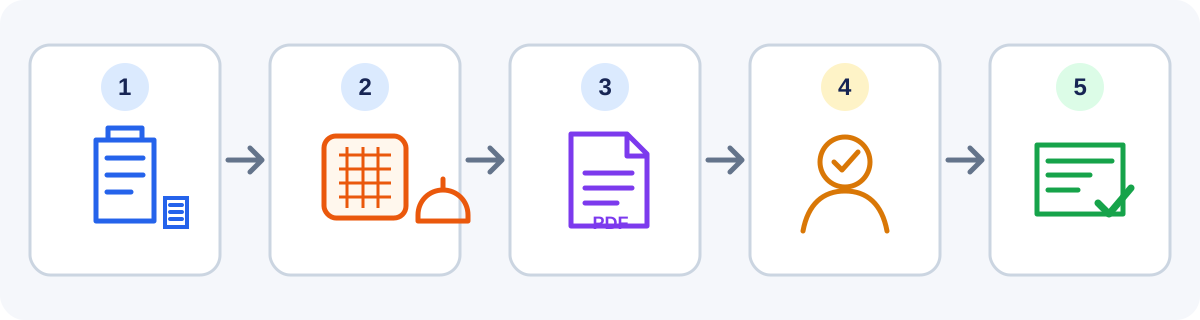
Why work remains after CSV export
Creating a CSV in Shopify is only the first step. The merchant applies for the shipment, pays postage, and creates labels on the Japan Post website. Shipping is not completed automatically by exporting the CSV.
After mailing, tracking numbers need to be added back to Shopify. The app can extract numbers and suggest orders from the original PDF, but you still review the candidates, select orders, and submit the registration.
Extract tracking numbers from the original PDF and register them after review
The app extracts tracking numbers from the original Click Post PDF. If it can read a Shopify order name from the PDF, it searches for an exact match and also cross-checks a postal code read from the PDF. It searches by postal code only when no order name can be read. Review the suggested order and tracking number, select the intended order, and submit the registration; the app does not confirm a match automatically.
Only original PDFs downloaded from Click Post are supported; scanned, edited, or merged PDFs are not. Each upload supports 1–2 files up to 10 MB each and 80 labels total. Registration records the tracking number in Shopify and sends a shipping confirmation. This notification cannot be turned off.
From CSV creation to tracking registration
- Create the CSV in Shopify — Select unfulfilled orders in the app and create a Click Post CSV for 1–40 orders. Check address and item warnings, including possible truncation or character substitution.
- Complete shipping on Click Post — Upload the CSV on the Japan Post website, apply for the shipments, pay postage, and create and print the labels.
- Register tracking numbers from the original PDF — Load the original PDF into the app, review the order candidates, select the intended orders, and submit registration. Shopify sends a shipping confirmation. Up to two files, 10 MB each and 80 labels total, are supported.
Current Click Post terms and choosing a shipping method
Japan Post lists Click Post at a flat 240 yen including tax nationwide, with tracking (checked October 14, 2026). A package may weigh up to 2 kg, its longest side must be no more than 34 cm, its three dimensions must total no more than 60 cm, and it must fit through the opening of a postal drop box. Posting through a postal drop box is the general rule; counter drop-off is limited to specified cases. Contents are not compensated for damage. Check the Japan Post official service page for current terms.
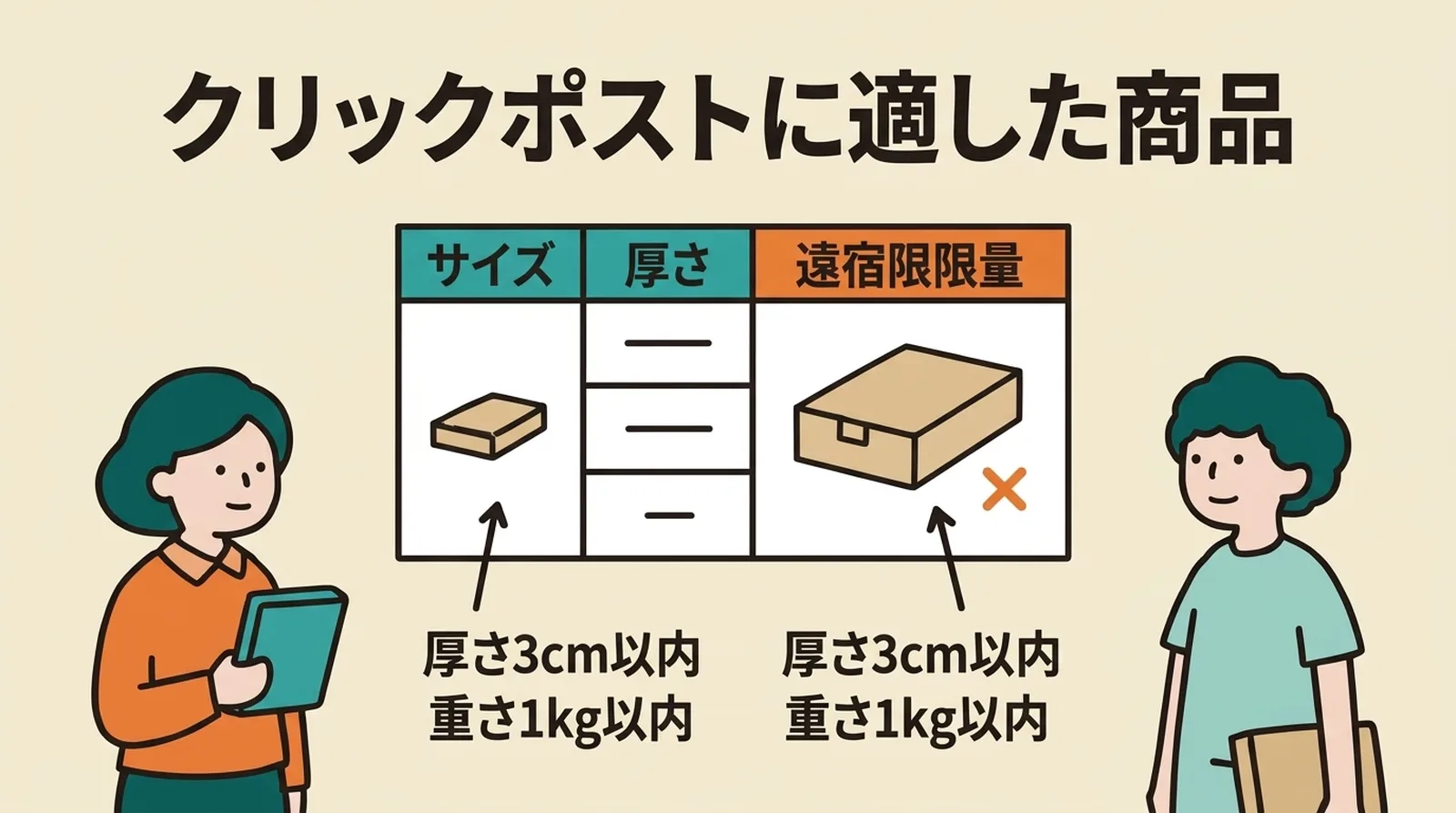
If a package will not fit through a postal drop box opening or requires compensation, compare other services. See the small-parcel shipping comparison and products suited to Click Post.
Measure the workflow in your own store
The actual workload depends on more than the number of orders. Address corrections, Click Post applications and payments, printing and packing, and reviewing order candidates all affect the total. This guide does not promise a fixed time saving.
If you are considering the app, test it with a few real orders: check the CSV output, candidate matches, and shipping notification, then record the time in your own workflow. The Shopify App Store listing shows a price of USD 8 per month and a 10-day free trial (checked October 14, 2026).
Hypothetical example (not a real order): Suppose one original PDF shows the Shopify order name “#A1024” and postal code “100-0001.” The app looks for an exact order-name match and cross-checks the postal code if it can read it from the PDF. You review the suggested order and tracking number, select the correct order, and register it. Shopify then sends a shipping notification email, which cannot be turned off.
Frequently Asked Questions
Q. How many shipments can I submit in one Click Post bulk CSV?
Each Click Post bulk CSV upload supports up to 40 destinations. For 41 or more, split the shipments across multiple uploads. Japan Post’s official instructions show a payment step for each destination. For tracking registration, also observe the app’s original-PDF limit: 1–2 files and 80 labels total.
Q. How are tracking numbers registered to orders?
Load the original label PDF downloaded from Click Post to see tracking numbers and order candidates. Review and select the intended orders, then submit the registration. Shopify sends a shipping confirmation when you register; this notification cannot be turned off.
Q. What payment methods can I use for Click Post?
Click Post payments can be made with Yahoo! Wallet or Amazon Pay. A credit card must be registered.
Summary
The app creates a CSV from Shopify orders and extracts tracking numbers and order candidates from the original Click Post PDF. The merchant applies, pays postage, and creates labels on Click Post. Before registration, the merchant reviews and selects the intended orders; Shopify sends a shipping confirmation when registration is submitted.
Check the CSV, shipping steps, candidate matches, and notification with orders from your own store. Then decide whether the remaining work and cost fit your process.
The Instant Ship! for Click Post app costs USD 8 per month and includes a 10-day free trial (checked 2026-10-14).
Related Articles
- Click Post CSV, tracking registration, and shipping workflow
- Comparison of nine Shopify shipping apps
Here are articles organized by category to help you dive deeper into the topics covered in this guide.
October 1, 2026 Revisions
- Click Post Changes in October 2026: Rates, Size Limits, and Drop-Off Methods
- When You Can Drop Click Post at Service Counters: October Exceptions and Postbox Decisions
- Click Post Cutover Prep for Sept 30 – Oct 1: Payment Cutoffs and System Downtime
- What to Check on Your First Shipment After the October Revision | Click Post 240 Yen and New Size Rules in Practice
Shipping Fulfillment Efficiency
- Exporting Addresses in Bulk but Still Typing Tracking Numbers? Take Click Post Shipping a Step Further
- Extract tracking from the original PDF and review order candidates
- Click Post CSV export steps
- Example Click Post shipping workflow
- Bulk Shipping Procedures Using Click Post's Bulk Application
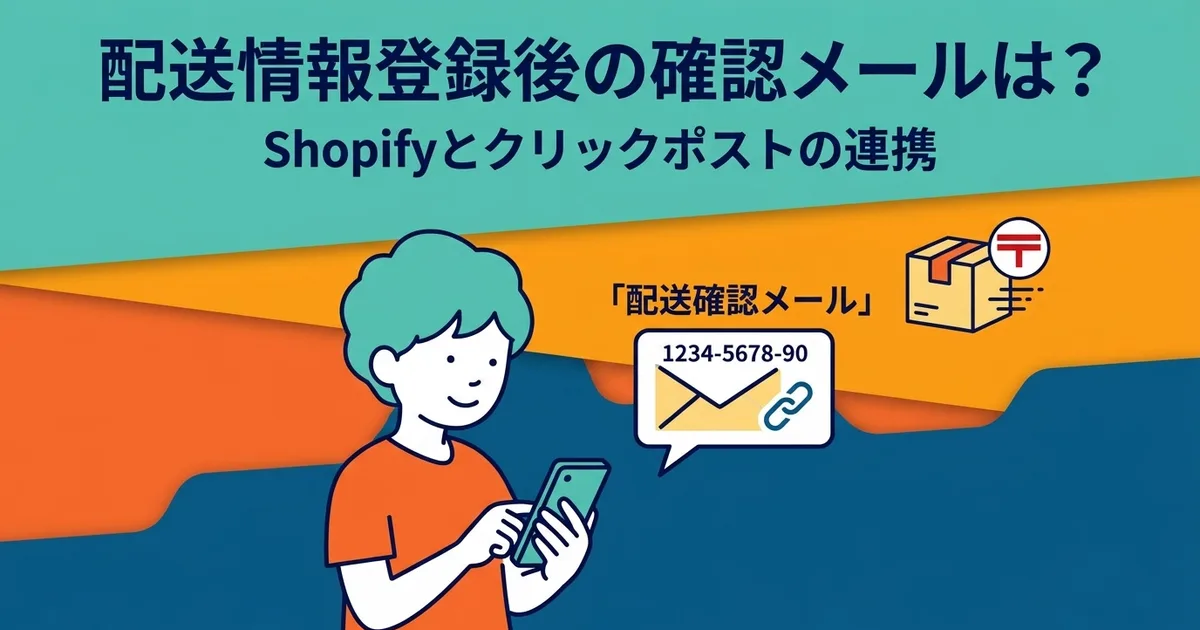
- What Happens to Shipping Confirmation Emails When Tracking Numbers Are Synced to Shopify
- Task Splitting and Advance Prep to Survive Peak-Season High-Volume Shipping
- Turning Shipping into a Routine: Tips for Finishing at the Same Time Every Day
- How to Write an SOP to Delegate Shipping to Staff or Partners
- Automation Ideas for Shipping Operations Using Shopify Flow
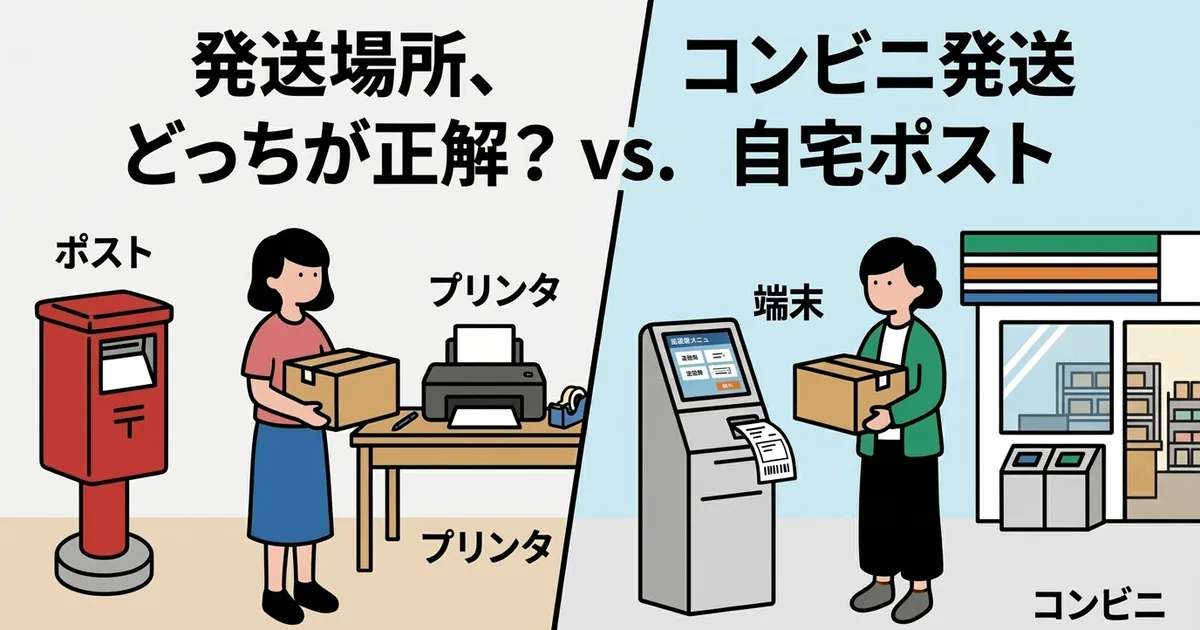
- Shipping from Home vs. Convenience Stores: Pros, Cons, and Workflows
Optimizing Shipping Methods and Costs
- Click Post, Yu-Packet, Kuroneko Yu-Packet, and Non-Standard Mail: Comparing Small Parcel Services
- Products suited to Click Post
- Where Does Free Shipping Become Realistic? Balancing Free Shipping with Profit Margins
- Packaging Hacks to Overcome the 3 cm Thickness Limit and Alternatives When Exceeded
- Why You Should Choose Tracked Shipping Services and the Risks of Untracked Delivery
- Preparing for Shipping Rate Increases: Checkpoints for Reviewing Your Cost Structure
- Including Shipping in Product Prices vs. Charging Separately: Impact on Conversion Rates
- How to Approach Shipping Costs When Handling Returns and Exchanges
- Optimizing Packaging Material Costs: Choosing Envelopes, Cardboard Boxes, and Cushioning
- Packaging and Presentation Tips When Using Click Post for Gift Orders
- Shipping Methods and Key Considerations When Starting International Shipping
Preventing and Handling Shipping Issues
- Troubles Caused by Tracking Number Typos and How to Prevent Them
- Preventing Address-Related Returns: Managing Character Limits and Formatting Variations
- Response Templates for "Item Not Received" and Systems to Reduce Inquiries
- Managing Tracking Numbers for Multi-Package Shipments and Registering Them in Shopify
- Packaging Basics for Click Post to Prevent Water Damage and Breakage
- Verification Checklist to Prevent Accidental Shipping of Cancelled Orders
- Handling Process When a Customer Requests an Address Change After Shipment
- How to Handle Multiple Orders to the Same Address: Decision Criteria for Combined Shipping
Setup and Operations Guide
- Preparations and Steps for Solo Shop Owners to Start Shipping with Click Post on Shopify
- Structuring Shipping Operations to Focus on Making: Balancing Production and Fulfillment
- Creating a Workspace at Home to Handle Fulfillment from Start to Finish
- Setting Estimated Dispatch Dates and Communicating with Customers: Feasible Schedules for Side Businesses
- Shopify Shipping Settings Guide: Shipping Rates, Delivery Zones, and Combining Carriers
- When Solo Entrepreneurs Should Consider 3PL Fulfillment and the Benefits of In-House Shipping
- Writing Specified Commercial Transactions Act Disclosures and Shipping Policies
- Checkpoints When Choosing Shopify Apps: Essential Features for Solo Stores
- Comparing Click Post Shipping Apps: Differences in CSV Export, Tracking Sync, and Address Formatting
- How to Handle Shipping When In-Person Pop-ups and Online Orders Overlap
- Shopify × Click Post: Common Pitfalls and Solutions FAQ