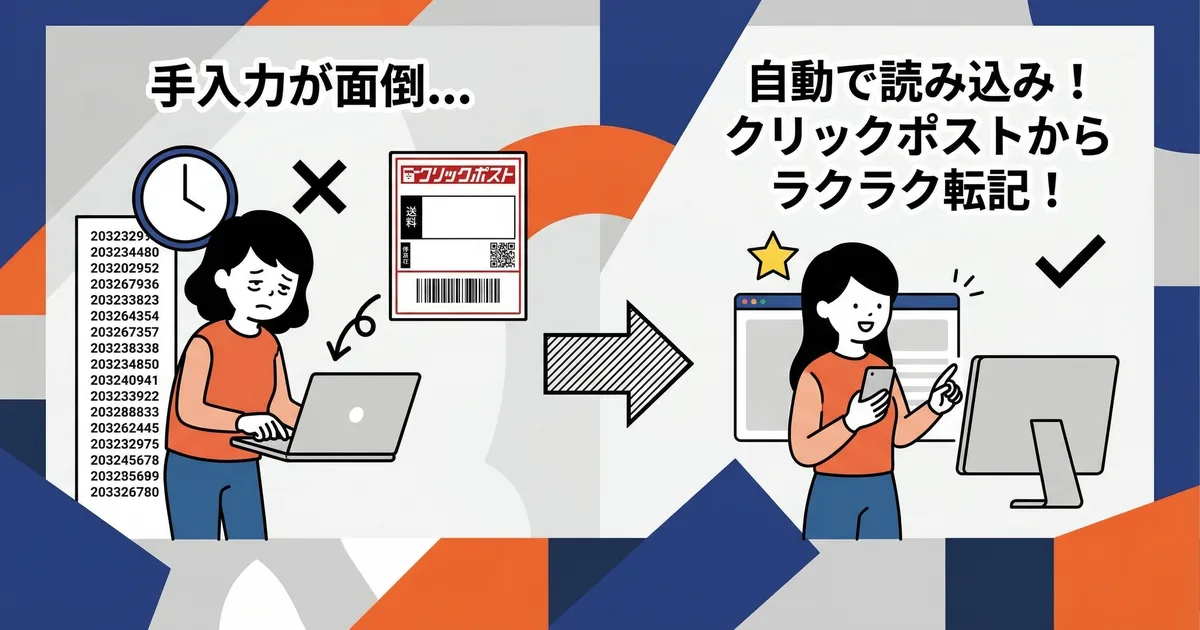
When you ship a parcel with Click Post, adding its tracking number to the Shopify order lets you manage delivery status by order. You can look up and enter each number after printing the label, or use a compatible app to read a label PDF, review order candidates, and register the number.
Reading a number and registering it to an order are separate steps. Importing a PDF does not complete the fulfillment. Review the displayed order candidate and address, then perform the registration yourself.
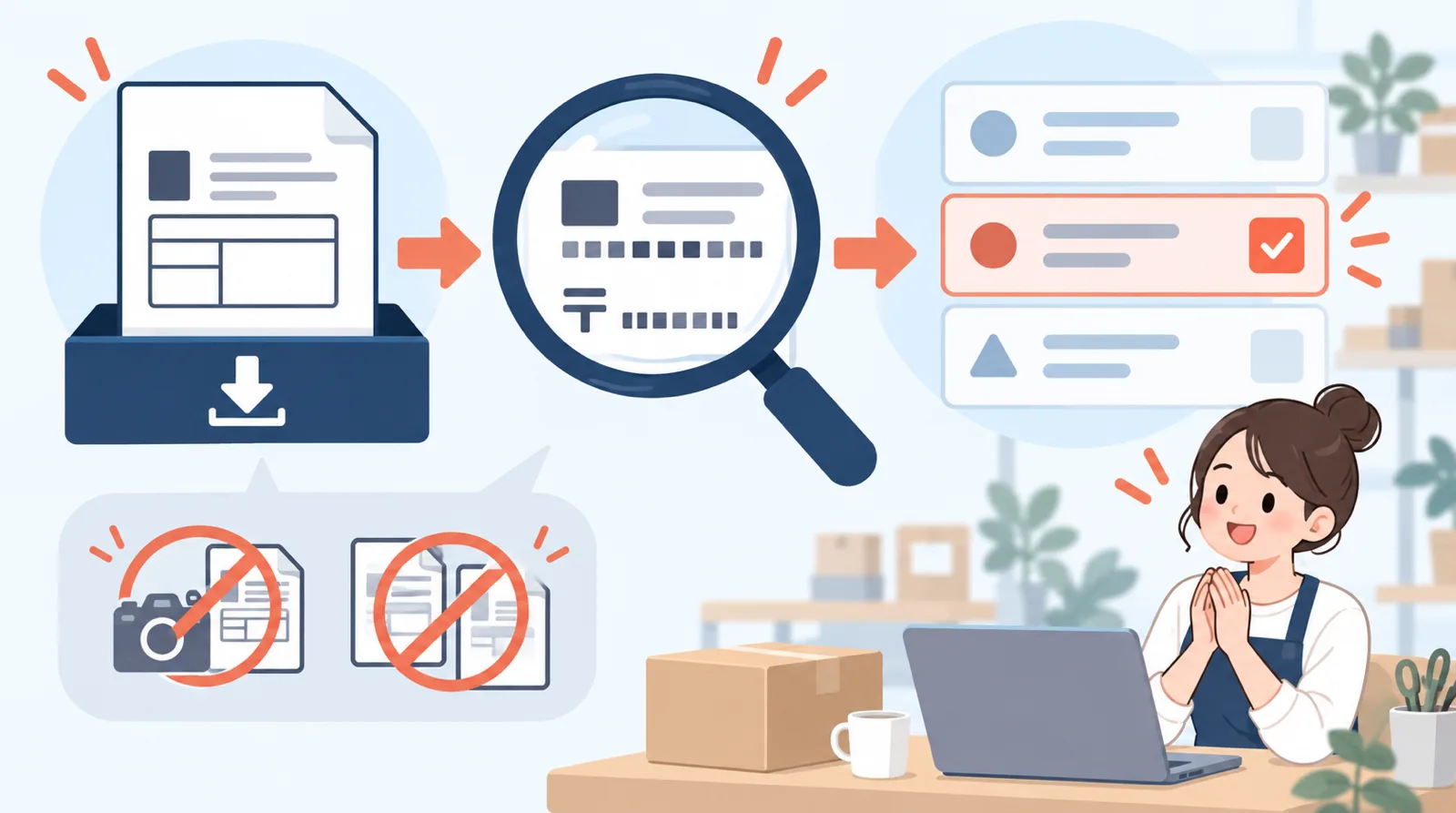
Two ways to register tracking numbers
Enter the number in the Shopify order
Open each Shopify order, enter its tracking number and carrier, and mark it as fulfilled. This works for a small number of orders or when a PDF does not identify a candidate.
For multiple orders, match each printed tracking number to its Shopify order one by one so that you do not register it to the wrong order.
Read the label PDF and review order candidates
Instant Shipping! for Click Post reads Click Post label PDFs, extracts tracking numbers, and matches Shopify order candidates. It uses postal codes to identify candidates and also uses an order name or order ID when the label PDF contains one.
Only original PDFs issued by Click Post can be used. You can select one or two files at a time, each up to 10 MB, with up to 80 labels in total. An order number is not always present in the PDF, and a postal code may return multiple candidates. Do not assume a match is correct without checking it.
Review the result before registering
After importing a label PDF, the app displays the tracking number and matched order candidates. Check them according to the number and match status:
- Compare the displayed tracking number with the one on the label PDF.
- Check the candidate order's address and details.
- If there are multiple candidates, choose the right order. Skip registration if you cannot decide.
- If no candidate appears, check the original label and Shopify order, then register manually if needed.
- After confirming the target, select Register.
Registration updates the selected Shopify order's fulfillment and sends the customer a shipping notification. This app does not let you turn that notification off. Confirm the address and tracking number before selecting an order. For corrections after registering to the wrong order, see what to do when a tracking number was entered incorrectly.
Hypothetical example: Suppose Shopify has two unfulfilled orders, #104 and #105, with the same postal code, and the label PDF shows #104 with that postal code. Because an order number is present, the app looks for an exact order-name match for #104 and checks the postal code when both records include one. If the PDF has no order number, #104 and #105 can both appear as postal-code candidates. Review the addresses and order details, then select the right one; if you cannot decide, uncheck it and skip it. Select Register only after confirming the order and tracking number.
If the result is shown as unknown after registration, do not submit the same registration again. Use Check result in the app to reconcile the Shopify status before taking another step.
What to check before registering
| Check | Where to look | If it does not match |
|---|---|---|
| Tracking number | Label PDF and extracted result | Open the PDF and verify the number manually |
| Postal code and address | Label and order candidate | Do not select it; inspect the order details |
| Order name or ID | PDF, when present, and Shopify order | It may be absent, so consider the other information too |
| Fulfillment status | Shopify order | Check whether it has already been fulfilled |
If a tracking number or order candidate does not match, do not register based on a guess. Recheck the original PDF and wait until you can identify the Shopify order. If the PDF cannot be read, see how to troubleshoot a Click Post PDF import.
Frequently asked questions
Q. Does importing a PDF automatically register a shipment in Shopify?
No. The app reads the tracking number and matches Shopify order candidates, then you review the details and select Register. Importing alone does not register a shipment.
Q. Will the tracking number always match the correct order?
When the PDF contains an order identifier, the app searches unfulfilled Shopify orders for an exact order-name match and cross-checks the postal code when both the label and order have one. Without an identifier, it searches open, unfulfilled orders with a matching postal code. The PDF may not always contain an order number, and a postal code may return multiple candidates or none. Check the label and order details, and skip registration if you cannot identify the right order.
Q. Will the customer receive a shipping notification after registration?
Registering through the app updates the Shopify fulfillment and sends a shipping notification to the customer. You cannot suppress the notification for this registration.
Q. Do I need to replace my current CSV export app?
That depends on what your current app does. Exporting addresses from Shopify to a Click Post CSV and reading a completed label PDF to register tracking numbers in Shopify are separate steps. Review which functions you need before choosing.
Summary
Even when an app extracts tracking numbers from Click Post label PDFs, review the Shopify order candidates and addresses before registration. Do not automatically accept no match, multiple matches, or a mismatch; investigate or use manual registration instead.
If you want to review your tracking-number workflow, compare it with Instant Shipping! for Click Post. The full guide to shipping Shopify orders with Click Post introduces the app and workflow.
As of 2026-10-14, the Shopify App Store listing displays a monthly price of $8 USD and a 10-day free trial. Prices, billing currency, and trial terms can change, so check the current listing before installing. The app's current implementation and public listing were checked on the same date.