
ClickPost’s 20 full-width character limit per address field: splitting and handling format variations
Have a ClickPost CSV address error? The bulk-application template provides up to four address lines, with a limit of 20 full-width or 40 half-width characters per line. Split the order address without dropping details, then compare the imported data and printed label with the original order.
CSV format errors and an incorrect address in the order are different problems. Check the import result for the first, and verify the order details or ask the customer about the second.
ClickPost’s four address lines and CSV limits
The official ClickPost CSV manual allows up to four address lines. Each line must be within 20 full-width or 40 half-width characters, and at least one of the four address fields is required (checked October 14, 2026).
| CSV column | Field | Limit |
|---|---|---|
| D | Address line 1 | 20 full-width or 40 half-width characters |
| E | Address line 2 | 20 full-width or 40 half-width characters |
| F | Address line 3 | 20 full-width or 40 half-width characters |
| G | Address line 4 | 20 full-width or 40 half-width characters |
The manual sets the number of fields and their length limits. It does not prescribe which address components must go on each line. Choose a layout that keeps the complete address readable.
Map the Shopify order address
The fields available in an export depend on the method you use. Check how that method maps the order’s prefecture, city, street, building and room details into ClickPost’s four address fields. A long address placed in one field may exceed its limit.
Do not shorten a building name or remove a block number just to fit. If changing the wording could change the destination, confirm the correct form with the customer.
Standardize address formatting only after comparing it with the order
Keep the original Shopify order address unchanged and compare it with the proposed CSV value. The example below shows one field from an invented address. The official manual defines field limits and CSV format, but does not prescribe a universal way to standardize digits or separators.
- Before (address line 2, invented example): 1-2-3
- CSV proposal (address line 2, invented example): 1-2-3
Only the width of the digits and separators differs in the displayed field. The other fields in the fictional address, including the building and room details, remain unchanged. Standardize the formatting only when comparison with the original confirms that it is the same address. If the number sequence changes, an address element is missing, or a proper name is replaced, do not make the edit. Never shorten or delete address details. Ask the customer when the intended meaning is uncertain.
Separate address problems by type
A ClickPost CSV issue can appear as an import error, while an incorrect order address may only become apparent after dispatch. The official manual says to correct the CSV and import it again when an import error appears.
An address field exceeds its limit
A building name or room number added to the street line can make one field too long. Move address components to another line while retaining the complete address. Do not delete characters to make a row fit.
The CSV columns or encoding are wrong
Even a correct address may fail to import if the template columns or encoding have changed. Use the official CSV text format, keep the header unchanged, and save the file in Shift-JIS. The postal code must contain seven half-width digits, either without a hyphen or with one half-width hyphen (eight characters in total).
The source address is missing or incorrect
A successful CSV import does not prove that the address itself is correct. Check the postal code, street number, building and room number against the order. If something is unclear, ask the customer instead of guessing.
Split the address and check the printed label
Grouping the prefecture and city, street and block number, then building and room details can make the address easier to review. This is an example layout, not a fixed rule in the official manual.
| Address field | Example |
|---|---|
| Line 1 | Fictional Tokyo Sample Ward Sample Town |
| Line 2 | 1-2-3 |
| Line 3 | Sample Residence, Building A, Room 501 |
| Line 4 | Leave blank |
This is a fictional address, not a real location. For an actual order, keep the postal code, street, building and room details in full. If the complete address will not fit without shortening it, ask the customer how it should appear.
Before submitting the CSV and before dispatch, check that:
- All address details remain in lines 1–4.
- Each line is within 20 full-width or 40 half-width characters.
- The postal code uses the required half-width format.
- The CSV header, column order and Shift-JIS encoding match the official template.
- The printed label matches the original order.
If ClickPost reports an import error, correct that row in the CSV and import it again. Review the registered address before printing the label.
What to do with a returned parcel
Check the return reason and compare the printed label with the original Shopify order. If the address is incomplete or may be wrong, confirm it with the customer before deciding how to resend the parcel.
- Read the return reason on the parcel.
- Compare the printed label with the order address.
- Ask the customer to confirm any unclear address details.
- If you decide to resend, check the current fee and instructions in ClickPost before making a new application.
- Record the reason and confirmed correction in the order notes.
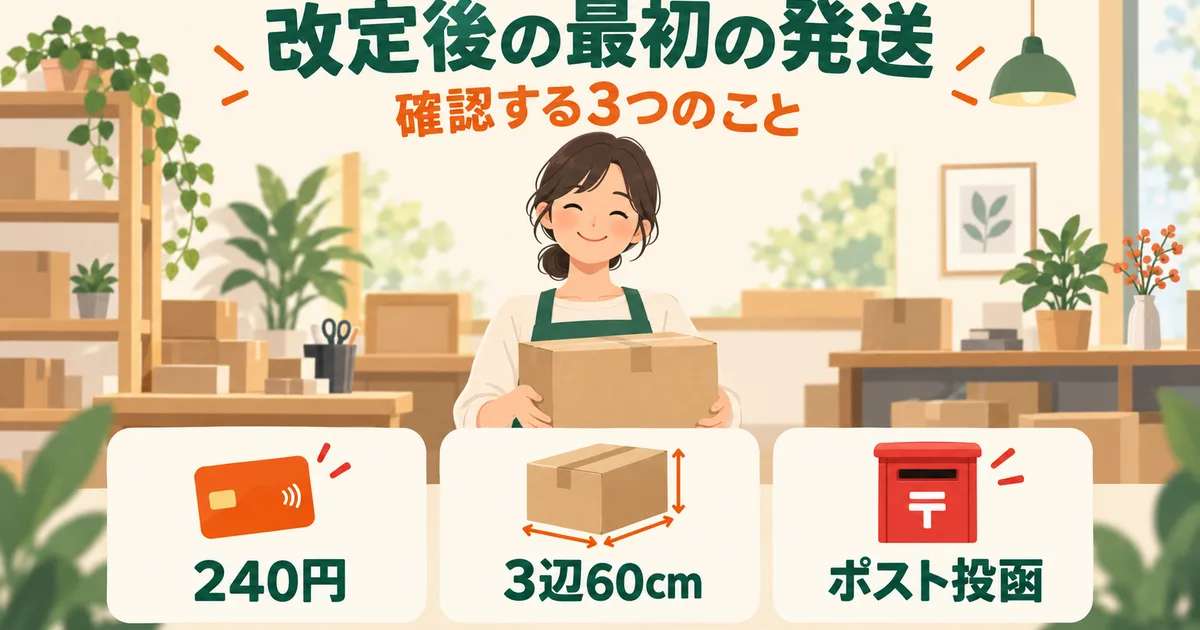
Japan Post currently lists ClickPost postage as a flat ¥240 nationwide. This rate was checked on October 14, 2026. This article does not state whether a return itself incurs an additional fee or whether a previous payment is refunded; confirm case-specific handling with Japan Post’s ClickPost information.
Common questions
What is the character limit for a ClickPost address field?
The bulk CSV has up to four address lines. Each allows up to 20 full-width or 40 half-width characters. The official manual does not fix which address components must go on each line.
How should I split a long address across four fields?
Use groups such as prefecture and city, street and block number, then building and room number, while keeping every address detail. This is a practical example, not a required official layout. Compare the CSV and printed label with the original order.
What is the postage when resending a parcel returned for an address issue?
Check the return reason and order address, and ask the customer to confirm any correction. Japan Post lists ClickPost postage at a flat ¥240 nationwide (checked October 14, 2026). See the official ClickPost service page for the current fee and confirm any return-specific charges or refund conditions with Japan Post.

Check the CSV and label after correcting an address
ClickPost provides up to four address fields, each limited to 20 full-width or 40 half-width characters. Preserve the complete order address, then review both the import result and the printed label.
The Shopify App Store listing for Instant Ship! for Click Post describes automatic address splitting, length adjustment and warnings during CSV output (checked October 14, 2026). Review the generated CSV for omitted address details or text errors. CSV import, application, payment and label printing take place on the Japan Post ClickPost site.
If you prepare the file without an app, follow the official ClickPost CSV manual. For the full export workflow, see creating a ClickPost CSV from Shopify orders.
Related reading
- Streamline Shopify and ClickPost shipping — A practical workflow from CSV export through tracking-number updates.
- Add tracking numbers without manual entry — Streamline the process from CSV export through tracking-number updates.
- Reduce inquiries with shipping emails that include tracking — Set up shipping notifications after dispatching to a verified address.