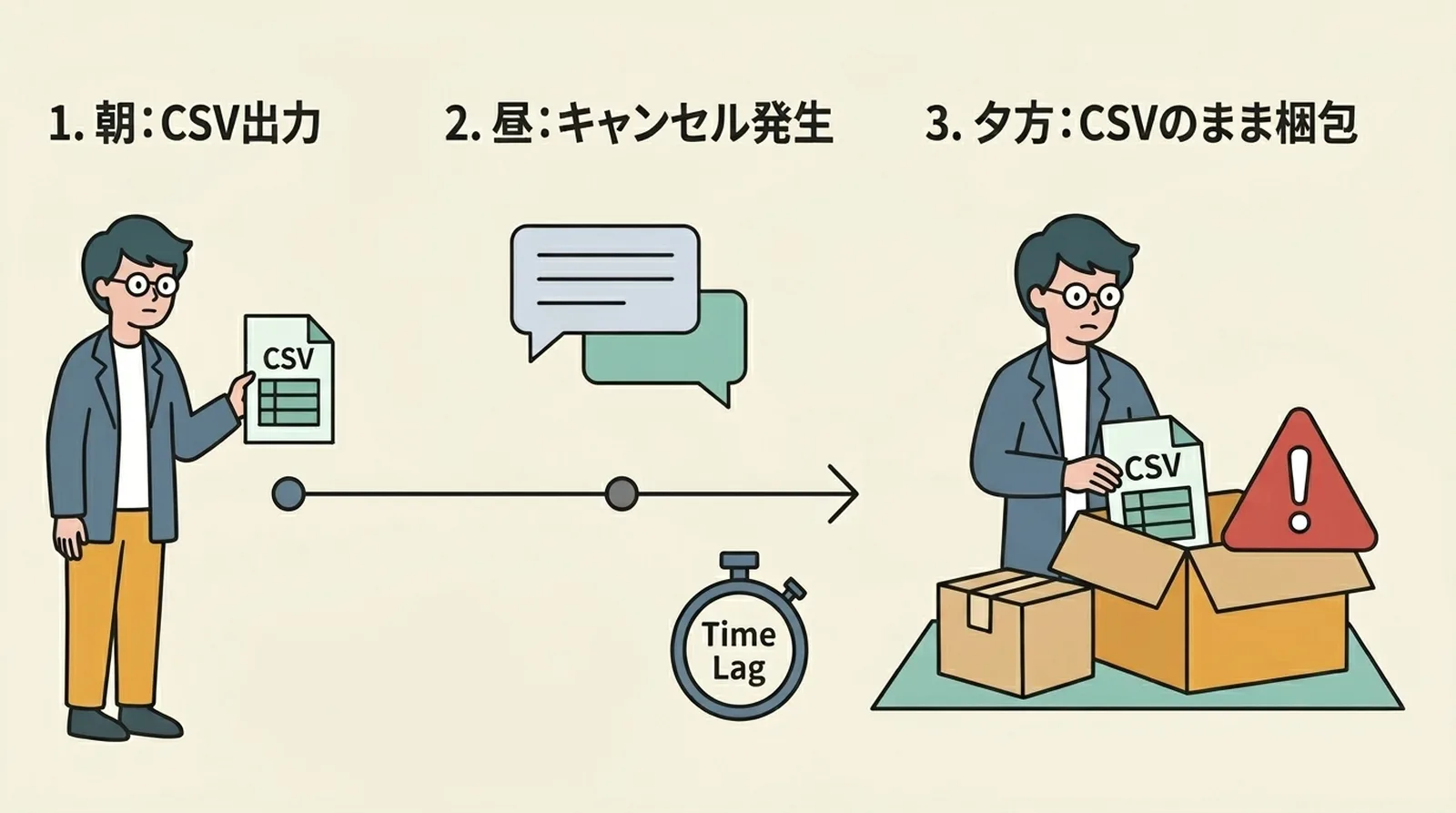
A customer may request a cancellation after you export orders from Shopify to a CSV. If you pack from that export without checking again, the file may no longer match the current orders.
Reduce the risk by filtering the order list, identifying each order in the exported file, and checking the latest status again after creating labels and before packing. A matching count alone does not prove that the same orders are included.
Separate Shopify order states from shipping eligibility
Canceling an order in Shopify stops order processing (Shopify’s cancellation guide). However, cancellation, a payment refund, fulfillment status, and whether a ClickPost label will be used are separate checks. Look at the order’s current state and decide whether it is actually eligible to ship.
To find orders for dispatch, combine filters such as order status, fulfillment status, and payment status in Shopify’s order list. For example, show open and unfulfilled orders, and add a paid-status filter only if your store’s shipping rules require payment before dispatch. “Paid” is not a required filter for every store.
Use Shopify’s order filters to see which states are available. Do not treat cancelled, on-hold, or partially fulfilled orders as ready to ship. After filtering, verify that the CSV or shipping app contains the intended orders.
Compare exported order numbers with the latest status
A CSV shows the orders at the time it was exported
If a cancellation or new order arrives after you export a CSV, its contents can differ from Shopify’s current order list. Comparing only the export count with the number of parcels does not show whether they are the same orders.
For example, suppose the CSV contains orders #104 and #105. Then #105 is cancelled and a new order #106 arrives. Shopify still shows two unfulfilled orders, but the set of orders has changed. Compare individual order numbers so the difference is visible.
Checks before packing
- Open the candidate orders and check for cancellations, holds, and refunds.
- Compare the order numbers in the CSV or label-creation screen with the corresponding Shopify orders.
- Remove orders whose status changed after export, and recreate the CSV if needed.
- Match each parcel to its order number and verify the address on the label.
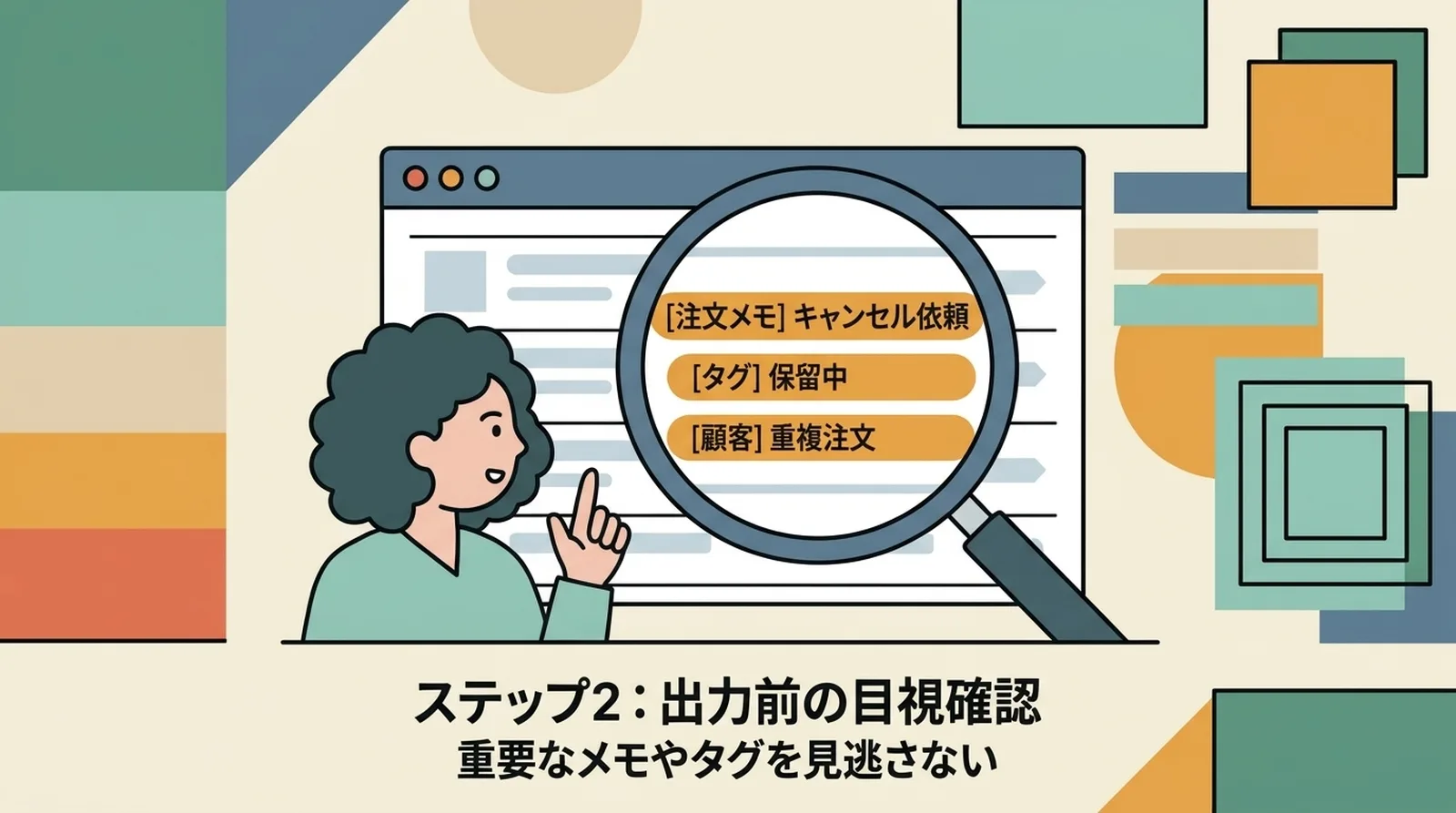
Check notes and tags when your store uses them as part of its workflow. They do not automatically identify every cancelled order, so also check the order status in Shopify.
What to do with a ClickPost label after cancellation
Even after creating an address label and completing the fare payment procedure, no ClickPost postage is owed if the parcel is not posted, according to Japan Post’s terms dated 2026-10-01. During the procedure, a temporary authorization is made to check payment-method validity and is automatically cancelled after a period. A temporary entry may remain on the screen or card statement, so do not assume it disappears immediately.
If an order is cancelled, set the label aside and do not pack or post that parcel. Check the dispatch deadline printed on the label and the status of the temporary authorization after the fare payment procedure in ClickPost’s guidance and terms.
If the parcel has already been posted, cancelling the Shopify order does not undo the physical dispatch. Check the tracking information, ask Japan Post how to handle the shipment, and tell the customer what happened.
Set a pre-dispatch checklist
Keep a short checklist where the shipping work is done so that everyone follows the same steps.
Before packing and dispatch
- The Shopify order number matches the number on the shipping list
- I opened each order and checked that it is not cancelled or on hold
- Only orders that meet the store’s payment rules are included
- The address and label match the intended order
- Orders changed after CSV export have been removed
- Parcels with unused labels are separated from those being dispatched
When you have many orders, split them into lists by shipping date or work batch. If you pause midway, note the last order number you checked along with what is complete and still pending; this makes it easier to resume.
Frequently Asked Questions
Q. After completing the ClickPost fare payment procedure, do I have to pay postage if the parcel is not posted?
Under Japan Post’s terms dated 2026-10-01, there is no obligation to pay ClickPost postage if the parcel is not posted after completing the fare payment procedure. During the procedure, a temporary authorization is made to check payment validity and is automatically cancelled after a period. Do not assume it disappears immediately; check the guidance for your payment method for display timing.
Q. Does filtering Shopify to “unfulfilled” orders exclude cancelled orders?
Combine order-status and fulfillment-status filters, then verify which orders are included in the CSV or shipping app. An order can be cancelled or put on hold after export, so check its latest state again before creating a label or packing.
Q. Do I always need a “paid” filter?
That depends on your store’s shipping rules and payment methods. Add it if your store does not ship before payment. If you accept cash on delivery or manual payments, do not decide whether to ship from payment status alone; follow your store’s order-processing rules.
Summary
To prevent shipping a cancelled order, compare each order number with Shopify’s latest status instead of relying only on the CSV count. Remove orders that changed after export, and set aside parcels with labels you will not use.
Keep the fare payment procedure, Shopify order cancellation, and physical dispatch as separate steps in your workflow.
See the full Shopify and ClickPost shipping workflow for the overall process.
This article’s Shopify order-cancellation and filtering guidance and Japan Post’s ClickPost terms dated 2026-10-01 were checked on 2026-10-14. Order state, refunds, and the fare payment procedure are separate processes.